ProtonPlus for Linux Compatibility Tool Management
A modern compatibility tools manager
At a glance
- What is it?
- ProtonPlus is a GTK4 and libadwaita manager for Proton, Wine, DXVK, and VKD3D installations used by Linux game launchers. Its launcher detection and command-line interface suit users who want one place to install releases and manage per-game settings, but packaging permissions can limit visibility.
- Who is it for?
- ProtonPlus suits Linux players who install several launchers or frequently change Proton and Wine builds, especially when those launchers use documented system or Flatpak locations. It is a poor fit for someone whose launcher data sits in an unsupported packaging format or directory, or who expects native packages to match Flathub release timing.
- Can I use it commercially?
- Yes, with conditions. GPL-3.0 is a copyleft licence: if you distribute software that includes it, you must release that software's source code under the same licence. Running it internally without distributing it does not trigger that obligation.
- Is it still maintained?
- Yes. The repository last received commits 2 days ago.
- What is it written in?
- Mainly Vala, according to GitHub's language statistics.
Answers come from the project's GitHub data, last synced on November 7, 2026, and from our analysis. They are not legal advice.
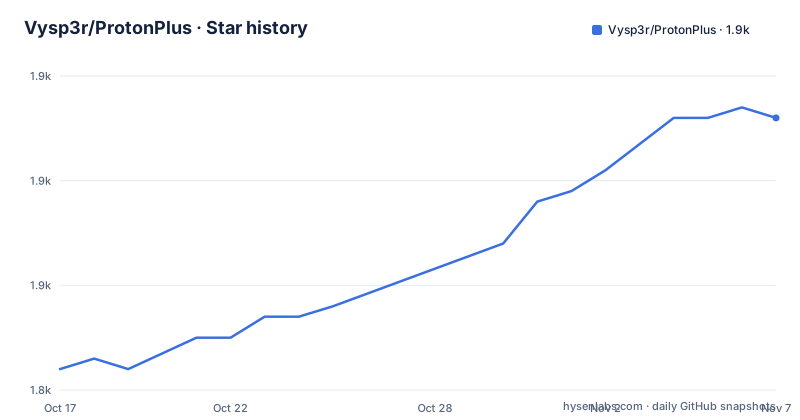
Star history
- Vysp3r/ProtonPlus1,866 ★ · +24
| Repository | 2026-10-17 | 2026-11-07 |
|---|---|---|
| Vysp3r/ProtonPlus | 1.8k | 1.9k |
24 Stars in the last 21 days, measured from the daily GitHub snapshot. Compare with other projects
Editorial analysis
ProtonPlus Scope Across Steam and Linux Launchers
ProtonPlus addresses a specific Linux gaming problem: compatibility tools are distributed by several upstream projects, while game launchers expect them to live in different installation layouts. Installing Proton, Wine, DXVK, or VKD3D by hand therefore means selecting a release, checking the CPU architecture, placing files where the launcher can find them, and later repeating that process for updates or removals. ProtonPlus puts those operations in one GTK4 and libadwaita application.
The target user is a Linux player whose Steam or third-party launcher relies on Windows compatibility components. The documented launcher coverage is substantial. Steam installations can be system, Flatpak, or Snap installations. Faugus Launcher, Lutris, Heroic Games Launcher, Bottles, and WineZGUI have documented system and Flatpak detection. Tool categories vary by launcher, so ProtonPlus does not claim that every launcher can use every Proton, Wine, DXVK, or VKD3D release.
It is also intended for users who need more than a version picker. The application can browse Steam games, set default and per-game compatibility tools, edit launch options, apply changes to multiple games, and help coordinate required Steam restarts. Those functions place it closer to a compatibility configuration manager than a simple archive downloader.
The project does not replace Steam, Lutris, Heroic, Bottles, or WineZGUI. It discovers their installations and manages supported compatibility tools around them. That distinction matters for adoption because launcher-specific tool support still depends on the detected launcher type and the provider catalog.
Provider Releases, CPU Variants, and Launcher Layouts
According to the README, ProtonPlus maintains a built-in provider catalog rather than shipping a fixed collection of installers. Release information comes from upstream sources on GitHub, GitLab, Forgejo, and GitHub Actions. Listed providers include Proton-GE, Proton-CachyOS, DW-Proton, Proton-RTSP, Proton-Tkg, Proton-EM, Proton-Wineland, Luxtorpeda, Boxtron, and Roberta. Wine, DXVK, and VKD3D releases are also drawn from named upstream projects.
The data flow begins with installed launchers. ProtonPlus detects system and Flatpak installations, with Steam Snap support also documented. It then presents releases available for the detected launcher and filters variants against the CPU architecture and instruction-set level. The README specifically mentions native AArch64 builds and supported x86-64 builds on AArch64 hosts. This filtering prevents an architecture-incompatible release from being treated as equivalent to a compatible one.
Downloaded tools are installed into layouts expected by each launcher. The application tracks active downloads and updates in its header, where the documentation says it provides a shared speed limit, cancellation, and desktop notifications. Installed versioned releases or `Latest` builds can be updated, and old versions can be removed.
This design also explains an important boundary. ProtonPlus depends on upstream release metadata and on being able to recognize the launcher layout. If an upstream source changes its release format, or if a launcher lives in an unsupported location, the documented behavior does not guarantee that detection or installation will succeed.
Flatpak Installation and the First Launcher Check
The README recommends the Flathub package. The first command installs `com.vysp3r.ProtonPlus`, and the second starts it. If Flathub is not configured, the documented remote-add command can be run first. After the application opens, the relevant first check is whether it detects the launchers and libraries the user intends to manage. The README does not document a scripted output check for that graphical discovery step.
The Flatpak uses host access to find Steam libraries and launcher data. It also requests access to supported launcher Flatpak data directories. Those permissions are part of the package's operating model, not optional details. A successful installation can still produce an incomplete launcher list if Steam or another launcher is installed in an unsupported location or through another packaging format.
The Flatpak commands are:
flatpak install flathub com.vysp3r.ProtonPlus
flatpak run com.vysp3r.ProtonPlus
If the Flathub remote is missing, the README gives this command:
flatpak remote-add --if-not-exists \
  flathub https://flathub.org/repo/flathub.flatpakrepo
A real first use then consists of comparing the application's detected launchers with the launchers already installed on the system. The README says only installed and detectable launchers are shown. It does not provide a documented command for listing detected graphical launchers or forcing rediscovery after moving their data.
ProtonPlus Game Configuration and Steam Integration
The Games view extends ProtonPlus beyond tool installation. For detected Steam games, the README documents selection of default and per-game compatibility tools, editing launch options, and applying compatibility-tool or launch-option changes to multiple games. This is useful when a user keeps several Proton versions because one game works under one build while another requires a different release.
Changes can have consequences outside ProtonPlus. The application coordinates required Steam restarts after compatibility-tool or Steam configuration changes. That coordination is necessary because a compatibility setting written in one process is not necessarily consumed immediately by Steam. The README does not describe rollback for a mistaken per-game setting, so users should not assume the application has an explicit undo workflow.
Steam integration also includes profile configuration and creation or removal of a ProtonPlus shortcut in Steam from the preferences view. MangoHud presets can be configured when MangoHud is installed, with visual, performance, metrics, and extra settings. These features connect tool management with launch-time configuration, but they do not eliminate launcher-specific decisions.
Gamepad navigation is documented across Tools, Games, preferences, dialogs, and menus, including contextual button hints and optional vibration. For users who configure Linux games from a controller, this is a real interface feature rather than a general accessibility claim. The README does not document whether every launcher and every dialog supports identical controller behavior.
ProtonPlus CLI, Native Build, and Packaging Boundaries
ProtonPlus includes a command-line interface for listing launchers and installing, updating, and uninstalling tools. The README confirms those operation groups, but it does not show their exact syntax, option names, or output format. Inventing an invocation would make automation harder to trust, so the CLI should be verified against the installed version before it is used in a script.
Native development builds are supported with Meson. The repository Makefile exposes a native installation path through its `install` target, which builds the application and then runs `sudo meson install -C build-native`. Its test target configures `build-tests`, compiles it with Meson, and runs the test suite with verbose output.
For a native source checkout, the documented Makefile command is:
make installThis invokes the native build and installs into the native Meson build prefix through the command shown in the Makefile. Community packages are also listed for distributions including Arch Linux and Fedora, but the README says they are maintained outside the ProtonPlus project. Their release timing and packaging defaults may therefore differ from Flathub.
This packaging split affects upgrades. Flathub, native Meson installation, AUR, COPR, and other community builds are separate delivery paths. The README does not document a universal migration command between them.
ProtonPlus Failure Modes and Upstream Dependencies
The clearest failure mode is incomplete Flatpak visibility. ProtonPlus needs host access to locate Steam libraries and launcher data, plus access to supported Flatpak data directories. A launcher in an unsupported path or packaging format may not be detected. In that case, installing more tools through the application does not solve the discovery problem.
A second limitation is provider variability. Release data and architecture variants come from several upstream hosting services. The README does not promise that every provider exposes the same release types, metadata, or update cadence. The built-in catalog is broad, but availability still depends on each provider's releases and on compatibility with the selected launcher.
ProtonPlus is also the wrong choice for a user who wants it to manage games outside its documented launcher coverage. The supported table names specific launchers and installation types, and it says tool availability depends on both. There is no documented generic Wine-prefix editor or unrestricted arbitrary-tool installer in the README.
For macOS or Windows, the choice is clearer: ProtonPlus runs on Linux. Its native build also assumes a Linux development and installation environment rather than providing cross-platform packages.
Repository activity is current on the available record. The last push was on 2026-10-14, after releases v0.6.8 on 2026-09-10, v0.6.7 on 2026-09-09, and v0.6.6 on 2026-09-04. The README also states that the maintainer would not be available until early October 2026, so contributor availability should be considered separately from repository activity.
GPL-3.0 and Alternative Compatibility Workflows
ProtonPlus is licensed under GPL-3.0. The repository includes `LICENSE.md`, and contributions are also represented by project community files. A distributor or integrator should review that license text for its own compliance and attribution obligations. This review is especially relevant when packaging, modifying, or redistributing the application outside the documented Flathub or community package paths.
The closest functional alternative is not another single GUI with the same scope. It is the workflow ProtonPlus consolidates: manage release files and launcher directories manually, use each launcher's own compatibility controls, and retrieve Proton or Wine builds directly from upstream projects. That approach avoids adopting ProtonPlus and its host-data permissions, but it also removes centralized detection, architecture filtering, multi-game edits, download coordination, and the documented multi-launcher interface.
Another alternative is relying on a launcher's built-in compatibility facilities when it already handles the required tool versions. This can be simpler for a user with one launcher and one stable Proton setup. ProtonPlus becomes more relevant when the same machine contains multiple supported launchers, several tool categories, or repeated version changes.
The CLI offers a distinct path for automation, but its command syntax is not documented in the README. Until that syntax is confirmed, the graphical Flathub build is the clearer documented first step.
Editorial conclusion
ProtonPlus suits Linux players who install several launchers or frequently change Proton and Wine builds, especially when those launchers use documented system or Flatpak locations. It is a poor fit for someone whose launcher data sits in an unsupported packaging format or directory, or who expects native packages to match Flathub release timing. Verify launcher detection, filesystem access, architecture filtering, and CLI syntax for the required installation first. Adoption is most defensible when Steam, Lutris, Heroic, Bottles, or WineZGUI appears correctly on the first launch.
Frequently asked questions
How do I install ProtonPlus on Linux?
The README recommends installing the Flathub package with `flatpak install flathub com.vysp3r.ProtonPlus`, then launching it with `flatpak run com.vysp3r.ProtonPlus`. It also provides a separate command for adding the Flathub remote when needed.
Which launchers and compatibility tools does ProtonPlus support?
ProtonPlus documents support for Steam, Faugus Launcher, Lutris, Heroic Games Launcher, Bottles, and WineZGUI, with launcher-specific tool categories. Its catalog includes Proton, Wine, DXVK, and VKD3D providers, while actual availability depends on the detected launcher and installation type.
Why might ProtonPlus fail to detect my Steam installation?
The Flatpak relies on host access and supported Flatpak data directories to locate Steam libraries and launcher data. The README warns that a launcher in an unsupported location or packaging format may not be detectable.
Can ProtonPlus be used from the command line?
The README states that the command-line interface can list launchers and install, update, and uninstall tools. It does not document exact commands or options, so the syntax must be checked in the installed version before scripting it.
Official sources
Add this badge to your README
If you maintain this project, the badge below links readers to this analysis and shows its maintenance status from the daily GitHub snapshot. Paste the markdown into your README; add ?metric=license or ?metric=stars to the image URL for a different field.

[](https://hysenlabs.com/projects/vysp3r-protonplus)Star history chart for your README
[](https://hysenlabs.com/projects/vysp3r-protonplus)Was this useful?