SkillDock: the difference between a managed skill and an enabled skill is the whole product
SkillDock is an AI skill manager and skill management desktop app for Claude Code, Cursor, Codex, Windsurf, Gemini CLI and other AI coding tools. Install, organize, edit, sync and update Skills, MCP servers and plugins with real-directory scanning and Git-aware diff previews.
At a glance
- What is it?
- SkillDock is a Tauri desktop app that installs, diffs and distributes AI coding skills, MCP server configurations and plugin packages across more than thirty coding tools. Its central idea is a two-state model: managed means the tool owns the files and the lifecycle, enabled means the skill is linked into a particular tool, and only managed skills can be shared. The diff view is CodeMirror's merge addon and updates ship through the desktop updater rather than a package registry.
- Who is it for?
- The problem SkillDock solves is not finding a skill. It is that a skill you installed for one tool is invisible to the other six you use, that nobody knows which copy is authoritative, and that updating one means hand-copying files and editing configuration by hand.
- Can I use it commercially?
- Yes. MIT is a permissive licence: you can use, modify and sell software built on it, as long as you keep its copyright and licence notices.
- Is it still maintained?
- Yes. The repository last received commits 43 days ago.
- What is it written in?
- Mainly Rust, according to GitHub's language statistics.
Answers come from the project's GitHub data, last synced on October 8, 2026, and from our analysis. They are not legal advice.
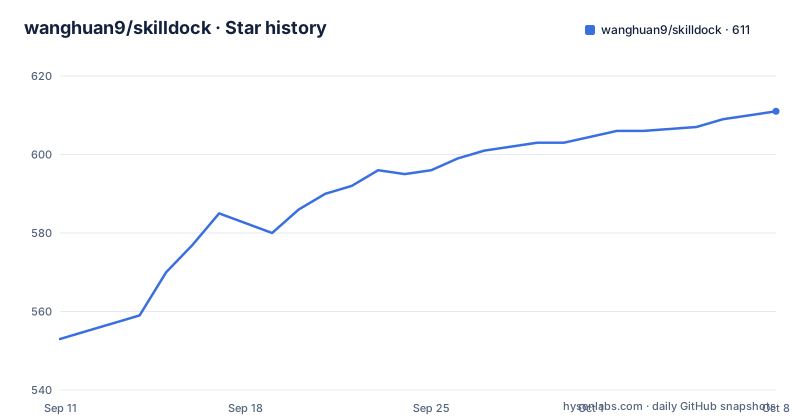
Star history
- wanghuan9/skilldock611 ★ · +58
| Repository | 2026-09-11 | 2026-10-08 |
|---|---|---|
| wanghuan9/skilldock | 553 | 611 |
58 Stars in the last 27 days, measured from the daily GitHub snapshot. Compare with other projects
Editorial analysis
Managed and enabled are two states, and mixing them up is the actual problem
Everything else in this application follows from one distinction that the documentation states plainly. A managed skill is one where the tool knows where the real files live and owns the update and removal lifecycle. An enabled skill is a managed skill linked into a particular coding tool. Those are different things, and the reason they need separating is that a skill is physically present in six tools but authoritative in exactly one place. Only managed skills can be distributed centrally: the copy in the managed library is the single distribution source, and enabling it in another tool is a symlink rather than a duplicate. So editing a skill in one tool edits it everywhere, and deleting it removes it everywhere, which is the property that makes a shared skill safe to maintain. It also gives the per-tool screen its vocabulary. That screen lists entries as managed, unmanaged or conflicting, and offers to import an unmanaged skill into the managed library or to remove it from the current tool, so the app is essentially asking you to classify every skill on your machine and then holding you to it.
Two managed locations, and one of them belongs to something else
There is a table of how a skill enters the system and where it lands, and the second row is the interesting one. Anything you install through the app's own marketplace, from a Git repository or from a local folder lands in the app's managed directory under the user's home. Anything you installed globally with a separate skills command line tool lands in a different directory, one owned by that other tool. So the application recognises a skills directory it does not control, treats what is inside it as a different category, and presents a smaller set of operations for it. That is a piece of honest compatibility work rather than a feature: the alternative would be silently adopting a directory the user installed through someone else's route, and then being the thing that deletes it on the next uninstall. The consequence for you is that the word managed means something different depending on how a skill arrived, and the two rows of that table are the compatibility contract to read before you move anything. Skills already sitting in a tool's own directory can be imported first and then distributed from there.
Skills, plugins and MCP servers are three lifecycles, not three tabs
The application has three sections and they are not three views of the same thing. Skills are files. A plugin is a higher-level package that can expose skills, agents, commands, MCP integrations and host-specific capabilities, and the application installs the package once, tracks its source, and lets you turn it on or off per host tool. An MCP server is neither: it is managed as a shared configuration record, and the enabled servers are written into each tool's own configuration file. So the same screen writes to three different targets depending on the kind. A skill install creates or links files in a directory. A plugin install records a package and its source and toggles capabilities. An MCP install edits somebody else's configuration file on your behalf, which is the one that can break a tool if it goes wrong. Once installed, plugins also get the Git treatment: local change and pending-push detection, update checks, diff previews and pushes, so a plugin is treated as a repository you maintain rather than a binary you consume.
Thirty-four named tools, and a setting for which ones actually work
The supported list is long enough to be the feature. It covers the major assistants and editors, one commercial IDE, several agent clients with distinct names, a build assistant, and a pair of regional variants of the same tool listed separately. Several of these names are agent runtimes you will recognise from elsewhere in this category, which tells you the developers are tracking the whole field rather than one ecosystem. The value of the breadth is real: the one-click sync feature exists precisely to avoid hand-copying files and editing complicated configuration files, and that pain multiplies by the number of tools you use. The cost is that every tool has its own configuration format and its own skill directory convention, and some entries in that list will be aspirational for any given release. The application is honest about this, which is why tool support status is a configurable setting rather than an assumption. Read that list and treat it as a feature matrix with varying depth rather than as thirty-four equal integrations.
CodeMirror does the diffing and the updater does the updating
The dependency list is where this project tells you what it actually uses, and it is unusually informative. Three CodeMirror packages, one of them the merge addon, which is what a side-by-side diff view is built from. A syntax highlighter. A Markdown renderer with the GitHub flavour extension, which is how skill files render. And on the desktop side, the platform's own API, plus dialog, process and updater plugins. So three of the headline features, diff review, one-click application updates and launching the editor you configured, are built on specific libraries rather than hand-rolled. The updater is the one with a consequence worth thinking about: this application updates itself as a desktop application, not as a package you install from a registry. The manifest confirms that shape, since the package is marked private, so there is no registry entry to pin and the GitHub release is the artefact. Release automation is split across two languages, with a shell script checking for secrets before a release, a Node script generating the notes and a shell script doing the publishing.
The manifest version matches the newest tag, which is unusual
Small observation, but it says something about the release discipline. Three tags went out in about thirty hours at the end of September, and the version in the package manifest is exactly the newest one. In a category where the manifest and the release tag routinely disagree, with one sitting several versions behind the other, having them agree is a sign that the release path is scripted rather than manual. It helps when you write an update check against either value. The rest of the metadata is unremarkable and healthy: an MIT licence, a Chinese readme alongside the English one, a troubleshooting page linked from the top of the readme, about six hundred stars, a fork count under thirty which fits a desktop application rather than a library, and fourteen open issues. The last push is dated a few weeks before this listing was assembled, and the release tag and the push are the same day, which together say the project ships rather than accumulates.
Revert reaches individual hunks, which is the safety story
The Git features are the part that changes the risk profile of sharing skills, and the granularity is the detail. You can review staged and unstaged diffs and incoming updates, and revert individual files or individual hunks, not just whole versions. That matters because the failure mode of a shared skill library is not that a teammate publishes something bad, it is that a teammate edits a file while you have a local change in the same file, and the merge is where you lose your work. With hunk-level revert you can take the update and keep yours. The workflow this supports is described as team collaboration without intermediate handoff directories: a publisher modifies a skill locally and pushes it back with one click, and a user updates with one click while seeing who updated the package and what changed. So the same person is often both, which is what makes pending-push detection necessary. If you are introducing this into a team, the question to ask first is what happens to a local edit when an update lands, and the diff view is where you will find out.
Three install sources per type, and a dedicated troubleshooting page
Install flows are split by package type, which is the right structure, because the three things have different trust models. Skills install with one click from two named marketplaces, or from a Git repository, or from a local folder. MCP servers install with one click from a directory, and then you own the shared configuration and the tool lifecycle. Plugin packages install with one click from a Git repository, then you pick which host tools to enable and the bundled skills, commands, agents and integrations come with them. A local folder as a skill source is the quiet one: it means you can point the app at a directory of skills you wrote yourself, which is how most people will actually use it. The presence of a troubleshooting document linked from the top of the readme is the tell about this category. Nothing here is conceptually hard, and yet the failure people report is that a tool cannot find its skills after an install, which means the conventions are genuinely in tension and somebody is going to hit them.
Editorial conclusion
The problem SkillDock solves is not finding a skill. It is that a skill you installed for one tool is invisible to the other six you use, that nobody knows which copy is authoritative, and that updating one means hand-copying files and editing configuration by hand. The two-state model is the answer and it is worth stealing whatever else you learn here: managed says where the real files are and who owns updating and removing them, enabled says which tools currently see them, and distribution is a symlink from one managed copy rather than a copy per tool. What to weigh before you install it. You are putting a desktop app with write access to your coding tools' configuration directories in the middle of that loop, which is a real trust decision, and the app itself has a setting for which tools it claims to support, so read that list rather than assuming. Diffing and update detection lean on CodeMirror and the Tauri updater rather than on a registry, which means updates arrive as signed application releases rather than as package versions you can pin. Confirm three things before you trust it: which of your tools are actually in the supported list versus merely named, whether the managed directory for skills you installed with another tool is one it will take ownership of or only display, and what happens to a skill you have edited locally when an upstream update arrives, since the answer decides whether you can adopt this without a backup.
Frequently asked questions
What does SkillDock manage?
Three different things with three different lifecycles. Skills are files you can inspect, edit and distribute. Plugins are higher-level packages that can expose skills, agents, commands and MCP integrations, installed once and enabled per host tool. MCP servers are managed as shared configuration records and written into each tool's own config file.
Which AI coding tools does SkillDock support?
More than thirty are named, covering major assistants, editors, agent clients and one commercial IDE, including separate regional variants of the same tool. The application also has a configurable tool support status setting, so the list is better read as a feature matrix of varying depth than as a set of equal integrations.
What is the difference between a managed and an enabled skill in SkillDock?
Managed means SkillDock knows where a skill's real files live and owns its update and removal. Enabled means a managed skill is linked into one particular tool. Only managed skills can be distributed, and distribution is a symlink from the single managed copy, so editing or deleting one place affects every tool that has it enabled.
How does SkillDock show me changes before I update?
It treats skills and plugins backed by Git as repositories, detects upstream updates, local edits and pending pushes, and shows staged and unstaged diffs plus the incoming changes. Revert works at individual file and individual hunk level, so you can take an upstream update and keep a local edit in the same file.
Where does SkillDock put skills it did not install itself?
Skills you installed globally with a separate skills command line tool live in a directory that other tool owns, and SkillDock treats them differently from the ones it installed, offering a smaller set of operations rather than adopting the directory. Skills already in a tool's local directory can be imported first, then managed and distributed from there.
Official sources
Add this badge to your README
If you maintain this project, the badge below links readers to this analysis and shows its maintenance status from the daily GitHub snapshot. Paste the markdown into your README; add ?metric=license or ?metric=stars to the image URL for a different field.

[](https://hysenlabs.com/projects/wanghuan9-skilldock)Star history chart for your README
[](https://hysenlabs.com/projects/wanghuan9-skilldock)Was this useful?