zotero-pdf-translate: selection level translation inside the Zotero reader, with a per IP quota on MyMemory
Translate PDF, EPub, webpage, metadata, annotations, notes to the target language. Support 20+ translate services.
At a glance
- What is it?
- Translate for Zotero turns selected text, highlights, notes and item metadata into translations through 20+ services, most of them listed as needing no secret. Its boundaries are narrower than the feature list implies: sentence alignment covers only en2zh and en2en, annotation translation ships switched off, note capture needs an editor open first, and the one documented free quota, MyMemory's, is counted per IP.
- Who is it for?
- This plugin earns its place for anyone reading in Zotero who keeps hitting an English passage and wants the sentence back in their own language without leaving the reader. It is the wrong tool for batch translation of a whole file, for sentence by sentence translation outside English to Chinese and English to English.
- Can I use it commercially?
- Yes, with strict conditions. AGPL-3.0 is a network copyleft licence: if people use a modified version over a network, for example as a hosted service, you must offer them its source code under the same licence.
- Is it still maintained?
- Yes. The repository last received commits 2 days ago.
- What is it written in?
- Mainly TypeScript, according to GitHub's language statistics.
Answers come from the project's GitHub data, last synced on November 15, 2026, and from our analysis. They are not legal advice.
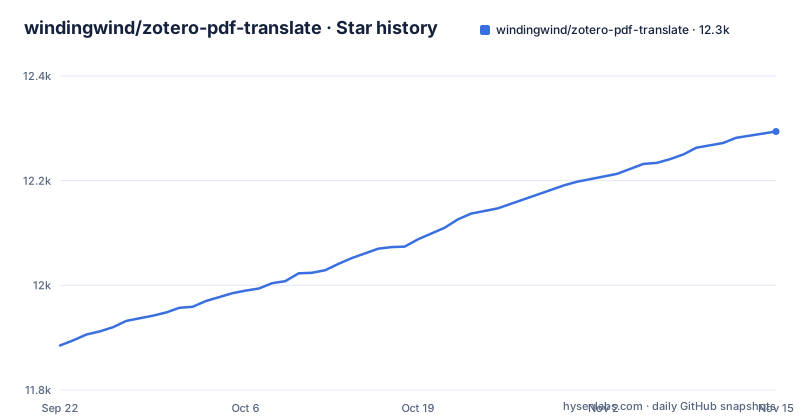
Star history
- windingwind/zotero-pdf-translate12,294 ★ · +409
| Repository | 2026-09-22 | 2026-11-15 |
|---|---|---|
| windingwind/zotero-pdf-translate | 11.9k | 12.3k |
409 Stars in the last 54 days, measured from the daily GitHub snapshot. Compare with other projects
Editorial analysis
Installation is a file you place by hand, and nothing documents what happens after that
The only documented install path is a file you fetch and load yourself. You download the .xpi from either the Latest Stable release or the All Releases list. In Zotero you click Tools in the top menu bar, then Plugins, which takes you to the Extensions page, where you click the gear icon in the top right, choose Install Plugin from file, browse to the .xpi, and finish. One browser detail is called out along the way: if you use Firefox you must right-click the .xpi and select Save As.
What that sequence does not cover is everything after it. The install steps do not say whether an installed .xpi replaces itself when a new version is published. The repository root does carry update.json, update-beta.json and update.rdf, the files that hold update information for a Zotero plugin, so the plumbing for a host-side update check exists in the tree. Whether you are pointed at it, and how often, is not explained.
The consequence for a reader is a maintenance routine you have to build yourself: check the releases page, download the new .xpi, walk the same five steps, and know which version you are running. With v2.4.6, v2.4.7 and v2.4.8 published in the recent past, that is a recurring task rather than a theoretical one.
main has moved past the released build, and the license is AGPL rather than permissive
package.json carries version 2.4.8, which matches the latest release, v2.4.8, published on 2026-10-03, following v2.4.7 on 2026-08-18 and v2.4.6 on 2026-08-01. The last push to the repository is dated 2026-10-03, the same day as that release, so the default branch and the latest release are currently in step.
The release cadence itself is worth reading as a signal about the project rather than as a number to memorise. Three patch level releases (v2.4.6, v2.4.7 and v2.4.8) across roughly nine weeks describe a plugin in steady correction rather than in upheaval. The root also holds a .husky directory, with husky and lint-staged among the development dependencies, which is a pre-commit hook setup.
The license is the item to settle before anything else, because it is the one with consequences you cannot undo later. package.json declares AGPL-3.0-or-later. An AGPL plugin carries obligations that a permissively licensed library dependency does not, and nothing in this repository summarises what those obligations mean for a modified copy you redistribute or for a derivative you keep internal. Read the LICENSE file before you fork it rather than after.
Ctrl+T and the concat modifier each do two different jobs depending on where the cursor is
A small set of keys carries more than one meaning, and which meaning you get depends on context. Ctrl+T translates the text you have selected. The same key pressed in the collection view does something else entirely: it shows or hides the translation of item titles. Item abstract translation is separate again, available from the right-click menu, and item title translation also has a right-click route.
The second overloaded control is the concat modifier. Holding Ctrl on Windows and Linux, or the command key on macOS, while selecting text in a PDF, EPub or webpage puts the selection into concat mode, so a passage split across several selections is submitted as one block instead of several fragments. That platform split arrived in v2.2.0. Concat mode can also be set without a key at all, by ticking the Concat Mode check box on the item pane.
The consequence is that these bindings cannot be learned from habit. Someone who holds the command key to select and copy inside the reader also enters concat mode, and someone pressing Ctrl+T from the collection list gets a titles toggle rather than a translation of the selected row. Neither breaks anything, but you will meet both on your first day.
Sentence alignment exists for en2zh and en2en, and no other pair is covered
SentenceBySentence Translation arrived in v1.1.0 and is reached by pressing shift and P after a translation and choosing Translate Sentences from the menu. The documentation attaches a hard boundary to it: it works only for en2zh and en2en for now. That is the entire extent of sentence level alignment in this plugin, and the limit is stated outright rather than left for you to discover.
Outside those two pairs, the consequence is concrete. Choosing Translate Sentences is not a path to sentence aligned output for Japanese into French, or German into Spanish, or anything else. Sentence alignment is what you need for subtitle work, for dubbing scripts, and for reading a foreign paper next to its original line by line. Those jobs need a different tool for every pair except English to Chinese and English to English.
What remains everywhere else is the default behaviour of submitting the whole selection as one block, which is fine for gist and poor for anything where a mistranslated clause matters.
Annotation translation ships off, and the Sync switch makes it a per machine setting
Highlighting or underlining text is the gesture people expect to trigger a translation, and it is the one that arrives disabled. Automatically Translate Annotation defaults to false, and enabling it also means choosing whether the translation is saved to the annotation comment or to the annotation body. Beside it sits a second switch, Automatically Translate Annotation from Sync, also false by default, which governs whether annotations arriving from your other devices are translated automatically.
The pair of defaults produces behaviour that catches people in both directions. On a fresh install, highlighting text does not save a translation to the annotation, because only Automatically Translate Selection fires by default. The Sync switch only matters for annotations that arrive from other devices: when it is on, they are translated automatically too.
So the consequence for a reading workflow across a laptop and a desktop is that you configure these two switches in each installation, and annotations synced from elsewhere are translated automatically only if the Sync switch is on.
The Add Translation to Note control stays invisible until a note editor already exists
The selection pop-up carries an Add Translation to Note action, and one condition attached to it is easy to miss: the control is invisible if no active note editor is opened. The note feature itself arrived in v0.4.0 and, as the documentation puts it, only works when a note editor is active. Underneath it sits Replace Raw, off by default, which decides whether adding to a note swaps the translation in for the original text or keeps both.
So the missing button is not a broken install. The plugin is waiting for a note editor to exist, and the order of operations is reversed from what people try first: start editing the note, then go select text in the reader. The consequence is that a user who reaches for the feature before creating a note sees an absent control and no message explaining why, and has to know from the documentation that something else has to happen first.
With Replace Raw left off, what lands in your note is the original text together with the translation, which is the right default for study material where you want the source in front of you. Turn it on and the note carries only the translation, which is what you want for a clean reading note and what you do not want if the translation later turns out to be wrong and the original is gone.
Free service quotas are counted per IP, and an email address is the only upgrade documented
The default service is Google Translate, listed as needing no secret, free, with 100 plus languages. Other entries carry the same no secret free marking: Google Translate(API), which is described as using translate.googleapis.com, CNKI, Haici Translate, Youdao Translate, iCIBA Translate, Bing, and DeepLX. MyMemory is also no secret, marked Free 5k/day per IP, with a free upgrade described as entering your email in Settings to reach 50k/day per IP quota.
That per IP basis is the thing to plan around. The allowance is not counted per account, per installation, or per person, so everyone behind one office or campus connection draws on the same daily total, and a second machine on the same connection does not get a second allowance. The email upgrade is worth having at any real volume.
The default target language is whatever your Zotero interface language is, which is a detail that catches people when the two differ, and it is changed under Edit, Settings, Translate, Service. On wrong output, the documentation points at the language settings, a FAQ entry, and making sure you use the right secret. Note that the troubleshooting entry covers incorrect translations and errors together, so check the secret first.
Building from source needs a Zotero binary path and a throwaway profile in a .env file
Working on the plugin means pointing the build at a real Zotero installation. A .env.example ships in the repository root, and its first instruction is to copy it to .env and fill in the variables. The first one is the path of the Zotero binary, where the file states the path delimiter should be escaped as a double backslash for win32 and that on macOS the path is */Zotero.app/Contents/MacOS/zotero. The second is the profile path used for development, and you create one by starting the profile manager with `/path/to/zotero.exe -p`. A third variable, ZOTERO_PLUGIN_DATA_DIR, can be left empty, in which case Zotero starts with the default data.
The scripts wrap the same toolkit, and the build refuses to proceed on a type error before producing anything:
zotero-plugin serve
tsc --noEmit && zotero-plugin build
zotero-plugin release
zotero-plugin test
Lint runs prettier and eslint across the tree, and a GITHUB_TOKEN is used for automated release creation and asset upload. So the prerequisites for a contributor are a working Zotero binary and a separate development profile, not optional extras. The custom kill command variable is left commented out, and the file says to modify it only if the built in per platform commands are not suitable for your needs.
Editorial conclusion
This plugin earns its place for anyone reading in Zotero who keeps hitting an English passage and wants the sentence back in their own language without leaving the reader. It is the wrong tool for batch translation of a whole file, for sentence by sentence translation outside English to Chinese and English to English. Before you rely on it, confirm which service you will point it at and what its quota and secret rules are, decide whether annotations synced from your other devices should be translated automatically, and read the AGPL terms before forking it.
Frequently asked questions
Is there a way to translate an entire PDF?
The usage notes describe translating content you open in the Zotero reader: selected text appears in the pop-up and the item pane, and annotations, notes, item titles and abstracts can be translated as well. SentenceBySentence translation, which runs after a translation, is documented as working only for en2zh and en2en. Translating a whole file in one step is not among the documented features.
How can I translate a PDF file?
Install the .xpi through Tools, Plugins, the gear icon, then Install Plugin from file, then open the PDF in the Zotero reader and select text. Automatically Translate Selection is on by default, so a selection produces a translation in the pop-up and the item pane without further setup.
How to translate language in a PDF file?
The default target language is the same as your Zotero interface language, and it is changed under Edit, Settings, Translate, Service. Concat mode, Ctrl or the command key depending on platform, joins several selections into one request, and single words go to a dictionary service instead of a translation service when Enable Dictionary is on, which is the default.
Why can't I save a PDF to Zotero?
That step is outside what this plugin documents, which covers translation of content already open in the Zotero reader rather than importing files into the library. Look to Zotero's own support material for that behaviour.
Official sources
Add this badge to your README
If you maintain this project, the badge below links readers to this analysis and shows its maintenance status from the daily GitHub snapshot. Paste the markdown into your README; add ?metric=license or ?metric=stars to the image URL for a different field.

[](https://hysenlabs.com/projects/windingwind-zotero-pdf-translate)Star history chart for your README
[](https://hysenlabs.com/projects/windingwind-zotero-pdf-translate)Was this useful?