airbnb/MagazineLayout: a UICollectionViewLayout for vertically scrolling grids and lists
A collection view layout capable of laying out views in vertically scrolling grids and lists.
At a glance
- What is it?
- MagazineLayout is a Swift collection view layout that mixes half-width, third-width and full-width items in one vertically scrolling grid. It solves a real UIKit gap, but it demands its own cell subclasses and self-sizing happens only vertically.
- Who is it for?
- Adopt MagazineLayout if you need per-section widths, pinned headers and self-sizing headers and footers inside a single vertically scrolling UICollectionView, and you can make every cell subclass MagazineLayoutCollectionViewCell. Do not adopt it if you need horizontal scrolling, a layout that works with plain UICollectionViewCell subclasses, or sizing driven by anything other than the vertical dimension.
- Can I use it commercially?
- Yes. Apache-2.0 is a permissive licence: you can use, modify and sell software built on it, as long as you keep its copyright and licence notices.
- Is it still maintained?
- Yes. The repository last received commits 31 days ago.
- What is it written in?
- Mainly Swift, according to GitHub's language statistics.
Answers come from the project's GitHub data, last synced on November 15, 2026, and from our analysis. They are not legal advice.
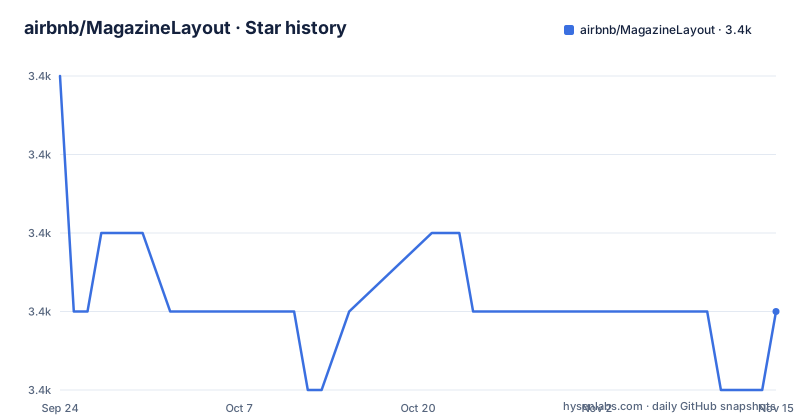
Star history
- airbnb/MagazineLayout3,375 ★ · -3
| Repository | 2026-09-24 | 2026-11-15 |
|---|---|---|
| airbnb/MagazineLayout | 3.4k | 3.4k |
-3 Stars in the last 52 days, measured from the daily GitHub snapshot. Compare with other projects
Editorial analysis
The gap MagazineLayout fills in UICollectionViewFlowLayout
UICollectionViewFlowLayout lays items out in rows or columns, and its item size is either fixed or driven by a delegate callback that has no notion of fractions of the available width. Building a search screen where one row holds a full-width card, the next holds two half-width cards, and a third holds three third-width cards means writing a custom layout from scratch. MagazineLayout is that layout, packaged as a UICollectionViewLayout subclass. Its README lists item widths based on a fraction of the total available width as the first capability it adds over UICollectionViewFlowLayout, with full width for a list layout and half-width or third-width for a grid. The audience is iOS and tvOS engineers building content-heavy screens. Airbnb's README states the layout has been used to build screens in the Airbnb app, including search, wish list and trip detail screens, which tells you the intended scale: many sections, heterogeneous item widths, and headers that need to stick.
What the layout actually controls per section and per item
The configuration surface is split between section-level and item-level concerns. Per section, MagazineLayout lets you set horizontal item spacing, vertical row spacing, section insets and item insets, and it lets you hide or show headers and footers, hide or show a section background, and pin headers and footers so they stick. Per item, the width is expressed as a fraction of the available width, and height is governed by a self-sizing mode. The README is explicit that self-sizing works in just the vertical dimension, and that self-sizing preferences are per item, so a statically sized item can sit anywhere in the collection view next to self-sizing ones. Headers and footers self-size as well. That combination is the reason the project exists: a magazine-style page is mostly about width variety and vertical rhythm, and MagazineLayout deliberately does not try to solve horizontal self-sizing. If your design needs items to grow sideways based on content, this is the wrong tool, and no amount of delegate configuration changes that.
The cell subclass requirement and why it exists
This is the constraint that decides adoption more often than any feature list. MagazineLayout requires its own UICollectionViewCell and UICollectionReusableView subclasses, named MagazineLayoutCollectionViewCell and MagazineLayoutCollectionReusableView. The README attributes this to shortcomings in UIKit and links to the source lines that explain them. In practice it means every cell and supplementary view you register with the collection view must inherit from those types, or you must copy the implementation of preferredLayoutAttributesFitting(_:) into your own types. The README presents copying that method as an alternative, which is the escape hatch for teams with an existing cell hierarchy they cannot re-parent. Either way, the integration is not a drop-in layout swap: it reaches into your view layer. Teams that treat a collection view layout as an isolated object tend to underestimate this step.
Installing MagazineLayout with CocoaPods or Carthage
The README documents two integration paths. For CocoaPods, add the pod to your Podfile and then follow the standard CocoaPods integration tutorial. The pod name is MagazineLayout, matching the podspec at the repository root.
Wiring up a first collection view
Registration and data source setup follow the usual UICollectionView pattern, with MagazineLayout supplying the layout object. The README's usage section walks through importing the module, setting up the collection view, registering cells and supplementary views, setting the data source and configuring the delegate. It does not print a complete code sample for that sequence, so the honest starting point is the example app rather than a copy-paste snippet. The example app lives at Example/MagazineLayoutExample.xcworkspace, and the README warns to open the .xcworkspace file and not the .xcodeproj, because the project file does not have access to MagazineLayout.framework. Inside the app you can add an item by tapping the add icon, choosing a section index, an item index, content text, a background color, a width mode and a height mode, then confirming to see the insert animation. Tapping an item deletes it with an animation. That is the fastest way to observe how width modes and dynamic height modes behave before writing your own data source. The README also notes the reload icon in the navigation bar clears the sample content or restores it.
Maintenance status and what an upgrade costs
The repository is not archived, and the last push was on 2026-09-18, which is recent. The repository has no published GitHub releases, so there is no published version history to reason about; the podspec and Package.swift define the integration points instead. The practical upgrade cost sits in the cell subclass requirement: if a future UIKit change alters how preferredLayoutAttributesFitting(_:) is called, teams that copied that method rather than subclassing will have to reconcile their copy manually. Licence-wise the project is Apache-2.0, which permits commercial use and modification and includes an explicit patent grant, but it also requires that you preserve copyright and licence notices and state significant changes. That is a description of the licence text, not legal advice; have counsel review it if your distribution model is unusual.
Where MagazineLayout is the wrong choice
The layout scrolls vertically. If your screen scrolls horizontally, or needs a two-dimensional grid where both axes are unbounded, this is not the tool. Self-sizing is vertical only, so content whose width depends on its own text or image dimensions will not size correctly. The cell subclass requirement rules it out for projects that cannot change their cell hierarchy and do not want to copy the fitting method. And because the README documents Carthage and CocoaPods while the repository ships a Package.swift, teams on a newer dependency manager should confirm their path works rather than assuming all three are equally covered by the documentation. None of these are defects. They are the boundary of the design.
How MagazineLayout differs from IGListKit and UICollectionViewCompositionalLayout
The closest alternative in the same ecosystem is UICollectionViewCompositionalLayout, Apple's own layout API, which builds layouts from compositional sections and items and supports orthogonal scrolling groups. The difference in approach is where the layout logic lives: CompositionalLayout describes structure declaratively through group and item definitions, while MagazineLayout exposes a delegate and data source protocol where you answer questions about sections and items at runtime. If you need horizontal scrolling sections inside a vertical list, CompositionalLayout is built for that and MagazineLayout is not. IGListKit solves a different problem, diffing and sectioned data sources, and it is not a layout. Choosing between MagazineLayout and CompositionalLayout comes down to whether you want imperative per-item answers (MagazineLayout) or a declarative section description (CompositionalLayout), and whether horizontal scrolling is in scope.
Editorial conclusion
Adopt MagazineLayout if you need per-section widths, pinned headers and self-sizing headers and footers inside a single vertically scrolling UICollectionView, and you can make every cell subclass MagazineLayoutCollectionViewCell. Do not adopt it if you need horizontal scrolling, a layout that works with plain UICollectionViewCell subclasses, or sizing driven by anything other than the vertical dimension. Before committing, verify which integration path your project can use, since the README documents Carthage and CocoaPods while Package.swift indicates Swift Package Manager support, and check that your deployment target is iOS 10.0+ or tvOS 10.0+.
Frequently asked questions
How do I install MagazineLayout in an iOS project?
The README documents Carthage, by adding github "airbnb/MagazineLayout" to your Cartfile, and CocoaPods, by adding pod 'MagazineLayout' to your Podfile, followed by each tool's standard integration tutorial. The repository also contains a Package.swift, and the README carries a Swift Package Manager compatibility badge.
Why does MagazineLayout require its own cell subclasses?
The README states that due to shortcomings in UIKit, MagazineLayout requires MagazineLayoutCollectionViewCell and MagazineLayoutCollectionReusableView, and links to the source lines explaining them. As an alternative, the README says you can copy the implementation of preferredLayoutAttributesFitting(_:) into your own cell and reusable view types.
Does MagazineLayout support self-sizing cells?
Yes, but only in the vertical dimension. The README lists self-sizing in just the vertical dimension, per-item self-sizing preferences, and self-sizing headers and footers among the features it adds over UICollectionViewFlowLayout.
Official sources
Add this badge to your README
If you maintain this project, the badge below links readers to this analysis and shows its maintenance status from the daily GitHub snapshot. Paste the markdown into your README; add ?metric=license or ?metric=stars to the image URL for a different field.

[](https://hysenlabs.com/projects/airbnb-magazinelayout)Star history chart for your README
[](https://hysenlabs.com/projects/airbnb-magazinelayout)Was this useful?