SD-Trainer v2 puts kohya-ss training, captioning and an MCP endpoint behind one local GUI
SD-Trainer. LoRA & Dreambooth training scripts & GUI use kohya-ss's trainer, for diffusion model.
At a glance
- What is it?
- Akegarasu/lora-scripts, now branded SD-Trainer, wraps a vendored copy of kohya-ss/sd-scripts in a local web workspace for LoRA training, captioning and tag editing. Version 2.0.0 broadens the model catalog, but it also raises the GPU floor and makes source installs build their own frontend.
- Who is it for?
- SD-Trainer fits people who train LoRAs locally on Turing or newer NVIDIA cards and want training, captioning, tag cleanup and job metrics in one place, with an option to let a local agent drive experiments over MCP. Owners of Pascal or Volta cards should not upgrade to the v2 packages, and anyone who exposes the GUI beyond 127.0.0.1 should first decide whether the default-on MCP server belongs on that network.
- Can I use it commercially?
- Yes, with strict conditions. AGPL-3.0 is a network copyleft licence: if people use a modified version over a network, for example as a hosted service, you must offer them its source code under the same licence.
- Is it still maintained?
- Yes. The repository last received commits 12 days ago.
- What is it written in?
- Mainly Python, according to GitHub's language statistics.
Answers come from the project's GitHub data, last synced on November 15, 2026, and from our analysis. They are not legal advice.
Star history
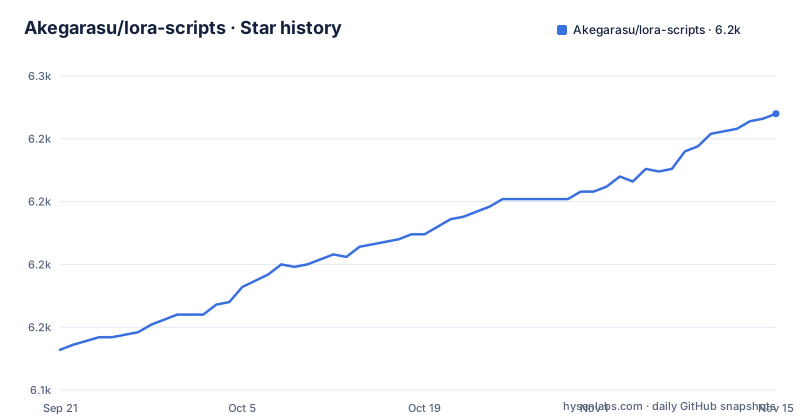
- Akegarasu/lora-scripts6,235 ★ · +94
| Repository | 2026-09-21 | 2026-11-15 |
|---|---|---|
| Akegarasu/lora-scripts | 6.1k | 6.2k |
94 Stars in the last 55 days, measured from the daily GitHub snapshot. Compare with other projects
Editorial analysis
A form-driven workspace over a vendored sd-scripts v0.12.3
SD-Trainer does not ship its own training engine. The training code is vendored under scripts/dev and tracks kohya-ss/sd-scripts v0.12.3, and both the GUI and the plain training scripts call into that same copy. What the project adds is the workspace: you pick a trainer, point it at model assets and datasets, and fill in a form that follows the parameters that trainer supports. There is a common view and a full view of parameters, a search box, inline parameter help, validation, and a configuration checklist before a job starts.
The current catalog covers SD, SDXL, SD3, FLUX.1, Chroma, Lumina, HunyuanImage 2.1, Anima and MOSS-Image Base / SFT LoRA. Some of these are flagged as experimental inside the interface, and MOSS-Image has its own setup guide for model and dependency requirements. Jobs keep their configuration, status and logs, and job details plot loss and learning rate from TensorBoard-compatible event files without a separate TensorBoard server. Version 2.0.0 was tagged on 3 November 2026, more than two years after v1.10.0 in October 2024, so guides written for the v1 interface will not match what you see.
Captioning jobs wait in the same GPU queue as training
The Caption workspace scans a dataset and writes tags or natural-language descriptions using WD and CL taggers, BLIP and GIT-family models, or supported chat VLMs. By default it skips images that already have captions, and you can select a subset of images and review results before anything is written. Model availability and dependency requirements are shown before a caption job runs.
The catch is scheduling. Captioning shares the GPU queue with training, so a large captioning pass and a training run do not execute side by side; one waits for the other. If you are preparing the next dataset while a long FLUX.1 job is running, plan for the caption job to sit in the queue.
The separate Tag Editor handles single edits, filtering, tag suggestions, batch add and remove, text or regular-expression replacement, and normalization. Changes can be previewed before they are applied, and backups plus conflict checks allow rollback, but only when the caption files have not been edited externally in the meantime. If you also touch the files in another editor, that safety net no longer holds.
Starting the GUI also opens an MCP server on port 28000
Launching the GUI enables a built-in MCP server by default. A local MCP client connects over Streamable HTTP at http://127.0.0.1:28000/mcp/, or at whatever address GUI settings shows if the port has changed. Agents connected this way share the training queue and can inspect datasets, submit experiments, monitor logs and metrics, and read output images. An optional standalone stdio entrypoint exists as well, and mcp_server.py sits at the repository root.
The default bind address is 127.0.0.1 and the default port is 28000, set by the --host and --port GUI arguments. That keeps the endpoint local out of the box. If you change --host so that other machines can reach the web interface, the MCP endpoint rides along on the same server, which means anything that can reach the port can queue GPU work. The settings switch that turns MCP off takes effect immediately and is remembered across restarts, so turn it off if no agent will use it.
The v2 GPU floor is Turing, with no way back for Pascal or Volta
The Windows NVIDIA portable build is the simplest route: download lora-scripts_windows_portable_nvidia.7z from Releases, extract the whole archive, and double-click run_gui.bat. It bundles Python 3.11.9, PyTorch 2.14.1 with CUDA 13.0, the ONNX GPU runtime and the built frontend, so no separate Python, Node.js or CUDA Toolkit install is needed. It needs Windows x64 and an R580 or newer NVIDIA driver.
A fallback archive, lora-scripts_windows_portable_nvidia_cu128.7z, pairs PyTorch 2.11.0 with CUDA 12.8 for machines that cannot move to that driver. It does not help older hardware: both packages require a Turing or newer GPU, so Pascal and Volta cards are not supported by either one. If your card predates Turing, neither v2 portable archive is an option for that machine, and switching archives will not change that. Model weights and datasets are never included in either package; you supply them separately.
A source checkout will not have a frontend until you build one
In the current development version, frontend.autoDownload is disabled in version.json. A fresh clone therefore has no web interface to serve until you build it, and you have to rebuild after any frontend change. Building needs Node.js 22 LTS at 22.12 or later, or Node.js 24+, with Corepack, which picks up the pnpm version pinned in frontend/package.json. Node.js is only needed for the build, not for running an already built frontend.
git clone https://github.com/Akegarasu/lora-scripts
cd lora-scriptscd frontend
corepack pnpm install --frozen-lockfile
corepack pnpm run build
cd ..The build writes frontend/dist along with its version metadata. Released versions that have auto-download enabled can instead fetch a matching frontend from GitHub Release, Jihulab or a static mirror, so this step mainly hits people who track the main branch rather than a tagged release.
Python 3.10 and older drivers are pushed onto the cu128 profile
Python 3.11 x64 is the recommended and tested version for the default CUDA 13.0 install, which brings PyTorch 2.14.1, torchvision 0.29.1 and xFormers 0.0.35. Python 3.10 source installs must use the cu128 profile, which installs PyTorch 2.11.0 and torchvision 0.26.0. Git is required for the checkout. If you already have a compatible PyTorch build, install it into the project environment first and pass -SkipTorch or --skip-torch; anything older than PyTorch 2.6 is not accepted.
On Windows, from the repository root in PowerShell:
.\scripts\install.ps1
.\scripts\run_gui.ps1
The CUDA 12.8 variant is .\scripts\install.ps1 -Cuda cu128, and .\scripts\install-cn.ps1 uses mirrors for mainland China. On Linux:
bash scripts/install.bash
source venv/bin/activate
bash scripts/run_gui.sh
run_gui.sh uses whatever Python environment is active, so forgetting to activate venv in a new terminal starts the GUI against the wrong interpreter. After any dependency update, rerun the installer and restart the GUI. For script-based training without the GUI, edit scripts/train.ps1 or scripts/train.sh.
The Docker image carries code only, so weights and outputs need mounts
The Dockerfile builds the frontend in a node:22-bookworm-slim stage, then packages the checkout on a PyTorch 2.14.1 / CUDA 13.0 runtime image and exposes port 28000:
docker build -t lora-scripts:local .
docker run --gpus all -p 28000:28000 lora-scripts:local
For CUDA 12.8 both build arguments have to be set together:
docker build --build-arg PYTORCH_IMAGE=pytorch/pytorch:2.11.0-cuda12.8-cudnn9-runtime --build-arg CUDA_FLAVOR=cu128 -t lora-scripts:cu128 .CUDA_FLAVOR accepts only cu130 or cu128; any other value stops the build with an error. The host needs a compatible NVIDIA driver and the NVIDIA Container Toolkit. Local environments, weights and training data are deliberately kept out of the image, so datasets, model files and outputs must be mounted into the matching directories under /app/lora-scripts, or they vanish with the container. The image also sets TZ to Asia/Shanghai and HF_HOME to /app/lora-scripts/huggingface, which affects log timestamps and where Hugging Face downloads land unless you override them.
Editorial conclusion
SD-Trainer fits people who train LoRAs locally on Turing or newer NVIDIA cards and want training, captioning, tag cleanup and job metrics in one place, with an option to let a local agent drive experiments over MCP. Owners of Pascal or Volta cards should not upgrade to the v2 packages, and anyone who exposes the GUI beyond 127.0.0.1 should first decide whether the default-on MCP server belongs on that network. Before installing, check your NVIDIA driver (R580 or newer for the CUDA 13 build), your Python version, and whether your chosen trainer is marked experimental.
Frequently asked questions
What does lora-scripts (SD-Trainer) add on top of kohya-ss/sd-scripts?
It vendors sd-scripts v0.12.3 under scripts/dev and adds a local GUI with trainer-specific parameter forms, validation, job logs and loss charts, a Caption workspace, a Tag Editor and a built-in MCP server.
Does lora-scripts v2 work on Pascal or Volta GPUs?
No. Both the CUDA 13 and the CUDA 12.8 portable packages require a Turing or newer NVIDIA GPU, and the cu128 package does not restore Pascal or Volta support.
How do I connect an AI agent to lora-scripts?
Start the GUI, which enables the MCP server by default, and point a local MCP client at http://127.0.0.1:28000/mcp/ over Streamable HTTP. If the port differs, copy the address from GUI settings.
Official sources
Add this badge to your README
If you maintain this project, the badge below links readers to this analysis and shows its maintenance status from the daily GitHub snapshot. Paste the markdown into your README; add ?metric=license or ?metric=stars to the image URL for a different field.

[](https://hysenlabs.com/projects/akegarasu-lora-scripts)Star history chart for your README
[](https://hysenlabs.com/projects/akegarasu-lora-scripts)Was this useful?