boring keeps SSH tunnels alive in one TOML file instead of a screen of terminals
The `boring` SSH tunnel manager
At a glance
- What is it?
- alebeck/boring is a Go SSH tunnel manager that reads tunnel definitions from ~/.boring.toml, opens them by name, group or glob pattern, and reconnects them with keep-alives. It removes the terminal tabs, not the SSH protocol underneath.
- Who is it for?
- Pick boring if you routinely run more than two or three SSH forwards and want them described in one file that reuses your existing SSH config aliases, since a tunnel entry only needs name, local, remote and host. Do not pick it if you need one ad hoc tunnel, because a plain ssh -L does the same in one line.
- Can I use it commercially?
- Check first. The repository uses a licence we do not classify automatically, so read its LICENSE file before any commercial use.
- Is it still maintained?
- Yes. The repository last received commits 15 days ago.
- What is it written in?
- Mainly Go, according to GitHub's language statistics.
Answers come from the project's GitHub data, last synced on November 7, 2026, and from our analysis. They are not legal advice.
Star history
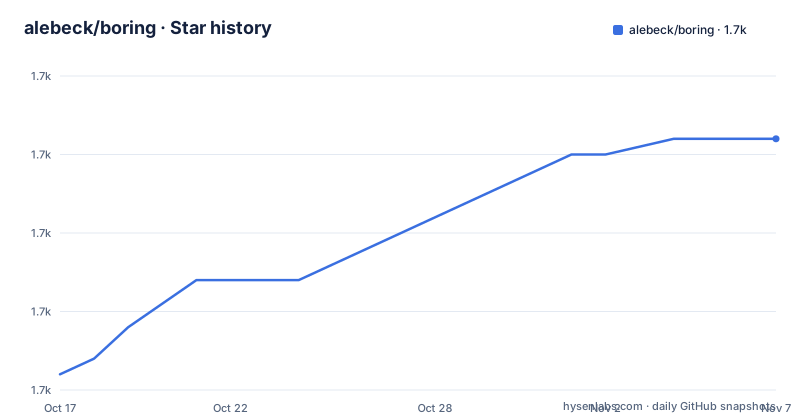
- alebeck/boring1,701 ★ · +15
| Repository | 2026-10-17 | 2026-11-07 |
|---|---|---|
| alebeck/boring | 1.7k | 1.7k |
15 Stars in the last 21 days, measured from the daily GitHub snapshot. Compare with other projects
Editorial analysis
What it replaces: many ssh invocations you have to remember
SSH port forwarding is a one line thing to type once and a nuisance to maintain after that. A typical developer session ends up with several ssh -L invocations across terminal tabs, each with its own port, and a reconnect after a laptop sleep that means finding them all again.
boring turns that set into a declarative list. Tunnels live in a TOML file, and the command line is reduced to opening and closing them by identity. The README describes it as a simple command line SSH tunnel manager, and the feature list is narrow on purpose: local, remote and dynamic SOCKS5 forwarding, Unix socket support, automatic re-connection and keep-alives, and smart shell completions.
boring manages tunnels using the SSH protocol, but its maintainer says the client uses Go’s SSH library rather than invoking the system ssh command. SSH config compatibility does not mean every OpenSSH option or feature is supported; verify the behavior you rely on.
Six subcommands, and patterns do the actual work
The command surface is small enough to learn in one reading:
Usage:
  boring list, l [-g <group>]    List all tunnels
  boring open, o (-a | -g <group> | <patterns>...)
    <patterns>...                Open tunnels matching any glob pattern
    -a, --all                    Open all tunnels
    -g, --group <group>          Open all tunnels in a group
  boring close, c                Close tunnels (same options as 'open')
  boring edit, e                 Edit the configuration file
  boring version, v              Show the version number
  boring help, h                 Show this help message
The interesting part is that open accepts bare glob patterns, so you can type boring open dev to bring up every tunnel whose name matches that pattern. The close subcommand takes the same options, which means shutting down the ad hoc tunnel you opened with a pattern is the same command with the word changed.
Groups are a second layer on top. A tunnel gets a group attribute, and boring open -g <group> or boring list -g <group> works on that set. The README notes that groups only appear in list view if at least one tunnel has one assigned, so a config without groups stays uncluttered.
The config reuses your SSH config instead of duplicating it
boring reads ~/.boring.toml on macOS and Windows, and $XDG_CONFIG_HOME/boring/.boring.toml on Linux, falling back to ~/.config when XDG_CONFIG_HOME is unset. $BORING_CONFIG overrides the path outright, which is the hook for a per project config.
The payoff is that host entries can be a bare alias:
# simple tunnel
[[tunnels]]
name = "dev"
local = "9000"
remote = "localhost:9000"
host = "dev-server"  # automatically matches host against SSH config

# example of an explicit host (no SSH config)
[[tunnels]]
name = "prod"
local = "5001"
remote = "localhost:5001"
host = "prod.example.com"
user = "root"
identity = "~/.ssh/id_prod"  # will try default ones if not set
When host matches an alias in your SSH config, boring picks up user, identity and port from there. If you set them explicitly as in the prod entry, they win. If they are set nowhere, user falls back to $USER and port to 22.
Two options in the table reward attention. The port field accepts lists and ranges, for example "8000-8010,8080", paired by position with the ports on the other side. And mode selects between local, remote, socks and socks-remote, defaulting to local. keep_alive is the only option accepted at both global and tunnel level, in seconds, defaulting to 120.
Installing on macOS, Linux, and the Windows caveat
Homebrew is the short path:
brew install boringPre-built binaries sit on the releases page and need to be moved somewhere in $PATH yourself. Building from source is a clone and a make, and the binary lands in dist:
git clone https://github.com/alebeck/boring && cd boring
make
Windows is the awkward one. The README says Windows has been supported since release 0.6.0, but that users currently have to build from source, with Go >= 1.25 installed, using a batch script rather than make:
git clone https://github.com/alebeck/boring && cd boring
.\build_win.bat
That is a real limitation for anyone who wants a package manager on Windows. go.mod pins go 1.25.0, and the Makefile passes version and commit into the binary through ldflags at buildinfo.Version and buildinfo.Commit, which is why boring version reports something meaningful only when it was built from a tagged checkout.
Where the logs and the control socket actually live
The environment variable table is easy to miss because it sits inside a collapsed section of the README. It covers four things:
$BORING_CONFIG points at the config file. $BORING_LOG_FILE defaults to /tmp/boringd.log, which on a multi user machine is a shared path worth overriding. $BORING_SOCK defaults to /tmp/boringd.sock, the socket the daemon uses for control. $DEBUG turns on verbose logging.
Two of those defaults deserve scrutiny. /tmp is cleared on reboot on most Linux distributions, so a socket there means boring is not running after a restart until you start it again. And the same literal path for two different boring instances, or two different users on one host, will collide. Pointing both variables into a per user directory removes the ambiguity.
The README documents no configuration reload command beyond opening tunnels again, and no documented rollback path between releases.
Compared with autossh and with a systemd unit you write yourself
boring moves the connection parameters into TOML where SSH config lookups apply, and gives you a control socket for listing and closing live tunnels.
boring is the better fit when the tunnel set changes often, since editing a file and running boring open -a is faster than reloading several units. systemd is the better fit when tunnels are static and you want the init system to own their lifecycle.
boring does not document integration with either, so combining them is on you.
Maintenance pace and what the licence file says
The repository is not archived and the last push was on 2026-10-10, with v0.17.0 released the same day and v0.16.2 a week earlier. There is a CI workflow, a Coveralls badge and an end to end test target in the Makefile, plus unit test runs over cmd and internal packages, so the project is being worked on rather than parked.
The licence situation is worth a look before you build it into an image. The README badge reads MIT, but the repository is classified as carrying a custom licence that GitHub cannot categorise, and the LICENSE file is the authority. The Makefile's cross compile target archives the LICENSE file alongside each binary, so reading it once at build time is cheap. This is not legal advice, only a note to check the file rather than the badge.
Dependencies are a short Go list: a TOML parser, a fork of an SSH config reader, and the usual golang.org/x crypto, net, sync, term and sys modules.
Editorial conclusion
Pick boring if you routinely run more than two or three SSH forwards and want them described in one file that reuses your existing SSH config aliases, since a tunnel entry only needs name, local, remote and host. Do not pick it if you need one ad hoc tunnel, because a plain ssh -L does the same in one line. Verify first that the tunnel mode you intend actually exists in your SSH config: boring reads user, identity and port from SSH config or ssh-agent and falls back to $USER and port 22 when those are absent, which silently produces an authentication failure rather than a useful message.
Frequently asked questions
Where does boring store its configuration?
boring reads ~/.boring.toml on macOS and Windows, and $XDG_CONFIG_HOME/boring/.boring.toml on Linux, defaulting XDG_CONFIG_HOME to ~/.config. Setting the $BORING_CONFIG environment variable overrides the location entirely.
How do I open all SSH tunnels defined in boring?
Run boring open -a to open every configured tunnel, or pass glob patterns such as boring open dev to open only matching names. Tunnels can also be selected by group with the -g option.
Does boring work on Windows?
It has been supported since release 0.6.0, but the README states that Windows users currently have to build from source with Go >= 1.25 using build_win.bat. Homebrew installation covers macOS and Linux.
Does boring need my SSH passwords or keys configured separately?
No separate setup is described. A tunnel host can be an SSH config alias, in which case boring reads user, identity and port from SSH config, and the identity option falls back to ssh-agent and then to standard identity files when unset.
Where does boring write its log file?
By default the log goes to /tmp/boringd.log and the control socket to /tmp/boringd.sock. Both can be relocated through the $BORING_LOG_FILE and $BORING_SOCK environment variables, and $DEBUG enables verbose logging.
Official sources
Add this badge to your README
If you maintain this project, the badge below links readers to this analysis and shows its maintenance status from the daily GitHub snapshot. Paste the markdown into your README; add ?metric=license or ?metric=stars to the image URL for a different field.

[](https://hysenlabs.com/projects/alebeck-boring)Star history chart for your README
[](https://hysenlabs.com/projects/alebeck-boring)Was this useful?