Symlink Creator: A Windows GUI for Batch mklink Operations
A Windows GUI app for creating symlinks, based on mklink
At a glance
- What is it?
- Symlink Creator is an open-source Windows app that turns multiple source paths into symlinks in one destination folder, wrapping mklink behind a drag-and-drop interface. It suits users who need batch link creation without writing scripts, but it has limits around permissions and link type choices.
- Who is it for?
- Adopt Symlink Creator if you manage multiple symlinks on Windows 10 or 11 and want a GUI that batches the work without scripting. Skip it if you need junction points, hard links, or per-link type control, since the app creates symbolic links only.
- Can I use it commercially?
- Yes. MIT is a permissive licence: you can use, modify and sell software built on it, as long as you keep its copyright and licence notices.
- Is it still maintained?
- Yes. The repository last received commits 49 days ago.
- What is it written in?
- Mainly C#, according to GitHub's language statistics.
Answers come from the project's GitHub data, last synced on October 22, 2026, and from our analysis. They are not legal advice.
Star history
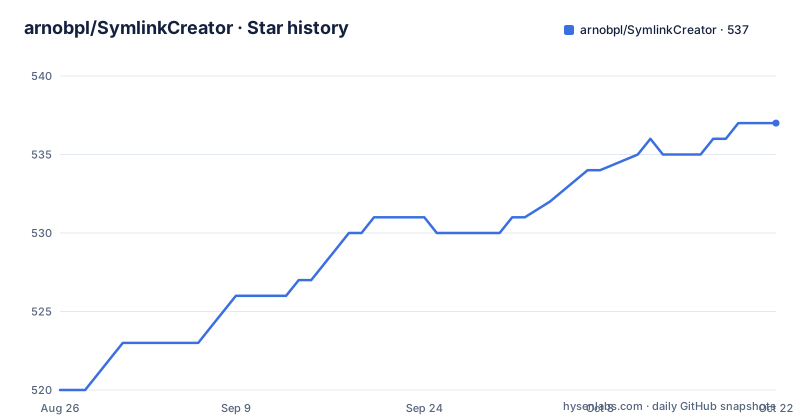
- arnobpl/SymlinkCreator537 ★ · +17
| Repository | 2026-08-26 | 2026-10-22 |
|---|---|---|
| arnobpl/SymlinkCreator | 520 | 537 |
17 Stars in the last 57 days, measured from the daily GitHub snapshot. Compare with other projects
Editorial analysis
The Problem: mklink Is Scriptable but Painful in Bulk
Windows users who want symbolic links normally open a command prompt and type mklink with the right flags for each link. That works for one link, but it becomes tedious when you need to link a dozen files into a media server folder or a project directory. Symlink Creator addresses that specific pain: it takes many source paths and one destination folder, then generates the mklink commands for you. The README describes the batch workflow as many sources, one destination folder, one link per source. This is a narrow tool. It does not manage junctions or hard links, and it does not move or copy content. It exists to remove the repetitive typing and the risk of mistyped flags when creating multiple symlinks in one operation.
How It Works: Path Validation, mklink Generation, and Elevation
The mechanism is straightforward and visible in the README. For each source path you add, the app plans a link with the same file or folder name inside the selected destination directory. It validates the paths and checks for name collisions before doing anything. Then it generates the corresponding mklink commands and asks Windows for the permission needed to run them. That permission request is the key detail: creating symbolic links on Windows normally requires the SeCreateSymbolicLinkPrivilege, which is granted to administrators by default. The app does not create the links itself; it delegates to mklink, which means the generated commands are reviewable if you choose to keep the .cmd file on the Desktop. The README notes that it creates symbolic links only and never moves, copies, or deletes source content. That division of labor keeps the app simple, but it also means you are dependent on mklink's behavior and the privilege model underneath.
Getting It Running: WinGet, ZIP Prerequisites, and Startup Options
The recommended install path is WinGet. The command is winget install --id ArnobPaul.SymlinkCreator --exact, which installs dependencies and adds a command alias, symlinkcreator. If you prefer the manual ZIP, the README lists three prerequisites: Microsoft.DotNet.Runtime.10, Microsoft.WindowsAppRuntime.2, and the appropriate Microsoft.VCRedist.2015+ variant for x64 or ARM64. The app ships as framework-dependent packages, so those runtimes are not bundled. Once installed, the usage flow is: add sources via file pickers, drag-and-drop from File Explorer, or pasting newline-separated paths; choose an existing destination; pick options like relative paths on the same drive, retaining the generated .cmd script, or hiding the success dialog; then click Create symlinks. Windows may prompt for administrator permission. There are also shortcut options such as --no-elevation-warning, which suppresses a warning about drag-and-drop when running as administrator, and --language <tag> to set the UI language per launch. These options make the app scriptable from a shortcut, which is a small but useful touch for repeated operations.
Real Limitations: Permission Requirements and Link Type Rigidity
The most obvious limitation is that symlink creation on Windows requires elevated privileges unless the user has been granted the SeCreateSymbolicLinkPrivilege. The README acknowledges this by saying Windows may ask for administrator permission. That means the app is not suitable for environments where users lack admin rights and cannot obtain them. Another limitation is that it only creates symbolic links, not junctions or hard links. If you need a directory junction to avoid the symlink privilege requirement, or a hard link for files on the same volume, this app will not help. The README also warns that deleting a symlink removes the link, not the target, and that moving or deleting the target breaks the link. That is inherent to symlinks, but it means users must understand the failure mode: a broken link points to a nonexistent path. Additionally, the README notes that backup, cloud-sync, and game-management tools may or may not follow symlinks, so you must verify their behavior before relying on a linked layout. Those are real constraints that the documentation states plainly.
Alternatives: mklink Itself, Junction Tools, and Scripting
The most direct alternative is mklink from a command prompt or batch script. That gives you full control over link type (symbolic, directory junction, or hard link) and does not require a GUI. The trade-off is that you write the commands yourself, which is exactly what Symlink Creator automates. Another alternative is using PowerShell's New-Item -ItemType SymbolicLink, which is scriptable and can handle loops for batch creation. The difference is that PowerShell requires you to construct the loop and handle path validation yourself, whereas Symlink Creator provides a GUI and collision checks. For junction points specifically, tools like Link Shell Extension or the built-in mklink /J give you a way to create directory junctions without the symlink privilege, but those are not covered by this app. If you need mixed link types in one batch, you will need a script or a different tool. The README's comparison table only contrasts symlinks with .lnk shortcuts and copies, not with other link types, which suggests the author scoped the app to symlinks deliberately.
Maintenance and Upgrade Cost: MIT License and Release Cadence
The project is MIT-licensed, so you can fork and modify it freely, but there is no commercial support. The release history shows a jump from v1.3.0 in December 2024 to v2.0.0 in August 2026, followed quickly by v2.0.1. That gap suggests the project is not on a frequent release cycle, so you should not expect rapid fixes. The v2.x releases added ARM64 support and localization, according to the README, which indicates active maintenance around that time. The dependency on .NET 10 Runtime and Windows App Runtime means upgrades to those runtimes could affect the app. Since the ZIP is framework-dependent, you must keep those runtimes updated on each machine. The WinGet package handles dependencies automatically, which lowers the upgrade cost for typical users. For a tool this small, the maintenance burden is mostly about keeping the runtimes current and checking whether newer releases address any bugs you hit.
Editorial conclusion
Adopt Symlink Creator if you manage multiple symlinks on Windows 10 or 11 and want a GUI that batches the work without scripting. Skip it if you need junction points, hard links, or per-link type control, since the app creates symbolic links only. Before relying on it, verify that your target applications follow symlinks, especially backup or sync tools, and confirm you have the necessary SeCreateSymbolicLinkPrivilege or are willing to run as administrator. Also check that the source and destination paths are valid and that you understand the relative versus absolute target behavior on same-drive setups.
Frequently asked questions
How do I install Symlink Creator on Windows?
The recommended route is WinGet, which installs the required dependencies and adds a symlinkcreator command alias: winget install --id ArnobPaul.SymlinkCreator --exact. The manual route offers an x64 zip and an ARM64 zip, and Settings, System, About, System type tells you which one you need. The framework-dependent zip also needs .NET runtime 10, the Windows App Runtime 2 and the Visual C++ 2015 plus redistributable.
Does Symlink Creator move or copy my files?
No. It creates symbolic links only and does not move, copy or delete the source content. For every source path it plans a link with the same file or folder name inside the destination, validates paths and name collisions, generates the mklink commands, and asks Windows for permission to run them.
When should I use relative targets instead of absolute ones?
Use relative targets when the source and destination are on the same drive, and absolute targets when the links must stay valid regardless of where the destination folder ends up. The choice is exposed as a path behaviour option and can be preselected from a Windows shortcut alongside language, theme, script retention and success-dialog behaviour.
What happens if I delete the target of a symlink?
Deleting the link itself removes only the link and leaves the target alone, but moving or deleting the target breaks the link until its target path is restored. Backup, cloud-sync and game-management tools may choose whether to follow symbolic links, so their behaviour is worth checking before you rely on a linked layout.
Official sources
Add this badge to your README
If you maintain this project, the badge below links readers to this analysis and shows its maintenance status from the daily GitHub snapshot. Paste the markdown into your README; add ?metric=license or ?metric=stars to the image URL for a different field.

[](https://hysenlabs.com/projects/arnobpl-symlinkcreator)Star history chart for your README
[](https://hysenlabs.com/projects/arnobpl-symlinkcreator)