Authenticator Extension: TOTP Codes in Chrome, Firefox and Edge
Authenticator generates 2-Step Verification codes in your browser.
At a glance
- What is it?
- Authenticator-Extension/Authenticator is a browser extension that generates 2-Step Verification codes, built in TypeScript under the MIT licence. It suits anyone who wants TOTP codes in the browser rather than on a phone, and its build path is the part worth checking before you adopt it.
- Who is it for?
- Adopt Authenticator if you want TOTP codes generated inside the browser and you are comfortable installing an extension from the Chrome Web Store, Firefox Add-ons or Microsoft Edge Add-ons. Do not adopt it if you need a maintained server-side secret store, hardware key support, or an officially supported Safari build, since the README says the Safari edition gets no official support.
- Can I use it commercially?
- Yes. MIT is a permissive licence: you can use, modify and sell software built on it, as long as you keep its copyright and licence notices.
- Is it still maintained?
- Yes. The repository last received commits 12 days ago.
- What is it written in?
- Mainly TypeScript, according to GitHub's language statistics.
Answers come from the project's GitHub data, last synced on November 22, 2026, and from our analysis. They are not legal advice.
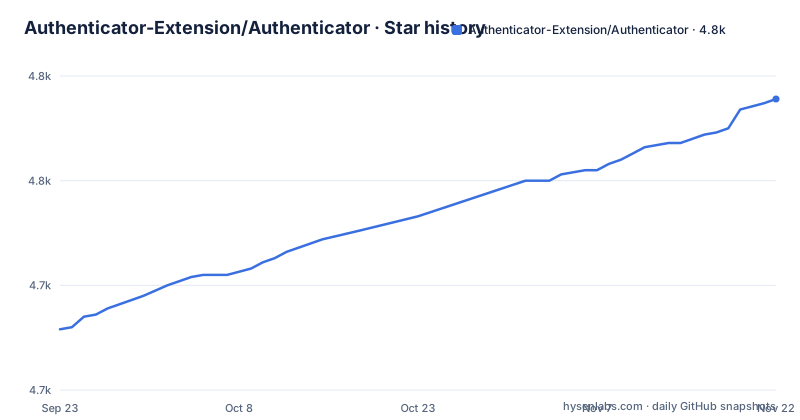
Star history
- Authenticator-Extension/Authenticator4,789 ★ · +110
| Repository | 2026-09-23 | 2026-11-22 |
|---|---|---|
| Authenticator-Extension/Authenticator | 4.7k | 4.8k |
110 Stars in the last 60 days, measured from the daily GitHub snapshot. Compare with other projects
Editorial analysis
What Authenticator solves, and the people it is aimed at
Most 2-Step Verification codes live on a phone. That is fine until the phone is not with you, or until you are working on a desktop and the site you are logging into is on the same machine. Authenticator-Extension/Authenticator moves the code generator into the browser itself. The README states the goal in one line: "Authenticator generates 2-Step Verification codes in your browser."
The audience is narrow but real. It is for engineers and administrators who already keep TOTP secrets somewhere and want them readable from a desktop browser, and for people who prefer not to install a separate mobile app for every account. It is not a password manager, and it does not replace a phone-based authenticator for accounts where the phone is the only second factor. The extension is a code generator; the account setup still happens on the site you are protecting.
How the extension generates TOTP codes
The repository is a TypeScript web extension. The top-level layout shows the pieces: src/ for the source, manifests/ for per-browser manifest files, view/ for the extension UI, sass/ for styles, _locales/ for translations, and webpack.config.js plus webpack.dev.js, webpack.prod.js and webpack.watch.js for the build. There is a separate scripts/ directory holding build.sh and test-runner.js, which is what the npm scripts call.
That split matters because the extension ships to three stores from one codebase. Rather than one manifest, the project carries a manifests/ directory so Chrome, Firefox and Edge can each get the keys their platform expects, and the build script selects the right one. The devDependencies hint at the internals: crypto-js and argon2-browser appear as typed dependencies, along with base64-loader for reading binary assets into the bundle. The testing stack is mocha, chai, sinon and sinon-chrome, with puppeteer for browser-driven tests, and @vue/test-utils for the view layer. None of that is documented in the README as a data flow diagram, so treat the directory listing as the evidence: source in src/, per-browser manifests, a webpack build, a mocha test runner.
The repository layout alone does not establish where secrets can travel. Review the extension's storage, sync and backup behavior and your browser profile's security settings.
Installing Authenticator and generating a first code
For normal use you do not build anything. The README links three distribution channels: the Chrome Web Store, Firefox Add-ons, and Microsoft Edge Add-ons. Install from the one matching your browser and the extension appears in the toolbar.
If you want to build it yourself, the README specifies a clean install followed by the production build. For individual browser scripts, check the package manifest:
npm ci
npm run prod
For Chrome development the README is more specific. It compiles into ./test/chrome and then you load that directory as an unpacked extension:
npm install
npm run dev:chrome
After dev:chrome finishes, the README says to load the unpacked extension from the ./test/chrome/ directory in Chrome. The watch config in webpack.watch.js is what keeps that directory current while you edit. One caveat the README states plainly: Windows users should install Git Bash or Cygwin, because the build scripts are shell scripts.
Once installed, the first real use is the same in either path. The README describes the extension only as generating 2-Step Verification codes in your browser; it does not walk through adding an account.
Where Authenticator is the wrong tool
The README is candid about one boundary: a Safari edition exists on the App Store, but "We do not provide official support for the Safari edition." If Safari is your only browser, you are on an unsupported path, and the README points elsewhere for contribution guidance rather than promising fixes.
The second limitation is structural. A browser extension is only as available as the browser profile it lives in. If you install it in one profile and then sign into a site from another machine, the codes are not there unless the profile syncs them. The repository does not document an export or migration flow in the README, so anyone who treats the extension as their only authenticator is betting on profile sync working. That is a weaker bet than a phone-based app for accounts where losing the second factor means a support ticket and an identity check.
Third, the release cadence deserves a look. The most recent release listed is v8.0.2 from 2024-09-15, and the last push to the repository was on 2026-10-18. Code activity and release activity are not the same thing, and neither number tells you whether a given store listing is current. If you need a signed, versioned artifact with a changelog you can audit before each upgrade, check the store listing's version against the release list rather than assuming they match.
Authenticator versus a phone-based authenticator app
The obvious alternative is a mobile authenticator such as Google Authenticator or Microsoft Authenticator, and the difference is not cosmetic. A phone app keeps the secret on a device that is separate from the machine you log in from, which is the whole point of a second factor. An extension running in the same browser as the login page collapses that separation. If the browser is compromised, the codes and the session are in the same place.
That trade is deliberate. The extension wins on convenience for desktop work: no reaching for a phone, no typing a code from a small screen, and the code is visible next to the login form. The phone app wins on isolation and on portability, since it follows you to any machine rather than being tied to one browser profile. The two are not mutually exclusive, and running both against the same account is the safer configuration if the site allows multiple enrolled factors.
A second alternative is a hardware security key. The repository does not claim FIDO2 or WebAuthn support anywhere in the README, so if your threat model calls for a physical key, this project is not that. It generates TOTP codes, and that is the scope.
Maintenance, upgrades and the MIT licence
The repository is not archived, and the last push was on 2026-10-18. That is recent activity on the dev branch, but the release list ends at v8.0.2 from 2024-09-15, so source changes and published releases have moved at different speeds. For an operator, the practical question is which artifact you are running: the store build or a self-built extension, which follows whatever commit you checked out.
Self-building has a real ongoing cost. The build depends on a webpack pipeline with several config files, a shell-based build script, and a test runner invoked through npm test. Windows users need Git Bash or Cygwin just to run the scripts. Every upstream change to the manifest structure or the webpack config is something you absorb yourself. If you install from a store, that cost is the maintainers'.
The licence is MIT, declared in package.json and present as a LICENSE file at the top level. MIT is permissive: it allows commercial and private use, modification and redistribution, with the copyright notice and permission notice retained. That is a summary of the licence text, not legal advice, and it says nothing about the terms of the browser stores, which are separate agreements you accept when you publish or install. The repository also carries a SECURITY.md at the top level, which is where a security-conscious adopter should look before filing anything publicly.
Editorial conclusion
Adopt Authenticator if you want TOTP codes generated inside the browser and you are comfortable installing an extension from the Chrome Web Store, Firefox Add-ons or Microsoft Edge Add-ons. Do not adopt it if you need a maintained server-side secret store, hardware key support, or an officially supported Safari build, since the README says the Safari edition gets no official support. Before relying on it, verify that your browser profile syncs or that you have exported your secrets, and read SECURITY.md, which the repository carries at the top level and the README does not summarise.
Frequently asked questions
How do I install the Authenticator extension?
Install it from the Chrome Web Store, Firefox Add-ons, or Microsoft Edge Add-ons, depending on your browser. The README links all three, and building from source is only needed for development or self-hosted builds.
How do I use Authenticator to get a code?
The README describes the extension as generating 2-Step Verification codes in your browser.
Can I use Authenticator without installing a mobile app?
Yes, that is the point of the extension. It runs in Chrome, Firefox or Edge and generates the codes in the browser, so no separate phone app is required for the accounts you enroll there. Note that a Safari edition exists but the README says it is not officially supported.
Official sources
Add this badge to your README
If you maintain this project, the badge below links readers to this analysis and shows its maintenance status from the daily GitHub snapshot. Paste the markdown into your README; add ?metric=license or ?metric=stars to the image URL for a different field.

[](https://hysenlabs.com/projects/authenticator-extension-authenticator)Star history chart for your README
[](https://hysenlabs.com/projects/authenticator-extension-authenticator)Was this useful?