Drawesome: a React drawing toolbar with seven pens that behave like pens
Drawing toolbar for React.
At a glance
- What is it?
- A drawing toolbar component for React with velocity-tapered strokes, an area eraser, SVG and PNG export, and an opinionated default you can ship as-is. No dependencies beyond React.
- Who is it for?
- Drawesome fits React developers who need an embedded sketch, annotation or signature surface with natural-feeling pens and minimal integration cost, and who will ship the opinionated defaults rather than fight them. Skip it if you need collaborative whiteboarding, stylus-pressure specifics, or a fully custom tool system, where tldraw or Excalidraw are the honest answers.
- Can I use it commercially?
- Yes. MIT is a permissive licence: you can use, modify and sell software built on it, as long as you keep its copyright and licence notices.
- Is it still maintained?
- Yes. The repository last received commits 67 days ago.
- What is it written in?
- Mainly TypeScript, according to GitHub's language statistics.
Answers come from the project's GitHub data, last synced on November 25, 2026, and from our analysis. They are not legal advice.
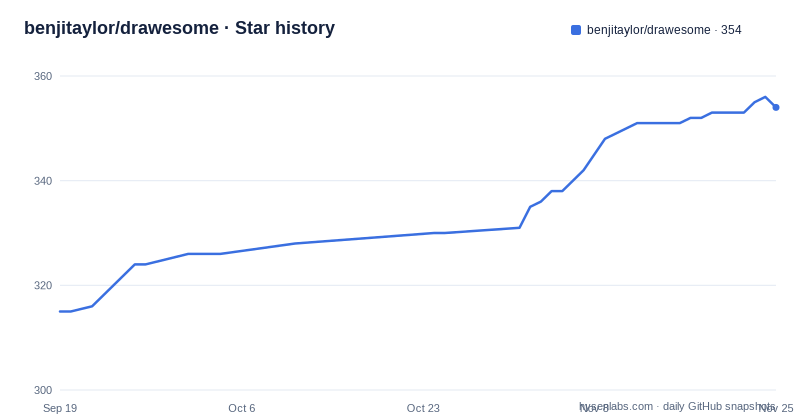
Star history
- benjitaylor/drawesome354 ★ · +39
| Repository | 2026-09-19 | 2026-11-25 |
|---|---|---|
| benjitaylor/drawesome | 315 | 354 |
39 Stars in the last 67 days, measured from the daily GitHub snapshot. Compare with other projects
Editorial analysis
Seven pens that behave like pens
Most drawing components give you a line with a width, and every stroke comes out the same. Drawesome, by Benji Taylor, differentiates the tools by physics instead: the pencil, pen and brush thin out the faster you move; the fineliner and highlighter hold one width regardless; and the fountain pen varies by direction, thick on one stroke angle and a hairline on the other. The README's summary is the feature: no two strokes come out quite the same.
The other signature behavior is the eraser, which takes away area rather than whole strokes, so you can rub out part of a line and keep the rest. Output is SVG or PNG. Dependencies are React 18 or newer and nothing else, which makes the component an easy audit and an easy add to any React app that needs a signature pad, an annotation layer, or a sketch surface.
Install and quick start
Installation is one package:
npm install drawesomewith react 18 or newer as a peer dependency. The quick start from the README:
import { Draw } from 'drawesome'
import 'drawesome/styles.css'

function Canvas() {
  return (
    <div style={{ height: 480 }}>
      <Draw />
    </div>
  )
}
The component fills its parent container, hence the height on the wrapper, and that is the entire integration. From there the toolbar renders with all seven pens, the eraser, an 18-swatch palette and undo controls, ready to use before you touch a single prop.
Opinionated defaults, knobs at the edges
The README states the philosophy directly: the defaults are meant to be the version you ship, and the props exist for turning things off or moving them around, not rebuilding. The customization surface is broad but organized into three groups. Surface props cover the drawing area, background color including transparent and a checker pattern, initial strokes, and an onChange callback that fires on every finished stroke and every erase.
Tool props decide which pens appear and in what order, whether ink color applies to every tool or only the one in hand, palette overrides, and two looks for the toolbar, classic flat or studio-lit. Chrome props govern the toolbar itself, where it sits, how it arrives, and which built-in controls show, with a custom swatch that opens a hex field and spectrum picker. The consistent theme is subtraction: start from the shipped design and remove what your product does not need.
The toolbar as chrome
The bar is a first-class citizen. It can sit on the bottom, left or right edge with configurable inset and alignment, drag by the user if allowed, minimize to a disc, and keep the canvas live while minimized through a drawWhenMinimized flag. Arrival and departure are animated with a motion prop that takes preset or custom in and out transitions, and depth presets control how physical the bar looks, from flat to strong.
Theme follows the reader's system in auto mode, light and dark are explicit, and single-key shortcuts ship on by default, with hover labels for every control. Settings for size and opacity can live in the bar or in the tool. It is a lot of surface area for a component whose core is seven pens, and the split matters: the drawing engine is one thing, and the toolbar presentation is another you can mostly ignore until the design review asks.
Getting drawings out, and back in
Export runs through a ref handle. toSvg returns exactly what is on screen, erasing included; toPng returns a blob at a chosen resolution multiplier; and download saves straight to a file with a name, format and scale:
const draw = useRef<DrawHandle>(null)

<Draw ref={draw} />

await draw.current.download('sketch', 'png', 2)
The data model is the other integration win: strokes are plain data, so you store what onChange hands you and restore it via initialStrokes, and undo and redo are exposed on the same handle alongside setStrokes, which replaces both the drawing and its undo history. For apps building save-and-resume sketching, signed signatures, or collaborative replay, the pieces are exported too: a chrome-less surface, a standalone toolbar, a drawing hook, and a strokePath helper that renders any stroke anywhere an SVG path can go. The README mentions the component's own logo is drawn with it.
Keyboard, small screens, and the limits
Every pen has a single-key shortcut shown in its tooltip, the eraser sits on E, bracket keys step size, and the undo pair works as expected. Holding shift while drawing locks the stroke to the nearest of eight directions, which is the detail that makes straight-ish lines possible with a mouse.
Small screens get an explicit pattern in the README: stand the bar on the left edge, drop to five tools, and trim the controls, with the code shown. The limits are the flip of the opinionated design. If you want to assemble a drawing tool from parts, multi-user canvases, custom brush engines, or document annotation formats, the README names tldraw and Excalidraw as the better fits, which is a rare and useful concession. There is no mention of touch pressure or stylus events, no collaborative editing, and the monorepo has two releases with the last push on 2026-08-07, so it is a young, single-maintainer MIT library.
Against canvas kits and big whiteboards
The comparison set is easy to state because the README does it itself. tldraw and Excalidraw are full whiteboard toolkits: shapes, multi-select, collaboration-ready architectures, and their own data models, at the cost of a larger surface to style and reason about. Drawesome occupies the narrower need, a drawing toolbar you embed in a product so a user can mark up, sketch or sign, with pens that feel handmade and an output format that is just SVG or PNG data.
Against rolling your own on a canvas element, the differential is the part nobody budgets for: velocity-tapered strokes that look natural, an area eraser that behaves like a real one, keyboard shortcuts, themable chrome, and undo history that survives serialization. Those are weeks of polish, shipped as one dependency with one peer. If your product's need is exactly that, the component earns its place; if the need grows into a whiteboard, the README has already told you where to go.
Editorial conclusion
Drawesome fits React developers who need an embedded sketch, annotation or signature surface with natural-feeling pens and minimal integration cost, and who will ship the opinionated defaults rather than fight them. Skip it if you need collaborative whiteboarding, stylus-pressure specifics, or a fully custom tool system, where tldraw or Excalidraw are the honest answers. Verify the feel in an hour: npm install it, wire the quick start into a real page, draw twenty strokes with each pen on the devices your users hold, and decide whether the ink behavior passes the feel test before building around it.
Frequently asked questions
How do I install drawesome?
npm install drawesome, with React 18 or newer as a peer dependency. Import the Draw component and the styles css, place it in a sized container, and the toolbar works with defaults.
Can drawesome export the drawing as an image?
Yes. The ref handle provides toSvg for exactly what is on screen, toPng with a resolution scale, and a download method that saves straight to a file with a name, format and scale.
Does drawesome work well on small screens?
The README shows the pattern: switch the toolbar placement to the left edge on narrow screens, reduce the tool list, and trim controls. A drawWhenMinimized option keeps the canvas live while the toolbar collapses to a disc.
Official sources
Add this badge to your README
If you maintain this project, the badge below links readers to this analysis and shows its maintenance status from the daily GitHub snapshot. Paste the markdown into your README; add ?metric=license or ?metric=stars to the image URL for a different field.

[](https://hysenlabs.com/projects/benjitaylor-drawesome)Star history chart for your README
[](https://hysenlabs.com/projects/benjitaylor-drawesome)Was this useful?