Canvas: Zero-Code Animation for iOS, With an AutoLayout Catch
GitHub describes it as Animate in Xcode without code. The repository metadata lists Objective-C as its primary language. The metadata lists the MIT license. This article stays within the project description and details documented in the GitHub repository README.
At a glance
- What is it?
- Canvas lets designers and developers add animations to iOS views through Interface Builder runtime attributes or a few lines of Objective-C. The catch is a documented AutoLayout conflict that has not been fully resolved.
- Who is it for?
- Adopt Canvas if you are a designer or developer on an iOS 7-era project who wants simple, pre-built animations (parallax, sticky sections, blurred backgrounds) without writing animation code, and you can avoid AutoLayout or work around it on iOS 8. Do not adopt it if your layout depends on AutoLayout constraints, because the README states Canvas animates frame and position, which conflicts with constraint-based layout.
- Can I use it commercially?
- Yes. MIT is a permissive licence: you can use, modify and sell software built on it, as long as you keep its copyright and licence notices.
- Is it still maintained?
- Probably not. The repository last received commits 88 months ago, on July 14, 2019.
- What is it written in?
- Mainly Objective-C, according to GitHub's language statistics.
Answers come from the project's GitHub data, last synced on October 4, 2026, and from our analysis. They are not legal advice.
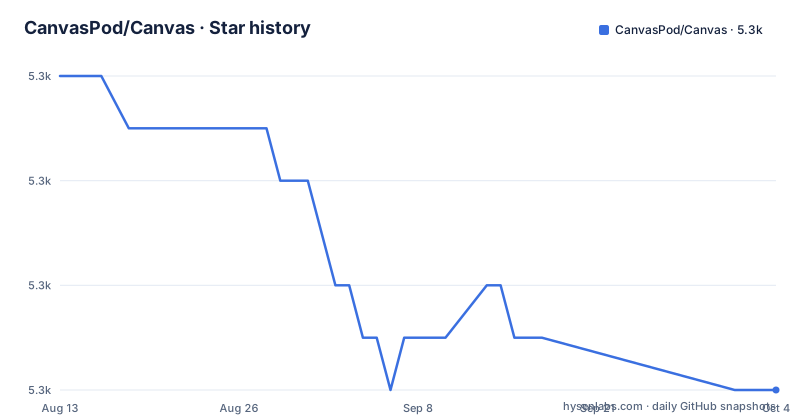
Star history
- CanvasPod/Canvas5,272 ★ · -6
| Repository | 2026-08-13 | 2026-10-04 |
|---|---|---|
| CanvasPod/Canvas | 5.3k | 5.3k |
-6 Stars in the last 52 days, measured from the daily GitHub snapshot. Compare with other projects
Editorial analysis
The Problem Canvas Solves
Canvas targets a specific pain point: designers who want to prototype or build animations but lack Objective-C and Xcode experience, and developers who find that simple effects take too many lines of code. The README frames the project as a bridge between these two groups. For designers, the promise is zero lines of code. For developers, the promise is a few lines of code changes to get effects like parallax headers, sticky sections, and blurred backgrounds. The project is not a full animation framework like Core Animation or a physics engine. It is a small library that wraps common, trendy effects into a reusable view class. If you need custom, complex animation logic, this is not the tool. But if you want a quick, declarative way to add a bounce, a fade, or a morph to a view, the library aims to cut the boilerplate down to nothing.
How Canvas Works Under the Hood
The core mechanism is a custom view class, CSAnimationView, that you drop into your UI. The animation behavior is controlled by three runtime attributes: duration, delay, and type. The type is an enum, CSAnimationType, with values like CSAnimationTypeMorph. When you call startCanvasAnimation, the view animates its frame and position based on the selected type. The README does not reveal the internal implementation details, such as which Core Animation APIs are used. It says that Canvas animates view frame and position, which suggests it manipulates the view's layer or frame directly over time. The library is written in Objective-C and requires iOS 7 and Xcode 5. The dependency on CocoaPods is explicit, and the demo app uses a Podfile. The key architectural choice is that the animation is tied to a view class, not to a gesture recognizer or a separate animation engine. This makes it simple to use but also creates the AutoLayout conflict that the README openly admits.
Getting Canvas Running
The installation path is CocoaPods only. You edit your Podfile to add platform :ios, '7.0' and pod 'Canvas', '~> 0.1.2'. Then you run pod install and open the .xcworkspace file. The README includes a note about updating CocoaPods if you get an Accelerate.framework missing error, with the command gem install cocoapods. Once installed, you have two usage modes. The Interface Builder mode requires you to set a view's class to CSAnimationView and configure duration, delay, and type in the runtime attributes panel. The code mode is nearly identical: you create a CSAnimationView, set the same three properties, add subviews, and call startCanvasAnimation. The README gives a concrete example with a white view, a 0.5 second duration, zero delay, and a morph type. That is the entire setup. There is no mention of gesture recognition, event handling, or chaining animations. The library's scope is deliberately narrow.
The AutoLayout Limitation
The most significant limitation is documented in the Issues section of the README. Canvas animates view frame and position, but AutoLayout works by manipulating constraints. These two approaches conflict. If your view's position is determined by constraints, changing the frame directly will either be overridden by the layout pass or cause visual glitches. The README states that the current version does not work very well with AutoLayout, and the author admits there is no quick fix without changing the library from the ground up. There is a discussion in issue #23 with proposed solutions, but the README calls them imperfect, noting that one works under iOS 8. This is a real constraint for any modern iOS project, since AutoLayout has been the default for years. If you are building a new app with storyboards and constraints, you will need to either disable AutoLayout for the animated views or use a different animation approach. The library was designed for iOS 7, which predates the heavy reliance on AutoLayout, but that does not help today's projects.
Comparing Canvas to Alternatives
The main alternative to Canvas is writing animations directly with Core Animation or UIView animation blocks. Core Animation gives you full control over layers, keyframe animations, and timing functions, but it requires code. UIView animations are also code-based but are shorter for simple effects like fades and moves. Canvas is different because it moves the configuration out of code and into Interface Builder, or into a few property assignments. Another alternative is to use a more modern library like Spring or Pop, which offer more animation types and better AutoLayout integration. Spring, for example, uses CALayer animations and can work with constraints if you animate the layer's position rather than the view's frame. Canvas does not appear to do that, based on the README's own admission. The trade-off is clear: Canvas offers simplicity at the cost of layout compatibility. If you need AutoLayout, you are better off with a library that animates layers or constraints directly. If you can live without AutoLayout, Canvas's approach is simpler to understand.
Maintenance and License
The project is licensed under MIT, which means you can use it freely in commercial projects, but you must include the license file. The README does not mention any dependency beyond CocoaPods and Accelerate.framework, which is part of iOS. The last push is unknown, and there are no recent releases listed, so the maintenance status is unclear. The README mentions updates up to v0.1.2, which added 9 new animations, and v0.1.1 had minor fixes. There is no mention of future plans. Given that the requirements are iOS 7 and Xcode 5, the library may not compile with modern Xcode versions without changes. The AutoLayout issue has been open for a while, and the author's tone in the Issues section suggests a lack of active development on that front. For a production project, you would need to fork and patch the library yourself if you hit the AutoLayout problem. The MIT license allows that, but it also means you take on the maintenance burden. Before adopting, verify that the library still builds with your toolchain and check the issue tracker for any forks or pull requests that address the AutoLayout conflict.
Editorial conclusion
Adopt Canvas if you are a designer or developer on an iOS 7-era project who wants simple, pre-built animations (parallax, sticky sections, blurred backgrounds) without writing animation code, and you can avoid AutoLayout or work around it on iOS 8. Do not adopt it if your layout depends on AutoLayout constraints, because the README states Canvas animates frame and position, which conflicts with constraint-based layout. Before adopting, verify the current state of issue #23 for any proposed AutoLayout workaround, and check whether the library still builds with your Xcode version, since the requirements list Xcode 5 and iOS 7.
Frequently asked questions
How do I use CanvasPod/Canvas in an iOS project?
Set the class to `CSAnimationView` in Interface Builder and configure the runtime attributes `duration`, `delay` and `type`, or create the view in code, assign those three properties, add your subviews into it and call `startCanvasAnimation`.
How do I install CanvasPod/Canvas into an Xcode project?
Add `pod 'Canvas', '~> 0.1.2'` to your Podfile under a `platform :ios, '7.0'` line, run `pod install`, and open the resulting `.xcworkspace` instead of the project file.
Does CanvasPod/Canvas work with AutoLayout?
The author reports it does not work very well with AutoLayout, because Canvas animates view frame and position while AutoLayout requires manipulating constraints. Proposed solutions in issue 23 are described as imperfect, though they are said to work under iOS 8.
Which iOS and Xcode versions does CanvasPod/Canvas require?
The requirements listed are iOS 7 and Xcode 5, and the Podfile example carries a `platform :ios, '7.0'` line. No later iOS version or newer toolchain is claimed anywhere in the project.
What happens if the Canvas demo fails to build?
Errors such as Accelerate.framework not included are addressed by updating CocoaPods with `gem install cocoapods`, after which the pod installation is run again. The remedy targets the toolchain rather than the library.
Official sources
Add this badge to your README
If you maintain this project, the badge below links readers to this analysis and shows its maintenance status from the daily GitHub snapshot. Paste the markdown into your README; add ?metric=license or ?metric=stars to the image URL for a different field.

[](https://hysenlabs.com/projects/canvaspod-canvas)Star history chart for your README
[](https://hysenlabs.com/projects/canvaspod-canvas)