NoteTweet for Obsidian: Posting to X Without Leaving Your Vault
Post tweets directly from Obsidian.
At a glance
- What is it?
- NoteTweet is an Obsidian plugin that turns selected notes into tweets or threads, with encrypted credential storage and optional scheduling. It is practical for writers who live in Obsidian, but X API restrictions and setup friction are real costs.
- Who is it for?
- Adopt NoteTweet if you are an Obsidian user who posts frequently to X and want to avoid copy-pasting between apps, especially if you already use THREAD START/THREAD END blocks. Skip it if you rarely tweet, need desktop image uploads only, or cannot meet X API v2 requirements like a Project-enrolled app with OAuth 1.0a and read-write permissions.
- Can I use it commercially?
- Yes. MIT is a permissive licence: you can use, modify and sell software built on it, as long as you keep its copyright and licence notices.
- Is it still maintained?
- Yes. The repository last received commits 11 days ago.
- What is it written in?
- Mainly TypeScript, according to GitHub's language statistics.
Answers come from the project's GitHub data, last synced on October 22, 2026, and from our analysis. They are not legal advice.
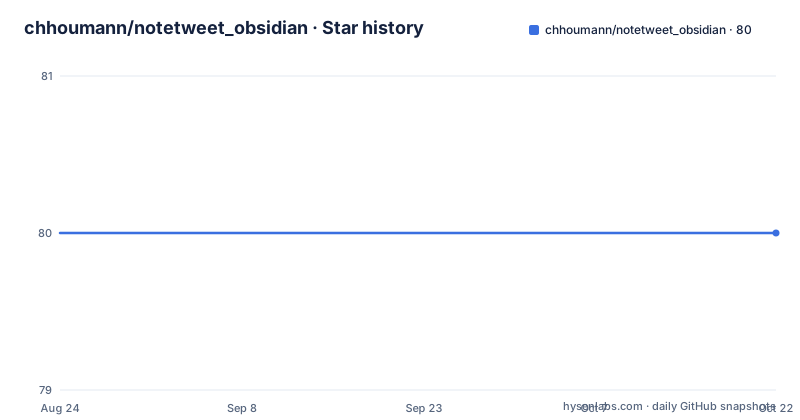
Star history
- chhoumann/notetweet_obsidian80 ★ · +0
| Repository | 2026-08-24 | 2026-10-22 |
|---|---|---|
| chhoumann/notetweet_obsidian | 80 | 80 |
0 Stars in the last 59 days, measured from the daily GitHub snapshot. Compare with other projects
Editorial analysis
What NoteTweet Actually Solves
NoteTweet solves a narrow but real friction: moving text from Obsidian to X. If you write long-form notes, daily logs, or research files in Obsidian, posting a quote or a thread normally means selecting text, copying it, opening X, pasting, and splitting manually at 280 characters. NoteTweet collapses that into commands. The README lists a composer for single tweets and threads, a command to post the current selection immediately, and a command to parse a THREAD START/THREAD END block from the active note. The target user is someone who already keeps their writing in Obsidian and wants the posting step to happen there too. It is not a social media management tool; it does not handle replies, retweets, or analytics. It is a focused bridge between a note editor and one API.
The Mechanism: From Note to Thread
The core mechanism is text parsing and API calls. When you run the Post tweet command, the composer opens. If you have text selected, it is ported in. A block delimited by THREAD START and THREAD END becomes a pre-split thread. Any other text longer than 280 characters is auto-split into tweets. The auto-split is toggleable in settings, and disabling it allows longer tweets, which the README notes require a paid X plan. This is a deliberate trade-off: the plugin can send a single long tweet if you pay X, but the default behavior matches the free tier's limit. The composer also supports pasting text, and any paste over 280 characters is split. Keyboard shortcuts control post boundaries: Backspace deletes an empty post, Alt+Enter starts a new post, and three line breaks do the same. Images can be attached by hovering a post and clicking the image button, by pasting an image (which is saved to the vault first), or by embedding a wikilink to an image file. Uploads are desktop only, so mobile users lose that feature.
Getting It Running: Commands and Config Keys
Installation is straightforward: the plugin is in the Obsidian community plugin browser, so you do not need to download a ZIP manually. After installing, the real work is X API setup. The README walks through creating an app at developer.x.com, which automatically places it in a Project, a requirement for X API v2. A legacy app without a Project causes a 403 Client Forbidden with reason client-not-enrolled. You need to copy four values: API Key, API Key Secret, Access Token, and Access Token Secret. The portal names them differently: API Key is your Consumer Key, API Key Secret is your Consumer Secret, and the Access Token and Secret are generated separately. You must enable OAuth 1.0a and set App permissions to Read and write. The README notes that X requires a Callback URI and Website URL, but the plugin never uses the callback, so any valid values work; it suggests using the GitHub URL for both. After generating the access token, if you change permissions later, you must regenerate it or it stays read-only. In NoteTweet settings, you add a named account and paste all four values. Each account has its own connection test that shows the exact X error if verification fails.
Credential Storage: Better Than data.json, With a Catch
One of the more thoughtful design choices is credential storage. Account names, IDs, and the default account live in the plugin's data.json, but the API keys and tokens are kept in Obsidian's built-in encrypted Secret Storage, app.secretStorage. This is a genuine improvement over plugins that store secrets in plain text in the vault. The cost is a hard dependency on Obsidian 1.13.0 or newer. The README also describes a migration path: credentials from older versions held in four fixed Secret Storage entries are moved automatically into a named Default account. If you are upgrading from a version that stored credentials in data.json, the settings tab shows a Migrate credentials section with a Migrate now button. If you used the old password-based Secure Mode, the button prompts for that password first. Both paths preserve the four credentials and remove the old storage path. This is sensible, but it means an upgrade is not a no-op; you need to interact with the migration UI.
Scheduling: A Self-Hosted Detour
Scheduling is listed as optional and advanced. To post on a schedule, you must follow a separate guide, GuideToSettingUpScheduler.md, to set up a self-hosted scheduler. The README does not describe the scheduler's architecture or requirements beyond that it is self-hosted. This is a significant limitation for most users: scheduling is not a built-in feature of the plugin. You need to run a separate service, which means maintaining another piece of infrastructure. If your use case is purely immediate posting, you can ignore scheduling. But if you expected a calendar-like interface inside Obsidian, this will disappoint. The scheduler is a real feature, but it is not turnkey. The README's brevity on this point is a warning: expect to read the guide and debug deployment yourself.
Limitations and Failure Modes
The most concrete failure mode is the X API permissions trap. The README warns that if you change App permissions after generating the access token, you must regenerate it, otherwise it stays read-only. That means your posts will fail with an authorization error. Another failure is the client-not-enrolled 403 for legacy apps. These are not obscure edge cases; they are common setup mistakes, and the README addresses them directly. Image uploads are desktop only, so mobile users cannot attach images from the composer. The auto-split is capped at 280 characters; disabling it to allow longer tweets requires a paid X plan. There is also a delete/undo modal after posting, which is nice, but it only works immediately after posting. The plugin does not offer a queue or draft management; it is fire-and-forget. For someone who needs to manage multiple accounts with different permission levels, the per-account connection test is helpful, but the setup overhead is real.
Alternatives and the Difference in Approach
The obvious alternative is posting directly on X's web or mobile app. That requires no setup, but you lose the integration with your notes. Another alternative is a general-purpose automation tool like Zapier or IFTTT, which can connect Obsidian to X via webhooks or file triggers. The difference in approach is that Zapier acts as a middle layer: you configure a trigger (e.g., a new note with a specific tag) and an action (post to X). That means you do not get the composer modal, the auto-split, or the thread parsing. You also still need to handle X API credentials, but you manage them in Zapier's interface, not in Obsidian. NoteTweet's advantage is that it is purpose-built for the note-to-tweet flow, with the THREAD START/THREAD END convention and the immediate post commands. The trade-off is that you are tied to Obsidian and to this plugin's maintenance cycle. If you do not live in Obsidian, the setup cost is hard to justify.
Maintenance, License, and Upgrade Cost
The repository is MIT licensed, so you can fork and modify it freely. The last push and release are from July 2026, which suggests active development, but the README does not state a maintenance policy. The plugin depends on Obsidian's Secret Storage API, which is a moving target; the 1.13.0 requirement is an example of how Obsidian changes can force upgrades. The migration path for credentials shows that the project has already had to handle storage format changes. Upgrading the plugin is not always seamless, as the migration UI indicates. The X API itself is also subject to change; the README's detailed setup instructions are a sign that X's developer portal has shifted over time. For a user, the maintenance cost is mostly in keeping your X app valid and your Obsidian version current. The license is permissive, but there is no guarantee of long-term support. If the maintainer stops updating, you may face API breakage with no official fix.
Editorial conclusion
Adopt NoteTweet if you are an Obsidian user who posts frequently to X and want to avoid copy-pasting between apps, especially if you already use THREAD START/THREAD END blocks. Skip it if you rarely tweet, need desktop image uploads only, or cannot meet X API v2 requirements like a Project-enrolled app with OAuth 1.0a and read-write permissions. Before adopting, verify your X developer app is attached to a Project and that your access token is generated after setting permissions to Read and write; otherwise you will hit 403 client-not-enrolled or read-only failures. Also confirm your Obsidian is 1.13.0 or newer, since the plugin depends on Secret Storage. The plugin is MIT licensed, so the code is free to audit and modify, but you own the maintenance burden of tracking X API changes and the optional scheduler.
Frequently asked questions
Why does NoteTweet for Obsidian return 403 Client Forbidden?
Because the app is not attached to a Project, which the X API v2 requires. A legacy, non-Project app fails with a 403 Client Forbidden and the reason client-not-enrolled, while new apps created at developer.x.com are placed inside a Project automatically and legacy apps must be attached manually.
Where does NoteTweet store my X credentials?
Account names, IDs and the default account are stored in the plugin's data.json, while each account's API key, API secret, access token and access token secret are kept in Obsidian's built-in encrypted Secret Storage at app.secretStorage. Using Secret Storage is why the plugin requires Obsidian 1.13.0 or newer.
What OAuth settings does the X developer portal demand?
Enable OAuth 1.0a and set App permissions to Read and write, then supply a Callback URI or Redirect URL, a Website URL and a Type of App. The plugin never uses the callback redirect, so the repository URL works in both URL fields with Web App, Automated App or Bot selected as the type.
How does the NoteTweet composer turn a note into a thread?
Auto-split breaks text at 280 characters and can be toggled off in settings, which allows longer tweets but requires a paid X plan. A selection wrapped in THREAD START and THREAD END opens as a thread that is already split, and anything longer than 280 characters is split for you.
Can NoteTweet attach images from my vault to a post?
Yes, by hovering a post and clicking the image button to pick a file from the vault, by pasting an image which is saved to the vault before upload, or by typing a wikilink to an image file such as gif, jpg, jpeg, png, webp or bmp. Uploads are desktop only.
Official sources
Add this badge to your README
If you maintain this project, the badge below links readers to this analysis and shows its maintenance status from the daily GitHub snapshot. Paste the markdown into your README; add ?metric=license or ?metric=stars to the image URL for a different field.

[](https://hysenlabs.com/projects/chhoumann-notetweet-obsidian)Star history chart for your README
[](https://hysenlabs.com/projects/chhoumann-notetweet-obsidian)