AutoHotInterception makes a key mean different things on different keyboards
An AutoHotkey wrapper for the Interception driver
At a glance
- What is it?
- AutoHotInterception is an AutoHotkey wrapper around the Interception driver that lets you bind code to a key on one specific keyboard or mouse, optionally stopping Windows from ever seeing that keypress. That per device behaviour is the whole point of it, and it comes with a genuine hazard, because a blocked key at driver level can take Ctrl, Alt and Del with it.
- Who is it for?
- AutoHotInterception suits someone with several keyboards, a Stream Deck style control surface, or a mouse and a keyboard that need different key maps, and it suits an AutoHotkey user who is willing to treat the driver layer as part of their system's risk surface.
- Can I use it commercially?
- Yes. MIT is a permissive licence: you can use, modify and sell software built on it, as long as you keep its copyright and licence notices.
- Is it still maintained?
- Yes. The repository last received commits 74 days ago.
- What is it written in?
- Mainly C#, according to GitHub's language statistics.
Answers come from the project's GitHub data, last synced on November 7, 2026, and from our analysis. They are not legal advice.
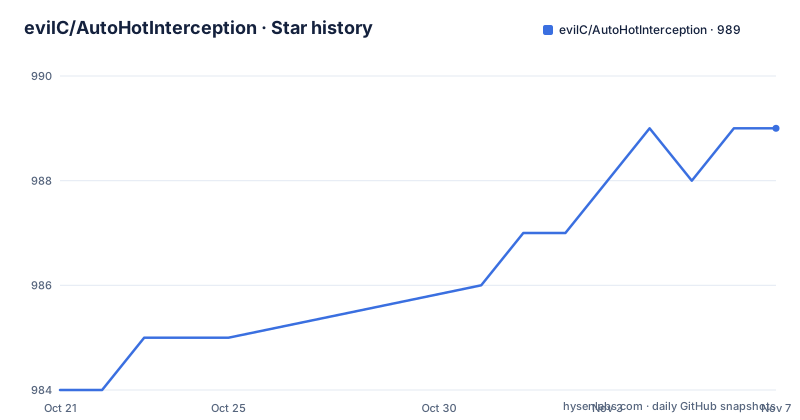
Star history
- evilC/AutoHotInterception989 ★ · +5
| Repository | 2026-10-21 | 2026-11-07 |
|---|---|---|
| evilC/AutoHotInterception | 984 | 989 |
5 Stars in the last 17 days, measured from the daily GitHub snapshot. Compare with other projects
Editorial analysis
The unit of control is the device, not the key
AutoHotInterception, usually shortened to AHI, does something ordinary AutoHotkey cannot: it reacts to events from a specific keyboard or mouse, and it can optionally block the native behaviour so that Windows never sees that keypress at all. The documentation's own example is the clearest statement of the model. With three keyboards connected, the main keyboard behaves normally, while on the second keyboard pressing F1 replaces it with a, and on the third keyboard pressing F1 replaces it with b. The same physical key, on different hardware, gets a different action. Beyond keys, it covers mouse buttons and mouse movement in both relative and absolute modes, and it works with both AutoHotkey v1 and v2. The implementation is a C# library shipped alongside the AutoHotkey scripts, and the underlying interception is done by the Interception driver by Francisco Lopez, which the project depends on rather than reimplements.
Blocking happens below Windows, and that is the hazard
The warning section in the documentation is the part to read before anything else, and it is unusually blunt. Interception is a driver and sits below Windows proper, so blocking through it goes deep enough that it can block Ctrl, Alt and Del. It is therefore possible to lock up all input, and the worst case scenario is a machine that needs the reset button. The concrete example given is subscription mode with blocking enabled, which totally blocks that key on that keyboard, so blocking Ctrl on your only keyboard means you have just blocked Ctrl, Alt and Del. The advice is practical: keep another keyboard or mouse handy that you do not block, be wary of scripts that run on startup, know how to enter Safe Mode in Windows and how to disable those startup entries, and remember the mouse alternative for emergency keyboard actions, such as right clicking the clock to reach the Task Manager. For anyone who finds this alarming and does not fully understand it, the documentation's own summary is to stay in context mode, which it calls the safer option.
Interception device IDs are positional, and they move
Understanding the addressing is what makes the tool usable, and the scheme is unusual. Interception identifies each device with a number from 1 to 20, where devices 1 to 10 are always keyboards and devices 11 to 20 are always mice. This numbering belongs to Interception alone, and it is not the same as the VID and PID that PC hardware normally uses, which are baked in at manufacture and are identical across devices of the same model. Most AHI functions, subscribing to a key for instance, take the Interception ID, so the project provides helper functions to find the current Interception ID for a device given its VID and PID, and if you are not sure of the values or whether Interception can see the device at all, the included Monitor script will tell you. You need the VID and PID of at least one device to do anything with AHI, which is the first thing to establish before writing a single line of script.
The device ID drifts, and a device can die until reboot
The known issues section documents a behaviour that will surprise anyone who has used the tool for a while. If you unplug and replug a device, or go into hibernate and resume, the Interception ID of that device increases by one. That sounds cosmetic, and it is not: once the ID of a device goes above 10 for a keyboard or 20 for a mouse, the device completely ceases to function until the next reboot, and the documentation stresses that this happens in Windows as well, not only inside AutoHotInterception. The author is direct that there is nothing to fix in AHI, because it is a limitation of the Interception driver. The practical consequence is that a script written against a hard coded device ID can break quietly after a suspend and resume cycle, and that a machine which has been through several plug cycles may need a restart before the input devices work at all.
The Monitor app is how you find out whether any of it works
The bundled Monitor app does two jobs: it confirms that AHI is functioning at all, and it reveals the VID and PID or the DeviceHandle of your devices, with copy buttons for each so you can paste them into a script. It comes with a caveat that deserves attention: do not tick all devices at once, because if it crashes in that state it will lock up all devices. The advice is to tick one at a time and check that it is your device. Given the previous two sections, that instruction is not fussiness. The Monitor app is the first thing you run after setup, the documentation's final setup step, and it is also the thing to reach for when a script stops behaving after a resume cycle, since the device ID it reports may no longer be the one your script expects.
Building the working folder, and unblocking the DLLs
Setup is a sequence of file operations rather than an installer, and the documentation is specific about each step. First the Interception driver itself has to be installed: download the Interception Driver release and run `install-interception.exe` at an admin command prompt, not by double clicking it, and the program then tells you to execute the install command itself:
install-interception.exe /installThen the AHI side. Download an AHI release from the releases page, not the clone or download link on the main page, and extract it. From that zip, take either the `AHK v1` folder or the `AHK v2` folder, which becomes the working folder where you will run scripts, containing sample `.ahk` scripts and a `lib` folder. From the same zip take `AutoHotInterception.dll` out of `Common/lib` and put it in `lib`. From the Interception installer zip, copy the `library` folder with its `x86` and `x64` subfolders into `lib` as well. The result is meant to look like this:
AHI Root Folder
	Monitor.ahk
	etc...
	Lib
		AutoHotInterception.ahk
		AutoHotInterception.dll
		CLR.ahk
		Unblocker.ps1
		etc..
		x86
			interception.dll
		x64
			interception.dll
One step is easy to miss: downloaded DLLs are blocked by Windows and will not work, so you right click `Unblocker.ps1` in the lib folder and run it as admin, or unblock the DLLs by hand through their properties, or unblock the zip files before opening them.
Two AutoHotkey generations and a thin release history
The library ships in two flavours, and the choice is made at extraction time rather than at runtime: the working folder is either the AHK v1 or the AHK v2 directory, and the samples inside it match that generation. The documentation also mentions an optional arrangement where the contents of the `lib` folder are placed into one of the AutoHotkey library folders, for example `My Documents/AutoHotkey/lib`, and the `#include` lines of the sample scripts are changed to `#include <AutoHotInterception>`, which lets your scripts live in any folder without each needing its own copy of the library. The project is MIT licensed, and the repository itself is small: an `AHK v1` folder, an `AHK v2` folder, a `C#` folder for the library source, a changelog, the two setup animations and the monitor screenshot. The release history is worth noting. v0.9.0 and v0.9.1 are from March and July 2023, and v0.9.2 is from 2026-08-25, so the recent work is a single release after a long gap rather than a steady stream. Support comes through an AutoHotkey forum thread and a Discord channel, both linked from the documentation.
Editorial conclusion
AutoHotInterception suits someone with several keyboards, a Stream Deck style control surface, or a mouse and a keyboard that need different key maps, and it suits an AutoHotkey user who is willing to treat the driver layer as part of their system's risk surface. It is a poor fit for a single keyboard machine, because the same behaviour can be achieved with plain AutoHotkey remapping, and it is a poor fit for a machine you cannot physically reset, since a misconfigured block can take all input with it. Before you install it, check three things: that you have a second keyboard or mouse that is not blocked, that you know how to reach Safe Mode on the machine, and that the release you use is v0.9.2 from 2026-08-25, which sits well after the 2023 releases of v0.9.0 and v0.9.1.
Frequently asked questions
What does AutoHotInterception do that plain AutoHotkey cannot?
It binds behaviour to a specific keyboard or mouse rather than to a key, so the same key can trigger different actions depending on which device it was pressed on, and it can block the event so that Windows never receives it. It supports keys, mouse buttons and mouse movement in relative and absolute modes.
Is it safe to block keys with AutoHotInterception?
It carries real risk, because the Interception driver sits below Windows and can block even Ctrl, Alt and Del, which can lock out all input and in the worst case require a reset. The documentation recommends keeping an unblocked keyboard or mouse nearby, knowing how to enter Safe Mode, and sticking to context mode if you do not fully understand the behaviour.
How do I find the device ID for my keyboard in AutoHotInterception?
Use the included Monitor app, which shows the VID, PID and DeviceHandle of each device and can copy them to the clipboard. Interception IDs run from 1 to 20, with 1 to 10 always keyboards and 11 to 20 always mice, but they change when a device is unplugged and replugged or after a resume from hibernate.
How do I install the Interception driver for AutoHotInterception?
Download the Interception Driver release, run `install-interception.exe` at an admin command prompt rather than double clicking it, and then execute `install-interception.exe /install` as the program instructs. The AHI side is then assembled from the release zips into a working folder, with the DLLs unblocked using the included Unblocker script.
Does AutoHotInterception work with AutoHotkey v2?
Yes, both AHK v1 and AHK v2 are supported. The choice is made when you extract the release, since you take either the `AHK v1` folder or the `AHK v2` folder as your working folder, and the sample scripts inside match that generation.
Official sources
Add this badge to your README
If you maintain this project, the badge below links readers to this analysis and shows its maintenance status from the daily GitHub snapshot. Paste the markdown into your README; add ?metric=license or ?metric=stars to the image URL for a different field.

[](https://hysenlabs.com/projects/evilc-autohotinterception)Star history chart for your README
[](https://hysenlabs.com/projects/evilc-autohotinterception)Was this useful?