KoboCloud syncs a Kobo e-reader from a shared cloud folder
A set of scripts to synchronize a kobo reader with popular cloud services
At a glance
- What is it?
- KoboCloud is a set of shell scripts that install onto a Kobo device and pull books from a shared Dropbox, Google Drive, NextCloud, pCloud, Box or Yandex Disk folder on every sync. The interesting part is the design constraint: the whole thing lives on the reader, so everything has to work from a public link with no client running.
- Who is it for?
- Adopt KoboCloud if you keep your ebook library in a cloud folder you can share by link and you want the Kobo to fetch it without a desktop syncing client in the loop, since the scripts run on the device itself. Check the provider-specific access model before using it with private books: several integrations require share links, while Dropbox offers an authenticated private-folder method.
- Can I use it commercially?
- Check first. The repository uses a licence we do not classify automatically, so read its LICENSE file before any commercial use.
- Is it still maintained?
- Yes. The repository last received commits 44 days ago.
- What is it written in?
- Mainly Shell, according to GitHub's language statistics.
Answers come from the project's GitHub data, last synced on November 7, 2026, and from our analysis. They are not legal advice.
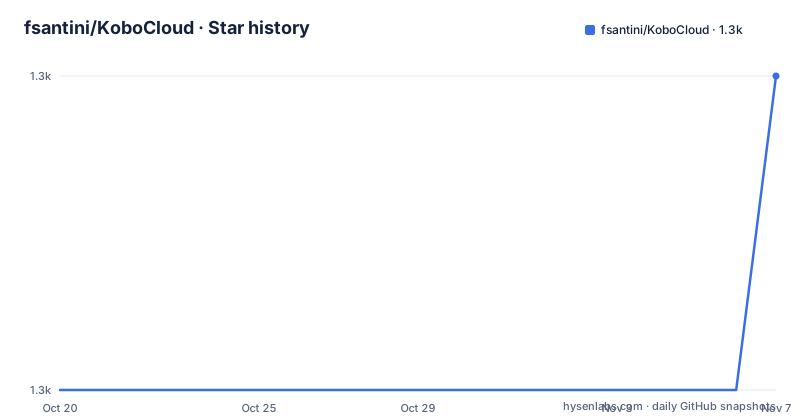
Star history
- fsantini/KoboCloud1,314 ★ · +1
| Repository | 2026-10-20 | 2026-11-07 |
|---|---|---|
| fsantini/KoboCloud | 1.3k | 1.3k |
1 Stars in the last 18 days, measured from the daily GitHub snapshot. Compare with other projects
Editorial analysis
Everything runs on the reader, not on your computer
The set of scripts is installed onto the Kobo itself, which is the defining constraint and the reason the project works the way it does. A file named `KoboRoot.tgz` is copied into the hidden `.kobo` directory of the device, the device is unplugged and restarted, and from then on the scripts run during the reader's own sync cycle. The new files are downloaded when the Kobo connects to the internet, and the documentation notes that it can take a few minutes after the sync process for the device to recognize and import the new content. Once configured, syncing runs on the reader without a desktop client. Provider access differs: several services use share links, while Dropbox also supports a private-folder authorization flow.
Configuration is a text file of links, one per line
After installation, you plug the Kobo back into the computer and open the configuration file at `.add/kobocloud/kobocloudrc`, then add the cloud links, one per line. The example shows the format:
# Lines starting with '#' are ignored
# Google drive:
https://drive.google.com/drive/folders/<ID>?usp=sharing
# Dropbox:
https://www.dropbox.com/sh/pgSHORTENED
REMOVE_DELETED
The format is deliberately trivial, and the rules around it are strict. There must be no spaces before or after the link on the line, comments start with a hash, and no subdirectories are supported in the general case, so the books have to be in the same directory that is being shared. Any change to the file requires a restart of the Kobo to take effect. Two keywords are recognised in the file itself, each on its own line in capitals with no surrounding spaces: `REMOVE_DELETED` makes the next sync delete local files that are no longer on the remote, and `UNINSTALL` makes the program delete itself on the next connection to the internet.
Each provider has its own share link ritual
The provider sections are where the real work is, because each cloud service has a different way of producing a link the scripts can read. For Google Drive you use the link sharing option on a folder, select the option for anyone with the link to view, and copy the link into the file, and subdirectories are supported, with a warning that folders with many files might not work. For NextCloud and ownCloud you share the folder with a link, and the documentation adds two configuration requirements on the server side: WebDAV for public folders has to be enabled, and `dav.propfind.depth_infinity` has to be set to `true`, which needs a recent server version. For Box you create a link with the options for people with the link and can view and download, with a warning that while the script supports file lists spanning multiple pages, a list with many pages might not work. For Yandex Disk you right-click the folder, use the share and copy commands, and subdirectories are supported.
Dropbox lost its public folder method and gained an OAuth dance
The Dropbox section shows how a provider can change under a tool like this. The public folder method does not work anymore due to a change on the Dropbox website. The replacement is a private folder method, which creates a folder called `/Applications/Kobo Cloud Sync` in your Dropbox and syncs with it. The setup is an OAuth authorisation through a link, using the long lived client identifier and redirect URI in the documentation. You paste the command into a terminal, copy the line that starts with `DropboxApp:` from the terminal output, and add that line to your `kobocloudrc` file. So the Dropbox path is now the one provider that needs a token pasted into the configuration rather than a plain link, and that token is a credential stored in a plain text file on the device.
Building the archive from source is one shell script
Installing from source is documented for anyone who wants to change the behaviour. You download the repository, edit the configuration template at `src/usr/local/kobocloud/kobocloudrc.tmpl`, and run a single command from the project root:
sh ./makeKoboRoot.shThat produces the `KoboRoot.tgz` archive, and then you follow the same installation steps as the released version. The repository layout shows how the project is put together, with a `src/` directory holding the payload that ends up in the archive, a `makeKoboRoot.sh` build script at the root, a `Sources_3rdParty/` directory for vendored third party code, an `updateCABundle.sh` script for updating the CA bundle, a `local_test.sh` for local testing, a `docs/` directory and a `COPYING` file at the root. The Mac and Safari note in the installation section is a practical warning worth repeating: Safari unpacks `KoboRoot.tgz` into `KoboRoot.tar` after downloading, so you must transfer the `.tgz` and not the `.tar`, either by using a different browser or by re-packing it with gzip.
Uninstall is a magic word, and the log is where bugs go
The uninstall procedure is the simplest thing in the project. You put the word `UNINSTALL` on its own line in the configuration file, restart the Kobo, and the next time it connects to the internet the program deletes itself. One caveat is spelled out: the `.add/kobocloud` directory is not deleted, so after connecting the device to a computer you should move the files from the Library subfolder in order not to lose your content, and delete the whole kobocloud directory manually. For debugging, KoboCloud keeps a log of each session in `.add/kobocloud/get.log`, and the documentation asks that a copy of that file accompany every bug report. There is also a known issue worth understanding rather than working around blindly: some Kobo versions make the same book appear twice in the library, because the device scans the internal directory where files are saved as well as the official folders, and the fix is a setting in the `Kobo eReader.conf` file inside the `.kobo/Kobo` folder.
Duplicate books come from a device-side scan, not from the sync
That duplicate book issue deserves its own look, because it is the kind of bug that gets misdiagnosed as a sync problem. The cause is on the reader, not in the scripts: the Kobo scans the internal directory where the files are saved as well as the official folders, so a book that lands in both places is listed twice. The fix is a configuration line in the `Kobo eReader.conf` file, in the `[FeatureSettings]` section, which prevents the syncing of dotfiles and dotfolders:
ExcludeSyncFolders=\\.(?!add|adobe).*?The regular expression is negative, so it excludes every dot-prefixed path except the `add` and `adobe` directories. That is the same directory the scripts themselves live in, which is why those two are carved out. The line is easy to get wrong by hand, so the alternative to editing the file is to accept the duplicates. There is also a general caveat repeated across the provider sections, that subfolder support is limited, and the pCloud case is spelled out precisely: because new share links have a different format and use a different download method, subfolders are only supported on the older share folders and not on the newer ones.
Editorial conclusion
Adopt KoboCloud if you keep your ebook library in a cloud folder you can share by link and you want the Kobo to fetch it without a desktop syncing client in the loop, since the scripts run on the device itself. Check the provider-specific access model before using it with private books: several integrations require share links, while Dropbox offers an authenticated private-folder method. Subfolder support varies by provider, and unlisted services are not supported by the documented integrations. Verify first which share link format your provider issues, because the documentation records that the public folder method on Dropbox no longer works and that pCloud subfolders only work on older share folders, and check whether the reader still accepts the `ExcludeSyncFolders` setting the duplicate book fix depends on.
Frequently asked questions
How do I install KoboCloud on a Kobo device?
Download the latest `KoboRoot.tgz` from the releases page, mount the Kobo, copy the archive into the hidden `.kobo` directory, then unplug and restart the device. If you use Safari, make sure you transfer the `.tgz` and not the `.tar` it unpacks into.
Which cloud services does KoboCloud support?
Dropbox, Google Drive, NextCloud and ownCloud, pCloud, Box, and Yandex Disk. Each provider has its own share link setup, and subdirectory support differs between them.
How do I make KoboCloud delete books that are gone from the cloud?
Put `REMOVE_DELETED` on a line of its own in the `kobocloudrc` file, in capitals with no spaces before or after, and restart the Kobo. On the next connection the device deletes local files that are no longer on the remote server, but not directories.
Why does the same book appear twice in my Kobo library?
Some Kobo versions scan the internal directory where files are saved as well as the official folders. The fix is to set `ExcludeSyncFolders=\\.(?!add|adobe).*?` in the `[FeatureSettings]` section of the `Kobo eReader.conf` file inside the `.kobo/Kobo` folder.
How do I uninstall KoboCloud?
Add the word `UNINSTALL` on its own line in the `kobocloudrc` file, restart the Kobo, and the program deletes itself the next time the device connects to the internet. The `.add/kobocloud` directory is left behind, so move the files from its Library subfolder before deleting it manually.
Official sources
Add this badge to your README
If you maintain this project, the badge below links readers to this analysis and shows its maintenance status from the daily GitHub snapshot. Paste the markdown into your README; add ?metric=license or ?metric=stars to the image URL for a different field.

[](https://hysenlabs.com/projects/fsantini-kobocloud)Star history chart for your README
[](https://hysenlabs.com/projects/fsantini-kobocloud)Was this useful?