Jupyter nbconvert: converting notebooks to HTML, Markdown, PDF and scripts
Jupyter Notebook Conversion
At a glance
- What is it?
- Jupyter nbconvert converts `.ipynb` files into static documents through registered exporters and Jinja templates. It fits developers and researchers who need repeatable notebook conversion from the command line or within Jupyter tooling.
- Who is it for?
- Adopt nbconvert when a notebook must become a repeatable static artifact, especially HTML, Markdown, reStructuredText, PDF, or an executable script. Do not expect an interactive notebook experience or assume every target has complete system dependencies.
- Can I use it commercially?
- Yes. BSD-3-Clause is a permissive licence: you can use, modify and sell software built on it, as long as you keep its copyright and licence notices.
- Is it still maintained?
- Yes. The repository last received commits 11 days ago.
- What is it written in?
- Mainly Python, according to GitHub's language statistics.
Answers come from the project's GitHub data, last synced on October 23, 2026, and from our analysis. They are not legal advice.
Star history
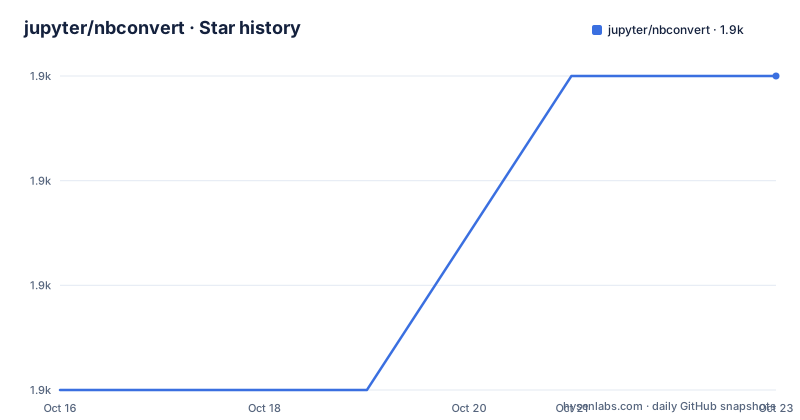
- jupyter/nbconvert1,942 ★ · +3
| Repository | 2026-10-16 | 2026-10-23 |
|---|---|---|
| jupyter/nbconvert | 1.9k | 1.9k |
3 Stars in the last 7 days, measured from the daily GitHub snapshot. Compare with other projects
Editorial analysis
nbconvert's static notebook export boundary
Jupyter nbconvert addresses the point after an author has created a notebook in the `.ipynb` format. That notebook can contain Markdown, source code, outputs, execution metadata, and notebook structures used by Jupyter. nbconvert transforms the document into formats intended for reading, publication, or execution outside an interactive notebook session.
The README lists HTML, LaTeX, PDF, Reveal JS, Markdown, reStructuredText, and executable scripts as static targets. Package metadata classifies nbconvert for developers, system administrators, and science or research users. A representative use is producing `mynotebook.html` while retaining the original notebook as an editable source. Another use is generating Markdown for review in a repository or a script for execution outside Jupyter.
This boundary matters during project selection. nbconvert produces a converted representation, not a deployed notebook application. If the requirement is browser-based editing, kernel sessions, or interactive execution, the README does not present nbconvert as providing those services. It is appropriate when the notebook should become a distributable or repeatable artifact.
Exporter architecture behind `jupyter nbconvert`
The README identifies Jinja templates as the conversion mechanism. The command selects an exporter associated with the requested output format, which then renders the notebook through that exporter. Package metadata makes the available selection explicit through `nbconvert.exporters` entry points.
Declared exporters include `HTMLExporter`, `SlidesExporter`, `LatexExporter`, `PDFExporter`, `QtPDFExporter`, `QtPNGExporter`, `WebPDFExporter`, `MarkdownExporter`, `PythonExporter`, `RSTExporter`, `NotebookExporter`, `ASCIIDocExporter`, and `script`. The entry-point names show that destination format is selected explicitly rather than inferred automatically.
The separation between exporter classes and format names also provides a defined extension point. `TemplateExporter` is registered under the `custom` entry-point name, while the named exporters map formats to implementation classes. However, the README does not document the complete custom-template API, available configuration keys, or rules for overriding built-in templates. A custom presentation layer should be verified in the official documentation before it enters an automated pipeline.
Installing nbconvert and making the first HTML conversion
The README provides development installation steps. It first asks users to inspect the current pandoc installation:
pandoc --versionIf pandoc is missing and required by the chosen setup, the README lists this Debian or Ubuntu installation command:
sudo apt-get install pandocIt also lists the Homebrew alternative:
brew install pandocFor a development checkout, clone the repository, enter its directory, and install the package in editable mode. These commands connect the working copy to the Python environment:
git clone https://github.com/jupyter/nbconvert.git
cd nbconvert
pip install -e .
The first documented conversion targets HTML. With `mynotebook.ipynb` in the working directory, run:
jupyter nbconvert --to html mynotebook.ipynbAccording to the README, the command creates `mynotebook.html`. The README does not explain output-directory selection, overwrite behavior, or template selection for this example, so those details should not be assumed.
After a development installation, the README gives a separate test procedure. Install the `test` extra and run pytest against the package:
pip install nbconvert[test]
py.test --pyargs nbconvert
This is a contributor-oriented verification step. It is not a notebook conversion command or evidence that every registered exporter has been exercised in the reader's environment.
Choosing a format and checking its prerequisites
The documented general command structure is:
jupyter nbconvert --to <output format> <input notebook>The angle-bracketed text is documentation notation. A real invocation substitutes a registered target such as `html`, `latex`, `pdf`, `markdown`, `rst`, or `script` and an actual notebook filename.
The target determines the kind of artifact produced. HTML is a static browser document. Markdown and reStructuredText are text representations. PDF and LaTeX belong to document-production workflows. Python and script exporters produce code-oriented output rather than a browser-rendered notebook view. Choosing a different exporter can therefore change more than the file extension.
Pandoc is an explicit external dependency concern in the README. The development instructions ask users to check it and provide installation commands, but they do not map it to every exporter or state that it is mandatory for the HTML example. Installing the Python package alone should not be treated as confirmation that every operating-system prerequisite for a target is present.
Package metadata confirms additional registered exporters for slides, Qt PDF, Qt PNG, web PDF, AsciiDoc, notebook, and AsciiDoc output. The README does not provide separate commands, expected filenames, or dependency lists for each one, so entry-point availability alone is not a complete operating guide.
Conversion limits and cases where nbconvert is the wrong tool
The clearest limitation is that nbconvert creates converted output rather than an interactive notebook environment. HTML can make notebook content easier to distribute, but the documented command does not claim to provide live editing, kernel attachment, or browser-based execution. Projects centered on those requirements need notebook server or development software instead.
The README is concise and leaves several operational questions unanswered. It does not document cell inclusion or exclusion, custom output paths, overwrite behavior, template configuration, or the names and purposes of configuration files. The repository contains `docs/`, `share/`, `CHANGELOG.md`, and `tests/`, but the exact guidance in those files is not reproduced here. Custom templates and automated conversions should therefore be checked against the official documentation.
Notebook fidelity also requires inspection. The README lists supported targets but does not claim that rich outputs or unusual notebook metadata will appear identically in HTML, PDF, slides, and scripts. A successful process exit is not documented as proof of visual correctness, executable correctness, or complete semantic equivalence.
Pandoc can also complicate deployment. Teams should determine whether a selected exporter needs it rather than adding it automatically to every environment. Without exporter-specific dependency documentation in the README, environment setup remains a verification task.
Release activity, BSD licensing and upgrade work
The repository is not archived. Its last push was on 2026-10-12. Listed releases include `v7.17.2` on 2026-10-12, `v7.17.1` on 2026-04-08, and `v7.17.0` on 2026-01-29. These dates confirm recent repository and release activity, but the README does not provide a detailed compatibility or deprecation policy.
The package uses the `BSD-3-Clause` license. The README refers to the Modified BSD License, and package metadata points to the repository's `LICENSE` file. Its source banner states that contributions are distributed under those terms. This identifies the declared license, but it is not legal advice about a particular deployment.
Package metadata requires Python 3.9 or later. The build uses Hatchling through `hatchling.build` and requires `hatchling >=1.5`. Runtime dependencies include `jupyter_core>=4.7`, `nbformat>=5.7`, Jinja2, Beautiful Soup, nbclient, Pygments, Mistune, and other packages. Managed environments must account for that dependency set when upgrading.
For a development checkout, the documented upgrade workflow remains editable installation followed by the test extra and `py.test --pyargs nbconvert`. A repository-level conversion pipeline should also retain representative notebooks for checking changes in generated HTML, Markdown, PDF, or scripts after an upgrade.
Editorial conclusion
Adopt nbconvert when a notebook must become a repeatable static artifact, especially HTML, Markdown, reStructuredText, PDF, or an executable script. Do not expect an interactive notebook experience or assume every target has complete system dependencies. First verify `jupyter nbconvert --to html your-notebook.ipynb` with a representative notebook and confirm that external tools required by the selected exporter are installed.
Frequently asked questions
How do I install Jupyter nbconvert for development?
Clone the repository, change into its directory, and run `pip install -e .`. The README also asks developers to check pandoc and provides `sudo apt-get install pandoc` or `brew install pandoc` when it is needed.
How do I convert a Jupyter notebook to HTML?
Run `jupyter nbconvert --to html mynotebook.ipynb`. According to the README, this creates `mynotebook.html` from the input notebook.
What output formats does Jupyter nbconvert support?
The README lists HTML, LaTeX, PDF, Reveal JS, Markdown, reStructuredText, and executable scripts. Package metadata also registers exporters for slides, Qt PDF, Qt PNG, web PDF, Python, notebook, and AsciiDoc.
Does Jupyter nbconvert create an interactive notebook?
The README does not claim that it provides an interactive notebook environment. It converts notebooks into selected static or executable formats, so it does not replace notebook editing or execution software.
How do I run the nbconvert tests after a development install?
The README gives `pip install nbconvert[test]` followed by `py.test --pyargs nbconvert`. It describes these commands as running the tests after the development installation.
Official sources
Add this badge to your README
If you maintain this project, the badge below links readers to this analysis and shows its maintenance status from the daily GitHub snapshot. Paste the markdown into your README; add ?metric=license or ?metric=stars to the image URL for a different field.

[](https://hysenlabs.com/projects/jupyter-nbconvert)Star history chart for your README
[](https://hysenlabs.com/projects/jupyter-nbconvert)Was this useful?