CrossDesk puts a remote desktop in the browser, and a lock screen agent on Windows
A lightweight, cross-platform remote desktop software with support for Web Client access.
At a glance
- What is it?
- CrossDesk is a C++ remote desktop built on the author's MiniRTC, spanning Windows, macOS and Linux hosts with browser, iOS and Android controllers. The unusual parts are the web client that needs no install and remote control of Windows before sign-in, and the clearest gap is that phones and tablets can only control, never be controlled.
- Who is it for?
- Adopt CrossDesk when the controller is a browser or a phone and the host is a personal Windows or Linux box you can hand a password to. Do not adopt it if you need a phone or tablet to be the controlled device, because the iOS, Android and HarmonyOS mobile clients are control only.
- Can I use it commercially?
- Check first. The repository uses a licence we do not classify automatically, so read its LICENSE file before any commercial use.
- Is it still maintained?
- Yes. The repository received new commits within the last day.
- What is it written in?
- Mainly C++, according to GitHub's language statistics.
Answers come from the project's GitHub data, last synced on November 14, 2026, and from our analysis. They are not legal advice.
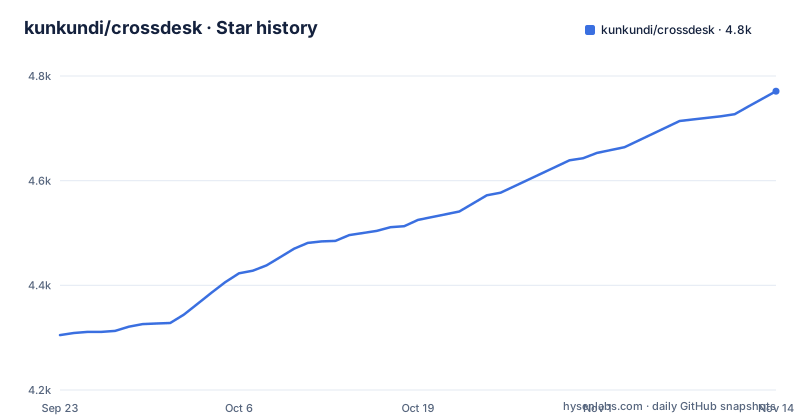
Star history
- kunkundi/crossdesk4,771 ★ · +466
| Repository | 2026-09-23 | 2026-11-14 |
|---|---|---|
| kunkundi/crossdesk | 4.3k | 4.8k |
466 Stars in the last 52 days, measured from the daily GitHub snapshot. Compare with other projects
Editorial analysis
The host is the install; the browser is the client you can hand out
Most remote desktop tools make you install something on both ends. CrossDesk splits that cost. The host side is a desktop application for Windows, macOS or Linux, and the controller can be a second desktop install, the page at web.crossdesk.cn, the native iOS app in apps/ios, or the Android project in apps/android. A controller with only a browser can connect using the host's 9 digit device ID and its current connection password.
The desktop window concentrates the credentials in one place. Under the local desktop section (本桌面) it shows the machine ID and the connection password once the client reports that it is connected to the server.
Install means picking the artifact for your CPU architecture from the project's download page. The stated baselines are Windows 10 on x64, macOS 14.0 or later for both Intel and Apple Silicon, and Ubuntu 20.04 or later on amd64 or arm64 with a glibc 2.31 baseline. On Linux, pick the ordinary `crossdesk-linux-…deb` for a machine that already has a desktop, or `crossdesk-virtual-desktop-xfce-…deb` for a server that needs its own Xfce desktop; install only one of the two. macOS ships a .pkg for x64 or arm64, and on first run you are prompted to grant Screen Recording, used for desktop capture, and Accessibility, used for remote keyboard and mouse input.
Everything runs on the author's own MiniRTC, not on an SFU
CrossDesk sits on MiniRTC, a separate C++ project by the same author. That single choice explains most of the architecture. A session tries a direct peer to peer link, and if the two machines cannot reach each other, it falls back to a TURN relay.
The media path is SRTP encrypted, and the session toolbar includes a network status view.
The desktop settings cover encoding, with H.264 or AV1 and hardware encoding and decoding, and the README notes that the available capabilities vary by platform and device.
Turning quality and 30 or 60 fps up mid session is a push to the host
The README lists in-session adjustment of picture quality and frame rate, and says the available capabilities vary by platform and device.
The README lists multi-display switching, keyboard, mouse and key combinations, remote sound, plain text clipboard sync, file transfer and a privacy screen as session features.
Unattended Windows reaches the login screen with SYSTEM and no stored password
The README lists remote control of Windows before sign-in (Windows 登录前远控) among its deployment features, next to headless operation on Linux, and points to the user guide in docs/USER_GUIDE.md for detailed usage.
The unattended agent has no sound, no files and no clipboard
Phones control the desktop; the desktop does not become a phone target
The iOS app in apps/ios is a controller only. The README states plainly that it controls a remote computer and does not offer the iPhone or iPad as a controlled desktop. It requires iOS 16.0 or later, and the release package is an unsigned app that you must sign yourself, or you build and install it with Xcode.
The Android client is also control only, targets Android 8.0 and later on arm64, and is installed from a signed APK or built yourself.
Where CrossDesk differs from RustDesk, AnyDesk and BilldDesk
RustDesk is the obvious comparison because both are open source remote desktop tools with a self hosted path. The difference is where the media stack lives. CrossDesk delegates the transport to MiniRTC, a separate repository by the same author, and pairs it with a hosted web client at web.crossdesk.cn that needs no native controller at all. If you are deciding on a relay you have to run and keep patched, that second dependency is a real line item.
AnyDesk and ToDesk are the commercial comparison, and the gap is not architectural. GitHub reports no recognised licence for CrossDesk (NOASSERTION), so read the LICENSE file before linking it into a product you distribute. The repository also ships PRIVACY.md and self hosting options in the desktop settings.
Self hosting is supported, and the repository carries a docker/ directory. Linux hosts can use an existing desktop or, on servers, a separate package that brings its own Xfce desktop.
Editorial conclusion
Adopt CrossDesk when the controller is a browser or a phone and the host is a personal Windows or Linux box you can hand a password to. Do not adopt it if you need a phone or tablet to be the controlled device, because the iOS, Android and HarmonyOS mobile clients are control only. Before switching, test one real session with the toolbar's network status view, and check that quality and frame rate adjustments behave on your hardware, since the README says capabilities vary by platform and device.
Frequently asked questions
Does CrossDesk need anything installed on the machine that does the controlling?
No, not for browser control. The README says you open the Web client at web.crossdesk.cn, enter the remote device ID and the password, and connect from any WebRTC capable browser. Native iOS and Android controllers exist in apps/ios and apps/android, but the browser path needs no native install on the control side.
Can CrossDesk control a Windows PC before anyone has logged in?
The README lists remote control of Windows before sign-in (Windows 登录前远控) among its deployment features and points to docs/USER_GUIDE.md for detailed usage.
Do CrossDesk features vary by client and platform?
Yes. The README says picture and sound capabilities vary by platform and device, the iOS, Android, Web and terminal CLI clients can only control, and the trusted device check is not yet implemented in the CLI, iOS, Android or HarmonyOS mobile clients.
Why does a CrossDesk session show nothing on macOS after connecting?
On first run macOS asks for two permissions: Screen Recording, used for desktop capture, and Accessibility, used for remote keyboard and mouse input. macOS 14.0 or later is the stated baseline.
Can I use an iPhone or iPad as the computer being controlled in CrossDesk?
No. The README's platform table lists iOS / iPadOS as control only. The same restriction applies on Android, where phone hosting is not yet offered.
How do I change the connection password on a CrossDesk host?
In IP direct mode the main window lets you change the port and password directly, and that password is 6 letters or digits. The README points to docs/USER_GUIDE.md for further connection and password operations.
Official sources
Add this badge to your README
If you maintain this project, the badge below links readers to this analysis and shows its maintenance status from the daily GitHub snapshot. Paste the markdown into your README; add ?metric=license or ?metric=stars to the image URL for a different field.

[](https://hysenlabs.com/projects/kunkundi-crossdesk)Star history chart for your README
[](https://hysenlabs.com/projects/kunkundi-crossdesk)Was this useful?