Capso for macOS: Open-source capture, recording, OCR, and annotation
Open-source screenshot and screen recording for macOS. The free, native alternative to CleanShot X. Built with Swift 6.0 and SwiftUI.
At a glance
- What is it?
- Capso is a native macOS application for screenshots, screen recording, OCR, translation, and annotation. It targets macOS 15 and later, offers signed releases and Homebrew installation, and uses BSL 1.1.
- Who is it for?
- Capso is appropriate for macOS users who want a native capture workspace with screenshots, video or GIF recording, OCR, annotation, history, and optional storage under their own Cloudflare R2 account. It is a weaker fit for users who need a documented commercial license, non-macOS platforms, or a built-in sharing service.
- Can I use it commercially?
- Check first. The repository uses a licence we do not classify automatically, so read its LICENSE file before any commercial use.
- Is it still maintained?
- Yes. The repository received new commits within the last day.
- What is it written in?
- Mainly Swift, according to GitHub's language statistics.
Answers come from the project's GitHub data, last synced on October 23, 2026, and from our analysis. They are not legal advice.
Star history
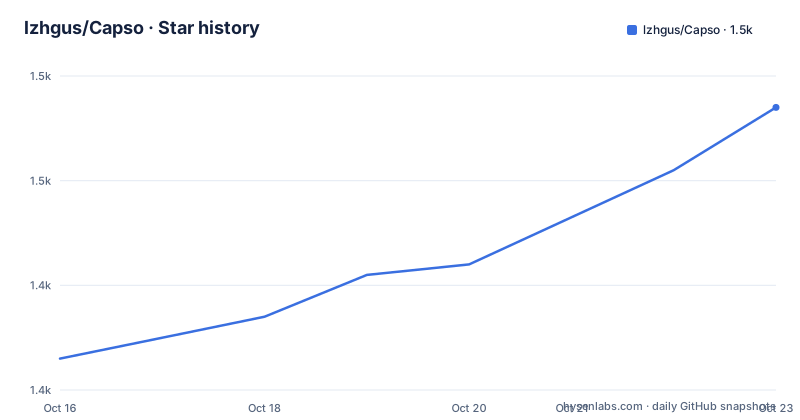
- lzhgus/Capso1,457 ★ · +24
| Repository | 2026-10-16 | 2026-10-23 |
|---|---|---|
| lzhgus/Capso | 1.4k | 1.5k |
24 Stars in the last 7 days, measured from the daily GitHub snapshot. Compare with other projects
Editorial analysis
Capso's capture workflow for macOS
Capso addresses a broad macOS utility problem: taking a screenshot or recording is often only the first step. The application combines capture selection, annotation, OCR, translation, editing, clipboard actions, pinned windows, and a persistent history library. Its intended users are macOS users looking for a native alternative to paid screenshot tools, plus developers interested in reusable Swift components. The README positions Capso as built with Swift 6.0 and SwiftUI, targeting macOS 15.0 and later.
The capture interface offers Area, Fullscreen, Window, Scrolling, Timer, OCR, and Recording modes from one floating toolbar. Area capture displays the selected dimensions and supports adjustable selection before the capture is committed. The documentation also lists presets such as Freeform, 1:1, 4:3, 16:9, and custom fixed pixel sizes. This is more than a basic screenshot command, but it also means Capso has a larger configuration surface than a small utility focused only on saving images.
The screenshot path can continue through Quick Access, where a floating preview provides copy, save, annotate, OCR, pin, and drag-to-other-app actions. Captures can be edited inline before the original is saved. The History window then provides a place to browse screenshots, GIFs, and recordings, filter entries, copy or save them, show files in Finder, or delete them. The README documents retention controls, including automatic history and a configurable period for keeping entries.
How Capso separates capture, annotation, and OCR
The repository layout indicates that the application is organized around an App directory and a Packages directory. The README names CaptureKit, AnnotationKit, and OCRKit as underlying reusable SPM packages, and describes the architecture as intended for dropping those pieces into another app. The repository excerpt does not include package manifests or source files, so it does not establish the exact public API, release policy, or compatibility contract for each package. The modular intent is clear, but API stability should not be inferred from the README alone.
At the user level, the data flow is capture first, processing second, export or storage third. An area selection can be resized and annotated in place. OCR can select text and copy the recognized result to the clipboard, or highlight text regions for individual selection. Capture & Translate follows a similar path: OCR extracts text from a selected screen area, then the translated text appears in a floating card. The card can remain on screen or be launched from Quick Access.
Capso's editing controls cover arrows, rectangles, ellipses, text, freehand drawing, pixelation, blur, crop, highlighters, and numbered counters. Color, stroke, undo, and redo controls are also listed. Screenshot beautification adds background color, padding, rounded corners, and shadow. These capabilities are useful for bug reports, documentation, and visual review, but the README does not document collaboration, team workspaces, or a service for sharing annotated artifacts beyond the optional Cloud Share feature.
Capso screen recording and export controls
Recording is implemented as a separate path from still screenshots, with MP4 and GIF output. The documented features include system audio and microphone capture, pause, stop, restart, delete, timer, a countdown overlay, and optional automatic clipboard copy after export. A webcam picture-in-picture layer can use four shapes, including circle, square, portrait, and landscape. Its position and size can be adjusted, snapped to corners, and retained when recording restarts.
The recording editor adds trimming, zoom suggestions, cursor smoothing, background styling, and a live composited preview. Export quality is presented through Maximum, Social, and Web presets. The live preview gives users a way to inspect framing and presentation choices before producing the file. The README does not state the supported frame rates, bitrates, maximum duration, encoder settings, hardware requirements, or whether audio and video remain synchronized under particular system configurations.
This is also where Capso's scope becomes a trade-off. A user who only needs a static area capture may find the recording and editing feature set unnecessary. A user who needs enterprise recording policies, deterministic codec controls, or compliance-oriented export logs will not find those requirements described in the README. Camera, microphone, and screen recording permissions are explicitly required, so the application cannot provide its full documented recording workflow in an environment that denies those permissions.
Installing Capso and beginning a capture
The README provides a signed and notarized DMG through GitHub Releases and also documents Homebrew installation. The Homebrew route is the shortest documented setup for a Mac user. It adds the project tap and installs the `capso` cask:
brew tap lzhgus/tap
brew install --cask capso
After installation, the README says that screen recording, camera, and microphone permissions are required and that the app will prompt on first use. Those prompts are especially relevant for the recording and webcam features. A first useful step is therefore to launch Capso, choose Area from its floating toolbar, select a region, and inspect the selection dimensions before annotating or copying it. The README does not provide a separate launch command, menu-bar installation instruction, or documented first-run configuration file.
For users who prefer not to install through Homebrew, the README points to the latest GitHub Release for the signed, notarized DMG. It also links to a Build from Source section, but the repository excerpt does not include the commands or prerequisites from that section. The presence of `project.yml` indicates a project configuration file, but no build instruction should be inferred from that filename alone.
Cloud Share uses Cloudflare R2 rather than a hosted service
Capso's optional cloud sharing is explicitly bring-your-own-storage. The README says users can point the application at their own Cloudflare R2 bucket, then upload a fresh capture from Quick Access or use the documented `⌥⇧0` shortcut for capture-and-share. History uploads are also listed, along with a setup wizard in Preferences → Cloud Share. The wizard includes Test Connection and Reset controls.
This design avoids requiring a Capso-operated hosting account. It also changes the operational responsibility. The user owns the bucket configuration, storage bill, credentials, and any link distribution outside Capso. The README mentions R2's 10 GB free allocation and zero egress fees, but those figures describe R2 pricing context, not a guarantee about Capso's own behavior. Future support for Backblaze B2, AWS S3, and generic S3-compatible storage is described as coming in a future release, so those providers should not be treated as current capabilities.
The README does not document authentication details, object naming, link expiration, visibility defaults, or error recovery after a failed upload. Those omissions matter when deciding whether Cloud Share fits an existing storage policy.
License, maintenance, and upgrade considerations
The README badge identifies the license as BSL 1.1, while the repository metadata describes the license as Other because GitHub cannot classify the custom LICENSE file. The practical licensing conclusion is limited: review `LICENSE` and `THIRD_PARTY_NOTICES.md` for the exact permissions, restrictions, obligations, and treatment of third-party components. This article does not provide legal advice or substitute for those files.
The repository is not archived. Its last push was on 2026-10-16, and the listed releases include Capso 1.2.1 on 2026-10-14, Capso 1.2.0 on 2026-10-14, and Capso 1.1.3 on 2026-10-11. That release history shows recent project activity, but the README does not define a long-term support policy, migration guide, or compatibility promise. Users considering an upgrade should compare release notes for permission changes, export behavior, package API changes, and local history migration. The README's reusable SPM packages may add another upgrade surface for developers who embed them outside the app.
Capso compared with a focused screenshot utility
Capso's main difference from a focused screenshot tool is breadth. A minimal utility may offer area capture, saving, and clipboard copying. Capso adds screen recording, GIF output, webcam PiP, OCR, translation, annotation, history, pinning, beautification, and optional R2 sharing in the same SwiftUI application. That breadth suits a user who wants one capture workspace and does not want to move between several utilities.
The cost of that approach is control density and platform dependence. Capso requires macOS 15.0 or later and documents permissions for screen recording, camera, and microphone. Its cloud option is tied to a user-managed R2 bucket, while other providers are only described as future plans. Compared with a simple screenshot command, Capso has more settings and more ways for first-run permissions or export configuration to affect the workflow. Compared with a hosted sharing product, it requires the user to arrange storage and does not document link-management features.
Editorial conclusion
Capso is appropriate for macOS users who want a native capture workspace with screenshots, video or GIF recording, OCR, annotation, history, and optional storage under their own Cloudflare R2 account. It is a weaker fit for users who need a documented commercial license, non-macOS platforms, or a built-in sharing service. Before adopting it, verify the exact terms in the LICENSE file, confirm that the required screen recording, camera, and microphone permissions match your environment, and review the release artifact for your Mac. For developers, also inspect the package boundaries under Packages before assuming that CaptureKit, AnnotationKit, or OCRKit are stable public APIs.
Frequently asked questions
What operating system does Capso support?
Capso targets macOS 15.0 and later. The README describes it as a native macOS application built with Swift 6.0 and SwiftUI.
How do I install Capso on macOS?
The README documents a Homebrew cask installation using `brew tap lzhgus/tap` followed by `brew install --cask capso`. It also provides a signed and notarized DMG through GitHub Releases.
Does Capso support screen recording, OCR, and annotation?
Yes. The README documents MP4 and GIF recording, area and visual OCR, translation after OCR, and annotation tools including arrows, shapes, text, pixelation, blur, crop, and highlighting.
Does Capso require cloud sharing to work?
No. Cloud Share is optional. The application is documented as working with screenshots, recording, OCR, translation, annotation, history, and pinning without a hosted service.
Official sources
Add this badge to your README
If you maintain this project, the badge below links readers to this analysis and shows its maintenance status from the daily GitHub snapshot. Paste the markdown into your README; add ?metric=license or ?metric=stars to the image URL for a different field.

[](https://hysenlabs.com/projects/lzhgus-capso)Star history chart for your README
[](https://hysenlabs.com/projects/lzhgus-capso)Was this useful?