Material Icon Theme for VS Code: Custom File and Folder Icons
Material Design icons for VS Code
At a glance
- What is it?
- Material Icon Theme replaces VS Code's default file and folder icons with Material Design artwork. It installs from the Marketplace, activates from the command palette, and is configured entirely through settings.json.
- Who is it for?
- Install Material Icon Theme if you want file and folder icons that distinguish TypeScript from JSON at a glance, and if you are willing to keep your associations in settings.json. Skip it if you need a fixed set of icons that never changes, or if you want per-workspace icon rules, because the custom SVG path is documented as User Settings only.
- Can I use it commercially?
- Yes. MIT is a permissive licence: you can use, modify and sell software built on it, as long as you keep its copyright and licence notices.
- Is it still maintained?
- Yes. The repository last received commits 1 day ago.
- What is it written in?
- Mainly TypeScript, according to GitHub's language statistics.
Answers come from the project's GitHub data, last synced on October 25, 2026, and from our analysis. They are not legal advice.
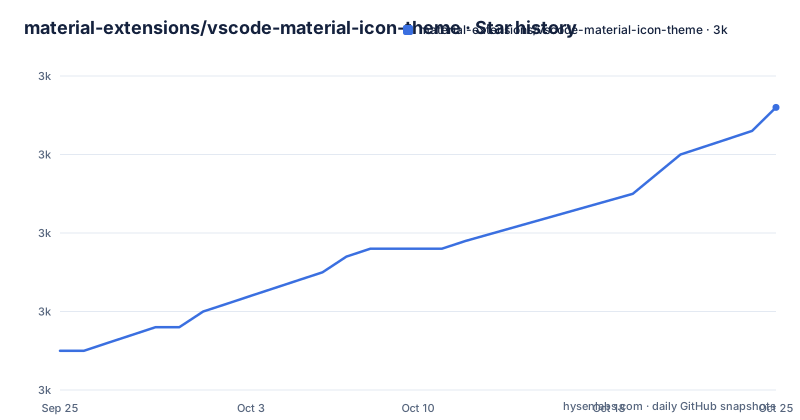
Star history
- material-extensions/vscode-material-icon-theme3,016 ★ · +31
| Repository | 2026-09-25 | 2026-10-25 |
|---|---|---|
| material-extensions/vscode-material-icon-theme | 3k | 3k |
31 Stars in the last 30 days, measured from the daily GitHub snapshot. Compare with other projects
Editorial analysis
What Material Icon Theme Replaces in the VS Code Explorer
VS Code ships with a generic file glyph for most extensions. A .ts file, a .json file and a LICENSE file all look broadly similar in the Explorer, and folders get a single closed or open shape. Material Icon Theme replaces that set with Material Design artwork: distinct glyphs for file types, named files such as package.json, and folder names such as src, dist or test. The README lists file and folder icons as the first two features, and both full sets are published as images in the repository (images/fileIcons.png and images/folderIcons.png).
The extension is aimed at developers who scan the Explorer more than they read it. If you work in a monorepo where src, lib, dist and test sit side by side, or in a project that mixes Rust, TypeScript and YAML, the icon set is the fastest way to tell them apart without opening a file. It is not a syntax theme and does not change editor colors, so it can sit alongside whatever color theme you already run.
The customisation surface is wider than the name suggests. Beyond picking icons, you can set the color of default file and folder icons, choose a folder theme, and dial opacity and saturation down to grayscale. That matters in two cases: when a theme's palette clashes with the icons, and when you want the Explorer to recede so the editor text dominates.
How the Icon Set Is Built and Generated
The repository is a TypeScript project, and the package.json scripts show that the shipped icon manifest is generated rather than hand-written. The generateJson script runs src/scripts/icons/generateJson.ts and redirects its output to dist/material-icons.json. That file is what VS Code reads as the icon theme definition. The generateOpenFolders script produces the open-folder variants, and generateClones handles cloned icons.
Icons live in the icons/ directory as SVGs, and the build pipeline runs svgo over them before a release. A check-colors script (src/scripts/svg/checkSvgColors.ts) validates SVG colors, and a broader check script (src/scripts/icons/checks/run.ts) runs as part of the check step. The compile pipeline is ordered: precompile cleans dist and runs verify, compile runs tsc, and postcompile generates the JSON, the open folders, the clones, then checks the result. This matters if you plan to fork the project, because editing dist/material-icons.json directly will be overwritten on the next build.
The extension is published under the name material-icon-theme with publisher PKief, and the package version tracks the release tag (5.38.1 at the time of the latest release). The repository also carries package.nls.*.json files for Arabic, Czech, German, Spanish, French, Indonesian, Italian, Japanese, Korean, Dutch, Polish, Brazilian and European Portuguese, Russian, Simplified Chinese and Traditional Chinese, so command palette entries and settings descriptions are localized.
Installing Material Icon Theme and Activating It
The README's Getting Started section points at the VS Code Marketplace listing and then gives two steps: activate the theme from the command palette, and use the editor. The extension identifier is PKief.material-icon-theme, and the README's install button links to that listing.
After installation, open the command palette with Ctrl+Shift+P (Cmd+Shift+P on macOS) and run the activation command. The README names it exactly as Material Icons: Activate Icon Theme.
Material Icons: Activate Icon ThemeOnce activated, the Explorer redraws with Material icons. If nothing changes, the most common cause is that another icon theme is still selected; the activation command is what switches the active icon theme, not the install itself. The README does not document a rollback command, so to return to the default icons you would pick another icon theme through VS Code's own File Icon Theme picker.
Customizing Colors, Opacity and Folder Themes in settings.json
Every visual setting is a key under material-icon-theme in settings.json. The README shows colors for default file and folder icons, a folder theme selector, opacity, and saturation. Values are plain numbers and hex strings, so they are easy to diff and commit to a dotfiles repository.
"material-icon-theme.folders.color": "#ef5350",
"material-icon-theme.files.color": "#42a5f5",
"material-icon-theme.folders.theme": "specific",
"material-icon-theme.opacity": 0.5,
"material-icon-theme.saturation": 0.5
The saturation key is the one worth understanding. The README notes that setting it to 0 produces grayscale, and that the same result is available through a Toggle Grayscale command. If you find colored icons noisy but still want per-type shapes, saturation is the lever; opacity is the lever if you want the whole Explorer dimmer.
Folder themes change the folder glyph design rather than the file icons. The README shows the command palette route with an animated example and the settings route with the specific value. The README does not enumerate every accepted folder theme value, so if you want something other than specific, the command palette picker is the safer way to discover what is available.
Associations, Custom SVG Icons and Clones
The association system is the part most users will touch. Under material-icon-theme.files.associations you map a pattern to an icon name. A single leading asterisk means file extension; a double asterisk means the association also overrides specific file-name icons. A pattern with no leading asterisk is treated as a filename.
"material-icon-theme.files.associations": {
    "*.ts": "typescript",
    "**.json": "json",
    "fileName.ts": "angular"
}
That distinction between * and ** is the one to internalize. If you map *.json to json, files like package.json that normally get a dedicated icon keep their dedicated icon. If you map **.json, you flatten all of them to the generic JSON glyph. The README states this explicitly, and it is the difference between a targeted override and a wholesale replacement.
Custom SVG icons have a real constraint. The README says the SVG must live inside the extensions directory of the .vscode folder in the user directory, and that the association is configured in User Settings only, not workspace settings. The path is written relative to the extension's dist folder, and the file extension .svg is omitted in the setting.
"material-icon-theme.files.associations": {
    "fileName.ts": "../../icons/sample"
}
Clones are the lighter-weight option. Instead of drawing an SVG, you copy an existing icon and recolor it. The README's example clones the rust icon into rust-mod and rust-lib with different colors, including a separate lightColor for light themes, bound to mod.rs and lib.rs.
"material-icon-theme.files.customClones": [
  {
    "name": "rust-mod",
    "base": "rust",
    "color": "blue-400",
    "fileNames": ["mod.rs"]
  },
  {
    "name": "rust-lib",
    "base": "rust",
    "color": "light-green-300",
    "lightColor": "light-green-600",
    "fileNames": ["lib.rs"]
  }
]
Clones are the better fit when you want visual differentiation within a language, because they inherit the base icon's shape and only change the palette.
Where Material Icon Theme Is the Wrong Choice
The custom SVG path is documented as User Settings only. If your team wants icon associations checked into a repository so everyone gets the same Explorer, the association keys themselves can live in workspace settings, but the SVG files cannot be referenced that way. That is a genuine split: shared mappings, per-user assets. Teams that expect a fully reproducible icon configuration from a single committed file will hit this boundary.
The second limitation is scope. This extension covers the Explorer. It does not touch the editor gutter, the status bar, the activity bar, or the tab strip beyond what VS Code's icon theme API allows. If your complaint is that the sidebar icons are inconsistent, this extension will not fix it.
The third is that the icon set is opinionated and large. A file type that has no dedicated icon falls back to the default file glyph, and the color you set with material-icon-theme.files.color applies to that default. If you want a small, stable set of icons that never gains new entries between releases, a fixed icon theme is a better match, because this project adds icons continuously and a new release can change how a file you care about is drawn.
Finally, the README does not document any way to pin icon behavior across extension versions. If a release changes the default icon for an extension you rely on visually, your only recourse is an explicit association override.
How It Compares to a Plain File Icon Theme
The obvious alternative is VS Code's built-in Seti file icon theme, which ships with the editor and requires no extension. Seti covers common web and systems languages with a flatter, monochrome-leaning style. The difference in approach is configuration depth. Seti gives you a fixed mapping and nothing else; you cannot recolor a folder, clone an icon, or map a pattern to a different glyph without authoring a full icon theme of your own.
Material Icon Theme's approach is to ship a generated manifest plus a settings layer on top of it. The generation step (generateJson, generateOpenFolders, generateClones) is what makes the large icon count manageable, and the settings layer is what makes it adaptable. The cost is that you are configuring an extension rather than accepting a built-in, and your configuration lives in settings.json where it can drift between machines.
If your needs are met by Seti, there is no reason to add a dependency. If you have ever wanted a Rust module file to look different from a Rust library file, or wanted your dist folder to be visually distinct from your src folder without renaming either, the clone and folder-theme features are the reason to switch.
Licence, Release Cadence and Upgrade Cost
The project is MIT licensed, and package.json carries "license": "MIT". For most users this is a non-issue: you install a compiled extension from the Marketplace and never redistribute it. If you fork the repository or vendor the icons into your own theme, MIT requires that the copyright notice and permission notice be preserved. That is a licensing fact, not legal advice; check with your own counsel if you plan to redistribute.
Upgrade cost is low but not zero. Releases are frequent: v5.37.0 on 2026-07-19, v5.38.0 on 2026-08-23, and v5.38.1 on 2026-08-24. The last push to the repository was on 2026-09-19. Extensions update automatically in VS Code by default, so the realistic upgrade path is that you receive new icons without acting. The thing to watch is whether an icon you have grown used to changes shape or color between versions. Your association overrides under material-icon-theme.files.associations are the mitigation, and they survive upgrades because they live in your settings, not in the extension.
The repository carries a CHANGELOG.md, which is where to look before a major version bump if you want to know what changed in the icon set. There is also a SECURITY.md and a CONTRIBUTING.md, and the package.json scripts show commitlint, husky, biome and markdownlint in the toolchain, which tells you the contribution bar if you plan to submit an icon.
Editorial conclusion
Install Material Icon Theme if you want file and folder icons that distinguish TypeScript from JSON at a glance, and if you are willing to keep your associations in settings.json. Skip it if you need a fixed set of icons that never changes, or if you want per-workspace icon rules, because the custom SVG path is documented as User Settings only. Before adopting, open the fileIcons and folderIcons images in the README to confirm the shapes match what you expect.
Frequently asked questions
Is there a Material Design theme available for VS Code?
Yes. Material Icon Theme is published on the VS Code Marketplace under the identifier PKief.material-icon-theme and provides Material Design file and folder icons. It is an icon theme, not a color theme, so it changes the Explorer glyphs rather than editor colors.
How do I change the icon theme in Visual Studio Code?
Install the extension, then open the command palette with Ctrl+Shift+P (Cmd+Shift+P on macOS) and run Material Icons: Activate Icon Theme. That command is what switches the active icon theme; installing alone does not do it.
What is the best icon theme for VS Code?
That depends on what you want to configure. Material Icon Theme offers colors, folder themes, opacity, saturation, custom associations and icon clones, all through settings.json. VS Code's built-in Seti theme offers a fixed mapping with no configuration layer.
How to create a material icon?
The README documents two routes. You can place an SVG inside the extensions directory of the .vscode folder in your user directory and reference it without the .svg extension, or you can clone an existing icon with material-icon-theme.files.customClones and give it a new color.
Official sources
Add this badge to your README
If you maintain this project, the badge below links readers to this analysis and shows its maintenance status from the daily GitHub snapshot. Paste the markdown into your README; add ?metric=license or ?metric=stars to the image URL for a different field.

[](https://hysenlabs.com/projects/material-extensions-vscode-material-icon-theme)Star history chart for your README
[](https://hysenlabs.com/projects/material-extensions-vscode-material-icon-theme)Was this useful?