FakeTraveler: Android mock locations from a map
Fake where your phone is located (Mock location for Android).
At a glance
- What is it?
- FakeTraveler is an Android application for setting a mocked device location from a map or latitude and longitude coordinates. It fits privacy and app testing workflows, but requires Developer options and can be affected by competing location providers.
- Who is it for?
- Adopt FakeTraveler if you need a straightforward Android mock location and can grant mock-location permission through Developer options. Do not choose it if you need iOS support, background routing, or documented behavior without Android location-provider conflicts.
- Can I use it commercially?
- Yes, with conditions. GPL-3.0 is a copyleft licence: if you distribute software that includes it, you must release that software's source code under the same licence. Running it internally without distributing it does not trigger that obligation.
- Is it still maintained?
- Yes. The repository last received commits 177 days ago.
- What is it written in?
- Mainly JavaScript, according to GitHub's language statistics.
Answers come from the project's GitHub data, last synced on November 7, 2026, and from our analysis. They are not legal advice.
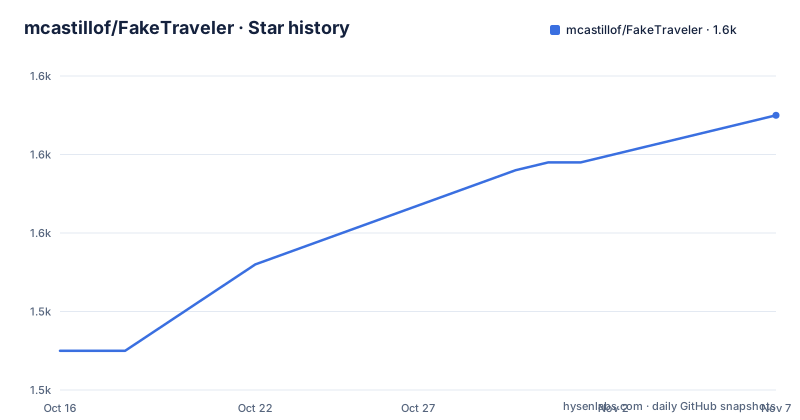
Star history
- mcastillof/FakeTraveler1,565 ★ · +30
| Repository | 2026-10-16 | 2026-11-07 |
|---|---|---|
| mcastillof/FakeTraveler | 1.5k | 1.6k |
30 Stars in the last 22 days, measured from the daily GitHub snapshot. Compare with other projects
Editorial analysis
FakeTraveler solves one Android location-control problem
FakeTraveler changes the location reported by an Android device to a point selected by the user. The README identifies two intended situations: privacy and app testing. In both cases, the device must report a location that differs from its physical position without requiring a second Android device solely for that purpose.
The application centers its interface around a map. A user can long-press a point on that map or enter latitude and longitude directly. Once the Apply button is tapped, the selected coordinate becomes the mocked location. The gear button, described as formerly the ellipsis button, exposes settings for mocking a location for a period of time. These controls make the app relevant to temporary location simulation rather than only manual point selection.
Its scope is narrow by design. FakeTraveler is specifically an Android mock location application, not a general device-spoofing framework, GPS simulator, or cross-platform location editor. The repository does not document route playback, movement simulation, multiple simultaneous profiles, desktop control, or an API. Those omissions matter when deciding whether it can support a location-dependent testing plan rather than one static coordinate.
Map selection, coordinates, and timed Android location input
The documented input flow has two paths. The primary path is spatial: the user long-presses the desired point on the map, then taps Apply. The second path is numeric: the user types latitude and longitude and taps Apply. Both converge on the same apparent result, a location selected for the Android device to report.
For temporary use, the gear control exposes settings that mock the location over a period of time. The README does not give the exact dialog layout, available units, timer semantics, or whether the settings affect a new selection or an existing mock session. It also does not describe a route, speed, accuracy radius, altitude, or heading control. The safe interpretation is that FakeTraveler sets a selected location and can limit that mocked state by time, not that it simulates continuous travel.
This mechanism depends on Android's built-in mock location facility. The user must enable Developer options and select FakeTraveler in the Android settings path identified by the README as Settings/System/Developer options/Select mock location app. This is a security-sensitive system permission because it authorizes an application to supply mock locations. FakeTraveler handles the selection and timing interface, while Android grants and routes the location signal.
F-Droid and the required Developer options setup
The README links to FakeTraveler on F-Droid but does not provide a command-line installation procedure, APK download command, or Gradle build tutorial. Based on the repository layout, an Android project is present at the root, with application code under app/ and Gradle wrapper files including gradlew and gradlew.bat. The README does not state the required Android SDK level, Java version, Android Studio version, or signing process, so those details cannot be inferred safely.
For the documented setup path, first install the F-Droid application named FakeTraveler, then open the Android system settings. Enable Developer options. Under Settings/System/Developer options/Select mock location app, select FakeTraveler. The README includes screenshots for the two mock-location setup stages, but it does not describe where Developer options appears on every Android version or release.
After permission is configured, open the app, choose a point by long-pressing the map or enter latitude and longitude, then tap Apply. The application interface should reflect the selected location, although the README does not define the exact marker or status text. If the location later jumps or becomes unstable, the project gives a specific Android configuration adjustment rather than a retry loop.
Wi-Fi and Bluetooth scanning can disrupt a mocked fix
The most concrete failure condition in the README is location instability. The project advises users who see a reported location bounce between locations to open system Settings, enter Location services, and disable Wi-Fi scanning and Bluetooth scanning. The stated reason is that these alternate location providers may compete with the mocked GPS data.
That limitation makes FakeTraveler dependent on Android's provider behavior. Selecting a coordinate in the app does not guarantee that every foreground service or receiving application will interpret it identically. An app may also cache an earlier position, validate coordinates against other signals, or handle mock-location updates differently. None of those application behaviors is documented in the repository, so compatibility needs verification with the specific app being tested.
Disabling the scanning features can reduce provider competition, but it also changes the device's normal environment. Users should not interpret that advice as proof that every unstable result will disappear. If the location still changes, the README provides no diagnostic log, accuracy control, provider-selection screen, or documented recovery procedure.
FakeTraveler is narrower than route and development tooling
The clearest alternative approach is to use an Android app-testing environment that injects test locations through instrumentation, such as an automated test process rather than a user-selected map interface. The actual difference is control and context. FakeTraveler is intended for manually choosing a point on a physical Android device and applying it through the operating system's mock location selection. An instrumentation-oriented approach ties location changes to a controlled test run, which can be more appropriate when a team needs repeatable test steps.
FakeTraveler may be more direct for an individual testing one coordinate or temporarily reporting another position from a phone. Its map and coordinate inputs reduce setup to a visible selection, followed by the required Android permission. However, the README does not document an API, test-runner integration, route generation, automated assertions, or synchronization with an application under test. It should not be described as a replacement for a complete location-testing framework.
The project is also the wrong tool when the requirement is outside Android. There is no documented desktop, iOS, or browser implementation. There is likewise no basis in the repository for assuming that it can handle a moving vehicle, a sequence of waypoints, or realistic motion between coordinates.
GPL-3.0 distribution and recent project activity
FakeTraveler is distributed under the GNU General Public License version 3, identified in the repository metadata as GPL-3.0. Its README includes the standard option to use version 3 of the License or, at the recipient's option, any later version. Recipients therefore need to review GPL-3.0 obligations when redistributing or modifying the software, including the applicable conditions for conveying the licensed work. This is a license requirement, not legal advice.
The repository is not archived. Its last push was on 2026-05-14, which is within the six-month boundary used for this review. Recent tagged releases were published on 2026-03-01, 2026-04-05, and 2026-05-06 for v2.3.0, v2.3.1, and v2.3.2 respectively. Those records support recent project activity, but they do not establish compatibility with every Android release.
The repository includes fastlane metadata, with changelogs stored under fastlane/metadata/android/en-US/changelogs/. The README points upgrades and release-specific changes to that directory. It does not document a formal upgrade policy, automated migration process, or compatibility matrix, so an adopter must check the relevant changelog and confirm the build or F-Droid release against the target Android device.
Editorial conclusion
Adopt FakeTraveler if you need a straightforward Android mock location and can grant mock-location permission through Developer options. Do not choose it if you need iOS support, background routing, or documented behavior without Android location-provider conflicts. Verify first that your Android device exposes the Select mock location app setting and that the receiving app reacts correctly after Wi-Fi scanning and Bluetooth scanning are disabled.
Frequently asked questions
How do I install FakeTraveler on Android?
The README links to FakeTraveler on F-Droid but does not provide a command-line installation procedure. After installation, enable Developer options and select FakeTraveler under Settings/System/Developer options/Select mock location app.
How do I set a mocked location in FakeTraveler?
Long-press the desired point on the map or type its latitude and longitude, then tap Apply. The gear control provides settings for mocking the location over a period of time.
Why does the FakeTraveler location jump or change unexpectedly?
The README says Wi-Fi scanning and Bluetooth scanning can compete with mocked GPS data. It recommends disabling both controls under Android Settings in Location services when the reported location is unstable.
Official sources
Add this badge to your README
If you maintain this project, the badge below links readers to this analysis and shows its maintenance status from the daily GitHub snapshot. Paste the markdown into your README; add ?metric=license or ?metric=stars to the image URL for a different field.

[](https://hysenlabs.com/projects/mcastillof-faketraveler)Star history chart for your README
[](https://hysenlabs.com/projects/mcastillof-faketraveler)Was this useful?