vscode-markdown-mermaid: the Mermaid preview extension VS Code absorbed
Adds Mermaid diagram and flowchart support to VS Code's builtin markdown preview
At a glance
- What is it?
- A VS Code extension that renders Mermaid diagrams in the built-in markdown preview and in notebook markdown cells. It is deprecated, because the same capability was merged into VS Code 1.121, and the remaining value is in how it worked and how to configure it.
- Who is it for?
- Adopt nothing here: the right move for a new setup is VS Code 1.121 or later, where Mermaid support is built into the markdown preview, and for an older installation the extension still works as a stopgap while you upgrade. Do not adopt the extension for a new project, since the package manifest already marks it deprecated and upstream no longer takes feature work on it.
- Can I use it commercially?
- Yes. MIT is a permissive licence: you can use, modify and sell software built on it, as long as you keep its copyright and licence notices.
- Is it still maintained?
- Yes. The repository last received commits 131 days ago.
- What is it written in?
- Mainly TypeScript, according to GitHub's language statistics.
Answers come from the project's GitHub data, last synced on November 7, 2026, and from our analysis. They are not legal advice.
Star history
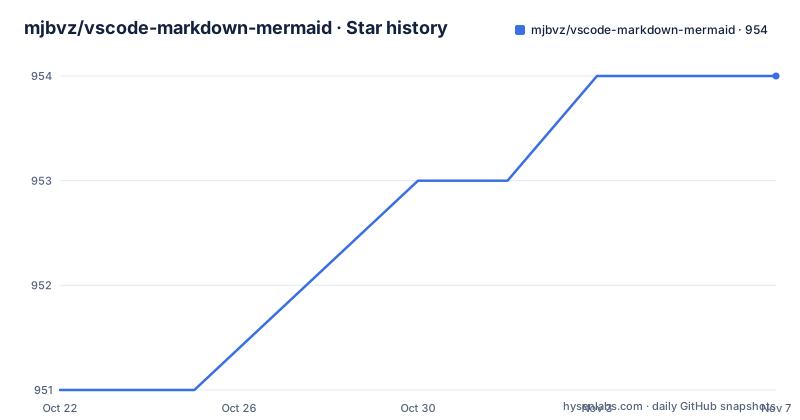
- mjbvz/vscode-markdown-mermaid954 ★ · +3
| Repository | 2026-10-22 | 2026-11-07 |
|---|---|---|
| mjbvz/vscode-markdown-mermaid | 951 | 954 |
3 Stars in the last 16 days, measured from the daily GitHub snapshot. Compare with other projects
Editorial analysis
A deprecated extension that VS Code took in-house
The Markdown Preview Mermaid Support extension adds Mermaid diagram and flowchart rendering to VS Code's built-in markdown preview, and to markdown cells in notebooks. That was its job, and it did it well enough that Microsoft merged the same capability into the editor itself.
The status is stated at the very top of the project documentation: the extension is deprecated because it has been merged into VS Code 1.121, with a link to the 1.121 release notes describing Mermaid diagrams in markdown preview and notebooks. The manifest agrees, since package.json carries a deprecated flag set to true, and the version there is 1.32.1.
That changes what an evaluation is about. Nobody should be choosing this extension over a built-in feature. What is still worth knowing is how the feature works, because the configuration keys documented here describe the behaviour you now get from the editor itself, and because anyone on an older VS Code build still has to use the extension to get the same result.
The project is MIT licensed, written in TypeScript, published under the bierner publisher name, and its repository has no GitHub releases, so the version history lives in the CHANGELOG.md file rather than in tagged releases. The last push was on 2026-06-30, and the repository is not archived, which is what you would expect for a project in maintenance mode rather than one in decline.
Two bundles, one preview script and one notebook renderer
The architecture is a good example of how a VS Code extension plugs into the markdown pipeline. The manifest contributes a script to the preview through the markdown.previewScripts entry, pointing at a bundle in the dist-preview directory, and declares markdown.markdownItPlugins as true so the extension can register a markdown-it plugin for the preview and for notebook cells.
Notebooks are handled separately. A notebookRenderer entry with the id bierner.markdown-it.mermaid-extension is contributed, whose entrypoint extends vscode.markdown-it-renderer and points at a bundle in dist-notebook. The two bundles are built separately because the preview and the notebook renderer are different extension points with different lifecycles.
The extension itself is a standard Node extension with main set to the dist directory and a separate browser entry point, which is the pattern VS Code uses for extensions that must also run in the web editor, where there is no Node runtime. The engines field requires VS Code 1.100.0 or newer, and activationEvents is empty, which tells you the extension is activated by contribution points rather than by a user command, so nothing happens until a markdown preview or a notebook is opened.
The rendering library itself is Mermaid, and the documentation states which version is supported: 11.12.0. The extension does not implement a diagram engine, it delegates the parsing and layout to Mermaid and manages the interaction layer around the result.
Two syntaxes for a diagram, fenced blocks and ::: containers
A diagram is written in a Mermaid code block inside your markdown. The documented form is a fenced block with the language set to mermaid, containing a graph definition such as graph TD; followed by edges written as A-->B, A-->C, B-->D and C-->D.
The same content can also be wrapped in a ::: container, opening with ::: mermaid and closing with :::, for documents where a fenced block inside other fenced content is awkward.
Which blocks count as Mermaid is configurable. The markdown-mermaid.languages setting holds the language ids used to identify Mermaid code blocks, and its default is a single entry, mermaid. If your team standardises on a different id, or you want both mermaid and mmdc recognised, this is the key to change.
Icons are supported through the Iconify sets, with the MDI and logos icon sets called out in the documentation. The architecture-beta diagram type takes icons inline, for example a service user with the mdi:account icon and a service lambda with the logos:aws-lambda icon, connected by an arrow from the user to the lambda.
One limit is worth noting and it is not obvious from the diagram syntax. The theme settings for light mode and dark mode are documented as not currently supported in notebooks, so a notebook cell renders with a fixed appearance even though the preview honours your theme.
Panning and zooming on a diagram that may be larger than the pane
A Mermaid diagram in a preview pane is frequently bigger than the pane itself, so interaction is the part of the feature people actually notice.
Navigation controls appear when you hover over or focus a diagram, by default, and that timing is configurable through markdown-mermaid.controls.show, whose values are never, onHoverOrFocus and always. Zooming works through the plus and minus buttons in those controls, by holding alt and scrolling, by pinching on a trackpad, and by alt-clicking to zoom in or alt-shift-clicking to zoom out. A reset button returns the diagram to its original zoom level and position. Panning is a click and drag with alt held, so that a stray drag does not move the diagram while you are trying to select text, and a pan mode button in the controls switches to drag-to-pan without the modifier.
That default is deliberate and configurable. markdown-mermaid.mouseNavigation.enabled takes always, alt or never, and the default is alt, with never leaving the on-screen controls and pinch-to-zoom in place.
Height is the other dimension. Diagrams can be resized vertically by dragging the bottom edge, and the custom height survives as long as the diagram content does not change. That behaviour is switched off with markdown-mermaid.resizable, and it is the one that matters when a diagram is inside a fixed height container.
Two size limits exist as well. markdown-mermaid.maxHeight caps the diagram height and accepts either a number of pixels or a CSS value such as 80vh or 400px, empty meaning no limit, and markdown-mermaid.maxTextSize caps the size of diagram text with a default of 50000.
Themes, custom CSS and the setting surface as a whole
The Mermaid theme is chosen separately for light and dark mode. markdown-mermaid.lightModeTheme and markdown-mermaid.darkModeTheme both accept the same five values, base, forest, dark, default and neutral, and both default to default. The manifest confirms the enum and the default value for the light theme.
Because the preview is a normal web view, custom CSS applies as it would to any markdown preview. The documentation points at the built-in markdown.styles setting for the mechanism and gives a Font Awesome example:
"markdown.styles": [
    "https://use.fontawesome.com/releases/v5.7.1/css/all.css"
]
With that stylesheet loaded, a diagram can use Font Awesome icons by name, for example a graph LR declaration linking fa:fa-check to fa:fa-coffee.
Taken together the settings form a reasonable surface for a preview feature: two theme keys, a language id list, two interaction keys, and three size keys. None of them require the extension to be reconfigured for a specific diagram, and every one of them has a documented default, which is unusual for an extension of this size and is a good reason to read its documentation before assuming a missing option is a bug.
MIT terms, a deprecation, and what to do on an older editor
The licence field on the repository says MIT, and the manifest repeats it, so the code can be read, forked and reused under permissive terms. For most users the licence is irrelevant, since the sensible path is to stop using the extension rather than to vendor it.
The decision tree is short. If you are on VS Code 1.121 or later, the editor renders Mermaid itself and the extension is redundant. If you are below 1.121, the extension fills a real gap, and the deprecation notice is a reason to plan an editor upgrade rather than a reason to keep the extension forever. The repository still exists, the last push was on 2026-06-30, and the file layout is a working TypeScript extension with a src directory, a build directory, tests in a test-workspace directory, and an eslint configuration, so anyone who needs to understand the old behaviour can still read it.
Two things the project does not tell you are worth flagging for yourself. It does not document a rollback story for the preview contribution points, and it publishes no GitHub releases, so there is no tagged list of versions to pin against and the only version reference is the 1.32.1 in the manifest. For an extension, that is a mild supply chain consideration, since the marketplace build and the repository state are not obviously in step from the outside.
The setting names also matter if you plan to move to the built-in feature later. Settings such as markdown-mermaid.lightModeTheme were written for the extension, and the built-in support in VS Code 1.121 is the editor's own implementation, so carrying the old keys over is not automatic. Check the 1.121 release notes for the current setting names before migrating a workspace that has tuned the extension.
Editorial conclusion
Adopt nothing here: the right move for a new setup is VS Code 1.121 or later, where Mermaid support is built into the markdown preview, and for an older installation the extension still works as a stopgap while you upgrade. Do not adopt the extension for a new project, since the package manifest already marks it deprecated and upstream no longer takes feature work on it. Verify first that your VS Code build is at or above 1.121, and if you keep the extension, check the markdown-mermaid.languages setting so that your fenced block language id still matches the one the preview looks for.
Frequently asked questions
Is the Markdown Preview Mermaid Support extension still maintained?
It is deprecated, and the project documentation states that it was merged into VS Code 1.121. The last push to the repository was on 2026-06-30, and the manifest marks the package as deprecated.
How do I get Mermaid diagrams in the VS Code markdown preview?
In VS Code 1.121 and later the editor renders Mermaid itself, in both the markdown preview and notebook markdown cells. On earlier builds the extension provides that, using mermaid fenced code blocks or ::: mermaid containers.
How do I change the Mermaid theme for light and dark mode?
The markdown-mermaid.lightModeTheme and markdown-mermaid.darkModeTheme settings each accept base, forest, dark, default or neutral, and both default to default. The documentation notes that these themes are not currently supported in notebooks.
How do I stop a Mermaid diagram from taking over the preview?
Use markdown-mermaid.maxHeight with a pixel value or a CSS value such as 80vh to cap the height, and markdown-mermaid.resizable to turn off dragging the bottom edge. The related markdown-mermaid.maxTextSize setting caps diagram text size and defaults to 50000.
Official sources
Add this badge to your README
If you maintain this project, the badge below links readers to this analysis and shows its maintenance status from the daily GitHub snapshot. Paste the markdown into your README; add ?metric=license or ?metric=stars to the image URL for a different field.

[](https://hysenlabs.com/projects/mjbvz-vscode-markdown-mermaid)Star history chart for your README
[](https://hysenlabs.com/projects/mjbvz-vscode-markdown-mermaid)Was this useful?