oxker: A Rust TUI for Docker Container Control
A simple tui to view & control docker containers
At a glance
- What is it?
- oxker combines Docker container status, logs, inspection, filtering, and selected controls in a terminal interface. It suits operators who prefer a keyboard-oriented console, subject to Docker socket access and terminal compatibility.
- Who is it for?
- oxker fits local Docker operators who work primarily in a terminal and want container controls, logs, filtering, and inspection in one interface. It is less suitable for users who need a documented browser interface or cannot grant the application access to a Docker endpoint.
- Can I use it commercially?
- Yes. MIT is a permissive licence: you can use, modify and sell software built on it, as long as you keep its copyright and licence notices.
- Is it still maintained?
- Yes. The repository last received commits 62 days ago.
- What is it written in?
- Mainly Rust, according to GitHub's language statistics.
Answers come from the project's GitHub data, last synced on October 23, 2026, and from our analysis. They are not legal advice.
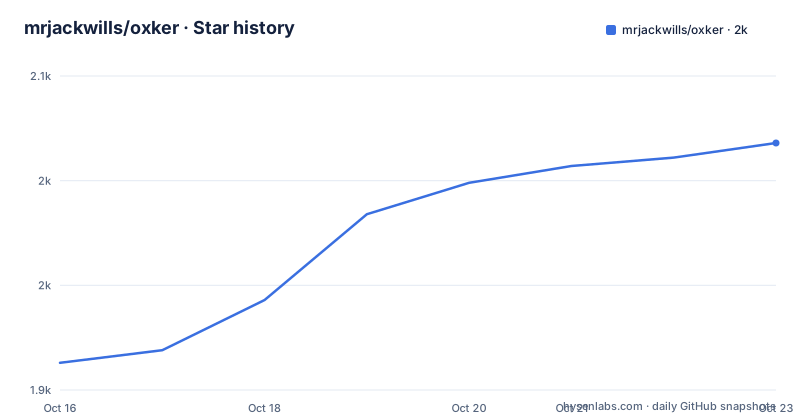
Star history
- mrjackwills/oxker2,018 ★ · +105
| Repository | 2026-10-16 | 2026-10-23 |
|---|---|---|
| mrjackwills/oxker | 1.9k | 2k |
105 Stars in the last 7 days, measured from the daily GitHub snapshot. Compare with other projects
Editorial analysis
Why oxker Exists for Local Docker Work
oxker addresses a specific terminal workflow: viewing Docker containers and invoking selected container operations without moving repeatedly between separate command-line commands and a log viewer. The README describes it as "A simple tui to view & control docker containers." Its intended user is an operator working with a Docker daemon, especially someone comfortable with keyboard-driven terminal applications and interested in frequent access to container status, logs, and inspect information.
The documented interface supports panel navigation with `tab` and `shift+tab`, line scrolling with arrow keys, `j`, and `k`, panel resizing, log search, filtering, and mouse scrolling. Number keys sort containers by the selected heading, while `0` stops sorting. This makes oxker more than a static container list. It combines status, logs, and actions in a display intended to remain inside a terminal session.
The project does not document a hosted service, browser dashboard, or remote web console. Its documented workflow centers on connecting to Docker, inspecting containers, displaying logs, and running selected Docker commands. That makes its clearest use case a local or directly accessible Docker environment rather than multi-host administration through a graphical web interface.
How oxker Connects Docker Data to the Terminal
Based on `Cargo.toml` and the repository layout, oxker is a native Rust terminal application built around `ratatui` for the interface, `crossterm` for terminal interaction, `bollard` for Docker communication, and `tokio` with `futures-util` for asynchronous work. Configuration parsing uses `serde`, `toml`, `serde_json`, and `serde_jsonc`. This separation fits an interactive application: Docker requests and events can be processed asynchronously while the terminal layer renders state and receives input.
The normal data flow begins with Docker connection selection. The README says that oxker defaults to `/var/run/docker.sock`, honors `$DOCKER_HOST` when it is set, and accepts `--host [string]` for a custom hostname. Container information refreshes through a minimum interval controlled by `-d [number > 0]`, which defaults to 1000 milliseconds. The documentation defines this as a minimum update interval, not necessarily a fixed schedule of exactly one refresh per second.
Logs flow into the interface as container output. By default, oxker removes ANSI formatting. The `-r` option requests raw logs, while `-c` attempts to color logs; the README explicitly says those options conflict. Timestamps can be retained or removed with `-t`, stderr can be excluded with `--no-stderr`, and displayed timestamps can use a named timezone passed through `--timezone [string]`. The README does not describe the precise module boundaries inside `src/`, so those implementation details cannot be confirmed.
Installing oxker Through Cargo or Docker
Cargo is the shortest documented installation route when Rust and Cargo are already available. The crate is published on crates.io. `Cargo.toml` declares version `0.13.4`, Rust edition 2024, and a minimum Rust version of `1.95.0`.
Install the published crate with:
cargo install oxkerThis installs the `oxker` binary through Cargo. It does not install Docker, and the resulting application still needs access to a Docker daemon.
A container image is published for `linux/amd64`, `linux/arm64`, and `linux/arm/v6`. The documented GitHub Container Registry invocation is:
docker run --rm -it -v /var/run/docker.sock:/var/run/docker.sock:ro --pull=always ghcr.io/mrjackwills/oxkerThe command starts oxker in an interactive terminal and mounts the host Docker socket at `/var/run/docker.sock`. The README also publishes a Docker Hub command:
docker run --rm -it -v /var/run/docker.sock:/var/run/docker.sock:ro --pull=always mrjackwills/oxkerThe socket mount is a security boundary to review before use. Although the mount is marked `ro`, oxker performs the Docker operations documented in the README. An operator should verify whether sharing the host daemon endpoint through a container matches the access policy of the machine.
The README also provides Nix flake and non-flake commands, an AUR helper example, Homebrew installation for macOS, prebuilt release binaries, and `.deb` files.
Starting oxker and Performing a First Inspection
After installation, start the application with its executable name:
oxkeroxker should render its terminal interface and connect according to the default Docker socket, `$DOCKER_HOST`, or an explicit `--host` value. The README does not promise identical startup output for every terminal environment. The immediate checks are whether the ratatui interface appears and whether the expected container information is shown.
Begin with `tab` or `shift+tab` to change panels. Use the arrow keys or `j` and `k` to scroll the selected panel. Press `i` to enter container inspect mode, `#` to search logs, and `/` or `F1` for filtering. Press `h` to toggle the help menu and `q` to quit.
The minimum Docker information update interval can be changed with:
oxker -d [number > 0]The value must be greater than zero. The default is 1000 milliseconds. This controls how often oxker may refresh Docker information, but the README does not claim that every container operation or log event follows this interval.
For log presentation, `-r` keeps raw logs, `-c` asks oxker to attempt colored output, and `-t` removes timestamps. The README states that `-r` conflicts with `-c`. If stderr is not wanted in the displayed stream, `--no-stderr` excludes it.
Pressing `s` writes logs to `$HOME/[container_name]_[timestamp].log` by default. The `--save-dir [string]` option changes the destination directory, making log export a concrete filesystem side effect to account for in scripted or unattended environments.
Container Actions and Configuration Precedence
The README states that pressing `enter` runs the selected Docker command. It does not enumerate every command available in that menu, so the existence of general command execution is documented even though a complete command matrix is not. Container inspection has a more specific control: `i` opens inspect mode for the selected container.
By default, `e` starts an exec session for the selected container, except on Windows. Passing `--use-cli` changes the exec path from the Docker application API to the Docker CLI. A user who selects this mode should verify that the required Docker executable is installed and available to oxker.
oxker accepts `config.toml`, `config.json`, and `config.jsonc`. If no configuration file is found, it creates `config.toml` in an `oxker` directory under the local configuration directory identified by the `directories` crate. A specific file can be selected with `--config-file [string]`.
The repository contains an `example_config` directory with examples and explanations for supported values. The README says the configuration can persist settings, define a custom keymap, and set the color scheme. Command-line arguments take priority over values from the configuration file, which means an explicit invocation can override a persisted setting.
The log panel can be resized with `-` and `=`, hidden with `\`, and force-redrawn with `f`. Pressing `m` toggles mouse capture, allowing terminal text selection when capture is disabled. These terminal-level controls are specific to the TUI, but they also make terminal compatibility relevant during evaluation.
Docker Endpoint Exposure and Platform Limits
The main operational constraint is Docker access. oxker defaults to `/var/run/docker.sock`, can read `$DOCKER_HOST`, and accepts `--host [string]`. The documented container deployment maps the host Docker socket into the oxker container at `/var/run/docker.sock` with the mount marked `ro`. Because oxker includes container controls and exec functionality, an operator should examine the daemon access implications before running it in that arrangement.
The published container images cover `linux/amd64`, `linux/arm64`, and `linux/arm/v6`. Homebrew provides installation on macOS, while the `e` command for entering a container is explicitly unavailable on Windows. The release page links to prebuilt binaries and `.deb` files, but the README does not present a complete operating-system and artifact matrix.
The `-g` option disables the TUI and enters what the README calls a debugging mode with limited functionality. It should not be treated as a documented noninteractive administration interface because the README does not specify its available commands or complete output format.
`Cargo.toml` includes `podman` as a keyword and the application supports a custom Docker hostname. The README excerpt primarily describes Docker and does not provide a complete Podman setup procedure. A user intending to manage Podman through oxker should verify socket location, endpoint behavior, and exec handling in the target environment.
oxker Compared with Direct Docker CLI Use
The closest documented alternative is direct use of the Docker CLI. Both approaches communicate with a Docker daemon, and oxker itself can defer container exec to the Docker CLI through `--use-cli`. The meaningful difference is the interaction layer. Direct CLI use keeps commands and output in ordinary terminal lines, which suits scripts and uncomplicated text sessions. oxker adds persistent panels, interactive log scrolling, filtering, log search, container inspection, sorting, mouse support, and a structured terminal layout.
That distinction matters for automation. The README documents a no-TUI debugging mode, but it calls that mode limited and does not present it as a scripting API. oxker should therefore not be selected as a drop-in replacement for shell automation merely because it can connect to Docker. A deployment that needs portable commands, CI logs, or reproducible container lifecycle scripts has a more direct path through Docker CLI tooling.
For interactive local work, oxker removes some repeated navigation. Logs remain visible beside container information, keys select panels, and inspection has a dedicated mode. The tradeoff is dependence on a compatible terminal and an accessible Docker endpoint. The relevant choice is whether a persistent TUI fits the operator's workflow better than plain command output, not which interface exposes more individual keys.
Release Activity, Rust Requirements, and Upgrades
The repository is not archived. Its last push was on 2026-08-22. Documented releases include `v0.13.4` on 2026-08-22, `v0.13.3` on 2026-07-24, and `v0.13.2` on 2026-05-13. The repository also contains `CHANGELOG.md`, but its individual entries are not quoted in the README, so version-specific migration instructions cannot be confirmed here.
The package uses Rust edition 2024 and declares a minimum Rust version of `1.95.0`. Installing or building the current source may therefore require a newer Rust toolchain than an older local installation. The dependency set includes asynchronous Docker and terminal libraries, configuration parsers, tracing crates, time-zone support, and serialization packages. `Cargo.lock` is present, which gives Rust projects a fixed dependency lock file, although the README does not document an oxker-specific dependency update procedure.
oxker uses the MIT license. The license identifies the permission and conditions associated with use, modification, and distribution, but this article does not interpret those terms as legal advice. Its release profile enables link-time optimization, one codegen unit, panic abort behavior, symbol stripping, and disabled debug information. These are build settings and do not establish runtime performance claims.
Before upgrading, operators should check the relevant `CHANGELOG.md` entry, confirm that the installed Rust version satisfies `1.95.0`, and decide whether installation will use Cargo, a package manager, a release artifact, or a container image. The documented Docker commands use `--pull=always`, while `cargo install oxker` resolves the crate selected by Cargo.
Editorial conclusion
oxker fits local Docker operators who work primarily in a terminal and want container controls, logs, filtering, and inspection in one interface. It is less suitable for users who need a documented browser interface or cannot grant the application access to a Docker endpoint. Before adopting it, verify terminal support, inspect the intended Docker access configuration, and review `install.sh` before using the piped installation command.
Frequently asked questions
How do I install oxker?
With Cargo, run `cargo install oxker`. The README also documents images at ghcr.io and Docker Hub, Nix commands, an AUR package, a Homebrew formula, and prebuilt release binaries.
How do I connect oxker to a custom Docker host?
Use `--host [string]` for a custom hostname. If it is omitted, oxker checks `$DOCKER_HOST` and otherwise defaults to `/var/run/docker.sock`.
Which controls are available in the oxker terminal interface?
Documented controls include `enter` to run a selected Docker command, `e` to exec into the selected container on non-Windows systems, `i` for inspect mode, `#` for log search, `/` or `F1` for filtering, `s` to save logs, and `q` to quit.
Can oxker use a JSON or JSONC configuration file?
Yes. The README documents support for `config.toml`, `config.json`, and `config.jsonc`, plus `--config-file [string]` for selecting a location. Command-line arguments take precedence over config values.
Does oxker support container exec on Windows?
The README says that `e` is not available on Windows. The `--use-cli` option can make exec use the Docker application CLI instead of the Docker API.
Official sources
Add this badge to your README
If you maintain this project, the badge below links readers to this analysis and shows its maintenance status from the daily GitHub snapshot. Paste the markdown into your README; add ?metric=license or ?metric=stars to the image URL for a different field.

[](https://hysenlabs.com/projects/mrjackwills-oxker)Star history chart for your README
[](https://hysenlabs.com/projects/mrjackwills-oxker)Was this useful?