ComfyUI-MiniMaxH3-Easy: one workflow for MiniMax H3 text, image and reference video
The easiest way to use MiniMax H3. One compact workflow for T2V, I2V, first/last-frame, and reference video generation, with a unified multi-media input, powerful @ references, and inline dialogue blocks. Less wiring. More creative control.
At a glance
- What is it?
- A ComfyUI node suite that collapses MiniMax H3's generation modes into a single main node, with a shared media loader and @ references in the prompt. It is a convenience layer, not a new model, and it assumes you already have the official H3 nodes and the model files on disk.
- Who is it for?
- Adopt it if you already run the official MiniMax H3 nodes in ComfyUI and are tired of rebuilding a graph per generation mode; the single main node, the shared Media Loader and @ references are the parts that save real work. Skip it if you have no H3 model files, if you need a documented rollback path (the README does not describe one), or if your pipeline is headless and depends on Media Loader's decoded-video cache, which the Media Bridge path does not provide.
- Can I use it commercially?
- Yes. MIT is a permissive licence: you can use, modify and sell software built on it, as long as you keep its copyright and licence notices.
- Is it still maintained?
- Yes. The repository last received commits 10 days ago.
- What is it written in?
- Mainly JavaScript, according to GitHub's language statistics.
Answers come from the project's GitHub data, last synced on November 22, 2026, and from our analysis. They are not legal advice.
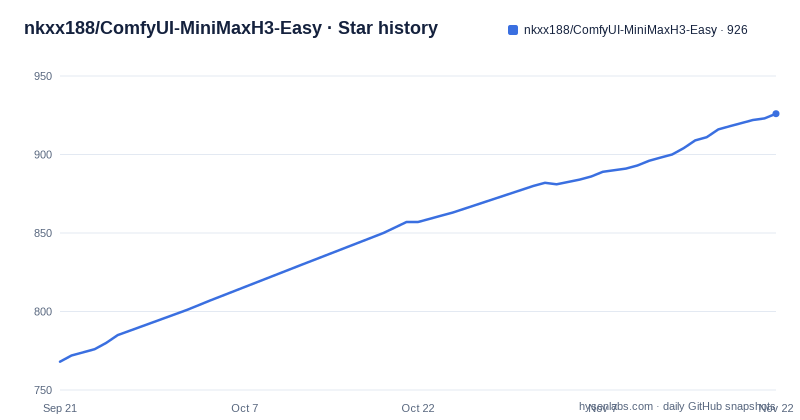
Star history
- nkxx188/ComfyUI-MiniMaxH3-Easy926 ★ · +158
| Repository | 2026-09-21 | 2026-11-22 |
|---|---|---|
| nkxx188/ComfyUI-MiniMaxH3-Easy | 768 | 926 |
158 Stars in the last 62 days, measured from the daily GitHub snapshot. Compare with other projects
Editorial analysis
What ComfyUI-MiniMaxH3-Easy actually removes from your graph
MiniMax H3 in ComfyUI has several generation paths: text-to-video, image-to-video, first/last-frame, reference-to-video, and digital human. Wiring each one by hand means a different set of loader nodes, media nodes and tag syntax every time. This project's stated goal is to reduce that setup. It ships one main node called MiniMax H3 Easy, a loader, an output node, and a media layer, and it keeps samplers, LoRAs, attention patches, decoders and save nodes as ordinary ComfyUI connections. So the suite does not hide the graph from you; it hides the repetitive part of it.
The audience is narrow and specific. You need ComfyUI already installed and updated to a version that includes the official MiniMax H3 nodes, plus the H3 model files on disk. If you do not have those, this repository cannot help you: it is a node suite, not a model distribution. The README's first installation instruction is to update ComfyUI, which is a fair signal of where the dependency sits.
One main node, two transformers, and how mode selection resolves
The main node exposes the modes and picks a transformer based on what you connect. The README states that when both FL2VA and Ref2VA are configured, regular text and image generation prefers FL2VA and full-reference generation prefers Ref2VA. If only one transformer is configured, that model serves every mode. That is a sensible default, but it also means the model you load determines which modes behave as documented, and a single-transformer setup silently changes the routing for every mode.
Text-to-video is not a separate mode. Both I2V or First/Last Frame and Reference-to-video become text-to-video when no media is connected, so you do not have to switch modes just to drop the image. First/last-frame images are center-cropped when needed to fit the selected canvas; the README is explicit that they are not stretched horizontally or vertically. That is a real constraint: a wide source image loses its edges rather than being distorted.
Digital Human mode locks the single Media audio item into the generated result as its driving track, so that audio is no longer treated as ordinary reference audio. Visual references may be images or videos. If no audio is supplied, the node falls back to ordinary reference-to-video instead of failing. The fallback is a reasonable design, but it also means a missing audio connection produces a different kind of video rather than an error, which is worth knowing before you debug a strange result.
Longer videos are handled as connected segments: each segment keeps its own prompt and references while receiving visual or AV context from the previous segment. The H3 Context output connects to MiniMax H3 Easy Output. Segment refinement offers Pixel Resize, 3D Latent Upscale, and a Low VRAM Tile option, and the 3D latent upscaler is a separate model file placed in ComfyUI/models/latent_upscale_models/.
Installing ComfyUI-MiniMaxH3-Easy and running the bundled workflow
The README gives two install routes. The manual one clones into ComfyUI/custom_nodes:
git clone https://github.com/nkxx188/ComfyUI-MiniMaxH3-Easy.gitYou can also search for ComfyUI-MiniMaxH3-Easy in ComfyUI Manager. The README adds a specific instruction here: select the Nightly version during installation, because Nightly is the current up-to-date release and other published versions may lag behind the repository. Restart ComfyUI after installing or updating Python files.
Models go into the standard ComfyUI directories. The README lists these three, plus a fourth for the upscaler:
ComfyUI/models/diffusion_models/
ComfyUI/models/text_encoders/
ComfyUI/models/vae/
ComfyUI/models/latent_upscale_models/
The Easy Loader can select FL2VA, Ref2VA, the text encoder and both VAEs directly. Note that its filename whitelist and naming filters have been removed, so it shows every available file in those directories and you must pick the correct file for each role yourself. That is a deliberate trade-off: no hidden filter, but no guardrail either. If your models directory is messy, the loader will show the mess.
The fastest first run is to import the bundled workflow:
workflow/1.MiniMax_H3_Easy.jsonThen select the models in MiniMax H3 Easy Loader, choose a mode in MiniMax H3 Easy, enter a prompt, connect any required media, choose resolution, aspect ratio and duration, and queue. A manual graph follows the same shape: Easy Loader into MiniMax H3 Easy into Easy Output, then sample, decode, save. The main node's Model output can continue through LoRAs, model patches or a sampler.
Four ways to feed media, and the cache only one of them keeps
Media entry is the part of this suite with the most design decisions. The README documents four methods. Media Loader is the recommended daily path: one visual place to upload, drag, paste, preview, reorder, replace and remove media, with video cards showing duration and audio cards carrying a play/pause control. Direct Media-port links connect ordinary image, video and audio nodes, with one visible port accepting multiple virtual links. Media Bridge exists for workflow API, headless execution, or graphs that need explicit numbered inputs. Media Splitter does the reverse: it expands one Media Bundle into standalone IMAGE, VIDEO and AUDIO outputs, with the three counts controlling how many ports appear.
One difference between these paths is stated plainly and deserves attention. Of the four methods, only Media Loader caches decoded video references. After a video is decoded once, later generations can reuse it through ComfyUI's node cache, and replacing or modifying the file invalidates the cache automatically. The README is careful about the scope of this benefit: it saves video preparation time, not the model's sampling time. If your workflow is headless and built on Media Bridge, you do not get that cache, and repeated reference videos will be decoded again.
Media Loader accepts files dragged from the system file manager, and you can select only the Media Loader node and press Ctrl+V to paste supported media from the clipboard. The README notes that the loader can hold a large shared library while the consuming Easy or Context Segments node applies the actual media limits. The prompt side uses @ references: typing @ in a reference or context prompt lets you select a connected image, video or audio item instead of writing <Picture N> tags by hand. The README's example output was truncated in the available text, so the exact conversion format is not documented here.
Where ComfyUI-MiniMaxH3-Easy is the wrong tool
The dependency on a recent ComfyUI build containing the official MiniMax H3 nodes is the first hard boundary. Older ComfyUI installs will not work, and the README's answer is to update rather than to ship a fallback. If you are pinned to an older ComfyUI for other custom nodes, this suite is not a drop-in.
The second boundary is the loader's removed whitelist. Showing every file is convenient when your directories are curated and confusing when they are not. Nothing in the README suggests the loader validates that FL2VA, Ref2VA, the text encoder and the two VAEs are the right kind of file for their slots. A wrong pick may fail later in the graph rather than at selection time.
The third is the cache asymmetry. If your production pipeline runs through the workflow API or a headless runner, you are on the Media Bridge path, and the decoded-video caching that the README describes for Media Loader does not apply. Choosing this suite for its media convenience and then running it headless gives you the less convenient half.
Finally, the README does not document rollback. There is no described procedure for reverting to a previous version of the node pack, and the installation guidance points at Nightly as the current release. If you need a version you can pin and revert deliberately, that is not described in the available text.
How this differs from wiring the official H3 nodes yourself
The real alternative is not another product; it is the official MiniMax H3 nodes in ComfyUI, used directly. That path gives you the full graph, no intermediary node, and no assumption about how modes should be routed. You build the loader chain, the media inputs and the tag syntax yourself for each mode you need.
The difference in approach is where the abstraction sits. The official nodes expose the primitives; this suite puts a mode selector and a media manager in front of them and keeps the sampler side untouched. If you only ever generate one kind of video and your graph is already stable, the official nodes cost you nothing extra and you avoid a third-party layer that tracks a moving target. If you switch between text, image, first/last-frame, reference and digital human generation in the same session, the single main node and the shared Media Loader are the parts that remove repeated wiring. The README also notes that other native, community or GGUF loaders can be connected through MiniMax H3 Easy Model Adapter, so the suite does not force you into its own loader if you already have a working one.
Licence and the cost of keeping up
The repository is MIT licensed, and pyproject.toml declares license = { file = "LICENSE" } with dependencies limited to requests and psutil. MIT is permissive, so the usual obligations apply: keep the copyright notice and the licence text with any redistribution. That is a statement about the licence file, not legal advice, and the model files you load are governed by their own terms, which this repository does not cover.
The maintenance picture is concrete rather than a matter of opinion. The last push to main was on 2026-09-13, and the release history shows v1.1.0 on 2026-08-30, v1.2.0 on 2026-09-01 and v1.3.0 on 2026-09-13, with pyproject.toml at version 1.3.1. That is a fast release cadence over a two-week window, which is the upgrade cost in practice: the README tells you to select Nightly because other published versions may lag, and it tells you to restart ComfyUI after installing or updating Python files. Frequent updates are easier to absorb if you keep your custom_nodes directory under version control, because the repository does not describe a rollback procedure.
Editorial conclusion
Adopt it if you already run the official MiniMax H3 nodes in ComfyUI and are tired of rebuilding a graph per generation mode; the single main node, the shared Media Loader and @ references are the parts that save real work. Skip it if you have no H3 model files, if you need a documented rollback path (the README does not describe one), or if your pipeline is headless and depends on Media Loader's decoded-video cache, which the Media Bridge path does not provide. Before committing, confirm that your ComfyUI build ships the official MiniMax H3 nodes, open workflow/1.MiniMax_H3_Easy.json and check that every loader slot resolves to a file you actually have, and verify the FL2VA and Ref2VA selection behaviour on one short clip before you queue a long segmented run.
Frequently asked questions
Can MiniMax H3 be run locally?
The README assumes a local ComfyUI installation with the official MiniMax H3 nodes and the H3 model files placed in ComfyUI/models/diffusion_models/, ComfyUI/models/text_encoders/ and ComfyUI/models/vae/. This repository is a node suite on top of that setup, not a hosted service.
How to add MiniMax H3 to ComfyUI?
Update ComfyUI to a recent version that includes the official MiniMax H3 nodes, then clone this repository into ComfyUI/custom_nodes or search for ComfyUI-MiniMaxH3-Easy in ComfyUI Manager and select the Nightly version. Restart ComfyUI after installing or updating Python files.
Where to use MiniMax H3?
The README describes it running inside ComfyUI through the MiniMax H3 Easy node, with modes for text-to-video, image-to-video, first/last-frame, reference-to-video and digital human generation. Media can be supplied through the Media Loader, direct media-port links, Media Bridge or Media Splitter.
Official sources
Add this badge to your README
If you maintain this project, the badge below links readers to this analysis and shows its maintenance status from the daily GitHub snapshot. Paste the markdown into your README; add ?metric=license or ?metric=stars to the image URL for a different field.

[](https://hysenlabs.com/projects/nkxx188-comfyui-minimaxh3-easy)Star history chart for your README
[](https://hysenlabs.com/projects/nkxx188-comfyui-minimaxh3-easy)Was this useful?