Pano Clipboard Manager for GNOME Shell: Features, Setup, and Limitations
Next-gen Clipboard Manager for Gnome Shell
At a glance
- What is it?
- Pano is a keyboard-driven clipboard manager extension for GNOME Shell 45 through 49, with content-aware previews, favorites, search, and type filters. Its README says the project is no longer maintained and recommends Copyous instead.
- Who is it for?
- Pano fits users already running GNOME Shell 45 through 49 who value keyboard control and want to keep an existing clipboard history extension. It is a poor choice for a new long-term deployment because the README says it is no longer maintained, the last push was on 2026-05-06, and its supported-shell list will age as GNOME changes.
- Can I use it commercially?
- Yes, with conditions. GPL-2.0 is a copyleft licence: if you distribute software that includes it, you must release that software's source code under the same licence. Running it internally without distributing it does not trigger that obligation.
- Is it still maintained?
- Yes. The repository last received commits 8 days ago.
- What is it written in?
- Mainly TypeScript, according to GitHub's language statistics.
Answers come from the project's GitHub data, last synced on November 6, 2026, and from our analysis. They are not legal advice.
Star history
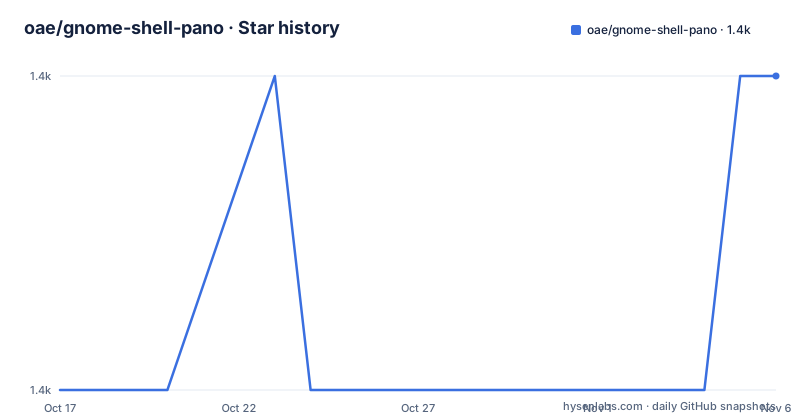
- oae/gnome-shell-pano1,356 ★ · +1
| Repository | 2026-10-17 | 2026-11-06 |
|---|---|---|
| oae/gnome-shell-pano | 1.4k | 1.4k |
1 Stars in the last 20 days, measured from the daily GitHub snapshot. Compare with other projects
Editorial analysis
Pano's GNOME Shell Clipboard Workflow
Pano addresses a specific problem inside GNOME Shell: clipboard history is normally a short-lived selection rather than a searchable collection that can be reopened later. The extension adds a dedicated interface for reviewing copied items, finding a particular entry, marking favorites, and placing a selection back into an application. It is aimed at users who spend most of their day in GNOME, use the keyboard for application switching, and copy text, links, images, colors, emoji, code, or file references.
The interface is built around a toggle shortcut. The README gives `<super>` `<shift>` `v` as the default way to show or hide Pano, while `<ctrl>` `<super>` `<shift>` `v` toggles incognito mode. The configurable shortcut means this is not a fixed-key utility. Incognito mode is relevant for people who need to hide clipboard activity from the normal history view, although the README does not describe its storage behavior, retention rules, or interaction with system clipboard services.
Pano also provides direct actions for history management. The `busctl` examples expose `clearHistory`, `toggle`, `hide`, and `show` through the user D-Bus interface at `/io/elhan/Pano`. That gives shell users a command-line route for clearing the collection or controlling the panel without relying only on the on-screen shortcut. The repository identifies the extension name as `io.elhan.Pano`, while the development instructions link a local extension directory named `[email protected]`.
Search, Filters, and Selection Keys in Pano
Pano's main practical distinction is its keyboard-driven selection model. Typing anywhere in the interface focuses the search box and filters the displayed results. The arrow keys move between items, with `left` returning focus to search from the first item and `right` moving to the first or last focused item in the list. `up` and `down` also move focus between the search box and the items.
The `tab` key cycles through item types such as images and links, while `shift` `tab` reverses the direction. Pressing `backspace` in an empty search box removes the type filter. This model is more specific than a simple clipboard list: users can narrow the collection by content category and then return to the full search state without leaving the panel.
Selecting an item with `enter` or a click copies it. The README notes that holding `shift` can be used for applications such as terminals, where paste behavior differs from ordinary applications. Numeric shortcuts from `ctrl` `1` through `ctrl` `9` copy an item by its displayed index. `ctrl` `s` toggles favorites, and `alt` switches between favorites and all items. `delete` removes the focused entry. These controls make Pano closer to a command-oriented clipboard browser than a passive tray menu.
Links can also be opened in the default browser through `ctrl` `click` or `ctrl` `enter` when the `Open Links in Browser` setting is enabled. The README does not state what happens when that option is disabled beyond the absence of that browser action, so the setting should be checked before relying on link opening.
Pano Previews, Favorites, and Content Types
The README documents content-aware notifications for several clipboard categories: links, images, colors, emoji, text, code, and file copy or cut operations. The feature is presented as a notification or preview rather than as a uniform plain-text row. That distinction matters when the clipboard contains an image or a color value, because the interface can display information that is not apparent from the copied text alone.
Favorites are a separate access path within Pano. The `alt` key switches between favorites and all items, while `ctrl` `s` marks or unmarks the selected entry. The README demonstrates favorites through a recording but does not specify storage format, sync behavior, limits, or whether favorites survive a history clear. Those are meaningful questions for an extension that stores user data over time.
File copy and file cut appear as their own content-aware categories in the notification examples. The README does not explain whether Pano retains file paths, file contents, or metadata after the source application performs the operation. It also does not document whether selecting a file entry copies a path, a file reference, or another payload. Users whose clipboard workflow depends on terminal file operations should verify this behavior in the installed version before treating file entries as equivalent to ordinary text.
The repository contains TypeScript source, GJS-related project topics, Rollup configuration, and test directories. Those entries indicate a compiled GNOME Shell extension rather than a standalone command-line application, but the README does not provide a complete internal data-flow diagram or describe the database schema behind history and favorites.
Installing Pano on GNOME Shell 45 Through 49
Pano requires `libgda` and `gsound`. The README says that both libgda 5.0 and 6.0 are supported. The installation commands differ by Linux distribution, so use the command that matches the system rather than combining package names from different distributions.
On Fedora, install the database libraries with:
sudo dnf install libgda libgda-sqliteOn Arch Linux, the documented command is:
sudo pacman -S libgda6On Ubuntu or Debian, install the GDA and GSound typelibs with:
sudo apt install gir1.2-gda-5.0 gir1.2-gsound-1.0On openSUSE, the README gives:
sudo zypper install libgda-6_0-sqlite typelib-1_0-Gda-6_0 typelib-1_0-GSound-1_0The end-user installation path is the GNOME Extensions site. The README does not provide an offline package command, so a new user should obtain the extension there and then confirm that the installed GNOME Shell version is supported.
For a first real use after installation, press `<super>` `<shift>` `v`. The panel should become visible, allowing copied content to appear in the history. Type to search, use `tab` to filter by type, press `enter` to copy the focused item, and use `alt` to switch to favorites. The exact key binding can be changed in Pano settings.
Building Pano from the TypeScript Repository
Pano is written in TypeScript and compiled into JavaScript with Rollup. The development instructions require Node.js, and `package.json` declares the engine range as `>= 20.17.0 || >= 22.0.0 || >= 24.0.0`. The build also runs locale generation and compiles GSettings schemas, so development installation needs more than TypeScript alone.
Clone the repository and enter its directory with:
git clone https://github.com/oae/gnome-shell-pano.git
cd ./gnome-shell-pano
Install dependencies and create the extension directory link with:
yarn install
yarn build
ln -s "$PWD/dist" "$HOME/.local/share/gnome-shell/extensions/[email protected]"
The `yarn build` script in `package.json` runs the TypeScript build, locale generation, and extension schema build. The `build:ts` script also runs Rollup and performs post-processing on generated files. During development, the documented command keeps generated code synchronized:
yarn watchThe README does not document the exact GNOME Shell restart procedure for a normal user installation. The package scripts do include `shell:restart` and `build-and-restart`, but the documented build tutorial does not instruct readers to run either command.
Pano's Maintenance Boundary and GPL-2.0 License
The README explicitly begins by saying, “This project is no longer maintained,” and recommends considering Copyous instead. The repository is not marked as archived, but its last push was on 2026-05-06. The README also says that GNOME Shell 42 through 44 are legacy versions receiving only critical bug or security fixes and are not actively maintained. The current-version list covers GNOME Shell 45 through 49.
That maintenance status changes the adoption decision. Pano may remain usable on a compatible GNOME Shell release, but new GNOME Shell versions can change extension APIs, settings schemas, notification behavior, and the process model used by shell extensions. The README does not provide a compatibility policy for future GNOME releases, a migration plan, or a rollback procedure for users who remove or disable the extension.
The project uses `GPL-2.0-or-later` in `package.json` and identifies GPL-2.0 as its repository license. That indicates the license family used by the project, but this review does not provide legal advice about distribution, modification, or GPL compliance. Users who intend to redistribute Pano or incorporate its code into another project should review the repository `LICENSE` and the applicable GPL obligations separately.
The upgrade cost is therefore more than running `yarn install`. A GNOME Shell upgrade can affect compatibility, while the absence of active development leaves unresolved defects and future-shell compatibility outside the project's stated support boundary. The README's recommendation of Copyous is the clearest documented alternative, but it does not provide a feature-by-feature comparison or migration instructions.
Editorial conclusion
Pano fits users already running GNOME Shell 45 through 49 who value keyboard control and want to keep an existing clipboard history extension. It is a poor choice for a new long-term deployment because the README says it is no longer maintained, the last push was on 2026-05-06, and its supported-shell list will age as GNOME changes. Before adopting it, verify that `libgda` and `gsound` are available on the target system, confirm compatibility with the installed GNOME Shell version, and account for the absence of documented migration or rollback guidance.
Frequently asked questions
Is Pano compatible with the current GNOME Shell versions?
The README lists GNOME Shell 45, 46, 47, 48, and 49 for the current version. GNOME Shell 42, 43, and 44 are listed as legacy versions that receive only critical bug or security fixes.
How do I install Pano on Ubuntu or Debian?
The README documents installing `gir1.2-gda-5.0` and `gir1.2-gsound-1.0` with `sudo apt install`, then installing the extension from the GNOME Extensions site.
How do I clear Pano's clipboard history?
The README gives this command: `busctl --user call org.gnome.Shell /io/elhan/Pano io.elhan.Pano clearHistory`.
Is Pano still actively maintained?
No. The README states that the project is no longer maintained and recommends considering Copyous instead.
Official sources
Add this badge to your README
If you maintain this project, the badge below links readers to this analysis and shows its maintenance status from the daily GitHub snapshot. Paste the markdown into your README; add ?metric=license or ?metric=stars to the image URL for a different field.

[](https://hysenlabs.com/projects/oae-gnome-shell-pano)Star history chart for your README
[](https://hysenlabs.com/projects/oae-gnome-shell-pano)Was this useful?