pi-hole/PADD: A Terminal Dashboard for Pi-hole
PADD (formerly Chronometer2) is a more expansive version of the original chronometer.sh that is included with Pi-Hole. PADD provides in-depth information about your Pi-hole.
At a glance
- What is it?
- PADD is a Shell-based status display for Pi-hole, with support for local use, remote Pi-hole v6 servers, Docker, and PiTFT displays. It is suited to operators who want a compact operational view, but its documented setup depends on several command-line dependencies and either local access or valid credentials.
- Who is it for?
- Adopt PADD when you operate Pi-hole and want a terminal dashboard, especially on a Raspberry Pi or PiTFT, and you can meet its curl, jq, dig, and tput dependencies. Do not choose it as a standalone monitoring platform without checking remote authentication, terminal sizing, Docker execution, and update behavior.
- Can I use it commercially?
- Check first. The repository uses a licence we do not classify automatically, so read its LICENSE file before any commercial use.
- Is it still maintained?
- Yes. The repository last received commits 6 days ago.
- What is it written in?
- Mainly Shell, according to GitHub's language statistics.
Answers come from the project's GitHub data, last synced on November 7, 2026, and from our analysis. They are not legal advice.
Star history
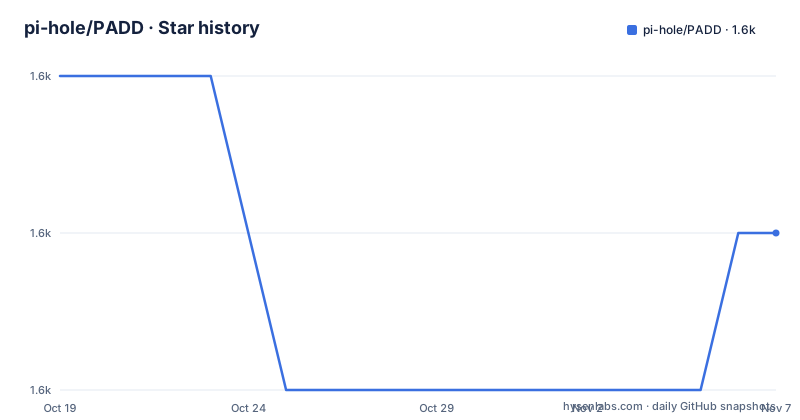
- pi-hole/PADD1,556 ★ · -1
| Repository | 2026-10-19 | 2026-11-07 |
|---|---|---|
| pi-hole/PADD | 1.6k | 1.6k |
-1 Stars in the last 19 days, measured from the daily GitHub snapshot. Compare with other projects
Editorial analysis
What PADD Changes About Pi-hole Administration
PADD addresses the practical problem of making a Pi-hole installation understandable at a glance. Instead of requiring an administrator to open several interfaces or inspect several status values, the script presents information in a terminal-sized display. Its documented priorities are the Pi-hole status, whether an update is needed, the number of ads blocked, the hostname and IP address, and the CPU load.
The intended users are people running Pi-hole on a Raspberry Pi, a local server, or the official Docker container. A second group of users will find PADD relevant when the Pi-hole instance is on another machine. Since Pi-hole v6, the README documents remote operation with a server address, which separates the display host from the Pi-hole host. That is useful for a terminal workstation or another screen-equipped device, although it adds an authentication decision to the setup.
PADD is a display tool, not a replacement for Pi-hole administration. The README does not describe configuration management, DNS policy editing, query inspection, alert delivery, or historical reporting. Its value is concentrated in presenting operational status in a form suited to a terminal and small displays.
The Shell Script and Pi-hole Data Path
The repository is centered on a single executable file, `padd.sh`, and the README identifies the project as a Shell script. The documented flow has two local variants. Running `./padd.sh` is the normal path when PADD and Pi-hole share a machine. Running `./padd.sh --server <DOMAIN|IP>` is the documented path for a remote Pi-hole v6 server.
For Pi-hole v6, authentication is part of the data access path. If the current local user belongs to the `pihole` group and can access `/etc/pihole/cli_pw`, the README states that PADD can bypass API authentication. If that condition does not apply, the script asks for a password and, when configured, a two-factor authentication token. The options `./padd.sh --secret <password>` and `./padd.sh --secret <password> --2fa <2fa>` pass those values as arguments.
The README does not expose the script's internal API calls, response fields, or polling interval. It does establish the relevant boundary for evaluation: PADD retrieves and displays information through the Pi-hole environment, while the exact implementation remains inside `padd.sh`. This makes the script's runtime behavior dependent on the installed Pi-hole version, network reachability, credentials, and terminal capabilities.
Installing padd.sh and Running the First Local Display
The README directs users to download the script into the home directory. Choose either `wget` or `curl`; both documented commands write the remote script to `~/padd.sh`.
cd ~
wget -O padd.sh https://install.padd.sh
The documented dependencies are `curl`, `jq`, `dig`, and `tput`. Install those dependencies using the package manager appropriate for the host before running the script. The README does not provide operating-system-specific installation commands.
After downloading, make the file executable. The README gives this command:
sudo chmod +x padd.shOn the Pi-hole machine, the first display is launched with:
./padd.shThe expected result is a terminal dashboard sized for the current terminal. It may prompt for authentication if the local user cannot use `/etc/pihole/cli_pw`.
Remote Servers, Docker, and PiTFT Operation
For Pi-hole v6 running on another machine, the documented server option accepts either a domain name or an IP address:
./padd.sh --server <DOMAIN|IP>Use this only when the host can reach the Pi-hole service and has the required credentials. The README does not document a separate port setting, certificate option, or configuration file, so those details cannot be assumed.
For the official Docker container, the README says that PADD is pre-installed under the name `padd`. The container name must be replaced with the actual Docker container name:
docker exec -it <container_name> padd [padd_options]PADD also supports a PiTFT setup. The README links to separate PiTFT display instructions and supplies a `.bashrc` loop that runs PADD when `TERM` is `linux`. This is convenient for a dedicated screen, but it means the display is launched repeatedly through an infinite shell loop. The optional backlight cron entries turn the display off at midnight and on at 08:00, but those instructions apply only to a PiTFT.
The display size is selected from the terminal's character dimensions. PADD documents modes from Pico at 20x10 through Mega at 80x26. On smaller screens, fewer details appear, while the README says core status information remains visible. Console font settings can be changed with `sudo dpkg-reconfigure console-setup`, or a terminal emulator can be resized.
Updating PADD Without a Package Manager
PADD documents a simple update command:
./padd.sh -uThe same update can be performed by downloading the script again. For example:
cd ~
curl -sSL https://install.padd.sh -o padd.sh
This delivery model has a practical consequence. PADD is distributed as a downloaded executable script rather than documented here as a package installed through a system repository. The README does not describe a package manager workflow, configuration migration, rollback command, release-channel policy, or compatibility matrix. Before replacing a working copy, retaining the previous local file is therefore a reversible step, but the README itself does not specify an official rollback procedure.
The listed releases include v4.1.0, v4.0.0, and v3.11.1. The repository's last push was on 2026-10-11. That date indicates recent repository activity, but it does not by itself establish that every Pi-hole combination or every remote authentication configuration is supported. The README specifically calls out Pi-hole v6 for remote use and its new API authentication mechanism, so version compatibility deserves checking before an update.
Limits, Failure Modes, and the Right Alternative
PADD has several concrete constraints. It depends on `curl`, `jq`, `dig`, and `tput`, so a minimal host without those commands cannot run it as documented. A remote display also depends on network access, Pi-hole v6 authentication, and valid credentials or local access to `/etc/pihole/cli_pw`. Passwords and two-factor tokens can be passed on the command line, which may be undesirable on shared systems because command arguments can be visible to other users or recorded by process monitoring tools.
The terminal is the operating boundary. PADD adapts to character dimensions, not pixel dimensions, and the README explicitly says that smaller screens receive less information. It is therefore a poor fit for workflows that need full logs, detailed query history, configuration editing, or alerts. The PiTFT instructions also assume a specific Linux terminal environment and separate backlight controls, so they do not transfer directly to an arbitrary embedded display.
A real alternative is using Pi-hole's own administration interfaces or a general-purpose monitoring system. A separate administrative or monitoring interface may be more suitable for those workflows. PADD instead favors a local terminal presentation with no documented database or alerting layer. The choice depends on the task: use PADD for a compact display, and use an administrative or monitoring interface when historical analysis and remote response matter more.
Editorial conclusion
Adopt PADD when you operate Pi-hole and want a terminal dashboard, especially on a Raspberry Pi or PiTFT, and you can meet its curl, jq, dig, and tput dependencies. Do not choose it as a standalone monitoring platform without checking remote authentication, terminal sizing, Docker execution, and update behavior. Before adoption, verify that the target Pi-hole version, local group permissions or API credentials, screen dimensions, and container name match your deployment.
Frequently asked questions
How do I install PADD for Pi-hole?
Download `padd.sh` with either the documented `wget` or `curl` command, make it executable with `sudo chmod +x padd.sh`, and run `./padd.sh` on the Pi-hole machine. The README lists `curl`, `jq`, `dig`, and `tput` as dependencies.
Can PADD connect to a Pi-hole server on another machine?
With PADD v4.0.0 and Pi-hole v6, the documented command is `./padd.sh --server <DOMAIN|IP>`. Authentication requires a password, and a configured two-factor token may also be required, unless the local user can access `/etc/pihole/cli_pw`.
How do I run PADD in the official Pi-hole Docker container?
The README says the official Docker container includes PADD as `padd`. Run it with `docker exec -it <container_name> padd [padd_options]`, replacing `<container_name>` with the actual container name.
How do I update PADD?
Run `./padd.sh -u`. The README also permits downloading `padd.sh` again with the same `wget` or `curl` commands used for installation.
Official sources
Add this badge to your README
If you maintain this project, the badge below links readers to this analysis and shows its maintenance status from the daily GitHub snapshot. Paste the markdown into your README; add ?metric=license or ?metric=stars to the image URL for a different field.

[](https://hysenlabs.com/projects/pi-hole-padd)Star history chart for your README
[](https://hysenlabs.com/projects/pi-hole-padd)Was this useful?