obsidian-terminal: real shells inside an Obsidian vault, and the Windows backends behind them
Integrate consoles, shells, and terminals.
At a glance
- What is it?
- obsidian-terminal is an Obsidian plugin that runs external terminals and integrated terminals inside the vault, backed by xterm.js, with an emulated console for platforms that have no shell to launch. It suits note takers who want to run commands in the folder they are writing about, and it asks for care on Windows, where the console backend depends on Python.
- Who is it for?
- Adopt obsidian-terminal if you want to run a shell in the directory you are writing about without leaving Obsidian, and if you use profiles for different shells or working directories. Do not adopt it expecting a full terminal emulator with independent process management, because the plugin is a view onto shells that Obsidian starts and manages, and it inherits Obsidian's limitations on window management.
- Can I use it commercially?
- Yes, with strict conditions. AGPL-3.0 is a network copyleft licence: if people use a modified version over a network, for example as a hosted service, you must offer them its source code under the same licence.
- Is it still maintained?
- Yes. The repository last received commits 6 days ago.
- What is it written in?
- Mainly TypeScript, according to GitHub's language statistics.
Answers come from the project's GitHub data, last synced on November 7, 2026, and from our analysis. They are not legal advice.
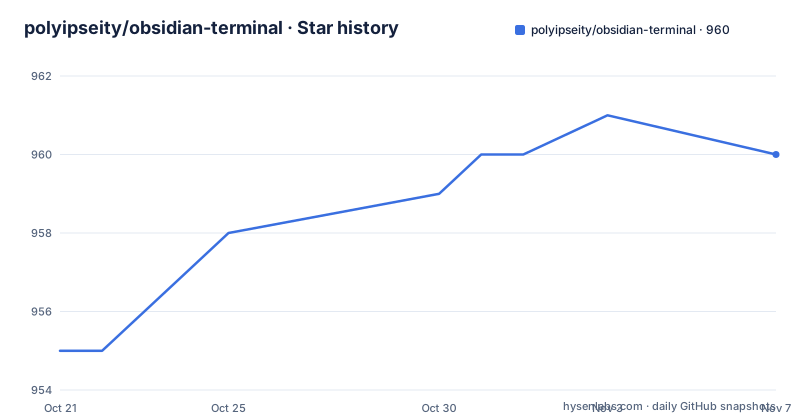
Star history
- polyipseity/obsidian-terminal960 ★ · +5
| Repository | 2026-10-21 | 2026-11-07 |
|---|---|---|
| polyipseity/obsidian-terminal | 955 | 960 |
5 Stars in the last 17 days, measured from the daily GitHub snapshot. Compare with other projects
Editorial analysis
A shell in the folder you are writing about
The plugin does one thing: it integrates consoles, shells and terminals into Obsidian. The README lists the capabilities as starting external terminals from Obsidian, integrating terminals into Obsidian, having an emulated developer console usable on all platforms, supporting multiple terminal profiles, having built-in keyboard shortcuts, automatically saving and restoring integrated terminal history, finding in terminal, saving terminal history as a file, customizing terminal appearance, and showing program status on terminal tabs.
The problem it solves is a small but persistent annoyance. Notes live in a vault, which is a directory on disk, and the shell you want to run commands in is in another application, in another window, with a different working directory. Moving between them loses the thread of what you were doing. The plugin closes that gap for people who use Obsidian as the centre of their working day.
The implementation is TypeScript with an xterm.js core, the @xterm/xterm package at version 6.0.0, extended with addons for canvas rendering, fitting to the pane, ligatures, search, serialisation, Unicode 11 handling, web links and WebGL. The interface is Svelte at version 5.55.5, the Obsidian API dependency is pinned to about 1.4.11, and translation runs through i18next. The plugin ships under an AGPL-3.0 licence, and there is a SECURITY.md alongside a CHANGELOG.md in the repository.
Three ways in, and the profile that decides what runs
Starting a terminal is available from three entry points, and all of them end in the same place, a profile selection.
From the ribbon you click Open terminal, which opens the default terminal if you have set one up, and otherwise asks you to choose a profile. From the context menu, right-clicking a file, a folder or a tab header offers the actions and lets you pick a profile. From the command palette, opened with Ctrl+P or through the ribbon, the same actions are listed.
There is also a select profile modal, where you can press Ctrl to edit the profile before use, and where one item is a temporary profile that starts a terminal with a throwaway configuration. That last detail matters more than it sounds, because a terminal's shell and working directory come from its profile, so a temporary profile is the quickest way to run a one-off command without disturbing the terminals you normally keep.
The profile is also where the platform-specific configuration lives. On Windows the profile's Python interpreter is consulted first, then the interpreter set in the plugin settings, then python, then python3, then py -3, and the first working one is used. On other platforms the Python executable is configured per profile and validated with the Check button.
Why Windows needs Python at all
The Windows installation notes are the longest part of the README and the most revealing, because they explain what the plugin does to make a modern terminal work inside a windowed application.
Windows exposes a console host model, and the plugin supports two of them. ConPTY is the modern pseudo-console, and the README notes that the default ConPTY backend needs no pip packages. ConHost is the older console host, and its resizer additionally needs Python packages. That resizer is why Python is recommended on Windows: it is not there for the shell, it is there so the plugin can tell the console how large the pane is.
The packages are psutil, pywinctl and typing_extensions, and the README gives the command to install them, or you can use the profile's Copy install command button and run it in PowerShell:
python -m pip install --upgrade "psutil>=5.9.5" "pywinctl>=0.0.50" "typing_extensions>=4.7.1"The fallback chain is documented in unusual detail, and it is worth understanding because it changes behaviour silently. An empty profile Python field no longer disables Python on Windows. The ConHost resizer runs whenever a usable Python with its packages is found, and there is no setting to turn it off. If ConPTY is selected but no usable Python is found, or its host cannot be confirmed, or the host already failed with that configuration, the terminal opens with ConHost instead. If the ConPTY host fails while a terminal starts, that terminal shows an error and later terminals open with ConHost, while the saved backend stays ConPTY, and you recover by selecting Recheck Python in the plugin settings or restarting Obsidian.
There is a second Windows decision in the same area. ConPTY terminals run on the console host that Windows Terminal ships, OpenConsole.exe, when Windows Terminal 1.22 or newer is installed, which passes more terminal replies to programs. Otherwise, or when it cannot start, the built-in console host is used, and the plugin setting called Windows Terminal console host turns that behaviour off if you want the built-in one always.
Installing the plugin, or building it from source
There are three installation routes, and the README asks first-time users to read this section.
The easiest is the community plugin list, where the plugin is installed from community plugins directly. The manual route is to create a directory called terminal under the .obsidian/plugins folder of your vault and place manifest.json, main.js and styles.css from the latest release into it.
The third route builds from the rolling branch, and it needs two toolchains. Clone the repository including its submodules, install Bun and uv, then run the three commands in the root directory:
bun install
uv sync --locked
bun run obsidian:install <vault directory>
The last command installs the built plugin into the vault you name. The uv step matters because the Python side is a real part of the project rather than a script: pyproject.toml declares a uv_build backend, requires Python 3.9 or above, and pins psutil at 5.9.5, pywinctl at 0.0.50 and typing_extensions at 4.16.0 or newer, with a comment that resizer runtime minimums come from src/python-requirements.json. The development groups pull in pytest with coverage and xdist, hypothesis, ruff and ty.
For people who want the rolling build without building it, the README points at the Obsidian42 BRAT plugin and its own instructions. After installation the plugin is enabled in Obsidian, and the settings are optional.
History that survives a restart, and keys that get intercepted
Two behaviours are worth planning around, because both are visible once you use the plugin daily.
The first is history. Integrated terminal history is saved and restored automatically, and the README is explicit about the condition: keep the terminal open when exiting Obsidian, and the history will be restored the next time Obsidian is opened. History can also be saved as a file on demand, through the Save terminal history action.
The second is keyboard control. There are global shortcuts such as Ctrl+Shift+` to toggle focus on the last terminal and Ctrl+Shift+H, or Command+Shift+H on Apple, to open the vault root directory in an integrated terminal. Obsidian may report a conflict with another plugin for those keys, and the README says the conflict appears and can be resolved under Settings and Hotkeys.
The more consequential rule is what happens when a terminal has focus. While a terminal is focused, other keyboard shortcuts, including Obsidian and plugin hotkeys, are disabled, and only the terminal ones work, which the README presents as a reason to ignore Obsidian's conflict complaints about those keys. That interception can be turned off with the Intercept keys when terminal is focused setting, after which Obsidian hotkeys keep working while the terminal has focus. The shortcuts themselves cover clearing the terminal with Ctrl+Shift+K, closing it with Ctrl+Shift+W and finding in terminal with Ctrl+Shift+F, and all of them can be customised in hotkeys settings.
Dragging a file into the shell, and the limits of the approach
One interaction deserves its own mention because it is the kind of detail that makes a plugin feel finished. You can drag a file or folder from the vault, or from another application such as Finder, Explorer or VS Code, onto an integrated terminal, and the path is inserted at the cursor. The path is escaped or quoted for the shell of the terminal's profile, and a notice appears when something could not be inserted. The quoting detail is the point: a filename with a space would break a naive insertion, and the plugin handles that for the shell in the profile.
The limits are equally concrete. First, the plugin is a view onto processes that Obsidian starts and manages, so the terminal is not independent of Obsidian: closing the application ends the session, and the history restoration depends on the terminal having stayed open.
Second, the key interception behaviour, even when turned off, means the terminal competes with Obsidian's own shortcuts for the same keys. Third, Windows behaviour depends on three external things, the Python installation, the Windows Terminal version, and the console host, and the fallback rules mean two identical profiles can behave differently on two machines. Fourth, the emulated developer console is described as usable on all platforms, but it is an emulation: it is there for platforms where there is no external terminal to launch, so it is not the same experience as a native terminal.
Fifth, running commands from a vault means running code in a folder that may contain material from elsewhere. The repository ships a SECURITY.md, and reading it is part of setting this up rather than an afterthought.
Against running your own terminal next to Obsidian
The alternative is the arrangement most people already have: a real terminal application in another window, with the vault path typed or dropped in, or a terminal emulator with its own tabs and split panes.
The difference in approach is where the process boundary sits. A separate terminal owns its own process, its own scrollback and its own lifetime, and it keeps running when you close Obsidian. The plugin starts the shell as a child of Obsidian, renders it into a pane with xterm.js, and manages its history and its profiles inside the vault's settings.
What the plugin adds is proximity. The working directory can follow the vault, the profiles can encode the shells and directories you actually use, the history is restored with the application, and the file drag gives you a path without leaving the window. For someone who writes notes and runs commands in the same directory all day, that removes a small but repeated friction.
What it gives up is terminal fidelity and independence. Rendering goes through xterm.js in the browser or the Electron view rather than the platform's own renderer, so anything that depends on precise escape sequence handling or native graphics is on shakier ground than in a native terminal. There is also no tab splitting or a multiplexer, since the plugin's terminal is a panel in Obsidian rather than a terminal emulator.
There is a third option, which is to keep the native terminal and use Obsidian's own terminal-style integration or an editor plugin with a built-in panel, accepting that you manage the working directory yourself. If your terminal use is occasional, that is less machinery. If it is constant and shares directories with your notes, the plugin earns its place.
Editorial conclusion
Adopt obsidian-terminal if you want to run a shell in the directory you are writing about without leaving Obsidian, and if you use profiles for different shells or working directories. Do not adopt it expecting a full terminal emulator with independent process management, because the plugin is a view onto shells that Obsidian starts and manages, and it inherits Obsidian's limitations on window management. Verify first which Windows backend you will get, since the README describes a fallback chain from ConPTY to ConHost that depends on Python being present and on the Windows Terminal console host, and read SECURITY.md before you run commands from a vault you do not fully control. The licence is AGPL-3.0 and version 3.29.0 was released on 2026-10-18.
Frequently asked questions
How do I install the Terminal plugin for Obsidian?
Install it from the community plugins list, or manually create a directory called terminal under the .obsidian/plugins folder of your vault and place manifest.json, main.js and styles.css from the latest release into it. A rolling build route uses bun install, uv sync --locked and bun run obsidian:install with the vault directory.
Does the Obsidian terminal plugin need Python on Windows?
Python 3.9 or above is optional but recommended on Windows. The default ConPTY backend needs no pip packages, while the ConHost backend's resizer needs psutil, pywinctl and typing_extensions, and if ConPTY is selected but no usable Python is found the terminal opens with ConHost instead.
How do I start a terminal inside Obsidian?
Use the Open terminal ribbon, the context menu on a file, folder or tab header, or the command palette with Ctrl+P. All three lead to profile selection, where you can press Ctrl to edit a profile before use or choose a temporary profile.
Why do Obsidian hotkeys stop working while a terminal is focused?
When a terminal is focused, other shortcuts including Obsidian and plugin hotkeys are disabled, so only the terminal shortcuts work. That interception can be turned off with the Intercept keys when terminal is focused setting, after which Obsidian hotkeys keep working.
How is terminal history preserved in obsidian-terminal?
Integrated terminal history is saved and restored automatically, but the README requires you to keep the terminal open when exiting Obsidian for that to work. History can also be saved to a file through the Save terminal history action.
What licence is the Obsidian Terminal plugin released under?
AGPL-3.0, with the LICENSE.txt file at the repository root and the pyproject.toml referring to the same file for the Python package. Read the licence text before you redistribute a modified build.
Official sources
Add this badge to your README
If you maintain this project, the badge below links readers to this analysis and shows its maintenance status from the daily GitHub snapshot. Paste the markdown into your README; add ?metric=license or ?metric=stars to the image URL for a different field.

[](https://hysenlabs.com/projects/polyipseity-obsidian-terminal)Star history chart for your README
[](https://hysenlabs.com/projects/polyipseity-obsidian-terminal)Was this useful?