Cloudimage 360 View: drag rotation without a 3D pipeline
A powerful JavaScript library for creating interactive 360-degree product views
At a glance
- What is it?
- Cloudimage 360 View turns a folder of sequentially named product photos into a draggable spin viewer with three lines of markup, plus hotspots, zoom, autoplay and a two-axis grid mode. What it charges for that convenience is naming discipline, and its quickest setup path runs through Scaleflex's own hosts.
- Who is it for?
- Cloudimage 360 View suits teams that already own a folder of sequentially numbered product photos and want drag rotation this week. Skip it when your images arrive under arbitrary names or as video, because every frame is an exact filename match.
- Can I use it commercially?
- Check first. The repository uses a licence we do not classify automatically, so read its LICENSE file before any commercial use.
- Is it still maintained?
- Yes. The repository last received commits 8 days ago.
- What is it written in?
- Mainly JavaScript, according to GitHub's language statistics.
Answers come from the project's GitHub data, last synced on November 6, 2026, and from our analysis. They are not legal advice.
Star history
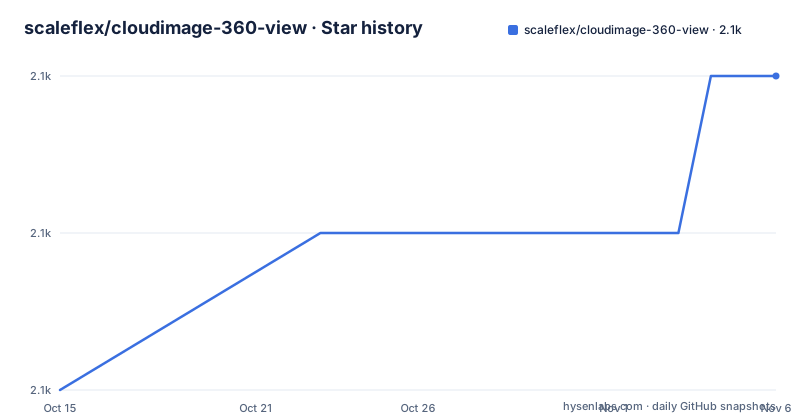
- scaleflex/cloudimage-360-view2,130 ★ · +2
| Repository | 2026-10-15 | 2026-11-06 |
|---|---|---|
| scaleflex/cloudimage-360-view | 2.1k | 2.1k |
2 Stars in the last 22 days, measured from the daily GitHub snapshot. Compare with other projects
Editorial analysis
Declarative init: data attributes on a cloudimage-360 container
A storefront that shows one product photo leaves shoppers guessing about everything the photo cannot show. This library fills that gap from images already shot: point it at a folder of sequentially named JPEGs and it swaps them as the visitor drags, with no 3D pipeline and nothing generated at runtime.
The declarative route has three parts. Mark a container with the class `cloudimage-360`, describe the image set through `data-folder`, `data-filename-x` and `data-amount-x`, then call `initAll()`, which picks up every element carrying that class and reads those attributes off it. One script tag can therefore drive a whole product grid rather than one viewer.
<!-- Add the library (CSS is auto-injected) -->
<script src="https://cdn.cloudimage.io/360-view/4.10.0/360-view.min.js"></script>

<!-- Create a container with data attributes -->
<div
  class="cloudimage-360"
  data-folder="https://scaleflex.cloudimg.io/v7/demo/360-car/"
  data-filename-x="car-{index}.jpg"
  data-amount-x="36"
></div>

<!-- Initialize -->
<script>
  const viewer = new window.CI360();
  viewer.initAll();
</script>
The demo set is a car shot 36 times, with `{index}` standing in for the frame number. Swap the folder and the template and the same markup serves your own catalogue, provided the filenames match the pattern exactly.
Programmatic init swaps attributes for a config object
The object form carries the same settings under camelCase names: `data-filename-x` corresponds to `filenameX`, `data-amount-x` to `amountX` and `data-zoom-max` to `zoomMax`. Nothing in the shown configuration belongs to only one form, so choose whichever suits your rendering stack.
const viewer = new CI360();

const container = document.getElementById('product-viewer');

const config = {
  folder: 'https://your-domain.com/images/',
  filenameX: 'product-{index}.jpg',
  amountX: 36,
  autoplay: true,
  speed: 100,
  dragSpeed: 150,
  fullscreen: true,
  zoomMax: 3,
  inertia: true,

  // Event callbacks
  onReady: () => console.log('Viewer ready!'),
  onSpin: (e) => console.log(`Frame: ${e.activeImageX + 1}/${e.amountX}`),
};

viewer.init(container, config);
Two details are easy to skim past. The `onSpin` payload exposes `e.activeImageX` next to `e.amountX`, and the printed line adds one to the index before showing it, which means the event reports a zero-based frame while `amountX` is the true frame count. Separately, `speed` and `dragSpeed` hold different values, 100 and 150 here, so a slow automatic turn and a brisk manual drag are tuned independently, and `inertia` turns the momentum glide on or off after the pointer lifts.
Two axes, two filename templates, one frame set
Rotation is not confined to a single strip. Supplying `filenameY` and `amountY` turns the rig into a two-axis viewer, where a horizontal drag walks the X set and a vertical drag walks the Y set.
const config = {
  folder: 'https://your-domain.com/images/',
  filenameX: 'product-x-{index}.jpg',
  filenameY: 'product-y-{index}.jpg',
  amountX: 36,
  amountY: 18,
  autoplayBehavior: 'spin-xy', // Options: 'spin-x', 'spin-y', 'spin-xy', 'spin-yx'
};
`autoplayBehavior` takes 'spin-x', 'spin-y', 'spin-xy' or 'spin-yx', so autoplay can circle the ring, climb the column or travel diagonally across both. The naming burden follows immediately: X and Y get separate templates, so each pair of coordinates needs its own file on your host, and a single gap in the sequence turns into a request that returns nothing. One gap in the documentation matters here too, since `amountY` appears only in the object form and no attribute-based equivalent for a second axis is shown, leaving HTML-only integrations to discover that key themselves.
Grid mode picks a frame from both drag axes
Grid mode runs on a different mental model from the spin modes. Rather than two independent strips, the displayed image is chosen by both coordinates at once: a horizontal drag moves X, a vertical drag moves Y, and a diagonal drag advances both together.
No configuration key for the mode is given in the available text, which is why the repository root carries two standalone files, `2-gride-example.html` and `2-gride-data-attributes-example.html`, one plain example and one named for data attributes. Their `gride` spelling and their top-level placement are the fastest route to the real option names, since nothing inside the library README hands them over.
Plan for that detour. Anyone wiring grid mode into a template will read those two files and reconstruct the option names by hand, and the drag model differs enough from the spin model that a config written for one will not silently work in the other.
npm, yarn and pnpm all install the same package
# npm
npm install @cloudimage/360-view

# yarn
yarn add @cloudimage/360-view

# pnpm
pnpm add @cloudimage/360-view
By package manager you import the class yourself and pull the stylesheet as a separate `@cloudimage/360-view/css` import. Through the CDN the same stylesheet arrives on its own, because the note beside the CDN tag states that CSS is injected by the script and no separate stylesheet is needed. That is the whole practical difference between the two routes.
import CI360 from '@cloudimage/360-view';
import '@cloudimage/360-view/css';
For local work the demo is served by `vite serve demo --host --port 5175`, the dev script in the package manifest, so a clone can show the viewer at port 5175 without a build. The version field in package.json reads 4.10.0 and the quick start pins that same number into the cdn.cloudimage.io path, while the newest tag listed for the repository is v4.9.1 from 2026-03-19 and the last push on master came on 2026-09-10. Pin a CDN path and you pin whatever that host is serving on the day, so confirm which build you actually receive before shipping it.
One minified file serves main, module and the CDN
The manifest publishes a single artefact, and the field values make that plain:
  "name": "@cloudimage/360-view",
  "version": "4.10.0",
  "main": "dist/360-view.min.js",
  "types": "src/types/ci360.d.ts",
  "files": [
    "dist/360-view.min.js",
    "dist/react",
    "src/types",
    "src/react/types.d.ts"
  ],
Both `main` and `module` name the same minified file, and the exports map sends the import condition and the require condition to that identical path, so a bundler receives one bundle either way rather than a separate tree-shakeable module build. Type declarations travel as source: the `types` field resolves into `src/types`, listed in `files`, and the React build copies `src/react/types.d.ts` to `dist/react/index.d.ts`.
  "exports": {
    ".": {
      "types": "./src/types/ci360.d.ts",
      "import": "./dist/360-view.min.js",
      "require": "./dist/360-view.min.js"
    },
    "./css": "./dist/react/style.css",
    "./react": {
      "types": "./dist/react/index.d.ts",
      "import": "./dist/react/index.js",
      "require": "./dist/react/index.cjs"
    }
  },
One small detail matters if you mirror this package: the `description` field is an empty string, so the registry entry carries no summary text and only the keyword list, which ends with `360 product view`.
Scaleflex hosts the script, the demo frames and the docs
Everything a page needs can be served from one vendor. The script arrives from `cdn.cloudimage.io`, the demo frames from `scaleflex.cloudimg.io`, the responsive row in the feature table is credited to Cloudimage CDN integration, and the badges at the top of the README link out to `scaleflex.com` and `cloudimage.io`, with a hosted demo page and React and vanilla CodeSandbox forks alongside.
Two files in the repository disagree about terms: package.json declares MIT and the README badge links to the MIT text on opensource.org, yet GitHub reports the licence as Other, a custom licence it cannot classify, and points readers at the LICENSE file in the root. That conflict is not a legal opinion, it is a reason to open that file before the library ships inside a commercial storefront.
Upgrade cost is documented thinly. A migration guide from v3 to v4 sits in the table of contents, and none of its text is present here, so which APIs changed between major versions cannot be confirmed from what the documentation shows.
Frame naming, not rendering, is where this viewer strains
The viewer is only as good as the frame set behind it, and that is where it strains. Two-axis and grid modes multiply the naming burden, because one filename template has to resolve for every coordinate pair, and a single missing index produces a request that returns nothing. The feature table advertises performance optimized rendering with lazy loading and responsive images, yet no benchmark, frame budget or loading strategy is documented anywhere in the repository, and no behaviour is stated for an image that fails to load.
The common alternative takes a different route entirely. A WebGL viewer wraps a texture on a sphere or cube and moves a camera, so it accepts one source image instead of a numbered sequence and computes the angles itself; the trade is a 3D context, a projection step, and a source shot or rendered as a panorama. Frame swapping asks for no GPU work and no panorama, in exchange for hosting every angle yourself and naming them without mistakes.
That makes the decision simple. Use this library when the photographs already exist in a strict sequence under one folder, and measure nothing against a 3D viewer in the meantime, because the repository records no timing of its own.
Editorial conclusion
Cloudimage 360 View suits teams that already own a folder of sequentially numbered product photos and want drag rotation this week. Skip it when your images arrive under arbitrary names or as video, because every frame is an exact filename match. Before adopting, read the terms file at the repository root, confirm what initAll() does to every cloudimage-360 element on the page, and budget for doubled naming work once filenameY and amountY enter the config. Grid mode needs its own study: the files 2-gride-example.html and 2-gride-data-attributes-example.html at the repository root are the only written record of its options.
Frequently asked questions
How do I add Cloudimage 360 View to a page with no build step?
Add the CDN script tag for 360-view.min.js, give a container the class cloudimage-360 with data-folder, data-filename-x and data-amount-x, then call initAll(). The script injects its own CSS, so no separate stylesheet is required on that route.
Does Cloudimage 360 View require images hosted on Cloudimage?
No. The folder setting accepts any URL, such as https://your-domain.com/images/. The demo frames, the script host cdn.cloudimage.io and the responsive feature row do all point at Scaleflex's own services, which is a hosting convenience rather than a requirement.
How many images does a Cloudimage 360 View scene need, and how must they be named?
The examples use 36 frames with a template such as car-{index}.jpg or product-{index}.jpg, where {index} is replaced per frame. Adding a vertical axis brings in filenameY and amountY, with the shown example using 18.
Can Cloudimage 360 View rotate vertically as well as horizontally?
Yes, pass filenameY and amountY, then choose autoplayBehavior from 'spin-x', 'spin-y', 'spin-xy' and 'spin-yx'. In grid mode the displayed image comes from both coordinates at once, and a diagonal drag moves both.
Is Cloudimage 360 View MIT licensed?
The README badge and the package.json license field both name MIT, while GitHub classifies the repository as Other and points at a LICENSE file in the root. Read that file before shipping the library inside a commercial product.
Official sources
Add this badge to your README
If you maintain this project, the badge below links readers to this analysis and shows its maintenance status from the daily GitHub snapshot. Paste the markdown into your README; add ?metric=license or ?metric=stars to the image URL for a different field.

[](https://hysenlabs.com/projects/scaleflex-cloudimage-360-view)Star history chart for your README
[](https://hysenlabs.com/projects/scaleflex-cloudimage-360-view)Was this useful?