OneJS: React 19 UI rendered through Unity's UI Toolkit
Your web skills, now in Unity.
At a glance
- What is it?
- OneJS is a Unity runtime that compiles React 19 and TypeScript with esbuild and renders the result natively through Unity's UI Toolkit, with no browser or webview, headless project setup, and a QuickJS core that switches to the browser JIT on WebGL.
- Who is it for?
- OneJS suits a Unity team that already writes React and wants its UI code shared with web projects, or a modder community that should be able to extend a game's interface in TypeScript rather than through a bespoke scripting layer. It is a weaker fit if you need the browser's full JavaScript semantics, since every platform but WebGL runs on a QuickJS core that is JIT-free on iOS.
- Can I use it commercially?
- Yes. MIT is a permissive licence: you can use, modify and sell software built on it, as long as you keep its copyright and licence notices.
- Is it still maintained?
- Yes. The repository last received commits 2 days ago.
- What is it written in?
- Mainly C#, according to GitHub's language statistics.
Answers come from the project's GitHub data, last synced on October 22, 2026, and from our analysis. They are not legal advice.
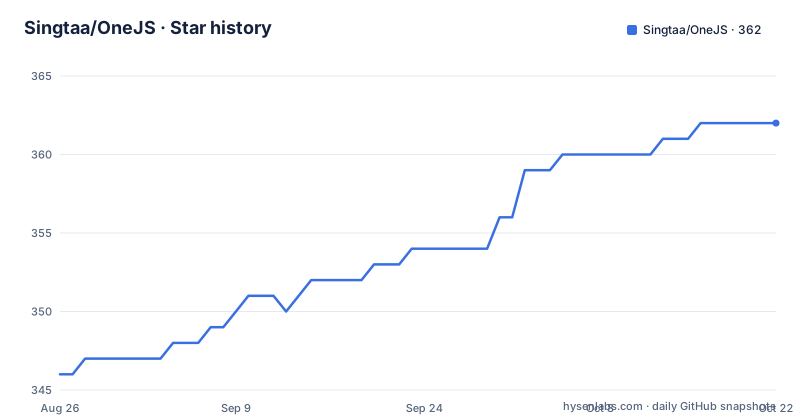
Star history
- Singtaa/OneJS362 ★ · +16
| Repository | 2026-08-26 | 2026-10-22 |
|---|---|---|
| Singtaa/OneJS | 346 | 362 |
16 Stars in the last 57 days, measured from the daily GitHub snapshot. Compare with other projects
Editorial analysis
React renders through UI Toolkit, not a webview
The premise is that a Unity interface should not require a browser. OneJS compiles React 19 and TypeScript with esbuild and hands the result to Unity's own UI Toolkit, so the UI is native to the engine rather than a page inside a webview. That is the whole pitch in one line, and the same code shape you would write for the web is what you write here:
import { useState } from "react"
import { render, View, Text, Button } from "onejs-react"
import "onejs:tailwind"

function App() {
    const [count, setCount] = useState(0)
    return (
        <View className="p-4">
            <Text text={`Count: ${count}`} className="text-lg" />
            <Button text="+1" onClick={() => setCount(c => c + 1)} />
        </View>
    )
}

render(<App />, __root)
The component names are deliberately familiar, but they are not DOM elements: View, Text, and Button map onto UI Toolkit controls, and className is the styling hook. Because esbuild does the bundling, ordinary npm packages are available to the UI code rather than being locked to a curated subset. What you give up is the browser itself, which matters on the platform table further down.
Hot reload works without entering Play mode
Most Unity tooling forces you into Play mode to see a UI change, which is slow and loses editor state. OneJS moves that loop earlier. Saving a file updates the interface in the editor in both Edit mode and Play mode, so the preview is available before you ever simulate anything. The mechanism is an esbuild watcher that the editor manages on your behalf: once the project is initialised, saving a source file triggers a rebuild and the Game view reflects it. That is what makes the React development loop feel like web development rather than the usual edit, enter Play, observe, exit cycle. The flip side is that the edit-mode preview is not the runtime: anything depending on play behaviour, timing, or scene state still needs Play mode to be judged properly, so the earlier preview shortens the loop without replacing the real one.
Initialization scaffolds an app beside your scene
Setup is a component and a button. You add a JSRunner component to a GameObject in a saved scene and click Initialize Project in the inspector. From there the runner creates the PanelSettings, scaffolds a starter React app next to your scene, runs the npm install and build steps, and starts rendering in the Game view immediately. The generated layout is worth understanding, because it explains several Unity conventions. The app directory is named after the GameObject, and inside it a folder called ~ holds the TypeScript and TSX source, because Unity ignores folders starting with a tilde. Because of that same rule the built bundle is named app.js.txt rather than a plain script, since a real .js file would be imported as a Unity asset instead of shipped as text:
git clone https://github.com/Singtaa/OneJS.git Assets/OneJSThe scaffold also brings along an esbuild config, a tsconfig, a main USS file, a global type declaration, an AGENTS file, and a gitignore, so the folder is a self-contained npm project nested inside a Unity project.
Headless setup needs -quit or the editor never exits
There is a full terminal recipe for setting up a project without clicking anything in the inspector, which matters for CI and for agents driving a build. It invokes the same Initialize method the button calls, in batch mode with no graphics. The form is:
<editor> -batchmode -nographics -quit -projectPath <project> -executeMethod OneJS.Editor.ProjectSetup.Initialize -logFile -Three of those flags are load-bearing and easy to miss. Without -quit the editor stays open after the call finishes and the process never returns. The -logFile flag set to a single dash sends the log to standard output, which is what lets the terminal capture the line naming the working directory you should build in. And the exit code is meaningful: both forms exit zero when the app is set up and non-zero when it cannot be, so this can gate a pipeline directly. After it runs you execute the npm install and build in the ~ folder it logs. The setup walks every JSRunner in the active scene, adds one on a GameObject named App if the scene has none, and is safe to call again.
Pinning a branch suffix installs a silent downgrade
The install instructions carry a warning that is worth repeating, because nothing in the tooling will catch a mistake here. The package is installed from a git URL, and the guidance is to use it with no branch suffix. Three branches still exist: onejs-v1, onejs-v2, and archive/onejs-v3. These are frozen historical branches. Installing one of them succeeds, produces an old runtime, and still compiles your project, so there is no error and no warning to tell you that you are no longer on the current version. That is a distinctive kind of failure, since the symptom appears much later as missing APIs or stale behaviour rather than at install time. The related trap is Node version drift: the editor needs Node 18 or newer, but the ojplay run and ojplay test commands need Node 22 or newer, and on older Node the install only warns about an engine mismatch for ojplay while otherwise proceeding.
Styling routes through USS, CSS Modules, or a built-in JIT
There are three ways to style the interface, and none of them requires the PostCSS toolchain that the previous generation needed. You can write USS, Unity's own styling language, directly. You can use CSS Modules. Or you can use the built-in Tailwind-style just-in-time generator, which is pulled in by the onejs:tailwind import shown in the example and has no npm dependency at all, since the generator ships with the runtime. That last option is why the className hook in the example looks the way it does. In the older version, Tailwind styling ran through a separate PostCSS toolchain in the project; in this version it is part of the package. For a team arriving from the previous major version, that difference removes a build step rather than adding one, which is quietly the larger change.
V3 replaced Preact and PuerTS with React and its own engine
The jump from the second version to this one changed the foundations rather than the surface. The UI framework moved from Preact to React 19. The JavaScript engine moved away from PuerTS, which offered QuickJS, V8, and Node as options, to a purpose-built QuickJS core. Setup went from manually wiring a UIDocument and PanelSettings to the one-click initialise step. The Tailwind situation changed as described above. And preview went from Play mode only to edit-mode preview plus Play mode. The old version is not removed; it lives on its own branch and still works on Unity 2022.3 and later, so an existing project is not forced to move. The engine choice drives the platform table: QuickJS runs in the editor and on Windows, macOS, Linux, iOS, and Android, with iOS statically linked and therefore JIT-free, while WebGL is the exception that hands rendering to the browser's own JIT engine.
Editorial conclusion
OneJS suits a Unity team that already writes React and wants its UI code shared with web projects, or a modder community that should be able to extend a game's interface in TypeScript rather than through a bespoke scripting layer. It is a weaker fit if you need the browser's full JavaScript semantics, since every platform but WebGL runs on a QuickJS core that is JIT-free on iOS. Before installing from git, check the URL you are pinning: the historical version branches still compile without complaint, so an old runtime can be installed with no warning at all. Also confirm your Node version, since the ojplay commands need a newer one than the editor does.
Frequently asked questions
What is OneJS?
A Unity runtime for building editor and runtime interfaces with React 19 and TypeScript. The code is bundled with esbuild and rendered natively through Unity's UI Toolkit, with no browser or webview involved.
Which Unity and Node versions does OneJS need?
Unity 6.3 or newer, and Node.js 18 or newer on the development machine. The ojplay run and ojplay test commands need Node 22 or newer, and on older Node the install only warns about an engine mismatch for ojplay.
Which JavaScript engine does OneJS use?
A purpose-built QuickJS core in the editor and on Windows, macOS, Linux, iOS, and Android, with iOS statically linked and JIT-free. WebGL is the exception, using the browser's own JIT engine instead.
How do I set up a OneJS project without the Unity inspector?
Call the setup method from the command line in batch mode with no graphics, including the -quit flag so the editor exits afterwards. It exits 0 when the project is set up and non-zero when it cannot be, and it logs the working directory to build in.
What does Initialize Project create in a OneJS scene?
It sets up every JSRunner in the active scene, or adds one on a GameObject named App if the scene has none. It then creates PanelSettings, scaffolds a starter React app, runs the npm install and build steps, and starts rendering in the Game view.
Official sources
Add this badge to your README
If you maintain this project, the badge below links readers to this analysis and shows its maintenance status from the daily GitHub snapshot. Paste the markdown into your README; add ?metric=license or ?metric=stars to the image URL for a different field.

[](https://hysenlabs.com/projects/singtaa-onejs)Star history chart for your README
[](https://hysenlabs.com/projects/singtaa-onejs)