Handheld Companion Setup, Features, and Limits
A touch optimized GUI to increase your handheld gaming computer experience.
At a glance
- What is it?
- Handheld Companion is a C# utility for touch-operated Windows gaming handhelds. It combines motion input, virtual controllers, QuickTools, and game profiles, while support depends on the device, sensor, Windows version, and custom license terms.
- Who is it for?
- Adopt Handheld Companion if your handheld runs supported 64-bit Windows and its sensor, controller, or profile features solve a specific need. Do not choose it for an unsupported device or if you require a documented Linux path.
- Can I use it commercially?
- Check first. The repository uses a licence we do not classify automatically, so read its LICENSE file before any commercial use.
- Is it still maintained?
- Yes. The repository last received commits 5 days ago.
- What is it written in?
- Mainly C#, according to GitHub's language statistics.
Answers come from the project's GitHub data, last synced on November 6, 2026, and from our analysis. They are not legal advice.
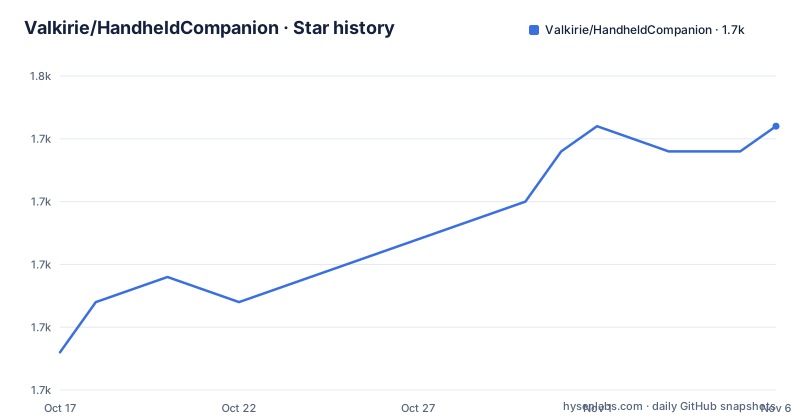
Star history
- Valkirie/HandheldCompanion1,748 ★ · +9
| Repository | 2026-10-17 | 2026-11-06 |
|---|---|---|
| Valkirie/HandheldCompanion | 1.7k | 1.7k |
9 Stars in the last 20 days, measured from the daily GitHub snapshot. Compare with other projects
Editorial analysis
What Problem Handheld Companion Solves on Windows Handhelds
Handheld Companion addresses control and configuration gaps on handheld gaming computers. It is a touch-optimized GUI for 64-bit Windows 10 and Windows 11 systems, built in C# and intended to consolidate functions that may be inconvenient through a handheld's small built-in display.
The documented use cases include universal motion controls, higher-precision motion input for a Windows game library through Steam, PS4 Remote Play with a DS4 controller, and motion input for Wii, WiiU, and Switch titles through a UDP motion control protocol. It also provides direct access to TDP, brightness, resolution, refresh rate, frame limiting, volume, power mode, and battery information.
This is not a game launcher or emulator replacement. Its value comes from adapting input and adjusting device behavior. That makes it most relevant to players who need sensor-driven aiming, virtual controller identities, game-specific settings, or quicker access to controls. A user whose handheld is unsupported, or whose game and emulator already provide all required controls, may gain little from installing it.
How Motion Data Uses IMUs, External Sensors, and UDP
Motion control uses an inertial measurement unit, which the README describes as a gyroscope and accelerometer, or an external sensor. Handheld Companion provides motion profiles for racing, first-person games, third-person games, and emulators. The available documentation does not expose the low-level sampling pipeline, coordinate transformations, calibration sequence, or update rate, so those implementation details should not be inferred.
The supported sensor families are Bosch BMI160, BMI260, BMI270, and BMI323, including similar devices, together with the GY-USB002 USB IMU. A device appearing in the supported-device list does not by itself establish that every motion feature will work. Firmware, the installed sensor, and the desired control transport may all affect the result.
The emulator use case can also use UDP motion control. That offers a network transport for compatible targets, while built-in IMU input serves as the local sensor path. Users should therefore identify their target before installation. A game that expects a conventional controller profile may not benefit from the same path as an emulator configured for UDP motion input.
Why VIIPER Matters for Virtual Controller Configuration
Handheld Companion uses VIIPER as its virtual controller backend. VIIPER is included with the application and supports Xbox 360, DualShock 4, DualSense, Steam Controller, Steam Deck Controller, and Nintendo Switch Pro controller identities. This is more than a controller-remapping screen: it can simulate the controller type expected by a game while motion input remains tied to the handheld or an external sensor.
The all-in-one installer also installs the HidHide filter driver. The README says this driver hides physical controllers when required. That behavior can matter when an application must see only a simulated controller, although the README does not explain the exact conflict cases or provide per-game instructions.
The project also documents gamepad remapping to mouse and keyboard, including joystick and trigger dead-zone adjustment. Together, virtual controller simulation and remapping address different problems. Virtual identity simulation can satisfy software that expects a particular controller family, while dead-zone adjustment changes how conventional axes and triggers behave. Users should not assume that every supported controller identity has equal feature parity in every game; the README names the targets but does not publish a complete per-game compatibility matrix.
How Game Profiles Select Motion and Controller Settings
Handheld Companion includes a profile settings system that can automatically detect the active game and apply its settings. Profiles can include motion configuration and TDP values, with QuickTools exposing global and profile-level TDP controls. This creates a path from launching a game to receiving a configured input and power profile without manually revisiting every setting.
The mechanism is relevant to devices with limited screen space and frequent game switching. However, automatic detection is not the same as guaranteed compatibility. The README names common use cases and supported hardware but does not document how game detection is maintained, what happens when two games share a name, or how a user repairs a profile that was selected incorrectly.
Users should also distinguish documented architecture from catalog coverage. Handheld Companion clearly provides detection and profile application, but the README does not claim every game has a dedicated profile. For a specific title, the safest evidence is the profile interface in a current build rather than an assumption based on the feature list.
QuickTools Layout and Handheld Control Scope
QuickTools is the touch-oriented control surface. The README lists TDP, Auto TDP, GPU, screen refresh rate, frame limiter, resolution, brightness, volume, power mode, and battery level as information or controls available through the overlay. Its broader description also includes on-the-fly changes for TDP, brightness, screen resolution, frequency, hotkeys, and motion profiles.
The overlay can be summoned with a user-defined button combination, including special keys mapped on certain supported devices. Its window may be aligned left, right, or floating. Those layout options make it possible to keep controls visible on different handheld screen designs, although the README does not explain how special-key mappings differ between devices.
Handheld Companion also offers separate built-in performance metric overlays. The README does not say whether every performance metric is available on every listed handheld or whether each QuickTools control works independently. Device support should therefore be checked at the individual feature level when TDP, refresh-rate, or sensor control is mandatory.
Supported Handhelds, Sensors, and Installation Boundaries
The supported-device catalog covers ASUS ROG Ally variants, Lenovo Legion Go variants, MSI Claw models, AOKZOE devices, Steam Deck models, Steam Machine, several AYA Neo families, Minisforum V3, ONEXPLAYER models, GPD Win models, Ayn Loki, SuiPlay 0X1, and ZOTAC Gaming Zone.
A broad catalog can make model discovery easier, but the README does not define a compatibility tier. It does not specify which capabilities are identical across models or which controls depend on device firmware. The separate sensor list reinforces this point: motion support requires more than a matching handheld name.
The README directs users to the GitHub releases page through a “Download Latest” link. It does not give a package-manager command, installer flags, portable archive name, or first-launch procedure. The repository contains HandheldCompanion.iss, indicating an Inno Setup-oriented installer definition, but the README does not document commands for compiling it. Since no verified commands are available, there is no installation code to reproduce here.
First Real Handheld Companion Configuration
A first real setup should begin with the latest release, then confirm that the exact handheld model and required sensor appear in the documented support lists. If the goal is motion input, inspect the motion controls and select a profile appropriate to racing, first-person, third-person, or emulator use. The README does not specify a mandatory calibration wizard or exact button sequence.
For virtual controller work, inspect the VIIPER controller settings and choose the identity required by the target application. Remember that the all-in-one installer also installs HidHide, which is used to hide physical controllers when required. This driver installation is part of the application setup, not an optional command that the README describes.
For QuickTools, assign the documented user-defined button combination and choose left, right, or floating placement. The first meaningful verification depends on the selected feature: a supported sensor should feed the selected motion profile, a virtual controller should be recognized by the target application, or the overlay should display and expose controls for the handheld. The README does not provide per-device verification commands or expected log output.
Alternatives, Upgrades, and the Custom LICENSE.md
For users who need only a game's native motion controls or one emulator's UDP settings, the game's or emulator's own configuration interface is the direct alternative. That approach has less integration and no separate controller backend, but it does not provide Handheld Companion's broader QuickTools, virtual controllers, automatic game profiles, or cross-application control overlay. The choice depends on whether device-wide integration solves a problem the target software cannot solve alone.
The repository is not archived, and the last push was on 2026-10-04. Releases 1.3.3.1 on 2026-10-04, 1.2.1.3 on 2026-09-22, and 1.2.1.2 on 2026-09-22 document recent changes involving virtual controllers, graceful exits, device attachment reliability, USBip, and controller or device support. The README does not define a long-term release schedule or migration policy, so upgrades may require checking release notes and device behavior rather than relying on an automatic compatibility promise.
GitHub classifies the license as Other because LICENSE.md is custom. The README does not summarize its permissions or restrictions. Users should read that file before modifying or redistributing builds, while individual players can focus first on whether the application supports their exact hardware and intended control workflow.
Editorial conclusion
Adopt Handheld Companion if your handheld runs supported 64-bit Windows and its sensor, controller, or profile features solve a specific need. Do not choose it for an unsupported device or if you require a documented Linux path. Check your model against the supported-device list, confirm the required sensor or controller behavior, and read LICENSE.md before distributing or modifying builds. The custom license is the clearest adoption boundary.
Frequently asked questions
Which Windows versions does Handheld Companion support?
Handheld Companion is built for 64-bit Windows 10 and Windows 11. The README does not document Linux support.
Which virtual controllers are available through VIIPER?
The documented targets are Xbox 360, DualShock 4, DualSense, Steam Controller, Steam Deck Controller, and Nintendo Switch Pro controllers. VIIPER is included with Handheld Companion.
Where can users download Handheld Companion?
The README links to the project's GitHub latest-release page. It does not provide a package-manager command, portable archive name, or command-line installation tutorial.
Does Handheld Companion install HidHide?
The README says the all-in-one installer also installs the HidHide filter driver. HidHide is used to hide physical controllers when required.
Official sources
Add this badge to your README
If you maintain this project, the badge below links readers to this analysis and shows its maintenance status from the daily GitHub snapshot. Paste the markdown into your README; add ?metric=license or ?metric=stars to the image URL for a different field.

[](https://hysenlabs.com/projects/valkirie-handheldcompanion)Star history chart for your README
[](https://hysenlabs.com/projects/valkirie-handheldcompanion)Was this useful?