vscode-icons: what activating the theme actually changes
Icons for Visual Studio Code
At a glance
- What is it?
- A file icon theme for Visual Studio Code that is free under MIT for the source and ShareAlike for the artwork, and whose install path still needs a second manual step. Its auto detection, licence split and release numbering each carry a catch worth knowing before you pin a version.
- Who is it for?
- Adopt vscode-icons if your work spans many file types and you want per extension glyphs without configuring each one, and take the Marketplace build rather than compiling from source unless you already run Node 22. Check your specific extensions against the wiki file list first, and confirm the theme is activated by name after every major bump, since the 2.18.0 tag dated after 12.19.0 makes version pinning unreliable.
- Can I use it commercially?
- Yes. MIT is a permissive licence: you can use, modify and sell software built on it, as long as you keep its copyright and licence notices.
- Is it still maintained?
- Yes. The repository received new commits within the last day.
- What is it written in?
- Mainly TypeScript, according to GitHub's language statistics.
Answers come from the project's GitHub data, last synced on October 23, 2026, and from our analysis. They are not legal advice.
Star history
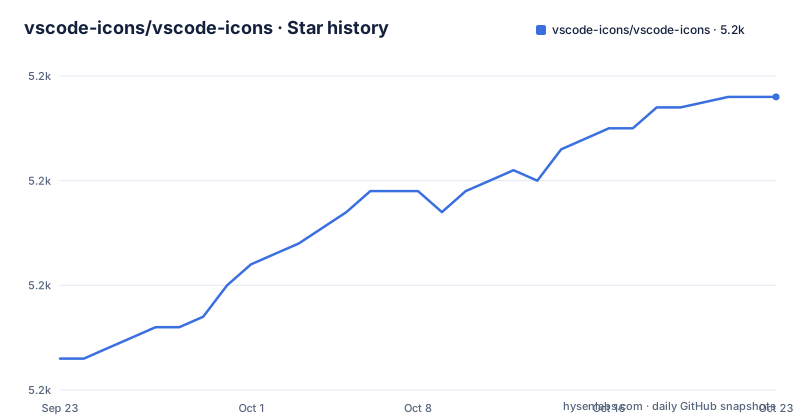
- vscode-icons/vscode-icons5,178 ★ · +25
| Repository | 2026-09-23 | 2026-10-23 |
|---|---|---|
| vscode-icons/vscode-icons | 5.2k | 5.2k |
25 Stars in the last 30 days, measured from the daily GitHub snapshot. Compare with other projects
Editorial analysis
Activation is a second step the install command does not do
Installing the extension does not switch icons on. After the window reloads you get a message offering to `Activate` the icons, and that second choice is the part people miss. When the message never shows up, the theme has to be picked by hand, and the menu path differs by platform. On Linux and Windows the chain runs through `File > Preferences > Theme > File Icon Theme > VSCode Icons`. On MacOS it starts one level up at `Code > Preferences > File Icon Theme`, then the same `VSCode Icons` entry. The list shows the display name, not the package identifier, so looking for `vscode-icons` there is a dead end. The manifest carries `icon-theme` among its keywords and describes itself only as icons for Visual Studio Code, with no field that forces a theme switch on upgrade. A major version bump can therefore leave you on the previous set until you revisit this menu yourself.
Three spellings of the install command, and why the first one misses
In the Command Palette this single line finds the theme:
ext install vscode-iconsIt does not always resolve, and the project answers that with two shorter forms instead of diagnosing the failure:
ext install icons
# or
ext install "vscode-icons"
Lookup is name based, so a misspelled or over specific query returns an empty result that looks identical to the extension not existing. The listing sits under the publisher `vscode-icons-team`, which is why the bare word lands on nothing while the namespaced identifier reaches it. There is no offline or sideload command anywhere in the repository, so the palette is the only documented route and the homepage is a Marketplace item page.
Project auto detection swaps your icon set on its own
Project Auto Detection reads the project you have open and switches the icon set without being asked, with Angular given as the worked example and other frameworks said to work. No list of those other frameworks appears in the package manifest, and there is no configuration key for the behaviour either. Three consequences follow. A workspace holding two frameworks in one window has no documented tie breaker, so the detected set may not match the file you are editing. Detection also only knows about frameworks someone added, so a language server or build tool outside that set keeps generic icons no matter how the repository is laid out. The keyword `multi-root ready` says multi root workspaces are supported, but support is not the same as per folder detection being documented, so treat framework coverage as something to verify rather than assume.
Icon artwork is ShareAlike even though the source is MIT
The licensing is split three ways, and the split matters if you redistribute anything. The extension source is MIT under the root `LICENSE` file, with Roberto Huertas as author and Remco Haszing, Dimitris Charalampidis and Manuel Bojato as maintainers. The icon artwork is not: it is Creative Commons ShareAlike, CC BY-SA 4.0. Branded icons, meaning the logos of other products, sit under their own copyright licence instead. Adding your own icon therefore does not put your file under MIT either, it lands in the same ShareAlike bucket as the built in set, and anyone repackaging the theme has to carry that attribution obligation forward. Contributors are pointed at `.github/CONTRIBUTING.md` before any artwork is submitted, with a separate wiki section for the artistic side. Translations arrive through Crowdin rather than pull requests, so the `locale/` directory is generated by that pipeline.
The manifest ties a VS Code floor to a Node floor
Two version constraints ship together in package.json, and only one of them applies to you:
  "engines": {
    "vscode": "^1.104.3",
    "node": ">=22.18.0"
  },
The same 1.104.3 figure is printed as the minimum supported version in the project banner. Node 22.18.0 is a floor for building the source, not for using the theme. The repository carries its own toolchain: `husky install` runs on prepare, prettier handles formatting, `webpack.config.ts` holds the bundle config, and coverage is wired through `codecov.yml` and `.nycrc`, with Mocha configured in `.mocharc.json` and tests under `test/`. A clean rebuild is the single `reinstall` script, which removes `./package-lock.json` and `./node_modules` before installing again, and `build` shells out to `node ./out/src/tools/build.js "--release"`. None of that runs on a Marketplace install, but a contributor on Node 20 fails at the install step, not at the build step.
Version 13 sits next to a release numbered 2.18.0
The release history does not run in one direction. The newest tag is v13.0.0, dated 2026-09-29, and it matches the `version` field in the manifest. The tag before it is v12.19.0 from 2026-06-27, and after that comes v2.18.0 dated 2026-04-19, a number below both that nonetheless lands between them in calendar time. The project states that it follows Semantic Versioning 2.0.0, yet a 2.x tag appearing after 12.x is not what that scheme describes. For anyone pinning a version in settings or reproducing a build this gap is a real hazard: sorting by number treats 13.0.0 as newest and 2.18.0 as ancient, so a script or lockstep workflow that reasons about versions rather than dates can select the wrong release. Read dates out of `CHANGELOG.md` instead of trusting numeric order.
Supported icons live in wiki pages, not in the repository
The repository carries no inventory of what it can draw. Supported file icons and supported folder icons both live in wiki pages named `ListOfFiles` and `ListOfFolders`, and the `icons/` directory is the only local hint. So there is no way to confirm from the tree alone that your particular file extension has a dedicated glyph, and no count of how many are covered. The same gap applies to framework detection, where Angular is named and everything else is left open. What the repository does state is the shape of the work: TypeScript sources under `src/`, compiled output at `out/src/`, a browser bundle at `dist/src/vscode-icons.web.bundle.js`, and listing artwork at `images/logo.png`. If a needed icon is absent the documented answer is an issue through the tracker address in the manifest, not a setting you can change.
Editorial conclusion
Adopt vscode-icons if your work spans many file types and you want per extension glyphs without configuring each one, and take the Marketplace build rather than compiling from source unless you already run Node 22. Check your specific extensions against the wiki file list first, and confirm the theme is activated by name after every major bump, since the 2.18.0 tag dated after 12.19.0 makes version pinning unreliable.
Frequently asked questions
what is vscode icons extension
It is a Visual Studio Code file icon theme published as vscode-icons by the vscode-icons-team publisher, written in TypeScript. The source is MIT, the artwork is CC BY-SA 4.0, and branded icons stay under their own copyright. It draws per extension glyphs and can detect frameworks such as Angular in the open project.
how to use vscode icons
Run `ext install vscode-icons` in the Command Palette, reload the window, then accept the message offering to `Activate` the icons. If no message appears, select the theme by name: `File > Preferences > Theme > File Icon Theme > VSCode Icons` on Linux and Windows, or `Code > Preferences > File Icon Theme` on MacOS.
How to get icons on VS Code?
Install the extension and then activate it, because the install command alone leaves the previous theme in place. The minimum supported version is 1.104.3, and the theme appears in the list as `VSCode Icons` under the File Icon Theme menu.
is vscode icons safe
The extension source is MIT licensed and the icon artwork is Creative Commons ShareAlike CC BY-SA 4.0, with branded icons remaining under their own copyright. It installs from the Marketplace listing under the vscode-icons-team publisher, and the repository publishes a change log and an issue tracker.
What do the icons in Visual Studio Code mean?
A file extension theme gives each file type its own glyph and matches folder names too. Project Auto Detection switches the set for detected frameworks such as Angular, and any extension glyph you dislike can be replaced with a custom icon of your own.
Official sources
Add this badge to your README
If you maintain this project, the badge below links readers to this analysis and shows its maintenance status from the daily GitHub snapshot. Paste the markdown into your README; add ?metric=license or ?metric=stars to the image URL for a different field.

[](https://hysenlabs.com/projects/vscode-icons-vscode-icons)Star history chart for your README
[](https://hysenlabs.com/projects/vscode-icons-vscode-icons)Was this useful?