WinUtil CN: the Chinese-language Windows 11 utility with an MCP server bolted on
面向 Windows 11 的中文软件管理与系统维护工具,支持 Windows 10 / 11 x64 镜像制作与默认只读的 MCP 接口。基于 Chris Titus Tech Windows Utility。
At a glance
- What is it?
- winutil-cn is a localized and maintained fork of the Chris Titus Tech Windows Utility, aimed at Windows 11, adding a Chinese interface, a command line preset entry point, ISO creation and a Model Context Protocol server. It is distributed as an EXE with SHA256 checksums, and its boundaries are documented in detail.
- Who is it for?
- Adopt winutil-cn if you administer Chinese-language Windows 11 machines and want one executable that covers software installation, registry and service tweaks, Windows update policy and ISO creation, with a Chinese interface and a read-only MCP server for AI clients.
- Can I use it commercially?
- Yes. MIT is a permissive licence: you can use, modify and sell software built on it, as long as you keep its copyright and licence notices.
- Is it still maintained?
- Yes. The repository last received commits 6 days ago.
- What is it written in?
- Mainly PowerShell, according to GitHub's language statistics.
Answers come from the project's GitHub data, last synced on November 7, 2026, and from our analysis. They are not legal advice.
Star history
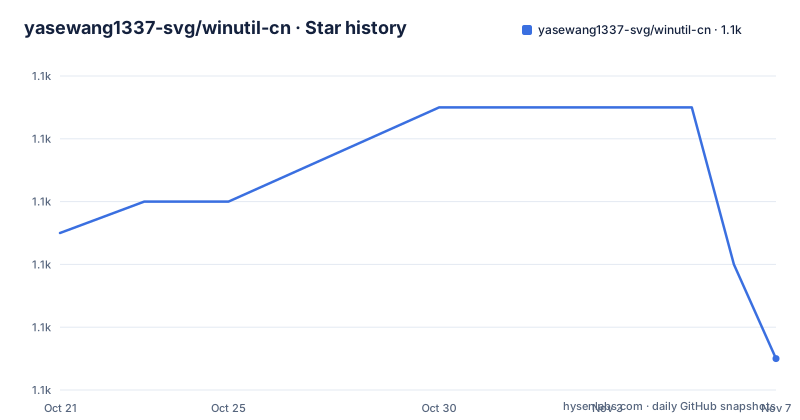
- yasewang1337-svg/winutil-cn1,053 ★ · -4
| Repository | 2026-10-21 | 2026-11-07 |
|---|---|---|
| yasewang1337-svg/winutil-cn | 1.1k | 1.1k |
-4 Stars in the last 17 days, measured from the daily GitHub snapshot. Compare with other projects
Editorial analysis
A fork, localized, with the upstream kept in sync deliberately
WinUtil CN is a Chinese interface for the Chris Titus Tech Windows Utility. The README is explicit about the relationship: it is based on that upstream project and localized and maintained by yasewang1337. That framing matters for anyone evaluating it, because the utility's behaviour, its pages and its tweak catalogue are inherited, and the local work is the translation, the Chinese presets, the theme and the reliability fixes.
The localization is a layer rather than a fork of the interface code. The repository layout shows it: a directory with the Chinese name holds the translation data, while config/, functions/, scripts/, tools/ and xaml/ hold the ordinary PowerShell structure of the upstream tool, and Compile.ps1 sits at the root. The README states that translation data is concentrated in the localization layer, while the Chinese combinations, the theme and the reliability improvements are maintained separately.
Keeping a fork of a fast moving upstream is the hard part of this project, and the documentation treats it as a first class concern rather than an afterthought. There is a maintenance note, a 2026-10 update audit, a documented upstream sync progress issue, and a rule for what has to be checked during a sync: configuration, control keys, features and translation compatibility. A localization that silently drops a new upstream feature is the classic failure here, and the existence of an audit document with a date in its name suggests the maintainer checks for it.
The target is Windows 11, with a badge for Windows 11 and a note that the executable embeds the scripts of that version and uses the system's built-in PowerShell 5.1, so PowerShell 7 does not have to be installed. The upstream project it descends from supports Windows 10 and 11, and the image creation page in this fork reads official Windows 10 and 11 x64 ISO files.
Six pages, and one of them writes to a USB stick
The feature table lists what each page does, and it is worth walking through because the risk profile differs sharply from page to page.
Software management detects installed software, filters by detection result or by a selected list, and searches by name, purpose or package ID, then installs, upgrades or uninstalls through WinGet or Chocolatey. Results are shown item by item, and a failed item can be retried on its own. The Chinese interface adds a purpose summary next to each name, and marks entries the detection recognised as already installed, with a warning that a missing entry does not mean the software is absent.
System optimization shows basic, standard and advanced presets, and after review applies them, with the ability to restore recorded registry values and service startup configuration from the history. System configuration opens the Windows administrative tools. Windows updates presents three scopes, restore, delay and disable, and adjusts the update policies the tool touches.
The Windows image page reads an official Windows 10 or 11 x64 ISO, reads its version, and exports an ISO or writes it to a USB drive after modification. The README states clearly that the target of the image and the environment the tool runs in are two different things, and later repeats the warning that writing to a USB stick erases the selected disk.
The last page, lists and history, exports the software and setting selections so they can be imported and reviewed next time, and shows the current session's software results and the recorded setting changes. That export and import is the closest thing the tool has to a repeatable configuration, and it is a list of choices, not a script that runs itself.
Download, check the hash, then run in an elevated shell
The quick start is three steps: download WinUtil-CN.exe from the releases page or its direct download link, double click it and grant the administrator rights Windows asks for, then adjust the software or setting lists, review the scope, run, and check each result afterwards. The releases page also carries the release notes and the SHA256 checksum files, and the README links both.
The command line route is documented for people who prefer it, and it starts with a hash check. You download winutil-cn.ps1 and SHA256SUMS.txt from the same releases page, compute the hash and compare it against the list:
Get-FileHash .\winutil-cn.ps1 -Algorithm SHA256And then, in an administrator PowerShell session, you run the script:
& .\winutil-cn.ps1The documentation is unusually blunt about the security side, and it is worth reading before your first run. If execution policy or antivirus software blocks the script, the guidance points to a security alert note in docs/SECURITY.md, and it says explicitly not to work around the block by turning off protection or adding an exclusion. The troubleshooting section adds that neither open source status, nor a digital signature, nor a single clean scan proves a file is safe, and asks you to keep the alert record.
That is a sensible position for a tool that asks for administrator rights and then edits the registry. It is also the practical reason to check the hash rather than trust the download link.
Network access is required for the package managers and for downloading software and updates, so the tool is not usable in an air-gapped environment for the installation paths.
The GUI checks boxes, the command line executes
This is the distinction the README spends most of its warning text on, and it is the thing to understand before using the tool for anything that matters.
In the graphical interface, selecting software or settings only adds them to a list. Importing a list through the interface replaces the check marks, and it does not install anything or change the system by itself. The application of changes is a separate, deliberate action, and the interface is built around that: the scope is summarised before the run, and each result is reported individually afterwards.
The command line is different, and the README marks the difference with an explicit warning. The -Preset and -Config options are automatic execution entry points. Selecting a preset on the command line runs it. The documentation says the configuration content has to be checked before use, and the separate table of presets, with entries such as Minimal, lists what each one currently contains.
For an engineer this means two different risk models. The GUI is a review-and-confirm tool, where the worst case is a mis-click on a reviewed list. The command line is a batch interface, where a wrong flag or a stale config file applies a set of registry and service changes without a review step. The same preset data is therefore safer in one interface than in the other, and that is not an accident of implementation but a documented difference in how each path is meant to be used.
The other side of the design is that the tool is transparent about what it did. Software results are reported item by item with a reason shown in the results window, a log folder can be opened from there, and setting changes are recorded in a history you can review and partially restore.
An MCP server so an AI client can read the machine
The most distinctive addition in this fork is the Model Context Protocol server, documented in mcp/README.md and reachable from the documentation table under the row for querying or operating through an AI client. The project description calls the MCP interface read-only by default, which is the right default for a tool that can otherwise take administrator rights on a machine.
The releases show the MCP server being versioned separately from the utility itself. There is mcp-v0.4.2, whose release description mentions Chinese documentation and distribution notes, and mcp-v0.4.3, both on 2026-10-13, alongside the Chinese build cn-2026.10.13-40. Separate tags for the two tracks mean you can move the MCP component independently of the main executable, which is convenient when a client integration changes faster than the desktop tool.
The value of a read-only machine interface is that an assistant can answer questions about a machine, such as which software is installed or which update policies are in force, without a human transcribing the output. The cost is that the same interface is a potential command channel, and the documentation treats the boundary explicitly. The isolation question here is one you answer with Windows permissions and the execution policy, not with a platform feature, and the read-only default is what keeps an assistant on the safe side of that line.
The release tags for the MCP track are dated 2026-10-13, the same day as the Chinese build cn-2026.10.13-40, and the repository also carries a pester/ directory, a lint/ directory and a packaging/ directory, which is where the regression suite, the checks and the build output live.
The boundaries are stated as plainly as the features
Most documentation of this kind of tool lists what it does. This one also lists what it does not do, and the list is the most useful part of the README.
Restoration has a scope. The settings history can restore recorded registry values and service startup configuration. Deleted applications, cleaned files and other changes made by the scripts are outside the full restore range, and the history cannot replace a personal file backup. So the tool is not a rollback mechanism for the machine, it is a record of the specific changes it made.
The bulk upgrade view has a scope too. View all upgrade operations covers the software the package manager can recognise, and it gives batch results and logs. It does not provide a per-software list of pending updates and it does not roll software versions back.
The package manager behaviour has been tightened. The documentation says to prefer the default WinGet, and if you switch to Chocolatey you should install it according to its own official instructions, because the tool no longer downloads and directly executes the Chocolatey initialization script. The automatic login and PowerShell configuration install entry points were changed to open the official guides instead.
The ISO page is the sharpest edge, and the README repeats the warning in two places: writing installation media to a USB drive erases the selected disk. The build targets and the environment the tool runs in are separate concerns, and the preview screenshots for the image page are explicitly described as not representing completed boot and install verification on every target system.
The troubleshooting path is concrete as well. The results window shows a reason, the log folder can be opened from it, and the logs live in known places: %LOCALAPPDATA%\WinUtil-CN\Logs\Packages for software tasks, %LOCALAPPDATA%\WinUtil\TweakHistory for settings history, %LOCALAPPDATA%\winutil\logs for general logs, and %TEMP%\winutil-cn-error.log for startup errors. When you report a problem, the project asks for the version, the Windows version, how you launched it, the reproduction steps and the relevant error text.
Editorial conclusion
Adopt winutil-cn if you administer Chinese-language Windows 11 machines and want one executable that covers software installation, registry and service tweaks, Windows update policy and ISO creation, with a Chinese interface and a read-only MCP server for AI clients. Do not adopt it as an unattended provisioning system, because the command line -Preset and -Config entry points execute automatically and the GUI applies nothing without a deliberate run, and do not treat it as a backup or rollback tool, since the recorded history restores only registry values and service startup settings. Before you run it on a machine you care about, download winutil-cn.ps1 with SHA256SUMS.txt, check the hash with Get-FileHash, read the usage boundaries in the getting started guide, and keep the log paths under %LOCALAPPDATA% in mind when a task fails.
Frequently asked questions
How do I download and verify WinUtil CN?
WinUtil-CN.exe is linked from the releases page, which also carries the release notes and the SHA256 checksum files. The command line route downloads winutil-cn.ps1 and SHA256SUMS.txt, and the hash is checked with Get-FileHash .\winutil-cn.ps1 -Algorithm SHA256 before the script is run.
What does the -Preset and -Config option do?
They are automatic execution entry points, unlike the graphical interface where selecting items only fills a list and the run is a separate deliberate step. The documentation warns that the configuration content has to be reviewed before these options are used.
Can I restore my system with the settings history?
Only in part. The history restores recorded registry values and service startup configuration, while deleted applications, cleaned files and other script changes are outside its scope, and it is not a substitute for backing up personal files.
What does the MCP server in winutil-cn do?
It exposes the machine to an AI client over the Model Context Protocol, and the project describes the interface as read-only by default. It is documented in mcp/README.md and versioned separately from the main utility, with mcp-v0.4.2 and mcp-v0.4.3 released on 2026-10-13.
Is it safe to write Windows installation media to a USB drive?
The README warns that writing to a USB drive erases the selected disk, and the image page reads official Windows 10 and 11 x64 ISO files to produce the modified media. The image page preview is also described as not representing completed boot and install verification on every target system.
Official sources
Add this badge to your README
If you maintain this project, the badge below links readers to this analysis and shows its maintenance status from the daily GitHub snapshot. Paste the markdown into your README; add ?metric=license or ?metric=stars to the image URL for a different field.

[](https://hysenlabs.com/projects/yasewang1337-svg-winutil-cn)Star history chart for your README
[](https://hysenlabs.com/projects/yasewang1337-svg-winutil-cn)Was this useful?