Codex-X is a visual layer over the files Codex keeps for itself
A cross-platform visual management tool for the OpenAI Codex desktop app/CLI, with provider/API switching, session sync, prompt injection, Skills/MCP management and visual TOML configuration.
At a glance
- What is it?
- Codex-X is a cross platform desktop tool for the Codex desktop app and the Codex command line client, written with a desktop framework and shipped for three operating systems. Its premise is that using Codex means juggling prompt templates, provider credentials, sessions, skills, MCP servers and two configuration files, and it puts all of those behind one interface. Its prompt library ships five templates offline and syncs six more from the repository.
- Who is it for?
- Codex-X suits someone who uses the Codex desktop app and the command line client side by side, keeps several provider credentials, and finds the configuration files the hard part. It does not suit someone who wants a different agent, because every feature is a view over one tool's own files, and the writing behaviour of any given template is the template author's rather than the tool's.
- Can I use it commercially?
- Yes. MIT is a permissive licence: you can use, modify and sell software built on it, as long as you keep its copyright and licence notices.
- Is it still maintained?
- Yes. The repository last received commits 1 day ago.
- What is it written in?
- Mainly Rust, according to GitHub's language statistics.
Answers come from the project's GitHub data, last synced on November 15, 2026, and from our analysis. They are not legal advice.
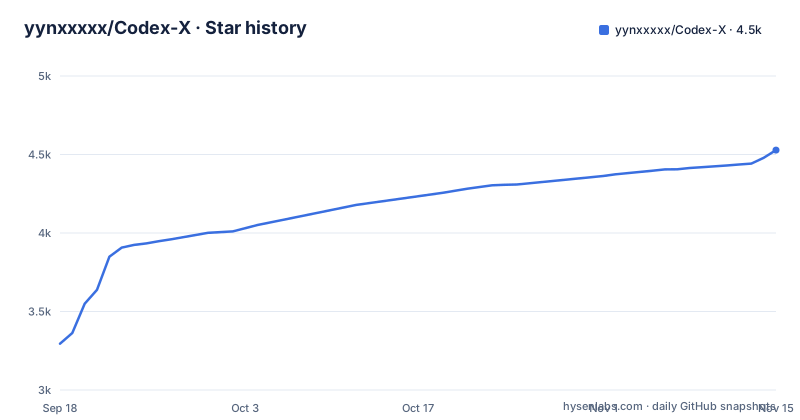
Star history
- yynxxxxx/Codex-X4,528 ★ · +1,233
| Repository | 2026-09-18 | 2026-11-15 |
|---|---|---|
| yynxxxxx/Codex-X | 3.3k | 4.5k |
1,233 Stars in the last 58 days, measured from the daily GitHub snapshot. Compare with other projects
Editorial analysis
The manifest is four scripts that all delegate to a desktop app
The workspace manifest is almost empty, and that is the first thing to understand. It names the workspace, marks it private, carries the version that matches the newest release tag, lists one author, and defines five scripts: a development one, a build one, two duplicates of the same two with a different prefix, and a type check. All five delegate to a single application directory by running the desktop framework's development or build command there, and the type check is delegated too. So the build system is one application wrapped in a workspace, not a library with several packages. Two other root entries are worth noticing: a Python script sitting beside a Rust desktop project, and a services directory. The Python file suggests one job is scripted rather than compiled, and the services directory suggests part of the tool talks to something local.
The problem statement is that configuration ends up in several files
The readme describes the tool as being for a specific situation rather than for a task, and the situation is having the desktop app, the command line client, third party providers, skills, MCP servers and several prompt sets at once. The consequence it names is that the configuration ends up scattered across different files, and the promise is that the current state becomes visible and the frequent operations become one click. Several capabilities follow from that promise: managing prompts like plugins with categories, import and one click toggles; managing named official logins and third party providers with copy, switch and import from another tool; syncing, inspecting, searching and deleting local sessions grouped by project path; centralising skills and MCP servers while viewing the two configuration files and the operation backups; and reading token usage by date and model, with sub agent usage folded into the session that spawned it. Every item on that list is a file operation wearing a user interface.
Prompts have two write modes, and the choice is destructive in one direction
The prompt centre is the headline feature and it has a decision that the readme explains in a two column table. The first mode keeps the original prompt: the tool appends only the content it manages, and when you disable it, it removes only that part and leaves whatever you already had untouched. The second mode replaces the original prompt and makes the selected template the main instruction entry, which is what you want if you are switching wholesale between ways of working. The readme says which mode suits whom, and it says a backup is created automatically before every enable and disable, which is the safety net that makes the destructive mode survivable. Each template also has its own switch, and when it is on, the tool writes into the Codex instruction file using whichever mode you selected.
Eleven templates, five of them shipped in the installer
The template library is the most concrete part of the project and it is organised by where the template comes from. Five ship offline inside the installer: one short general purpose one for everyday coding, one plain-language general version with fuller engineering and reverse engineering workflows, one aimed at a CTF and security research workflow, one described as a direct execution style prompt for mixed language tasks, and one written as a Chinese technical operator persona that routes between coding, reverse engineering, memory and protocol work. Six more are only available online and are synchronised from the repository's examples directory at startup: three for software work, covering long term maintenance, debugging from reproduction to regression, and review by severity, and three for writing, covering clarity edits, technical documentation, and turning scattered material into a structured draft. A synchronised version is cached locally, so a temporary loss of network does not lose the library, and later updates do not overwrite templates you maintain yourself.
Switching provider does not mean restarting the client
The provider section is where the tool claims the most time back, and the key sentence is a note rather than a bullet: after enabling a new third party provider, creating or reopening a Codex session is enough, and the whole client does not need restarting. The rest is provider housekeeping. You can keep several named official logins and third party providers side by side and see which one is active, and the copy button adds an independent duplicate with no confirmation step, renaming afterwards. Before switching you can test the connection and fetch the model list to try it. The edit page exposes the base address, the key, the model, the wire protocol setting and the whole configuration document. Importing from a different tool distinguishes adding from updating, merging and skipping, and stops showing the same address and key twice. Switching back to the official provider keeps the current login state, and the third party entries do not disappear.
Skills install from an archive, and the context switch is a checkbox
Skills and MCP servers are managed in one place: you can see them, import configuration that already exists, install a skill from a zip archive, enable or disable each item individually, and check whether an update is available. The two configuration files are viewable in the same place, and there is one setting worth calling out because it is easy to miss. Next to the configuration document, on both the official login page and the third party provider page, there is a checkbox that enables a one million token context window once you save, and the readme is explicit that the model has to support it. The tool also takes an automatic backup before important writes, which is the second safety net in the project after the prompt backup. The contributor path is the issues, where a template is submitted with its name, the scenario it fits, the Markdown body, the recommended enable mode and any necessary notes.
Sessions are grouped by project path, and deletion is permanent
Session management has two halves. The first is checking: whether a stored local session still matches the provider and model you are using now, and syncing it to the current provider configuration in one click without touching the chat content. The second is finding and tidying, which means searching local sessions and grouping by project path so a list accumulated over years becomes navigable. Deletion goes further than most tools offer, with single, multiple and project level permanent deletion, which is efficient for cleanup and irreversible if you misread the scope. The usage view sits in the settings under its own tab next to the general settings, filters local token usage by date and model, and shows a daily trend, a cache hit rate, the distribution across models and the ten most recent main sessions.
Three sets of builds, and only the installed one updates itself
The cross platform story is spelled out in the feature table rather than in a build section. There are macOS packages for both processor families, a Windows executable and a portable Windows version, and Linux installers. The distinction that matters is between the installed build and the portable one: the installed version can download, verify and install its own updates from inside the application, while the portable version goes back to manual downloads. So the update path is a property of the packaging rather than of the application, which is the usual arrangement and worth knowing before you choose a variant for a locked down machine. The release history is quick, with three tags inside nine days in October 2026 (v0.3.27, v0.3.28, v0.3.30), and the last push to the main branch is dated 2026-10-24 on a repository that is not archived, under a permissive licence with a separate third party notices file at the root.
Editorial conclusion
Codex-X suits someone who uses the Codex desktop app and the command line client side by side, keeps several provider credentials, and finds the configuration files the hard part. It does not suit someone who wants a different agent, because every feature is a view over one tool's own files, and the writing behaviour of any given template is the template author's rather than the tool's. Before switching a prompt on, read which of the two write modes you want, because the replace mode makes the template the primary instruction entry, and note that a backup is taken automatically before each change.
Frequently asked questions
What is Codex-X?
A cross platform desktop tool for the Codex desktop app and the Codex command line client, built as a desktop application in a workspace that delegates every script to one app directory. It manages prompt templates, official logins and third party providers, local sessions, skills, MCP servers and the two Codex configuration files, and it ships for macOS, Windows and Linux.
Does Codex-X work with an editor like VS Code?
It is a separate desktop application rather than an editor extension, and the readme targets the Codex desktop app and the Codex command line client. It can install updates in place when you use an installed build, and it offers a portable variant for Windows that keeps manual downloads instead.
How do I switch a prompt template on in Codex-X?
Each template has its own switch, and enabling it writes into the Codex instruction file using the mode you selected. The keep mode appends only the managed content and removes only that part when disabled, while the replace mode makes the template the primary instruction entry. A backup is created automatically before every change.
Do I need to restart Codex after changing provider?
No. The readme states that after enabling a new third party provider, creating or reopening a Codex session is enough, without restarting the whole client. Switching back to the official provider keeps the current login state, and the third party configurations stay in place.
Where do the prompt templates in Codex-X come from?
Five ship offline inside the installer, and six more are synchronised from the repository examples directory when the application starts. A synchronised template is cached locally so it survives being offline, later updates do not overwrite templates you maintain yourself, and you can import your own Markdown files and add your own categories.
Official sources
Add this badge to your README
If you maintain this project, the badge below links readers to this analysis and shows its maintenance status from the daily GitHub snapshot. Paste the markdown into your README; add ?metric=license or ?metric=stars to the image URL for a different field.

[](https://hysenlabs.com/projects/yynxxxxx-codex-x)Star history chart for your README
[](https://hysenlabs.com/projects/yynxxxxx-codex-x)Was this useful?