Markdown PDF for Visual Studio Code: export, rendering, and setup
Markdown converter for Visual Studio Code
At a glance
- What is it?
- Markdown PDF converts Markdown from Visual Studio Code to PDF, HTML, PNG, or JPEG, with support for Mermaid, PlantUML, KaTeX, included files, and custom CSS. Version 2 changes sanitization, heading anchors, browser selection, and front matter handling.
- Who is it for?
- Adopt Markdown PDF if you want document-specific exports directly from Visual Studio Code and need diagrams, math, included files, or custom CSS. Do not choose it if unfiltered raw HTML or unchanged version 1 heading anchors are mandatory.
- Can I use it commercially?
- Check first. The repository uses a licence we do not classify automatically, so read its LICENSE file before any commercial use.
- Is it still maintained?
- Yes. The repository last received commits 7 days ago.
- What is it written in?
- Mainly HTML, according to GitHub's language statistics.
Answers come from the project's GitHub data, last synced on November 7, 2026, and from our analysis. They are not legal advice.
Star history
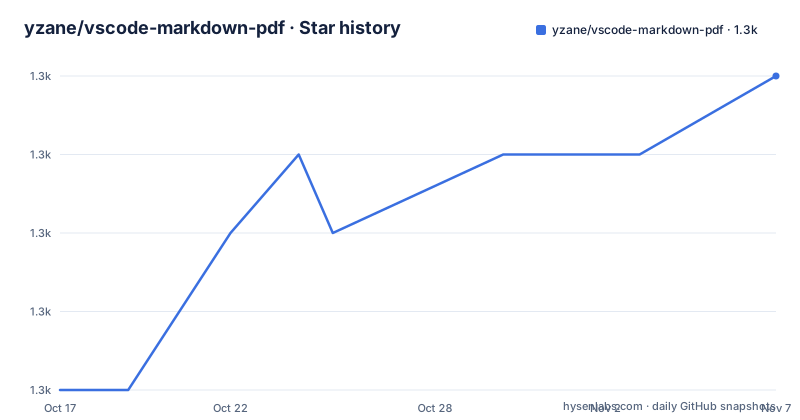
- yzane/vscode-markdown-pdf1,345 ★ · +4
| Repository | 2026-10-17 | 2026-11-07 |
|---|---|---|
| yzane/vscode-markdown-pdf | 1.3k | 1.3k |
4 Stars in the last 21 days, measured from the daily GitHub snapshot. Compare with other projects
Editorial analysis
What Markdown PDF changes inside VS Code
Markdown PDF is for people who maintain technical Markdown documents in Visual Studio Code and need more than the editor's preview. It converts a Markdown document to PDF, HTML, PNG, or JPEG, allowing a document to become a shareable or distributable file without moving it into a separate publishing application. The repository identifies the project as a Markdown converter, while `package.json` names the extension `Markdown PDF` and requires Visual Studio Code `^1.110.0`.
The extension adds several parsing and presentation features to VS Code's default Markdown renderer. These include highlight.js syntax highlighting, emoji shortcodes, disabled GitHub-style task-list checkboxes, generated heading IDs, container blocks, included Markdown fragments, Mermaid diagrams, PlantUML diagrams, and math rendered with KaTeX. The feature set is aimed at reports, API references, technical manuals, checklists, and design documentation authored as Markdown.
The output formats serve different needs. PDF is appropriate for fixed-layout documents and sharing. HTML keeps the result in a web-oriented format. PNG and JPEG create raster images instead of a PDF document. The README does not document image resolution, JPEG quality, PDF tagging, accessibility, export scheduling, or batch processing across files. Those functions should not be inferred from the supported format list.
How Markdown PDF parses content and dependencies
Markdown PDF starts with VS Code's Markdown rendering path and adds parser stages for exported content. Fenced code blocks receive highlight.js syntax highlighting, task-list markers such as `- [ ]` and `- [x]` become disabled checkboxes, and headings receive generated IDs. ASCII headings are lowercased and spaces become hyphens, while non-ASCII heading text retains its original characters. For example, `# API Reference` produces the ID `#api-reference`.
The container feature uses `markdown-it-container`. The identifier after `:::` becomes a CSS class, so a block marked `warning` receives the class `warning`. The extension does not impose a complete visual theme on that class. Border, color, spacing, and padding must be supplied through a stylesheet listed in `markdown-pdf.styles`.
Files can be composed with `:[label](relative-path-to-file.md)`, which inserts the contents of another Markdown file at that point. This is useful when several documents share a release note, specification, or appendix. According to the README, an unreadable fragment produces an error at the include site, and export continues with the rest of the document. This behavior keeps a single missing dependency from stopping all output, but it can produce a successful export with missing content.
Mermaid diagrams are placed in fenced blocks marked `mermaid`. PlantUML support covers blocks beginning with `@startuml` and ending with `@enduml`, while inline and fenced math can be rendered with KaTeX. The README does not explain PlantUML server configuration, remote diagram rendering, rendering timeouts, or what partial output appears after a diagram failure. A workflow that depends on an external PlantUML service therefore needs separate verification.
Installing Markdown PDF and making the first export
Markdown PDF is distributed through the Visual Studio Marketplace at `https://marketplace.visualstudio.com/items?itemName=yzane.markdown-pdf`. The README does not document a command-line installation command, so installation should be performed through that Marketplace entry. After installation, open a Markdown document in Visual Studio Code and run the desired command from the Command Palette.
The export commands registered in `package.json` are:
Markdown PDF: Export (pdf)
Markdown PDF: Export (html)
Markdown PDF: Export (png)
Markdown PDF: Export (jpeg)
Select the command that matches the required output. The README does not specify a fixed output directory, overwrite prompt, dialog sequence, or command-line flag, so it does not support a more detailed first-export procedure. Based on the documented behavior, the active Markdown document should be converted to the selected format.
A minimal document for checking basic rendering is:
# Export Check

- [ ] Review content
With that document active, run `Markdown PDF: Export (pdf)`. The expected content is the heading followed by one disabled task-list checkbox. Check that basic output before adding CSS, includes, Mermaid, PlantUML, or math. This separates Markdown parsing issues from browser rendering and missing-dependency failures.
`package.json` also registers `Markdown PDF: Export (all)`, but the README does not define whether this exports every format or every Markdown file in a workspace. Do not use that command for an unattended batch until its scope has been confirmed in the installed extension.
Version 2 sanitization and Chromium resolution
Version 2.1.0 changed the handling of raw HTML. With `markdown-pdf.sanitize` set to `"gfm"`, the README identifies as the default, raw HTML follows GitHub's GFM Disallowed Raw HTML behavior. Tags including `<script>`, `<iframe>`, and `<style>`, plus `on*` and `javascript:` attributes, are stripped. The release notes describe this as XSS-like risk mitigation.
Version 2.2.0 made block-level handling more explicit. Under `"gfm"` and `"gfm-allow-style"`, block-level `<style>`, `<script>`, and `<iframe>` elements are removed together with their contents instead of being escaped and shown as text. A notification reports what was removed during export. This is a direct constraint for documents that depend on embedded scripts, frames, or block-level style elements. The README excerpt does not give the complete settings table, so the exact element permissions of `"gfm-allow-style"` should be checked before relying on it.
PDF generation uses Chromium. Version 2 first resolves a browser from an installed Chrome or Edge installation. When permitted, it can download the latest Chrome Stable on first use. The README excerpt does not show the complete default state or available values for this download setting.
Export failures have a dedicated diagnostic path in version 2.2.0. The extension logs details in the Markdown PDF output channel and registers `Markdown PDF: Output Diagnostics` for bug reports. The documentation does not promise automatic retry, rollback, or recovery from a partially written file. Diagnostic output is for investigating the cause, not for guaranteeing that a failed export can be restored.
Controlling Markdown PDF output with CSS
The `markdown-pdf.styles` setting accepts stylesheet paths. This is the documented way to control exported presentation, particularly for container blocks whose identifiers become CSS classes. A container named `warning` provides markup, but it needs a matching CSS rule to acquire a visible border, background, padding, or spacing.
The README's example uses a local stylesheet named `markdown-pdf.css`:
.warning {
  border-left: 4px solid #f0ad4e;
  background: #fff8e1;
  padding: 12px 16px;
  margin: 8px 0;
}
Reference it in Visual Studio Code settings with:
"markdown-pdf.styles": ["markdown-pdf.css"]The Markdown document then selects that class through container syntax:
::: warning
**Warning:** here be dragons
:::
This design separates document structure from presentation. The renderer creates `.warning`, and the stylesheet defines how it appears. A bad path or CSS selector can therefore leave the warning block present but without the intended design. The README does not document stylesheet lookup order, cascade precedence, supported CSS features, or whether referenced CSS is embedded in HTML output.
The extension also exposes `Markdown PDF: Export (settings.json)`, which points the editor toward the configuration file for these options. Because the complete configuration key list is not shown, users should copy documented settings from the extension rather than infer unsupported keys.
Migration constraints, upgrades, and the custom license
Markdown PDF 2 is not a behavior-preserving replacement for every version 1 document. Version 2.0 changed heading IDs to GitHub-compatible VS Code slug generation, which can alter existing internal anchors. Any links or generated references tied to older heading IDs should be tested after upgrading.
The same release upgraded highlight.js from v9 to v11. Some style names were renamed or removed, so a code block that stops receiving highlighting may require a new style name. Front matter parsing also became stricter, and formats accepted by an earlier version can now be rejected. The README does not identify a compatibility switch that restores every old front matter format.
The repository is not archived. Its last push was on 2026-09-30, and version 2.2.0 was released on 2026-07-29. That sequence shows recent repository activity, but it is not a guarantee of long-term support or compatibility with future Visual Studio Code releases. Upgrade reviews should check the `CHANGELOG.md` entry before replacing an established document pipeline.
`package.json` declares `"license": "SEE LICENSE IN LICENSE.txt"`, and GitHub classifies the license as custom. The README does not reproduce the terms in that file. Review `LICENSE.txt` before redistributing the extension or including its output in an organizational or commercial publishing process. This review concerns project-specific terms, not a general interpretation of custom licenses.
A practical alternative is VS Code's standard Markdown preview followed by the browser's print-to-PDF function. That route uses the editor preview and browser printing rather than Markdown PDF's Chromium selection, sanitizer, include parser, PlantUML, KaTeX, and custom stylesheet pipeline. In exchange, it does not provide this extension's documented PDF, HTML, PNG, and JPEG commands or its diagram and composition features.
Editorial conclusion
Adopt Markdown PDF if you want document-specific exports directly from Visual Studio Code and need diagrams, math, included files, or custom CSS. Do not choose it if unfiltered raw HTML or unchanged version 1 heading anchors are mandatory. Check `markdown-pdf.sanitize`, the selected Chromium browser, front matter syntax, and highlight.js styles first, because version 2 can remove HTML content or change existing anchors.
Frequently asked questions
How do I install and use Markdown PDF in Visual Studio Code?
Install the extension from its Visual Studio Marketplace listing, open a Markdown file, then run `Markdown PDF: Export (pdf)` or another registered export command from the Command Palette. The README does not provide a command-line installation method.
Does Markdown PDF support Mermaid, PlantUML, and math?
Yes. Its renderer documents Mermaid fenced blocks, PlantUML code blocks, and LaTeX math through KaTeX. PlantUML and KaTeX support were added in version 2.1.0.
Why was raw HTML removed from my Markdown PDF export?
Version 2 sanitizes raw HTML by default using GFM Disallowed Raw HTML behavior. Block-level `<style>`, `<script>`, and `<iframe>` elements are removed with their contents, and an export notification reports the removal.
Official sources
Add this badge to your README
If you maintain this project, the badge below links readers to this analysis and shows its maintenance status from the daily GitHub snapshot. Paste the markdown into your README; add ?metric=license or ?metric=stars to the image URL for a different field.

[](https://hysenlabs.com/projects/yzane-vscode-markdown-pdf)Star history chart for your README
[](https://hysenlabs.com/projects/yzane-vscode-markdown-pdf)Was this useful?