Pomatez: a Pomodoro timer built to take over the desktop
Stay Focused. Take a Break.
At a glance
- What is it?
- Pomatez is a TypeScript desktop Pomodoro timer for Windows, macOS and Linux, with a task list, tray progress, full-screen breaks and strict mode. What makes it interesting is how much of its behaviour lives outside its own window, and what makes it wrong for some desks is the same list of features.
- Who is it for?
- Pomatez fits one person on one screen who wants the timer to win the argument with a browser tab, and none of its window-level tricks have an equivalent in a web timer. Skip it if you work on two monitors and want the second one during a break, or if you need to rebind the keyboard shortcuts.
- Can I use it commercially?
- Yes. MIT is a permissive licence: you can use, modify and sell software built on it, as long as you keep its copyright and licence notices.
- Is it still maintained?
- Yes. The repository last received commits 180 days ago.
- What is it written in?
- Mainly TypeScript, according to GitHub's language statistics.
Answers come from the project's GitHub data, last synced on November 15, 2026, and from our analysis. They are not legal advice.
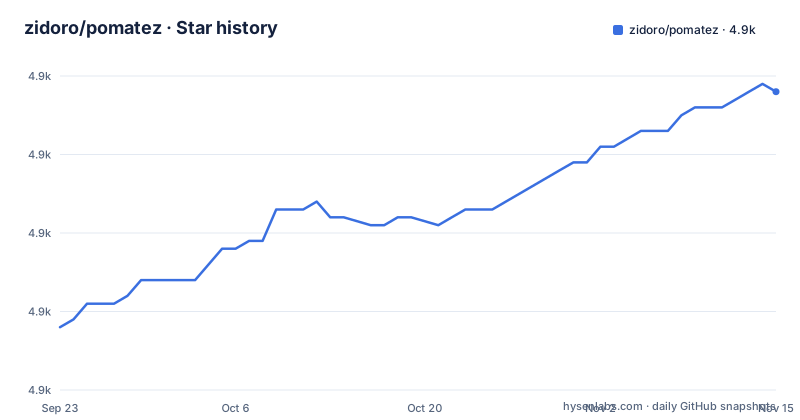
Star history
- zidoro/pomatez4,928 ★ · +30
| Repository | 2026-09-23 | 2026-11-15 |
|---|---|---|
| zidoro/pomatez | 4.9k | 4.9k |
30 Stars in the last 53 days, measured from the daily GitHub snapshot. Compare with other projects
Editorial analysis
Special breaks for lunch and dinner sit outside the cycle
Pomatez is a rule enforcer with a clock on it. The cycle itself is adjustable: the first entry in the feature list is customizable rules, so the default Pomodoro configuration is yours to modify. On top of that cycle sit special breaks, which let you name a time for lunch, a snack or dinner and have the app break then without editing the Pomodoro configuration. Two further switches take manual work out of the loop. Auto-start work time begins the next work interval by itself once a break ends, and the built-in task list holds a plain set of todos that you mark done as items finish.
Read together, these describe what kind of tool this is. It is not a planner that reshuffles your day. It is a set of rules you hand to a program and then step back from. The one piece of the repository that argues with that reading is what is missing at the top level. The tree holds tsconfig.json, .prettierrc, .yarnrc.yml, lerna.json and the two release-please files, and no file that looks like where your timer settings would live across two machines. If you keep your Pomodoro numbers in version control or on a second laptop, this app does not document a path for that.
Full-screen breaks stop at one monitor for now
Full-screen breaks are the feature with a stated ceiling. Once you enable it, the app occupies the whole screen of your desktop, so there is nothing left to click and work through, and the feature list says in the same sentence that it does not support multiple monitors right now.
What that means in practice is decided by your desk rather than by the app. On a single screen the takeover is unambiguous. On a laptop with an external display, or a two-monitor office, the README does not describe what the second screen does during a break, so you cannot read your way to an answer about whether you keep your editor in front of you or whether the timer is meant to cover both panels and stop you working on either. The consequence is a verification step rather than a preference: switch the option on with your real monitor arrangement connected and watch what happens before you commit a week of sessions to it.
Strict mode, covered below, sharpens the combination: the README does not document an escape hatch for dismissing a full-screen break early. A break you cannot leave and cannot pause is the sharpest edge here.
Minimize to tray and close to tray both leave the app running
Two settings decide whether Pomatez ever comes back on screen. With minimize to tray enabled, the minimize action no longer minimizes anything: the window is hidden and sent to the tray. With close to tray enabled, the close action does not quit either. It hides the window and sends it to the tray as well.
That is the behaviour people want on a machine where the timer should outlive the window, and it is also the behaviour that surprises anyone who closes the app to get it out of the way. The README does not list the tray menu items, so the exact route back to a visible window, or to a real quit, is not something you can read up front. Enable either of these on a shared or locked workstation and plan on the app still running after you believe you closed it.
Progress on tray is the visible payoff, a progress indicator in the system tray, and it only activates when minimize to tray or close to tray is on. Then there is the progress animation: a smooth timer progress animation runs by default and can be disabled if you are worried about the app's memory consumption on your computer. That sentence is the only remark about memory in the README, and it gives you no number to measure against. Always on top, compact mode for a small-screen device, and the toggle between the custom title bar and the native one your operating system provides fill out the window-level settings.
None, Normal, Extra, and the male voice in the notification
The notification settings are the part of Pomatez with actual numbers in them, and they are worth reading before you choose. There are three types. None shows nothing at all and is the default. Normal shows a notification in every break. Extra fires 60 seconds before the break starts, then 30 seconds before the break ends, then again at the actual break start. Three moments around a single break, with an uneven lead-in and tail, and no fourth event named for the moment a work interval ends.
Voice assistance attaches a male voice to the desktop notification, described as useful sometimes when you are away from your computer during break time. It is described as part of the notification rather than as a separate channel, so choosing None leaves it nothing to speak through. The repository carries a `gen:tts` script that runs through lerna, and neither the README nor the repository file says which phrases it generates or whether you can supply your own voice.
Dark theme sits in the same group, aimed at readers who are sensitive to bright light, and compact mode covers the small-screen case. The settings you will feel most, though, are the three notification types, because they are the only ones where the documentation commits to a time.
Where the builds come from: releases, Snapcraft, Homebrew and lerna
Ordinary users do not build Pomatez. The install section points at the releases page on the project repository and at the project's own download page, and it lists three platforms: Windows, macOS and Linux. Two package managers are named as officially maintained, Snapcraft for Linux and a Homebrew cask for Mac. Windows has no supported package route in that list, which leaves the releases page as the only documented path there. The wording around the package managers is hedged in a way worth noticing: other channels may exist, but only these two are maintained by the project, so any third-party package repository you come across is not something this repository vouches for.
If you would rather work from the source tree, it is a Yarn and Lerna monorepo. The root package.json is private, declares `app/*` as its workspaces and carries the version 1.11.0. Clone it, install, then pick a target; each platform script chains the general build first:
git clone https://github.com/zidoro/pomatez.git
cd pomatez
yarn install"build:mac": "yarn build && lerna run build:mac --stream",
"build:win": "yarn build && lerna run build:win --stream",
"build:linux": "yarn build && lerna run build:linux --stream",
"build:snap": "yarn build && lerna run build:snap --stream"Each one runs `yarn build`, which fans out across the workspace packages, then runs the named target through lerna. `build:snap` is the packaging step that pairs with the Snapcraft listing, and a single `build:mwl` script sits alongside the separate per-platform entries. The clean script is `lerna exec -- rimraf build/ dist/`, which names the output directories. Expect a desktop build with a native shell, not a static page.
Updates download in the background and wait for you to install them
Auto updates here download first and ask second. The app checks for updates and downloads them in the background, then notifies you when the update is ready to be installed. Nothing is swapped out from under a running session, which is the right call for a timer, but it does mean the version you run lags whatever the updater has already fetched.
The updater machinery is visible in the scripts, on the Tauri side of the tree:
"build:updaterfile": "node app/tauri/release-prep/release-prep.js",
"tauri:updateversion": "node ./app/tauri/util/cargo-version-updater.js",
"tauri:dev-with-updater": "yarn tauri dev --config ./release.conf.json"
A release therefore has to produce an updater file and move the version in step, and the repository carries `.release-please-manifest.json`, `release-please-config.json` and a `CHANGELOG.md`, which is how the tag and the version field in the root package.json stay together.
The dates tell you what to expect. v1.9.0 landed on 2025-12-02 and v1.10.0 on 2025-12-23, then v1.11.0 on 2026-05-19, which is also the date of the last push to the default branch. Three releases in six months, with a five-month gap before the most recent one. If you need to stay on a version you have tested, take it from the releases page, because the updater serves whatever the project publishes next and the README does not document pinning a version.
Strict mode locks the timer and the shortcuts stay fixed
Strict mode changes what the window can do, and it is worth understanding before you enable anything else. With it on, the app follows the rules you set and prevents you from pausing, skipping and resetting the timer once it has started. That is the entire point: it removes the two shortcuts people use to defeat a timer, the pause button and the skip button, and it adds the reset. A reader who wants the discipline gets something most timers do not offer. A reader who was interrupted by something real, a colleague at the desk or a phone call, has no documented way to recover the lost interval.
Keyboard shortcuts sit next to it with an honest caveat. The feature list says they might be helpful depending on your use case but that they are currently not yet customizable, and it does not print a single binding anywhere. You are asked to trust the defaults, and you cannot check them from the documentation, only from the running app.
Put strict mode together with close to tray and auto-start work time and the loop is closed by design. Every escape is a settings change rather than a keystroke. If you need a keyboard-level way out, this is the app that will not give you one, and that is a decision you should make before the first long session rather than during it.
A browser timer and a desktop timer fail in different places
The usual alternative to Pomatez is a browser timer such as Pomofocus, and the two differ in where the enforcement happens. Pomofocus lives in a tab: it counts down inside a page you keep open, and everything it does is bounded by what a browser lets a page do. It installs nothing, which is its whole appeal, and it behaves the same way on any machine that has a browser.
Pomatez takes the opposite position. It is a desktop application for Windows, macOS and Linux, and its features are mostly about reaching past its own window: always on top, minimize to tray, close to tray, progress in the system tray, full-screen breaks that occupy the whole desktop, and background updates. A tab cannot put itself above another application or take over the screen, so every one of those is out of reach for the browser approach. The trade runs the other way too. A browser timer keeps no process alive once you close the tab, and there is nothing to update; Pomatez has a window that survives the close button, a background updater and a tray indicator that keep running after you think you have quit it.
Pick by what you are trying to stop yourself from doing. Ignoring a tab is one kind of problem. Ignoring a window that just covered your screen is a different one.
Editorial conclusion
Pomatez fits one person on one screen who wants the timer to win the argument with a browser tab, and none of its window-level tricks have an equivalent in a web timer. Skip it if you work on two monitors and want the second one during a break, or if you need to rebind the keyboard shortcuts. Before adopting, install a release build, switch on full-screen breaks with your real monitor layout connected, and compare the version the updater offers against the one you tested.
Frequently asked questions
What is the best pomodoro app for free?
Pomatez is free under the MIT licence and covers Windows, macOS and Linux, with officially maintained packages as a Snapcraft package for Linux and a Homebrew cask for Mac. Windows has no supported package route in that list, so the releases page is the documented path there.
How do I install Pomatez on macOS and Linux?
The install section points at the releases page and at the project's own download page, then names two officially maintained package managers: Snapcraft for Linux and a Homebrew cask for Mac. Anyone building from source instead works in a Yarn and Lerna monorepo whose root package.json declares `app/*` workspaces.
Does Pomatez install updates by itself, or wait for me?
It waits for you. Auto updates check for a new version and download it in the background, then notify you when the update is ready to be installed, so the swap is a deliberate act. The repository carries `.release-please-manifest.json`, `release-please-config.json` and a `CHANGELOG.md`, with the root package.json version field reading 1.11.0.
What does strict mode do in Pomatez?
Once enabled, the app follows the rules you set and prevents you from pausing, skipping and resetting the timer after it has started. The same feature list says the keyboard shortcuts are not yet customizable, so the escape from a running timer is a settings change rather than a key you can press.
Official sources
Add this badge to your README
If you maintain this project, the badge below links readers to this analysis and shows its maintenance status from the daily GitHub snapshot. Paste the markdown into your README; add ?metric=license or ?metric=stars to the image URL for a different field.

[](https://hysenlabs.com/projects/zidoro-pomatez)Star history chart for your README
[](https://hysenlabs.com/projects/zidoro-pomatez)Was this useful?