ADB Explorer: a WPF front end for Android platform tools on Windows
A fluent UI for ADB on Windows
At a glance
- What is it?
- ADB Explorer puts a Windows interface on top of ADB so you can browse, transfer and edit files on a connected Android device without typing commands. It ships through the Microsoft Store and as a portable build, and it keeps its settings in a JSON file you can edit by hand.
- Who is it for?
- ADB Explorer suits a Windows developer or tester who needs to move files on a connected Android device during a session and would rather click than remember adb commands, and who is comfortable letting an application hold device access. It is the wrong choice for a Linux or macOS workstation, since the README describes a Windows app only, and the wrong choice if you need documented behaviour, because the README documents installation and settings rather than the feature set.
- Can I use it commercially?
- Yes. MIT is a permissive licence: you can use, modify and sell software built on it, as long as you keep its copyright and licence notices.
- Is it still maintained?
- Yes. The repository received new commits within the last day.
- What is it written in?
- Mainly C#, according to GitHub's language statistics.
Answers come from the project's GitHub data, last synced on November 7, 2026, and from our analysis. They are not legal advice.
Star history
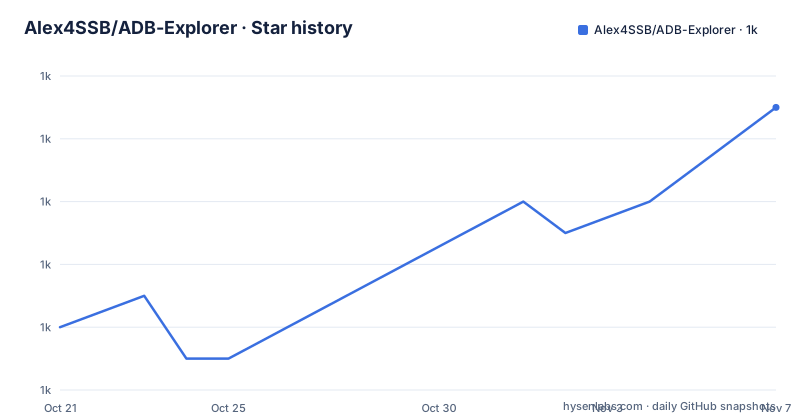
- Alex4SSB/ADB-Explorer1,015 ★ · +7
| Repository | 2026-10-21 | 2026-11-07 |
|---|---|---|
| Alex4SSB/ADB-Explorer | 1k | 1k |
7 Stars in the last 17 days, measured from the daily GitHub snapshot. Compare with other projects
Editorial analysis
What the app replaces with clicks
ADB Explorer is described in one line as an interface to ADB that allows browsing, transferring and editing of files with ease in a modern and fluent Windows app, built in WPF. That is the whole pitch, and it is a narrow one.
The three verbs matter. Browsing covers looking at what is on the device, transferring covers moving files in and out, and editing covers changing a file's contents from the machine rather than from the device. Each of those corresponds to something you would otherwise do by hand with the command line tool, and each has a failure mode when done by hand: a mistyped path, a pulled file that was not the one you wanted, an edit made to the copy on your PC rather than to the file on the device.
The choice of WPF is worth noting for anyone deciding whether to extend it. It is a Windows-only desktop stack, which matches the Microsoft Store distribution the README links and the Windows-specific paths it documents. The repository carries a separate ADB Package/ project and an ADB_Test/ project next to the main ADB Explorer/ project, all joined by ADB Explorer.slnx, which suggests the packaging of the platform tools and the tests are separated from the user interface code.
Two ways to install and where the files land
The README links a Microsoft Store listing and describes a portable form as well, and the two differ in one way that matters.
A portable install keeps its files under the local application data folder:
%LocalAppData%\AdbExplorerInside that folder sits settings.json, the persistent settings file. The Microsoft Store version instead uses a package-private folder by default. The README notes you can keep using that location or choose a custom folder that remains on your PC after uninstall, which is the point to note if you rely on a portable copy: the Store build can be pointed at a location that survives removal, while the default package-private folder does not.
The versioning scheme tells you these are frequent builds rather than annual releases. The three most recent tags are v1.0.26092 from 2026-09-17, v1.0.26093 from 2026-09-27 and v1.1.26100 from 2026-10-03. The last push to the repository was on 2026-10-19, which is after the newest tag, so work is landing on the default branch between releases.
settings.json and the rules for editing it by hand
The settings file is documented with unusual precision, and the rules are short enough to state exactly.
The file contains user app settings as well as other settings that are not directly accessible through the interface. It can be edited, but the format must be preserved. An unrecognised entry is overwritten, and deleting the file restores the app settings to their defaults.
That behaviour is a design choice rather than a bug, and it cuts both ways. It means the file cannot be used as a place to stash configuration the app does not know about, so any attempt to add a key by hand is silently discarded on the next launch. It also means a corrupted or malformed file cannot leave the app in a broken state indefinitely, since the worst case is that your preferences are gone rather than that the app refuses to start. For a tool that people will inevitably try to customise, that trade is defensible, but it should be a conscious one.
The same section of the README also makes the point that the settings are persistent, so anything configured there survives restarts, which is what most users want from a tool they will open repeatedly during a debugging session.
Where the ADB platform tools come from
The repository does not appear to invent its own tooling. A dedicated section points to OFFICIAL_ADB_VERSIONS.md for a comprehensive list of all official ADB platform-tools versions from Google, together with download URLs and checksums.
Two things follow from that. The first is provenance: the versions tracked are the ones Google publishes, with checksums, so a reader can tell which build they are looking at. The second is that the app is a client of the platform tools rather than a reimplementation of them, and the ADB Package/ directory in the tree is where that packaging work sits.
Keeping a file like that current is unglamorous work with real consequences. An application that drives a device through ADB inherits every change in behaviour between platform-tools versions, and the checksums are what allow a user to confirm that the tools on their machine are the ones the project expects. If you are adopting the app in a team, the sensible first step is to compare that list against what is actually on your PATH, because a mismatch there explains a lot of confusing behaviour.
Security, privacy and translation handled as project files
Three non-code areas of the repository are documented in the README and are the parts a reviewer should read before installing an application that touches a connected device.
For security, the README points to a Security Policy in SECURITY.md as the route for reporting a vulnerability. For privacy, the repository contains a Privacy.md file. Both are ordinary practice, and both matter more than usual here, because an application with access to a connected Android device can read and write files on it.
Translation is handled on Weblate, with the README describing the project as hosted at hosted.weblate.org and welcoming help. A translation platform rather than translation files in the repository means a contributor can help without installing a toolchain, and it keeps the localisation outside the source tree, which is the usual reason projects adopt one.
The remaining top-level entries are the ordinary ones for a Windows application project: icons/ with the store artwork referenced in the README header, licences/ for bundled third-party licences, FUNDING.yml for sponsorship, and.github/ for the workflows. The project is MIT licensed, so the application code carries no copyleft obligation for a commercial team that wants to run it internally.
What the README does not tell you, and what to check
The honest gap in this repository is documentation of behaviour. The README covers the store listing, the portable install location, the settings file rules, the platform-tools list, security, privacy and translation, but it does not enumerate the feature set: there is no list of what can be browsed, which editing operations are supported, how transfers handle interruptions, or how the app presents multiple connected devices.
The examples the README points to are community articles rather than project documentation, and the documentation burden falls on the code and the release notes. For an application this small, that is a reasonable trade, but it does mean an adopter is buying the current build rather than a documented contract.
Three concrete checks are worth doing before adopting it in a team. First, confirm the app works with the platform-tools version on your machine by comparing OFFICIAL_ADB_VERSIONS.md with your local installation. Second, check that device authorisation behaves as you expect, since ADB access depends on the debugging authorisation state on the device. Third, if you intend to script around it, look at the ADB_Test/ project and the solution layout to understand where the behaviour is pinned down, because the automated tests in the repository are a better specification of the app than the README is.
Editorial conclusion
ADB Explorer suits a Windows developer or tester who needs to move files on a connected Android device during a session and would rather click than remember adb commands, and who is comfortable letting an application hold device access. It is the wrong choice for a Linux or macOS workstation, since the README describes a Windows app only, and the wrong choice if you need documented behaviour, because the README documents installation and settings rather than the feature set. Verify first that the ADB platform tools version listed in OFFICIAL_ADB_VERSIONS.md matches the tools on your PATH, that your device is authorised for debugging, and that the settings.json format is preserved if you edit it by hand, since an unrecognised entry is overwritten on load.
Frequently asked questions
Where does ADB Explorer keep its settings?
A portable install stores its files under %LocalAppData%\AdbExplorer, with settings.json as the persistent settings file. The Microsoft Store version uses a package-private folder by default, and you can point it at a custom folder that stays on the machine after uninstall.
Can I edit the settings file by hand?
Yes, but the format must be preserved. An unrecognised entry is overwritten when the app loads the file, and deleting the file restores the settings to their defaults.
Which ADB platform tools version does ADB Explorer use?
The repository keeps OFFICIAL_ADB_VERSIONS.md listing the official ADB platform-tools versions from Google with their download URLs and checksums, so the version in use can be traced to an official release.
How do I report a security problem in ADB Explorer?
The README directs reporters to the Security Policy in SECURITY.md in the repository. The repository also carries a Privacy.md file and a FUNDING.yml, and translations are handled through the Weblate project.
Official sources
Add this badge to your README
If you maintain this project, the badge below links readers to this analysis and shows its maintenance status from the daily GitHub snapshot. Paste the markdown into your README; add ?metric=license or ?metric=stars to the image URL for a different field.

[](https://hysenlabs.com/projects/alex4ssb-adb-explorer)Star history chart for your README
[](https://hysenlabs.com/projects/alex4ssb-adb-explorer)Was this useful?