glTFast: Unity's runtime glTF importer, and the shader graph you must not forget
Efficient glTF 3D import / export package for Unity
At a glance
- What is it?
- glTFast is a Unity package for importing and exporting glTF 3D files at runtime or in the Editor, now shipped as `com.unity.cloud.gltfast` under a Unity fork. The judgement is that it solves the loading problem well, but its project setup step, custom shader graphs that must be included in builds, is where most integrations quietly break.
- Who is it for?
- glTFast fits a Unity team that needs to load user-supplied or streamed glTF content at runtime, or wants to round-trip assets through the Editor, and that is willing to handle the shader graph setup in `Documentation~/ProjectSetup.md`.
- Can I use it commercially?
- Check first. The repository uses a licence we do not classify automatically, so read its LICENSE file before any commercial use.
- Is it still maintained?
- Yes. The repository last received commits 50 days ago.
- What is it written in?
- Mainly C#, according to GitHub's language statistics.
Answers come from the project's GitHub data, last synced on November 7, 2026, and from our analysis. They are not legal advice.
Star history
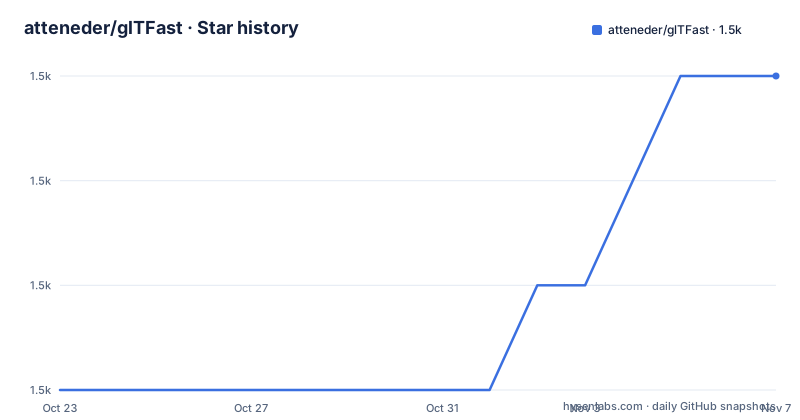
- atteneder/glTFast1,494 ★ · +3
| Repository | 2026-10-23 | 2026-11-07 |
|---|---|---|
| atteneder/glTFast | 1.5k | 1.5k |
3 Stars in the last 15 days, measured from the daily GitHub snapshot. Compare with other projects
Editorial analysis
A package that moved from atteneder to the Unity namespace
The most important thing to understand about glTFast before anything else is that the package name changed. The project was originally published as `com.atteneder.gltfast`, and it is now installed as `com.unity.cloud.gltfast` in the Unity Package Manager. The repository carries an upgrade guide at `Documentation~/UpgradeGuides.md` with a Unity fork section, and a separate `Documentation~/Original.md` describing how to install the original package if you want to stay on the old identifier.
That is a packaging-level change with a wide blast radius. Anything that references the package by name, a `manifest.json` entry, a CI script that resolves a package tarball, a build script that checks for a specific package version, all of that has to be revisited. The package metadata in the repository still records `"name": "com.atteneder.gltfast"` and `"version": "6.20.0"`, which is a useful detail: the source tree identifies itself with the original name even though the recommended install path is the Unity-scoped one.
The release list shows how the two lines coexist. Version 6.20.0 and an experimental 7.0.0-exp.1 were both published on 2026-09-18, and 6.19.0 came on 2026-05-19. The last push was on 2026-09-18 as well, so the repository is being worked on, and the presence of a separate experimental tag alongside a stable one means the project runs two lines in parallel.
The authorship also changed shape. The package metadata lists Andreas Atteneder as the author, while the licence file states copyright 2023 Unity Technologies and the Unity glTFast authors. The project is now maintained under the Unity umbrella rather than by a single independent developer.
Four workflows sit behind one import and export surface
The documentation organises glTF usage in Unity around four distinct workflows, and the distinction matters because the four have different failure modes and different reasons to exist.
Runtime import is for games and applications that fetch a glTF asset from a URL or a file path while running. Editor import is for design-time, where glTF files are moved or copied into the project's `Assets` folder like any other 3D format, and are then converted to native Unity prefabs and added to the asset database. Runtime export covers saving and sharing dynamic, user-generated 3D content. Editor export turns Unity into a glTF authoring tool, with entries under `File > Export` in the main menu and a script-driven path as well.
Runtime import is the reason this package exists rather than a plain importer. The loading path is component based or script based. A `GltfAsset` component is added to a GameObject and given a URL, and the documentation describes how to customise the loading behaviour from script.
The four workflows are not variations on one implementation. Editor import produces prefabs that live in the asset database and get reimported by Unity's own pipeline, while runtime import constructs objects at execution time and never touches the asset database. Choosing the wrong one is a common source of confusion, particularly for a team that wants to load content that only exists after the build ships.
Runtime loading is two lines of C# and a URL
The scripting entry point is deliberately small. You add the component and point it at a location:
var gltf = gameObject.AddComponent<GLTFast.GltfAsset>();
gltf.url = "https://raw.githubusercontent.com/KhronosGroup/glTF-Sample-Assets/main/Models/Duck/glTF/Duck.gltf";
The URL in the example points at the Khronos group's sample assets, the Duck model, which is the conventional first test for any glTF tool. The component is created at runtime with `AddComponent<GLTFast.GltfAsset>()`, and the `url` property is set immediately, so the load begins from the assignment rather than from a separate call.
The alternative to the component is to add `GltfAsset` to a GameObject in the inspector, which the documentation shows with a screenshot of the Inspector. Both routes end in the same component, which then handles the download and instantiation.
The load URL can also be a file path, per the documentation's statement that you can load a glTF asset from a URL or a file path. The package dependencies support that: `com.unity.modules.unitywebrequest` is what makes the URL case work, and `com.unity.modules.jsonserialize` handles the JSON side of the glTF container.
What the README does not show is the loaded result. There is no sample output, no progress callback in the snippet, and no error handling example. The `ImportRuntime.md` page in the documentation covers customising loading behaviour from script, and that is where the detail lives rather than in the overview.
Missing shader variants are the reason builds look wrong
This is the single most important operational detail in the repository, and it comes with a warning marker in the documentation.
Unity glTFast uses custom shader graphs, and those shader graphs have to be included in builds for materials to work. The documentation states that if materials look fine in the Unity Editor but not in builds, the likely cause is that some shaders or shader variants are missing. The section to read is *Materials and Shader Variants* in `Documentation~/ProjectSetup.md`.
The failure mode is nasty because it does not appear until you build. The editor shows correct materials, tests in the editor pass, and then the built player renders them wrong. The reason shader graphs need explicit handling is that Unity's build-time shader stripping removes variants that it cannot see referenced, and a shader graph pulled in by a runtime-loaded glTF has no direct reference from your scene for the build system to follow.
The dependency list in `package.json` explains why the project leans on Unity's performance stack: `com.unity.burst` at `1.8.30`, `com.unity.collections` at `2.6.8` and `com.unity.mathematics` at `1.3.3`. Burst compiles the hot jobs to native code, and Collections provides the native containers those jobs operate on. That is the mechanism behind the project's stated focus points of speed, memory efficiency and a small build footprint, though the documentation gives no benchmark figures for any of them.
Other glTF features are handled by native plugins rather than managed code. The repository has a `Plugins/` directory, and the package keywords list `draco`, `ktx`, `basis` and `basisu`, which correspond to the Draco geometry compression and KTX/Basis texture formats that the keywords section also names. The `Plugins/` directory is what carries those platform-specific binaries, and the topic list covers Windows, macOS, Linux, Android, iOS and WebGL, which tells you the plugin matrix spans every platform Unity ships.
Feature support is broad, and the extension list lives in one file
The project's claim to coverage is specific. The glTF 2.0 specification is supported, along with what the documentation calls a large and growing number of glTF extensions. All platforms are supported, and so are the Universal, High Definition and Built-In Render Pipelines, which is the part that matters for a production team, because a package that only works with one pipeline forces a project-wide decision.
The authoritative list is not in the README. It is in `Documentation~/features.md`, described as a comprehensive list of supported features and extensions. The glTF extension registry is linked directly from the README, so a reader can compare what the package claims against the Khronos registry.
The distinction between the base specification and extensions is where interoperability risk actually lives. Supporting glTF 2.0 means handling the core format. Supporting an extension such as Draco compression or KTX texture transcoding means agreeing with other implementations on bit-level details. A package that supports "a large and growing number" is making a statement about breadth rather than about any particular extension, and the per-extension detail is what you would need to check against your actual asset sources.
The `package.json` version field of `6.20.0` and the presence of `7.0.0-exp.1` suggest the project is in a mature phase with an experimental line running beside it. The CHANGELOG and CHANGELOG.md.meta are both present in the repository, so per-version change detail exists, though the README does not summarize it.
A permissive licence, and a contribution guide that exists
On licensing there is a wrinkle worth flagging rather than glossing. The repository's licence file states Apache License, Version 2.0, with copyright 2023 Unity Technologies and the Unity glTFast authors, and the README reproduces the standard Apache 2.0 notice. The package metadata does not carry a licence field at all, and the repository's licensing is reported as a custom licence that GitHub cannot classify, which points to the `LICENSE.md` file at the root as the text that governs.
Apache 2.0 is permissive and includes an explicit patent grant, so embedding the package in a commercial Unity product requires keeping the licence and notice text and marking changes. This is a licensing observation rather than legal advice, and `LICENSE.md` in the repository is the text that decides the question.
The trademark situation is separated out in the README, which states that Unity is a registered trademark of Unity Technologies and that Khronos and glTF are trademarks of The Khronos Group Inc. That matters in practice for a package whose whole purpose is interoperating with a Khronos format under a Unity umbrella, and it is why the README keeps trademark references in their own section rather than mixing them with the licence text.
The repository also carries a `CONTRIBUTING.md`, a `CODE_OF_CONDUCT.md`, and a `Documentation~/` directory holding the installation, upgrade, features, project setup and per-workflow pages. The `.github/` directory is present, so contribution mechanics are set out, and the maintainer points to the contributing guide rather than describing the process inline.
Editorial conclusion
glTFast fits a Unity team that needs to load user-supplied or streamed glTF content at runtime, or wants to round-trip assets through the Editor, and that is willing to handle the shader graph setup in `Documentation~/ProjectSetup.md`. It does not fit a project that must keep the old package identifier without following the upgrade guide, and it does not fit a team expecting zero editor-to-build differences, because materials that look right in the Editor can render incorrectly in a build when shader variants are missing. Verify first that the package identifier you reference matches the fork, `com.unity.cloud.gltfast` rather than `com.atteneder.gltfast`, that your Unity version satisfies the `6000.0` requirement in `package.json`, and that your build includes the custom shader graphs before you judge the importer on visual output.
Frequently asked questions
What is the correct package identifier for glTFast in Unity?
The current identifier is `com.unity.cloud.gltfast`, installed through the Package Manager window. The package originally used `com.atteneder.gltfast`, and the upgrade guide at `Documentation~/UpgradeGuides.md` explains how to switch, while `Documentation~/Original.md` covers installing the original package.
How do I load a glTF file at runtime in Unity with glTFast?
Add the `GLTFast.GltfAsset` component and set its `url` property, either through script with `AddComponent<GLTFast.GltfAsset>()` or by attaching the component to a GameObject in the Inspector. The URL can also be a local file path.
Why do materials render correctly in the Editor but wrong in a build with glTFast?
Unity glTFast uses custom shader graphs that have to be included in builds, and missing shaders or shader variants are the likely cause. The documentation covers this in the *Materials and Shader Variants* section of `Documentation~/ProjectSetup.md`.
Which render pipelines and platforms does glTFast support?
The project states that all platforms are supported, along with the Universal, High Definition and Built-In Render Pipelines. The `package.json` lists `draco`, `ktx`, `basis` and `basisu` among its keywords, and the repository has a `Plugins/` directory holding the platform-specific parts.
Can I export glTF files from Unity with glTFast?
Yes, in two ways. Editor export is available from the main menu under `File > Export` and can also be driven by script, while runtime export covers saving and sharing dynamic, user-generated 3D content. Both are documented separately in the `Documentation~/` folder.
Official sources
Add this badge to your README
If you maintain this project, the badge below links readers to this analysis and shows its maintenance status from the daily GitHub snapshot. Paste the markdown into your README; add ?metric=license or ?metric=stars to the image URL for a different field.

[](https://hysenlabs.com/projects/atteneder-gltfast)Star history chart for your README
[](https://hysenlabs.com/projects/atteneder-gltfast)Was this useful?