MacOptimizer: eight cleanup modules in one SwiftUI app, with a version number that disagrees with itself
MacOptimizer is a system optimization tool designed specifically for macOS, featuring a modern SwiftUI interface with eight core functional modules:
At a glance
- What is it?
- MacOptimizer bundles a system monitor, an app uninstaller, junk cleaners, a large file finder, and a file explorer into a single macOS app built with swiftc. Its README carries several inconsistencies an adopter should notice before trusting any of it.
- Who is it for?
- Adopt MacOptimizer if you want a single GUI for finding leftover files on one Mac and you are willing to read its source before letting it delete anything, since Deep Clean removes files it decides are orphaned. Do not adopt it on a machine you cannot restore, and treat its version and licence claims as unverified: the README badge says 2.2.0 while releases reach v5.0, and the badge claims MIT while the repository records no detectable licence.
- Can I use it commercially?
- Not without permission. GitHub finds no licence file in the repository, and without a licence all rights are reserved by default: you may read the code but not reuse it. Check the README, or ask the authors, before using it.
- Is it still maintained?
- Yes. The repository last received commits 98 days ago.
- What is it written in?
- Mainly Swift, according to GitHub's language statistics.
Answers come from the project's GitHub data, last synced on November 7, 2026, and from our analysis. They are not legal advice.
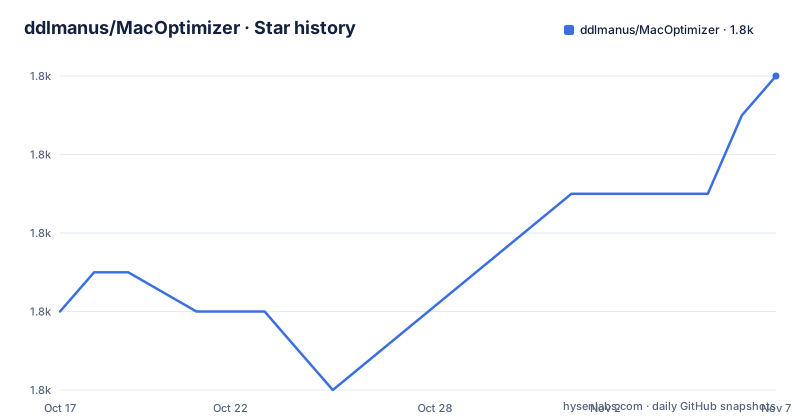
Star history
- ddlmanus/MacOptimizer1,840 ★ · +6
| Repository | 2026-10-17 | 2026-11-07 |
|---|---|---|
| ddlmanus/MacOptimizer | 1.8k | 1.8k |
6 Stars in the last 21 days, measured from the daily GitHub snapshot. Compare with other projects
Editorial analysis
Eight modules, most of which delete things
The feature list is organised as eight functional modules sharing one window and one sidebar. Console shows CPU usage, memory used and available, disk space as a percentage, and a process list with one-click termination of running apps and background processes.
App Uninstaller scans for installed applications and then hunts residual files in Preferences, Application Support, Caches, Logs, Saved State, Containers, Launch Agents, and Crash Reports. It offers selective deletion, so you can remove the leftovers while keeping the app, and moves to the Trash rather than deleting outright.
Junk Cleaner targets system cache, application cache, browser cache for Safari, Chrome, Firefox and others, and log files, grouped by category for selective cleaning. Large File Finder scans the home directory and shows file sizes and locations with direct delete or move to trash. Trash Manager shows space used and empties it.
System Optimizer lists startup items you can disable, offers one-click memory release, and claims system acceleration.
Deep Clean is the module to read closely, because it is the one making judgement calls rather than following a fixed rule. It scans for files left by uninstalled apps, auto-identifies files not belonging to any installed app, excludes Apple system files automatically, groups results into App Support, Cache, Preferences, Containers, and Logs, and moves what you select to the Trash.
File Explorer is the outlier among the eight, since it browses rather than cleans: the disk tree, quick access to Home, Desktop, Documents, Downloads, Applications and the disk root, forward, back, and parent navigation with a breadcrumb bar, manual path input supporting `~`, new folder, new file, rename, delete, a hidden files toggle, a context menu, and opening the current directory in Terminal.
The pattern across the deleting modules is that everything goes to the Trash rather than being unlinked. That single design choice is what makes the app recoverable when its heuristics are wrong.
Building is a shell script, not Xcode
The build tool is listed as the Swift compiler, swiftc, invoked by hand rather than through an Xcode project. System requirements are macOS 13.0 Ventura or later, either Apple Silicon from M1 to M4 or Intel, and the Command Line Tools, with full Xcode explicitly stated as not required.
Building from source is three steps:
git clone https://github.com/ddlmanus/MacOptimizer.git
cd MacOptimizer

chmod +x build.sh
./build.sh

open build/Mac优化大师.app
Note the application bundle name in that last line. The product is named in Chinese, and the release artifacts follow the same convention: `MacOptimizer_vX.X.X_AppleSilicon.dmg` for Apple Silicon and `MacOptimizer_vX.X.X_Intel.dmg` for Intel.
Intel support is not a separate build path, it is an edit. The README tells you to change the target in `build.sh`:
# Change
-target arm64-apple-macos13.0
# To
-target x86_64-apple-macos13.0
So on an Intel Mac you edit a build script rather than passing a flag. The repository also contains `build_dual_dmg.sh`, which suggests both architectures can be produced in one run, and a `homebrew/` directory, which is the alternative to downloading a DMG from GitHub Releases.
There is a `Package.swift` at the root and a `Tests/` directory, so the Swift tooling is partly in play even though the documented build path does not use it.
MVVM, and a file layout that names every scanner
The architecture is MVVM with SwiftUI 4.0 on Swift 5.9. The project structure section lists the source files under `AppUninstaller/`, and the pairing is consistent enough to be worth reading before you change anything.
Each module has a view and a service, and the service names say exactly what the module does: `SystemMonitorService`, `ProcessService`, `AppScanner`, `ResidualFileScanner`, `FileRemover`, `JunkCleaner`, `LargeFileScanner`, `DiskSpaceManager`, `DeepCleanScanner`, and `FileExplorerService`. `AppScanner` and `ResidualFileScanner` are separate, which is the correct split: detecting that an app exists and detecting where it left files are different problems.
The views follow: `MonitorView`, `AppDetailView`, `JunkCleanerView`, `OptimizerView`, `LargeFileView`, `TrashView`, `DiskUsageView`, `DeepCleanView`, and `FileExplorerView`.
Cross-cutting files are `ContentView.swift`, `NavigationSidebar.swift` which drives the module list, `LocalizationManager.swift` for the i18n, `Models.swift`, and `Styles.swift`. Packaging lives alongside as `Info.plist` and `AppIcon.icns`, and the icon is generated rather than drawn: `generate_icon.swift` sits at the root alongside `generated_icon.png`.
The README shows an i18n manager with Chinese and English, one-click switching, and a saved preference, and states that all UI elements are localized. `dmg_layout.scpt` is an AppleScript file for the disk image window layout, and `release_package.sh` handles release packaging alongside `build.sh`.
Where the README contradicts itself
Several details in this repository do not line up, and none of them are fatal, but each one is a reason to look before you trust a claim.
The version does not match. A badge near the top of the README reads version 2.2.0, while the release list shows v5.0 dated 2026-08-02, v4.0.7 on 2026-05-23, and v4.0.6 on 2026-01-25. A badge is usually updated with the app and here it evidently was not. Use the releases, not the badge.
The licence does not match either. The badge says MIT, and the repository's licence field records nothing detectable. There is no LICENSE file in the top-level entries. If you need to know what terms this code is under, the badge is the only statement and it is not corroborated.
The module count is described as eight in the same sentence that then lists them, and counting the headings gives Console, App Uninstaller, Junk Cleaner, System Optimizer, Large File Finder, Trash Manager, Deep Clean, and File Explorer, which is eight, so that one is consistent.
More awkwardly, a promotional line for an AI film and design platform sits in the middle of the Features section, with an external address. That is a marketing insertion unrelated to the project, and it is the kind of thing worth ignoring rather than clicking.
None of this makes the app unsafe to build. It does mean the README is not a reliable source for version, licence, or provenance, which is worth knowing before you cite any of them.
Deep Clean is the module with judgement in it
The other seven modules do things you can check by hand. App Uninstaller looks in eight well-known macOS locations for a named app. Junk Cleaner looks at cache and log directories. Large File Finder sorts by size. File Explorer browses.
Deep Clean does something different. It scans for orphaned files from uninstalled apps and auto-identifies files not belonging to any installed app. That is a heuristic, and heuristics about ownership on a Mac are hard: data in Application Support can belong to a system component, a daemon with no bundle in Applications, a Homebrew formula, a development toolchain, or a game whose launcher is still installed.
The mitigations the README lists are real and worth noting. Apple system files are auto-excluded. Results are categorised by directory type so you can review by kind rather than one long list. Selection is under your control with select all and select none plus individual choices. And deletion is a move to the Trash, so a wrong judgement is recoverable.
The residual risk is the automated pass over categories you did not read carefully. The one mitigation not offered is a dry run showing file sizes and owners before anything is selected, so the safest procedure is to open the module, read the categorised list, and delete by category rather than hitting a bulk action.
Junk Cleaner has the same shape of risk at smaller scope, since browser and application caches are identifiable but not individually meaningful, and clearing a cache is cheap to redo.
What the app cannot tell you about its own trustworthiness
The README contains no security model and no statement about privileges. That matters for an application whose entire purpose is terminating processes, disabling startup items, deleting directories, and moving files to the Trash.
Two specific questions follow from the module list. Process Management offers one-click stop on any running app or background process, which on a Mac with no stated elevation model probably means it either cannot stop protected processes or it asks for authorisation. And System Optimizer disables startup items and performs memory release, which are both actions whose benefit is hard to verify and whose failure is silent.
The Memory Release feature in particular deserves scepticism rather than enthusiasm. Freeing cached memory by force has no lasting effect on a system that manages its own memory, and the README offers no measurement. Treat it as a button, not a feature.
None of this is disqualifying. It is a GUI utility for one machine, written in Swift, with its source published, and reading `ProcessService.swift` and `DeepCleanScanner.swift` takes ten minutes. The alternative to reading them is running an application that deletes things on your behalf, which is exactly the situation where ten minutes is cheap.
The repository is not archived, the last push was on 2026-08-02, and the release cadence through 2026 shows active work with separate CHANGELOG files per version.
Editorial conclusion
Adopt MacOptimizer if you want a single GUI for finding leftover files on one Mac and you are willing to read its source before letting it delete anything, since Deep Clean removes files it decides are orphaned. Do not adopt it on a machine you cannot restore, and treat its version and licence claims as unverified: the README badge says 2.2.0 while releases reach v5.0, and the badge claims MIT while the repository records no detectable licence. Verify first what the Deep Clean scanner considers orphaned on a copy of your data, not the machine itself.
Frequently asked questions
How do I build MacOptimizer from source on an Intel Mac?
Clone the repository, make build.sh executable and run it, but first change the target in build.sh from `-target arm64-apple-macos13.0` to `-target x86_64-apple-macos13.0`. You need macOS 13.0 or later and the Command Line Tools; full Xcode is not required.
What does MacOptimizer's Deep Clean module actually remove?
It scans for residual files from uninstalled apps, auto-identifies files not belonging to any installed app, and excludes Apple system files automatically. Results are grouped into App Support, Cache, Preferences, Containers and Logs for selective cleanup, and deletions move files to the Trash for recovery.
Which macOS versions and processors does MacOptimizer support?
macOS 13.0 Ventura or later, on Apple Silicon from M1 through M4 or on Intel. Intel builds require editing the target in build.sh, and prebuilt DMGs are published per architecture as `MacOptimizer_vX.X.X_AppleSilicon.dmg` and `MacOptimizer_vX.X.X_Intel.dmg`.
Official sources
Add this badge to your README
If you maintain this project, the badge below links readers to this analysis and shows its maintenance status from the daily GitHub snapshot. Paste the markdown into your README; add ?metric=license or ?metric=stars to the image URL for a different field.

[](https://hysenlabs.com/projects/ddlmanus-macoptimizer)Star history chart for your README
[](https://hysenlabs.com/projects/ddlmanus-macoptimizer)Was this useful?