xlsx2csv streams a spreadsheet with a SAX parser instead of loading the workbook
Convert xslx to csv, it is fast, and works for huge xlsx files
At a glance
- What is it?
- xlsx2csv is a MIT-licensed single-file Python converter for xlsx files, built around a streaming XML parse so large workbooks do not have to fit in memory. It exposes nineteen command line flags plus a class API, and its own version metadata disagrees with its last release tag.
- Who is it for?
- xlsx2csv fits a pipeline step that has to turn a large exported workbook into flat CSV without loading it into a spreadsheet library's object model, and it fits anyone who needs to drop a single dependency into a script. It does not fit a job needing formulas, charts or formatting to survive the conversion, and the package still declares Python 2 and 2.4 classifiers.
- Can I use it commercially?
- Yes. MIT is a permissive licence: you can use, modify and sell software built on it, as long as you keep its copyright and licence notices.
- Is it still maintained?
- Yes. The repository last received commits 78 days ago.
- What is it written in?
- Mainly Python, according to GitHub's language statistics.
Answers come from the project's GitHub data, last synced on November 7, 2026, and from our analysis. They are not legal advice.
Star history
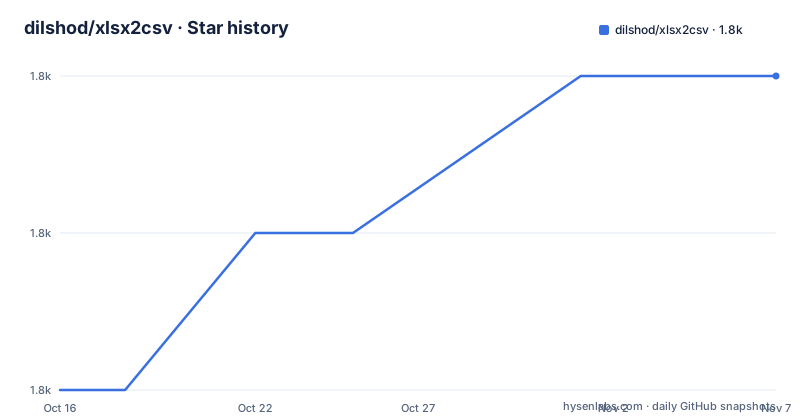
- dilshod/xlsx2csv1,782 ★ · +2
| Repository | 2026-10-16 | 2026-11-07 |
|---|---|---|
| dilshod/xlsx2csv | 1.8k | 1.8k |
2 Stars in the last 22 days, measured from the daily GitHub snapshot. Compare with other projects
Editorial analysis
Streaming XML is the whole performance story
The README states one technical fact about the implementation: Expat SAX parser is used for XML parsing. That choice is what lets the tool handle large XLSX files, and it is worth understanding the consequence.
An xlsx file is a ZIP archive of XML parts. Most libraries read a worksheet into a grid of cell objects, then hand you rows. That costs memory proportional to the sheet and means the whole workbook is parsed before you see row one. A SAX parser instead emits events as the XML bytes are read, so the converter can write a CSV row as it encounters one and discard the previous.
The project ships as a single module. The repository root contains xlsx2csv.py and nothing else that looks like source, plus pyproject.toml, MANIFEST.in, a man/ directory, a test/ directory, a CHANGELOG and a CLAUDE.md. The README states it also works standalone with only the xlsx2csv.py script, which is the deployment story for an environment where you cannot install anything.
Installing, and the dual-path support that needs a decision
Two install routes are given. The modern one:
pip install xlsx2csvThe older one:
sudo easy_install xlsx2csvThe README's list of tested Python versions starts at 2.4 and runs to 2.7 and then 3.4 through 3.14, so Python 2 is a deliberate target rather than an accident of age. Several flags say so in their help text, most visibly -c OUTPUTENCODING, which is documented as Python 3 only.
pyproject.toml tells the rest of the story. The build system requires setuptools 61.2.0 or newer, wheel, and setuptools_scm, while pyproject.toml sets the version to 0.8.6. The package declares a console script entry point, xlsx2csv = "xlsx2csv:main", and installs a single module via py-modules.
The classifier list in pyproject.toml is the artefact to be aware of: it enumerates Python 2.4, 2.5, 2.6 and 2.7 individually alongside 3.0 through 3.14. Those old classifiers are harmless for installation but they will show up in any dependency audit that reads trove classifiers, and they signal a project that still carries two code paths.
Nineteen flags, and the three that quietly change your output bytes
The usage block lists the full option set. The common cases are short. Convert one sheet by number with -s, by name with -n, or all sheets with -a, or by passing 0 as the sheet id. The xlsxfile positional argument accepts a dash to read from STDIN, and the outfile positional becomes a directory instead of a file when -s 0 is used, which is what makes the folder mode work.
Three defaults are worth knowing before you pipe the output into anything.
Line terminator defaults to os.linesep, not to a newline. On Windows that means CRLF bytes in the file, which is correct locally and breaks a naive line splitter elsewhere. Override it with -l and pass \n.
Field quoting defaults to minimal, and -q accepts none, minimal, nonnumeric or all. Minimal quoting will leave a field unquoted when it contains no delimiter, which is what a spreadsheet expects and what a parser that splits on commas without checking quotes will not.
Float and date formatting are separate flags. -f overrides the date format, with %Y/%m/%d given as the example, and --floatformat overrides float rendering with %.15f as the example. Without them, dates and floats come out as the workbook stored them.
Two more are worth knowing: -i skips empty lines, and -e escapes carriage return, newline and tab characters inside fields.
Sheet selection at scale, and the delimiter between sheets
Two flags only apply when -a is enabled, which the README states explicitly for both. -I takes one or more patterns and keeps only sheets whose names match. -E takes patterns and drops matching sheets. The README is careful to say the filters do nothing without -a.
The other sheet-related flag is -p, the delimiter placed between sheets when several are written to one output. The default is a run of dashes, and the help text says to pass an empty string if you do not need a delimiter at all, or 'x07' or a form feed for a control character instead.
A run of dashes between sheets is a human-readable convention, not a CSV feature. If you are consuming the output with a parser, that line becomes a row like any other and will likely break your column count. Passing an empty delimiter, or splitting the output per sheet by pointing -s at one sheet and a directory at outfile, is the reliable route.
The --hyperlinks flag includes hyperlinks in the export, which is one of the few pieces of workbook structure that survives the conversion at all.
The Python API, and a warning the maintainer wrote for you
The library API mirrors the CLI. The README gives two forms and labels the difference:
from xlsx2csv import Xlsx2csv

# Recommended: using context manager for proper resource cleanup
with Xlsx2csv("myfile.xlsx", outputencoding="utf-8") as xlsx2csv:
    xlsx2csv.convert("myfile.csv")

# Simple usage (but may cause ResourceWarning in modern Python)
Xlsx2csv("myfile.xlsx", outputencoding="utf-8").convert("myfile.csv")
The comment on the second form is not decoration. Because the parser holds open resources, dropping the reference without closing it produces a ResourceWarning under modern Python, which is a warning today and a test failure in any suite configured to error on warnings. Use the context manager.
Folder mode is also available from the command line:
python xlsx2csv.py /path/to/input/dir /path/to/output/dirThat converts every xlsx in the input directory to a csv in the output directory. Omit the output directory and the converted files are written back alongside the originals, which is a convenient behaviour that is also easy to trigger by accident.
There is no documented API for iterating rows in memory. convert writes to a file or a stream, so a caller who wants rows rather than bytes is looking at a different library.
What does not survive the conversion, and why
An xlsx workbook is a presentation format. Everything in the file that is not a cell value or a hyperlink is dropped, and the flag list is effectively an inventory of what survives: sheets, cell values, dates, floats, line structure, quoting, and optionally hyperlinks.
Formulas do not survive as formulas. Recalculation in Excel after conversion is not possible because the formula is gone.
Formatting, column widths, merged cells as visual structure, conditional formatting, charts, images, defined names and data validation are all absent from the option set. The single exception is -m, --merge-cells, and given the flag's name it restores merged cell contents as repeated values rather than as merge semantics, which is a guess on the part of this article about behaviour the README does not describe further.
If your downstream consumer needs any of that, this is the wrong tool and no flag will fix it. Converting a financial model to CSV and expecting the model back is the classic version of that mistake.
One more boundary: xlsx only. The name, the description and the whole flag set are about the OOXML format. Older.xls binary workbooks are out of scope, and so is any other spreadsheet format.
Release metadata that has drifted
Here is a discrepancy worth flagging to anyone pinning a version. The three most recent releases on the repository are 0.8.3 dated 2024-07-29, 0.8.2 dated 2024-04-15 and 0.8.1 dated 2023-03-14. The version field in pyproject.toml reads 0.8.6.
Those numbers cannot both describe the same state. Either tags stopped being cut at 0.8.3 while commits continued, or the packaging version is being written by hand rather than derived, which is notable given that setuptools_scm is declared as a build requirement. The commented-out line setting a dynamic version entry under the urls section suggests the version handling was set up and then left alone.
Practically, this means a requirements file pinning xlsx2csv==0.8.3 gets a different artefact than one pinning 0.8.6, and which one you get from an index depends on what was uploaded. Pin loosely and verify what installs.
The repository is not archived and the last push was on 2026-08-21, so work is landing on the master branch. Licencing is MIT with LICENSE.txt at the root, and the maintainer is Dilshod Temirkhdojaev. A CHANGELOG and a man/ directory indicate a man page ships with the package, which is unusually complete for a single-module tool.
Editorial conclusion
xlsx2csv fits a pipeline step that has to turn a large exported workbook into flat CSV without loading it into a spreadsheet library's object model, and it fits anyone who needs to drop a single dependency into a script. It does not fit a job needing formulas, charts or formatting to survive the conversion, and the package still declares Python 2 and 2.4 classifiers. First step is to run the module directly with xlsx2csv.py on a representative workbook and check the line terminator and quoting defaults against what your consumer expects.
Frequently asked questions
How do I install xlsx2csv?
Run pip install xlsx2csv, or sudo easy_install xlsx2csv. The script also runs standalone with only the xlsx2csv.py file, and the package installs a console script named xlsx2csv.
Which Python versions does xlsx2csv support?
The README lists tested versions as 2.4, 2.7 and 3.4 through 3.14, and pyproject.toml carries classifiers from Python 2.4 up to 3.14. The outputencoding flag is documented as Python 3 only.
How do I convert every sheet of an xlsx file to CSV?
Use the -a flag to export all sheets, or -s 0 to write all sheets with the output path treated as a directory. The -I and -E pattern filters only take effect when -a is enabled.
How do I use xlsx2csv from a Python script?
Import Xlsx2csv from the xlsx2csv module and use it as a context manager, calling convert with the output path. The README notes that the non-context-manager form may cause a ResourceWarning in modern Python.
What is the default line terminator and quoting in xlsx2csv?
The line terminator defaults to os.linesep rather than a newline, and field quoting defaults to minimal. Both can be changed with -l for the terminator and -q with none, minimal, nonnumeric or all.
Official sources
Add this badge to your README
If you maintain this project, the badge below links readers to this analysis and shows its maintenance status from the daily GitHub snapshot. Paste the markdown into your README; add ?metric=license or ?metric=stars to the image URL for a different field.

[](https://hysenlabs.com/projects/dilshod-xlsx2csv)Star history chart for your README
[](https://hysenlabs.com/projects/dilshod-xlsx2csv)Was this useful?