Clop: a macOS clipboard optimizer that rewrites what you copy before you paste it
Clipboard optimizer for macOS
At a glance
- What is it?
- Clop is a GPL-3.0 macOS app that watches the clipboard, runs copied images and videos through pngquant, jpegoptim, gifsicle, ffmpeg, libvips, gifski or ghostscript, and hands back a smaller file. The free version keeps clipboard optimisation and image downscaling but caps screen recording, on-demand optimisation and Shortcuts support at five per session.
- Who is it for?
- Clop suits a macOS user who regularly pastes screenshots, screen recordings or PDFs into chat and email and cares more about payload size than original fidelity, and who is comfortable granting a background app clipboard access. It does not suit someone who needs lossless originals, works outside macOS, or needs unlimited on-demand optimisation and Shortcuts automation without paying.
- Can I use it commercially?
- Yes, with conditions. GPL-3.0 is a copyleft licence: if you distribute software that includes it, you must release that software's source code under the same licence. Running it internally without distributing it does not trigger that obligation.
- Is it still maintained?
- Yes. The repository last received commits 3 days ago.
- What is it written in?
- Mainly Swift, according to GitHub's language statistics.
Answers come from the project's GitHub data, last synced on October 23, 2026, and from our analysis. They are not legal advice.
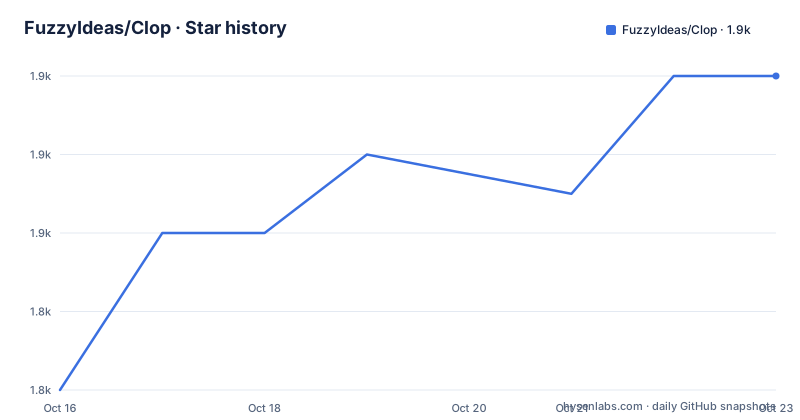
Star history
- FuzzyIdeas/Clop1,854 ★ · +8
| Repository | 2026-10-16 | 2026-10-23 |
|---|---|---|
| FuzzyIdeas/Clop | 1.8k | 1.9k |
8 Stars in the last 7 days, measured from the daily GitHub snapshot. Compare with other projects
Editorial analysis
The core loop is copy, optimise, paste
Clop's central behavior is passive. As long as the app is running, every time you copy an image to the clipboard it optimises it to what the README calls the smallest possible size, with minimal to zero loss in quality, and the result is ready to paste in any app.
That framing explains the design better than any feature list. Clop is not a batch converter you point at a folder; it is a clipboard watcher that intercepts a copy event, runs a toolchain, and replaces the clipboard contents. The cost of that design is that you lose the original unless you look for it, which the app addresses with a backup folder reachable from the app menu.
The screen recording path is the same idea applied to video. Clop optimises a recording as soon as you stop, and the video appears as a floating thumbnail you can drag and drop into any app. The README claims this makes sending screen recordings 10x faster, which is the project's own figure and comes with no measurement attached.
There is also a hardware angle worth knowing: Clop can use Apple Silicon's dedicated Media Engine chip for battery-efficient video encoding without using the CPU.
Seven external tools do the actual work
Clop is a Swift application front end over a set of open source command line tools. The README lists them by format: `pngquant` for PNG, `jpegoptim` for JPEG, `gifsicle` for GIF, `ffmpeg` for videos, `libvips` for resizing images, `gifski` for converting videos to GIFs, and `ghostscript` for optimising PDFs.
The practical implication is that Clop's capabilities are bounded by what is installed on your system. If gifski is absent, video-to-GIF conversion is unavailable. If ghostscript is missing, PDF optimisation is unavailable. The README is explicit about one case, saying Clop may also use `libvips` for resizing images if it is installed on your system, which implies the resizing path has a dependency on an external library rather than only an internal one.
None of these tools is bundled. Installing Clop gives you a Swift app that shells out to binaries you have to provide yourself, which is the main setup work and the main source of "why did that feature do nothing" confusion.
Downscale keys, on-demand hotkeys, and format conversion
Downscaling is bound to single keys on the floating window. `-` steps down incrementally from 90% of the original resolution until 10%, and `1` through `9` jump to specific sizes. Both are usable from hotkeys or the floating buttons, and downscaling produces a smaller file as a side effect of reducing resolution.
On-demand optimisation uses `Ctrl`-`Shift`-`C` for the current clipboard and `Ctrl`-`Shift`-`A` for more aggressive optimisation. The README states the action works on images, video files, paths, URLs and even base64 encoded images, which is a broader input surface than the copy hook alone covers.
Format conversion is automatic and is where the app earns its keep for cross-device sharing: `HEIC`, `tiff` and `mov` are converted to formats understood by most devices, and the conversion is fully configurable from the app settings. Originals are kept in the backup folder accessible from the app menu.
Automation goes through native macOS Shortcuts, which the README frames as the way to build workflows such as downscaling and optimising images you email weekly, or downloading optimised images directly into a slideshow.
The free tier caps the features that need real work
The Free versus Pro table is the clearest statement of what you get without paying. Clipboard optimisation is free forever, and downscale images is too. After the 14-day trial the app continues to work with the free features.
What is limited is per session, at five uses each: optimise screen recordings, optimise screenshot files, on-demand optimisation and Shortcuts support.
Read that list carefully, because the capped items are exactly the ones worth automating. Passive clipboard optimisation is unlimited, which means the everyday case works forever. But if your plan was to script Shortcuts for a weekly report, or to batch-optimise a recording session, the free version stops after five. On-demand optimisation via `Ctrl`-`Shift`-`C` is also capped, so the manual escape hatch is rationed as well.
None of the README text explains what "per session" means precisely, whether it resets on relaunch or on logout, and that ambiguity matters if you rely on a fixed daily count.
Building it is an Xcode and make-app workflow
This is a macOS-only Swift application. The repository contains Clop.xcodeproj/ and the Clop/ source directory, Shared.swift and Shared/ for shared code, a separate ClopCLI/ directory that suggests a command line counterpart exists alongside the GUI, plus Scripts/, ReleaseNotes/ and Releases/.
The Makefile shows how releases are produced. The version is not hardcoded; it is extracted from the Xcode project file:
ifeq (, $(VERSION))
VERSION=$(shell rg -o --no-filename 'MARKETING_VERSION = ([^;]+).+' -r '$$1' *.xcodeproj/project.pbxproj | head -1 | sd 'b\d+' '')
endif
A beta marker is appended when BETA is set, producing a version like the release version with a `b` suffix. The build target calls `make-app` with a build, devid, dmg, name, target, Release configuration and the computed version.
One comment in the Makefile is a genuine warning for anyone building from source. A plain Release build is signed with Apple Development, and the app's own anti-crack logic reads that signature as a crack and deactivates the licence, so a particular install route must never be used. That is an Apple Development-signing limitation rather than a defect in the source.
There is also a `buildSrc`-free but still conventional SwiftPM artifact resolution: the appcast generator is a SwiftPM binary artifact that is not on PATH, so the Makefile resolves it from the newest resolved artifacts with a fallback to PATH.
Where Clop is the wrong tool
Platform is the hard limit. There is no Linux or Windows version in the repository. Clop can use Apple Silicon's Media Engine for battery-efficient video encoding.
Quality expectations are the soft limit. The README promises the smallest possible size with minimal to zero loss, and that promise is unquantified. pngquant is a lossy quantizer, jpegoptim is lossy by nature, and ffmpeg encoding is lossy unless configured otherwise. If your workflow involves archiving originals or handing files to someone who will re-edit them, automatic lossy re-encoding on copy is a problem, not a feature. The backup folder mitigates it, but only if you remember it exists.
The clipboard watcher is also a standing background process holding whatever you copy. That is the entire point of the app, and it is also the reason to read what it does with base64 data and URLs, since the on-demand action claims to accept both.
Finally, the tool dependencies make it fragile across machines. Clop's behavior on a fresh laptop differs from its behavior on your main machine until you install pngquant, jpegoptim, gifsicle, ffmpeg, libvips, gifski and ghostscript there too.
Against ImageOptim, and against a shell script
Clop's support for images, screen recordings and PDFs may suit workflows that handle several of these content types.
The other alternative is doing it yourself. A shell script wrapping pngquant and jpegoptim can provide basic image optimisation without a background process or clipboard access. What you give up is the automation: no watching for copies, no drag-and-drop thumbnail, no Shortcuts hook. Clop is worth its install exactly when the automation is the point, which for most people taking this app is the case, and is not worth it if you compress a handful of files a week.
Editorial conclusion
Clop suits a macOS user who regularly pastes screenshots, screen recordings or PDFs into chat and email and cares more about payload size than original fidelity, and who is comfortable granting a background app clipboard access. It does not suit someone who needs lossless originals, works outside macOS, or needs unlimited on-demand optimisation and Shortcuts automation without paying. Before adopting, install the seven external tools the README lists rather than assuming the app bundles them, decide whether the free tier's five-per-session caps fit your workflow, and check the GPL-3.0 implications if your organisation requires permissive licensing for tools in your stack.
Frequently asked questions
What does Clop do when I copy something?
As long as the app is running, copying an image to the clipboard makes Clop optimise it to the smallest possible size with minimal to zero loss in quality, ready to paste in any app. Original files are kept in a backup folder reachable from the app menu.
Which tools does Clop use to optimise files?
The README lists pngquant for PNG, jpegoptim for JPEG, gifsicle for GIF, ffmpeg for videos, libvips for resizing images, gifski for converting videos to GIFs, and ghostscript for optimising PDFs. None of these are bundled, so each capability depends on the tool being installed.
What is the difference between Clop Pro and the free version?
Clipboard optimisation and image downscaling are unlimited in the free version, which keeps working after the 14-day trial. Screen recording optimisation, screenshot file optimisation, on-demand optimisation and Shortcuts support are each limited to 5 per session in the free version.
How do I manually optimise in Clop?
Press `Ctrl`-`Shift`-`C` to optimise the current clipboard, or `Ctrl`-`Shift`-`A` for more aggressive optimisation. The action works on images, video files, paths, URLs and base64 encoded images.
How do I downscale an image or video in Clop?
Use the `-` key to downscale incrementally from 90% down to 10% of the original resolution, or keys `1` through `9` to jump to specific sizes. Both the hotkeys and the floating buttons work, and downscaling also reduces file size.
Official sources
Add this badge to your README
If you maintain this project, the badge below links readers to this analysis and shows its maintenance status from the daily GitHub snapshot. Paste the markdown into your README; add ?metric=license or ?metric=stars to the image URL for a different field.

[](https://hysenlabs.com/projects/fuzzyideas-clop)Star history chart for your README
[](https://hysenlabs.com/projects/fuzzyideas-clop)Was this useful?