Goku Image to SVG Tool: A Streamlit Wrapper Around the Vecto Tracing Engine
A Streamlit image-to-vector tool powered by the Vecto engine - upload PNG/JPG and get clean, editable SVG with live side-by-side preview.
At a glance
- What is it?
- This project wraps the open-source Vecto CLI in a Streamlit UI, turning PNG/JPG uploads into editable SVG with a side-by-side preview. It is a practical choice for quick, local tracing, but its value depends on the bundled Linux binary and the maturity of the underlying engine.
- Who is it for?
- Adopt this tool if you want a free, browser-based way to trace images to SVG without touching a command line, especially on a Linux machine or Streamlit Community Cloud. Do not adopt it if you need cross-platform desktop support, frequent updates, or a production-grade tracing pipeline with a maintained API.
- Can I use it commercially?
- Yes. MIT is a permissive licence: you can use, modify and sell software built on it, as long as you keep its copyright and licence notices.
- Is it still maintained?
- Yes. The repository last received commits 62 days ago.
- What is it written in?
- Mainly Python, according to GitHub's language statistics.
Answers come from the project's GitHub data, last synced on October 22, 2026, and from our analysis. They are not legal advice.
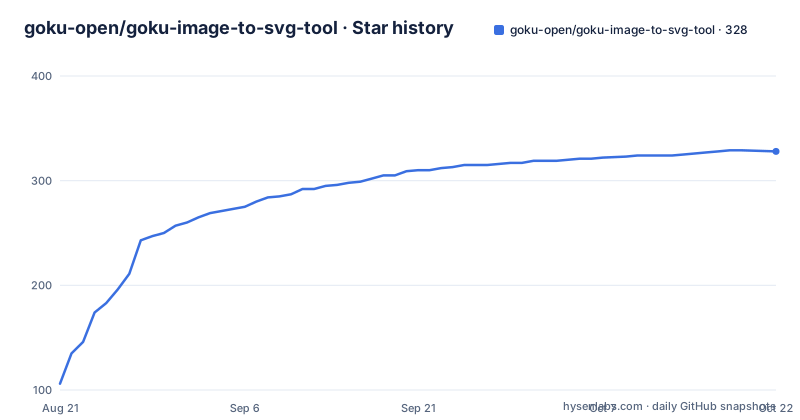
Star history
- goku-open/goku-image-to-svg-tool328 ★ · +222
| Repository | 2026-08-21 | 2026-10-22 |
|---|---|---|
| goku-open/goku-image-to-svg-tool | 106 | 328 |
222 Stars in the last 62 days, measured from the daily GitHub snapshot. Compare with other projects
Editorial analysis
What This Tool Solves and Who It Serves
The tool is a thin wrapper around the Vecto engine, which is a .NET command-line tool. The Streamlit front-end launches Vecto as a subprocess, passing the uploaded image and parameters directly. The README shows a data flow: Streamlit front-end uses subprocess to call `tools/vecto trace`, which converts the bitmap to SVG and parses stats. Then the app renders a side-by-side comparison and allows export. The key point is that all tracing logic lives in Vecto, not in this project. The wrapper handles parameter passing, UI, and file export. The README claims the parameters are '零阉割', meaning no feature is stripped, so the UI exposes the same palette, style, and detail options as the CLI. That is a strong claim, and it is plausible because the wrapper is just a subprocess call. But the actual fidelity depends on how the Streamlit app parses Vecto's output and whether it passes all flags correctly. The README does not show the exact command construction, so there is room for doubt.
How It Works: Streamlit Front-End, Vecto Back-End
The core mechanism is a subprocess bridge. The Streamlit app, defined in `streamlit_app.py`, accepts an uploaded image, then calls the bundled binary `tools/vecto` with a `trace` command. The binary is version 0.4.2 for linux-x64 and is shipped in the repository. The app parses the stats output and displays the original image, the vector result, and a split view. The user can adjust parameters like palette size, style, and detail, and the app re-runs the trace. Export options include downloading the SVG or rendering a PNG at a chosen scale. The README gives a simple diagram: Streamlit front-end uses subprocess to call `tools/vecto trace`, then parses stats, and the result feeds back to the comparison and export. This architecture is straightforward and has a clear benefit: the wrapper does not reinvent tracing, so it inherits Vecto's capabilities. But it also inherits Vecto's limitations, including the fact that the binary is platform-specific. The README notes that the binary is for linux-x64 only, which means Windows and macOS users cannot run it locally without downloading a different build from the Vecto releases page. That is a real constraint for a tool that claims to be easy to run.
Getting It Running: Commands and Dependencies
The README provides two paths: use the hosted Streamlit app at image-to-svg.streamlit.app, or run locally. For local use, the commands are: `git clone https://github.com/goku-open/goku-image-to-svg-tool.git`, `cd goku-image-to-svg-tool`, `pip install -r requirements.txt`, then `streamlit run streamlit_app.py`. The app opens at http://localhost:8501. The repository includes the `tools/vecto` binary, so no separate installation is needed, as long as you are on Linux x64. The README also mentions that you can download the binary from the Vecto releases if needed. The UI supports PNG, JPG, BMP, GIF, TGA, TIFF, WebP, PBM, and PPM uploads. The parameter panel mirrors the Vecto CLI, with options for palette (auto or a specific number of colors, with color swatch preview), style, and detail. The README says changing a parameter triggers an immediate re-trace. The setup is minimal, but the platform-specific binary is a hidden prerequisite. If you are on a different OS, you must manually fetch the correct binary, and the README does not explain how to configure the app to use a custom binary path. That is a gap.
A Genuine Limitation: Platform Lock-In and Binary Management
The most obvious failure mode is the bundled binary. It is a single linux-x64 executable, so the local run instructions only work on Linux. On Windows or macOS, the `tools/vecto` file will not execute, and the app will fail unless the user replaces it with a compatible build. The README acknowledges this by pointing to the Vecto releases, but it does not document how to tell the Streamlit app where to find a different binary. This is a user-experience gap. Another limitation is that the project has no recent releases or visible commit history in the provided material. The README is dated 2026-08-21, but the last push is unknown. That means you cannot assess how actively it is maintained. If Vecto updates, the wrapper may lag behind. Also, the tool is designed for simple images; the README does not claim to handle complex photographs well, and tracing engines generally struggle with noisy or highly detailed rasters. If you need precise vectorization of a detailed photo, this tool is likely the wrong choice. The README's comparison table claims a peak memory usage of 60 to 490 MB per conversion, which is a wide range and suggests that large images could be problematic on low-memory systems.
Alternatives: How the Approach Differs
The README itself lists alternatives: Vectorizer.AI, Illustrator's Image Trace, Inkscape's bitmap trace, and the raw Vecto CLI. The key difference is that this tool is a wrapper, so it offers a GUI on top of the same engine. Inkscape is a full vector editor with a built-in trace feature, but it is a desktop application, not a browser tool. The Goku tool is browser-based, which is convenient but also limits you to the wrapper's features. Vectorizer.AI is a commercial online service with a polished UI and likely better tracing algorithms, but it is not open source and requires payment. The raw Vecto CLI is the underlying engine, so if you are comfortable with the command line, you can achieve the same results without the Streamlit layer. The real difference is in the workflow: this tool adds a visual comparison and parameter sliders, which can speed up iteration. But if you need to batch-process many images, the CLI is more efficient. The wrapper does not add any tracing intelligence; it only exposes the engine's parameters. So the choice between this tool and the CLI is a matter of UI preference, not output quality.
Maintenance and Upgrade Cost
The project is MIT-licensed, and the Vecto engine is also MIT-licensed, which is favorable for adoption. There are no legal barriers to using it commercially, but you should check the licenses yourself. The maintenance cost is low for the wrapper itself: the code is a Streamlit app, and the README says tests are run with `python -m pytest`. The project structure is simple, with page content in `pages_content/`, logic in `utils.py`, and translations in `locales/`. That suggests a clean separation, which makes it easier to modify. However, the upgrade cost is tied to the Vecto binary. If Vecto releases a new version, you must manually download the new binary and replace it in `tools/`. There is no package manager integration, so updates are not automated. The README does not mention a CI pipeline or release process, so you cannot expect regular updates. The project has no recent releases in the provided data, so the maintenance cadence is unknown. If you depend on this tool, you should monitor the Vecto repository for changes and be prepared to update the binary yourself.
Who Should Adopt It, and What to Verify First
This tool is a good fit for a Linux user who wants a free, browser-based way to trace simple images to SVG, and who does not want to learn a CLI. It is also fine for a quick one-off conversion on Streamlit Community Cloud, since the README claims it is deployable there. But it is not a good fit for a team that needs cross-platform support, because the bundled binary is Linux-only. It is also not ideal for high-volume batch conversions, because the UI is interactive and not scriptable. Before you adopt it, verify that the `tools/vecto` binary runs on your system, and check the Vecto releases page for the latest version. Also, test the tool on an image that represents your typical use case, because the README does not provide any quality metrics. The project's claim of 'clean, editable SVG' is subjective; you should inspect the output paths to see if they are as clean as you need. The tool is a thin wrapper, so your decision should hinge on the Vecto engine's quality, not the Streamlit UI. The README's comparison table is marketing, not a benchmark, so treat it with skepticism. The project is a convenient front-end, but it is not a solution to all vectorization problems.
Editorial conclusion
Adopt this tool if you want a free, browser-based way to trace images to SVG without touching a command line, especially on a Linux machine or Streamlit Community Cloud. Do not adopt it if you need cross-platform desktop support, frequent updates, or a production-grade tracing pipeline with a maintained API. Before relying on it, verify that the bundled `tools/vecto` binary works on your OS, and check the Vecto repository for the latest release and any known issues, since this project's last push and release history are not available from the provided material. The tool is a thin wrapper, so your long-term risk is tied to the Vecto engine, not the Streamlit code.
Frequently asked questions
What is a free app for converting images to SVG?
This one is MIT licensed and runs in a browser through Streamlit, either hosted at image-to-svg.streamlit.app or locally with streamlit run streamlit_app.py. The project's own comparison table marks it open source and free, and marks Vectorizer.AI and Illustrator as neither.
How does goku-image-to-svg-tool turn an image into SVG?
The Streamlit frontend calls tools/vecto trace as a subprocess. The engine decodes the bitmap with ImageSharp and fits polygons into vector paths, the tool parses a stats block out of the result, and you then export the SVG or a PNG rendered at a chosen zoom multiple.
Can goku-image-to-svg-tool convert any picture to an SVG file?
It accepts PNG, JPG, BMP, GIF, TGA, TIFF, WebP, PBM, and PPM, and the trace starts as soon as the upload finishes. No maximum file size and no pixel dimension limit are stated in the README.
What is the best program to convert JPG images to SVG?
The project's comparison table marks both it and Inkscape as open source, and both as supporting palette, style, and detail parameters. It marks Inkscape as needing an install and as lacking the split view and slider comparison, and adds that the table reflects public capabilities rather than hands-on testing.
Official sources
Add this badge to your README
If you maintain this project, the badge below links readers to this analysis and shows its maintenance status from the daily GitHub snapshot. Paste the markdown into your README; add ?metric=license or ?metric=stars to the image URL for a different field.

[](https://hysenlabs.com/projects/goku-open-goku-image-to-svg-tool)Star history chart for your README
[](https://hysenlabs.com/projects/goku-open-goku-image-to-svg-tool)