git-manual: a Git command reference that starts from config
:octocat: git command reference manual; Git常用命令参考手册,涵盖了在开发中用到的git命令
At a glance
- What is it?
- git-manual is a Chinese-language Git command reference that covers the commands a working developer actually reaches for, with worked examples for configuration, cloning, branching, rebasing and submodules. It suits someone who knows what they want to do and wants the exact syntax, and the document is ordered as a manual rather than a tutorial.
- Who is it for?
- Adopt git-manual as a reference to keep open next to your terminal, because it is organised as one section per command with the syntax line first and the worked examples after, which is the shape you want when you already know the goal. Do not adopt it as a learning resource, because the README describes it as a 30 minute quick start for common commands rather than a conceptual introduction to how Git models history.
- Can I use it commercially?
- Yes. MIT is a permissive licence: you can use, modify and sell software built on it, as long as you keep its copyright and licence notices.
- Is it still maintained?
- Yes. The repository last received commits 65 days ago.
- What is it written in?
- GitHub does not report a main language for this repository.
Answers come from the project's GitHub data, last synced on November 7, 2026, and from our analysis. They are not legal advice.
Star history
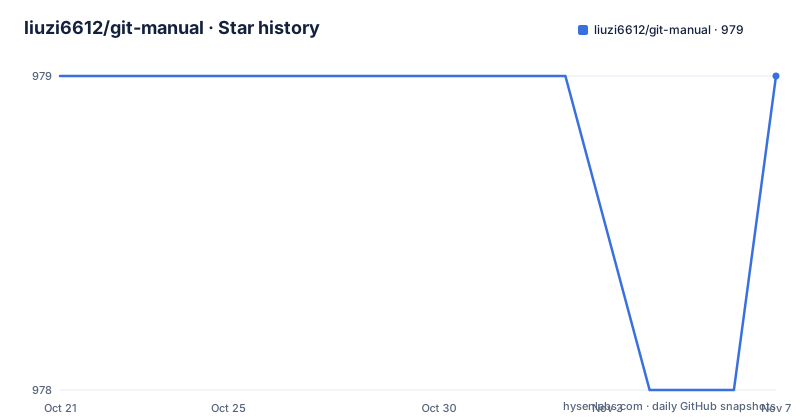
- liuzi6612/git-manual979 ★ · +0
| Repository | 2026-10-21 | 2026-11-07 |
|---|---|---|
| liuzi6612/git-manual | 979 | 979 |
0 Stars in the last 17 days, measured from the daily GitHub snapshot. Compare with other projects
Editorial analysis
A reference manual, ordered by command
git-manual is a Git command reference manual, described as covering the Git commands used in development. The repository description gives both languages of the framing, a Git command reference manual and a Chinese reference to the commands commonly used in development.
The structure is the first thing worth noting, because it determines how you would use the document. The table of contents is a list of commands, not concepts, and it runs from git config and git init at the top through git clone, git remote, git add and git commit, then the branch family of git branch, git checkout, git switch and git cherry-pick, then the inspection commands git status, git log, git shortlog, git reflog and git blame, then the history rewriting commands git merge, git rm, git restore, git pull, git mv, git diff, git show, git reset, git tag and git rebase.
After the command reference there is a second block of topics that are not single commands: git flow as a workflow, git submodule and git subtree, git bisect, git archive, clearing commit history, help, commit conventions, resolving conflicts, repository migration, clever tricks, GUI clients, cloning over SSH, and then odds and ends on remembering passwords, clearing accounts, speeding things up and mind maps.
That second block is where the document is more than a list. Resolving conflicts and commit conventions are the two that get read most often once someone is past the basics, and both are topics where the official Git documentation is thin on practice and long on mechanics.
The project is MIT licensed, the last push to the main branch was on 2026-09-04, and there are no GitHub releases, which is expected for a document.
Configuration, and the three levels that decide who wins
The document opens with git config, and it opens with the right question, which is where a setting ends up.
The basic syntax is:
git config [--system | --global | --local] <name> <value>There are three levels and they have a priority order. The system level applies to all repositories of all users, with the configuration file usually at /etc/gitconfig on Linux or macOS. The global level applies to all repositories of the current user, with the file usually at ~/.gitconfig or ~/.config/git/config. The local level applies only to the current repository, in the .git/config directory of that repository. If you specify none of the options, the default is --local.
That last rule catches people out, because the natural assumption is that a bare `git config` writes to your global file.
The examples that follow are the ones you set first. Listing the global configuration is `git config --global -l`, listing the local one is `git config --local -l`, and listing every configuration together with the file each came from is `git config --list --show-origin`, which is the one to remember when a setting is not taking effect.
Then the identity settings, read with `git config --global --get user.name` and `git config --global --get user.email`, and set with the same keys and a value. Removing one is `git config --unset --global` with the key name.
There are also the settings that change Git's behaviour rather than your identity. Setting the default text editor is `git config --global core.editor nano`, with emacs, nano, vim and vi given as the common ones. Setting the default diff tool is `git config --global merge.tool vimdiff`. Editing the repository configuration file directly is `git config -e`. And there are two that trip up newcomers on different systems: `git config core.fileMode false` makes file permission changes count as modifications, which matters on a filesystem where the mode is not preserved, and `git config --global core.ignorecase false` makes file name case significant, since Git ignores case by default.
Aliases, credential helpers and the proxy settings
Three subsections under git config cover the settings people reach for once the basics work.
The first is command aliases, which let you define a short name for a long command. The pattern is `git config --global alias.st status`, so that git st runs git status. The document notes that if the alias was added before you need to add --replace-all to overwrite it. There is also the exclamation mark form, where a leading ! means the alias runs an external command instead of a git command, and the example given is a multi step merge routine, and a single shell command with the ! prefix.
The second is credential storage, which is the setting that decides whether you type a password. `git config --global credential.helper store` remembers the credentials permanently, and `git config --global credential.helper cache` keeps them temporarily, with a default of 15 minutes. The document's section on remembering passwords expands on this later, and the trade-off is the usual one, since the permanent store writes credentials to a file on disk in plain text.
The third is the proxy, where the setting is per protocol:
git config --global https.proxy  http://127.0.0.1:1087
git config --global http.proxy  http://127.0.0.1:1087
and reading them back uses the --get form, and removing them uses --unset. The reason there are two keys rather than one is that Git treats the https proxy and the http proxy separately, so setting only one leaves HTTPS traffic going direct.
There is also a submodule setting in the same group, `git config submodule.recurse true`, which makes git pull fetch submodule content by default, which saves a recurring surprise when a project has submodules.
Cloning, and the options that change how much you get
The clone section is one of the more detailed ones, and the options are grouped by what they actually do.
The syntax is `git clone [options] <repository> [<directory>]`. The repository is required and can be an HTTP or HTTPS address or an SSH one. The directory is optional, and if you do not give one Git uses the name of the remote repository.
The options fall into three families. The first reduces the history. `--depth <depth>` does a shallow clone of only the given number of commits instead of the whole history, which significantly reduces the time and disk needed, and the example given is `--depth 1` for the most recent commit alone. The second narrows the branches. `--branch <branch>` or `-b <branch>` picks a branch, and by default Git clones the remote default branch. `--single-branch` then limits the history to that one branch, and the document's example combines the two to clone a feature branch and nothing else.
The third family is about the shape of the result. Naming the target directory is done by appending a name to the URL, and the document notes that a trailing dot means create it in the current directory. `--recursive` clones submodules too, which it calls very useful when a project contains them, and `--bare` produces a repository with no working tree, used for copying a repository. `--mirror` is also a bare clone, and the difference is that it includes the upstream repository registration.
Then there is the section on cloning only part of a repository, which is the most interesting part of the chapter, because it uses the repository's own media folder as the worked example.
Sparse checkout has two conditions. The core.sparsecheckout setting must be set to true, and the .git/info/sparse-checkout file must list the directories to check out. The documented sequence creates a directory, initialises a repository inside it, sets the remote address with git remote add origin, and then turns on the sparse checkout feature.
The command families beyond the basics
The table of contents shows the range, and a few entries are worth singling out because the manual treats them as first class rather than as an aside.
There is a whole entry for git flow as a workflow, which is the branching model built on long lived develop and feature branches. There is one for git submodule and another for git subtree, and the presence of both matters, because those two solve the same problem of vendoring another project into your repository and they do it with different mechanics and different costs.
git bisect gets its own entry as a binary search, which is the right way to find the commit that introduced a regression rather than reading the log. git archive covers producing an archive of a tree. Clearing the commit history is a separate entry, and it is one of the sections people arrive at from a search engine with a problem rather than from a study plan.
The remainder of the table is the practical furniture. Help, commit conventions, resolving conflicts, repository migration, clever tricks, GUI clients, cloning over SSH, and a short miscellaneous group covering remembering passwords, clearing accounts, speeding things up and mind maps.
The through-line is that the manual is organised around the command you type rather than around the concept you are trying to learn. That is a deliberate choice, and it works well for someone who has a task and needs the syntax, and less well for someone who does not yet know which command exists.
Editorial conclusion
Adopt git-manual as a reference to keep open next to your terminal, because it is organised as one section per command with the syntax line first and the worked examples after, which is the shape you want when you already know the goal. Do not adopt it as a learning resource, because the README describes it as a 30 minute quick start for common commands rather than a conceptual introduction to how Git models history. Before you rely on it, note that the document is in Chinese, and that it carries a dated note, since it says GitHub renamed the default branch from master to main in October 2020, and it was last pushed to on 2026-09-04 with no releases.
Frequently asked questions
What does the git-manual repository contain?
It is a Git command reference manual in Chinese, organised as one section per command, covering config, init, clone, remote, add, commit, push, branch, checkout, switch, cherry-pick, stash, status, the log family, merge, rm, restore, pull, mv, diff, show, reset, tag, rebase, flow, submodule, subtree, bisect and archive, plus sections on clearing commit history, help, commit conventions, resolving conflicts, repository migration, GUI clients and cloning over SSH.
What are the three configuration levels in git-manual?
System, global and local. The system level applies to all users and all repositories, usually in /etc/gitconfig. The global level applies to all repositories of the current user, in ~/.gitconfig or ~/.config/git/config. The local level applies only to the current repository, in its .git/config. If you specify none of the options, the default is --local.
Which git clone options does git-manual cover?
The depth option for a shallow clone of only the most recent commits, the branch option and the single-branch option for narrowing to one branch, the recursive option for submodules, the bare option for a repository with no working tree, the mirror option for a bare clone that also includes the upstream registration, and naming the target directory. There is also a section on sparse checkout for cloning only part of a repository.
How does git-manual explain credential storage and proxies?
Credential helpers are set with git config --global credential.helper, where store keeps the credentials permanently and cache keeps them temporarily with a default of 15 minutes. Proxies are set per protocol with the http.proxy and https.proxy keys, read back with --get and removed with --unset, because Git treats the two protocols separately.
Official sources
Add this badge to your README
If you maintain this project, the badge below links readers to this analysis and shows its maintenance status from the daily GitHub snapshot. Paste the markdown into your README; add ?metric=license or ?metric=stars to the image URL for a different field.

[](https://hysenlabs.com/projects/liuzi6612-git-manual)Star history chart for your README
[](https://hysenlabs.com/projects/liuzi6612-git-manual)Was this useful?