vscode-remote-try-python: a two minute tour of a dev container
Python sample project for trying out Dev Containers
At a glance
- What is it?
- This Microsoft sample is not a product but a teaching artefact: a tiny Flask application with a .devcontainer definition that demonstrates how a Codespace or a VS Code Dev Container defines the toolchain, the extensions and the forwarded ports for you. It is worth reading precisely because there is almost nothing in it that you cannot read.
- Who is it for?
- Read this repository as documentation rather than as a codebase: it shows what a .devcontainer/devcontainer.json buys you, which is extensions, toolchain and port handling decided before you type. Use it as a starting point when you want a working Python container in a Codespace or a local VS Code without writing any container definition yourself.
- Can I use it commercially?
- Yes. MIT is a permissive licence: you can use, modify and sell software built on it, as long as you keep its copyright and licence notices.
- Is it still maintained?
- Yes. The repository last received commits 28 days ago.
- What is it written in?
- Mainly Python, according to GitHub's language statistics.
Answers come from the project's GitHub data, last synced on November 7, 2026, and from our analysis. They are not legal advice.
Star history
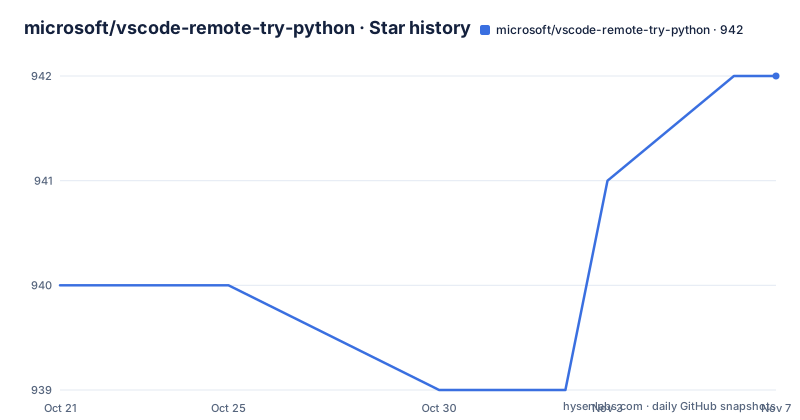
- microsoft/vscode-remote-try-python942 ★ · +2
| Repository | 2026-10-21 | 2026-11-07 |
|---|---|---|
| microsoft/vscode-remote-try-python | 940 | 942 |
2 Stars in the last 17 days, measured from the daily GitHub snapshot. Compare with other projects
Editorial analysis
A development container is a container with a declared toolchain
The definition in the README is short and worth keeping: a development container is a running container with a well-defined tool and runtime stack and its prerequisites. That sentence is the whole idea behind the project. Instead of writing a Dockerfile and remembering which interpreter and which extensions to install, you point an editor at a definition and get the same environment on a laptop, in a Codespace, or on a remote machine. The repository is a Python sample project for trying out Dev Containers, and it is one of a family of vscode-remote-try-* samples from the same organisation covering other languages. The audience is a developer who has read the documentation about development containers and wants to see one work before deciding to adopt the approach for their own project.
Two entry points: a Codespace or the Dev Containers extension
There are two ways in, and they differ in where the code lives. For GitHub Codespaces the README lists three steps: open the Code drop-down menu, click the Codespaces tab, then click Create codespace on main. Nothing is installed locally, because the workspace is the Codespace. For VS Code the path starts from the badge at the top of the README or a link that redirects to vscode://ms-vscode-remote.remote-containers/cloneInVolume. Clicking it makes VS Code install the Dev Containers extension if it is missing, clone the source into a container volume and spin up a dev container. The extension route also offers two variants: the Dev Containers: Try a Sample... command clones into a Docker volume, while Dev Containers: Open Folder in Container... works on a copy you already cloned to your filesystem. The README points at Docker volumes as the preferred mechanism for persisting container data.
The application itself is deliberately tiny
The payload is a Flask application and one pinned dependency. requirements.txt contains a single line:
Flask==3.1.3The README states that the sample uses Python 3.14 on Debian 13 (Trixie) with Flask 3.1.3, and that the container installs requirements.txt automatically. There is an app.py at the repository root and a static/ directory beside it, and the README walks you through opening app.py, adding code and watching the language tooling react. Because the sample is tiny, every behaviour you observe comes from the container definition rather than from the application, which is exactly what makes it useful as a reference. The same logic applies to the extension list: the Python extension and pylint arrive through the container image and its metadata, not because you installed them.
Running the sample and the port publishing trap
Once the container is up, the README gives two commands for the terminal. The first checks that the installed dependencies are consistent:
python -m pip checkThe second starts the application:
python -m flask run --port 9000 --no-debugger --no-reloadThe terminal then reports that the app is Running on http://127.0.0.1:9000/. The tip in the README is the part worth remembering. If you run the container outside VS Code with docker run and publish the port using -p 9000, the port is published rather than forwarded, so it will not work if the application only listens on localhost, and you may need to append --host 0.0.0.0 to the flask command. The forwardPorts property in devcontainer.json does not have that limitation, and the README notes that the appPort property can be used instead if you want to mirror the docker run behaviour. In VS Code the port shows up in the Ports view, labelled Hello Remote World, and the portsAttributes setting controls the label and the action taken when a port is auto forwarded.
Extensions and metadata come from the image and from devcontainer.json
Two mechanisms deliver the tooling, and the README separates them. The first is the image. Tools such as pylint and the Python extension are installed in the mcr.microsoft.com/devcontainers/python image, and Dev Container settings and metadata are picked up automatically from image labels. The second is the explicit list in .devcontainer/devcontainer.json. The README says the Python extension is already installed because that file lists ms-python.python as an extension to install automatically when the container is created, and it notes that the Code Spell Checker extension was installed for the same reason, which is why a deliberate misspelling in app.py is flagged. The practical lesson is that a dev container definition can declare two different sources of tooling, and knowing which one supplied a given extension tells you where to change it. The README also points at the portsAttributes setting as the place to change what happens when the sample port opens, which is the change it suggests for a rebuild.
Rebuilding, and what this repository does not give you
Changes to the container definition are applied by rebuilding, which the README describes as the way to pick up a different software version or a newly forwarded port, and it offers the portsAttributes change that opens a browser automatically as the worked example. Beyond that, the limits of the artefact are worth stating plainly. This is a sample, so there is no application to run in production, and the repository has no GitHub releases at all, which means there are no version tags to pin and no changelog to read. The licence is MIT, so reuse of the files carries no conditions beyond keeping the notice, and there is a CODE_OF_CONDUCT.md and a SECURITY.md in the tree alongside the CODE_OF_CONDUCT reference in the README. The last push was on 2026-10-10. The repository is a good candidate for forking as the starting point of your own definition, and a poor candidate as a dependency.
Editorial conclusion
Read this repository as documentation rather than as a codebase: it shows what a .devcontainer/devcontainer.json buys you, which is extensions, toolchain and port handling decided before you type. Use it as a starting point when you want a working Python container in a Codespace or a local VS Code without writing any container definition yourself. Skip it if you need a maintained application, since the repository has no GitHub releases and consists of a sample app, an app.py file and a single pinned dependency. Before you build on it, open .devcontainer/devcontainer.json to see exactly which image, extensions and portsAttributes are declared, and remember that a plain docker run needs the extra host flag described in the README while the forwardPorts property does not.
Frequently asked questions
What is vscode-remote-try-python and what does it demonstrate?
It is a Microsoft sample project for trying out development containers, built around a small Flask application and a .devcontainer definition. The README defines a development container as a running container with a well-defined tool and runtime stack and its prerequisites.
How do I open this sample in a GitHub Codespace?
Click the Code drop-down menu, click the Codespaces tab, then click Create codespace on main. Nothing needs to be installed locally, since the workspace is the Codespace itself.
How do I run the sample app inside the container?
Run python -m pip check to verify the dependencies, then python -m flask run --port 9000 --no-debugger --no-reload. The terminal then reports the app running on http://127.0.0.1:9000/, and the port appears in the Ports view.
Why does the app not load when I publish port 9000 with docker run?
The README explains that -p publishes the port rather than forwarding it, so it fails when the application only listens on localhost, and you may need to append --host 0.0.0.0 to the flask command. The forwardPorts property in devcontainer.json does not have that limitation, and appPort can be used to mirror the docker run behaviour.
Which Python and Flask versions does the container use?
The README states that the sample uses Python 3.14 on Debian 13 (Trixie) with Flask 3.1.3, and the container installs requirements.txt automatically. requirements.txt pins Flask==3.1.3.
Official sources
Add this badge to your README
If you maintain this project, the badge below links readers to this analysis and shows its maintenance status from the daily GitHub snapshot. Paste the markdown into your README; add ?metric=license or ?metric=stars to the image URL for a different field.

[](https://hysenlabs.com/projects/microsoft-vscode-remote-try-python)Star history chart for your README
[](https://hysenlabs.com/projects/microsoft-vscode-remote-try-python)Was this useful?