vswhere: finding the real Visual Studio install path from a script
Locate Visual Studio 2017 and newer installations
At a glance
- What is it?
- vswhere is Microsoft's small C++ command line tool for locating Visual Studio 2017 and newer installations, and it ships with the installer itself. It exists because registry key probing broke when Visual Studio moved to on-demand workloads, and it answers in plain text, JSON or XML.
- Who is it for?
- vswhere is the right tool for any script that has to find MSBuild, the compiler or another Visual Studio component on a machine where the install layout is unknown, and it is a safe default because it already sits in the standard installer path. It is the wrong tool if you need to locate Visual Studio versions from before 2017, if you are on a platform other than Windows, or if you want to know what a build would do without the tool actually running.
- Can I use it commercially?
- Yes. MIT is a permissive licence: you can use, modify and sell software built on it, as long as you keep its copyright and licence notices.
- Is it still maintained?
- Yes. The repository last received commits 37 days ago.
- What is it written in?
- Mainly C++, according to GitHub's language statistics.
Answers come from the project's GitHub data, last synced on November 7, 2026, and from our analysis. They are not legal advice.
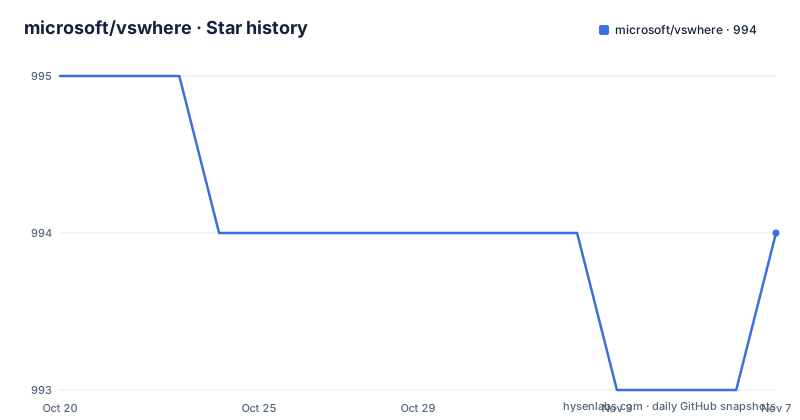
Star history
- microsoft/vswhere994 ★ · -1
| Repository | 2026-10-20 | 2026-11-07 |
|---|---|---|
| microsoft/vswhere | 995 | 994 |
-1 Stars in the last 18 days, measured from the daily GitHub snapshot. Compare with other projects
Editorial analysis
Registry key probing stopped working when Visual Studio moved to workloads
The reason this tool exists is a change in how Visual Studio is deployed. For years, scripts found Visual Studio by reading registry keys. Recent changes to the deployment and extensibility models required a new method, one that can discover possibly more than one installed instance. The same change facilitated a smaller, faster default install with on-demand installation of other workloads and components, and that is precisely the setup that broke the old assumption of one predictable install root.
So the problem vswhere solves is not "how do I find Visual Studio" in the abstract. It is how a build or deployment script finds the install root when several instances may coexist, when the install is modular, and when the components a script needs, such as MSBuild, may not even be present in the default install.
The audience is narrow and specific: whoever writes CI steps, setup scripts, and deployment tooling that has to locate Visual Studio on a machine whose configuration is not known ahead of time. It is not an IDE, a project system, or a build orchestrator.
A redistributable single file executable that answers in three formats
The stated design goal is that vswhere be a redistributable, single-file executable usable from build or deployment scripts. Single file matters more than it sounds. A script that has to find Visual Studio cannot afford a dependency graph, a runtime install, or a set of files that must sit next to the executable in a known layout. One file that is copied or downloaded and invoked is the entire deployment story.
The output side is where the design pays off for script authors. You can emit plain text, JSON, or XML, and the choice depends on what your scripts can consume. Text is for the simple case of capturing one path. JSON is for a script that needs several fields per instance, such as the install path, the version, and the product identifiers, without having to parse formatted output. XML is there because tooling in the Microsoft ecosystem, from PowerShell to older build systems, has long been able to read it.
Pull requests for other common output formats are stated as welcome, which tells you the format set is treated as a compatibility surface rather than a closed design.
The -find parameter turns an install root into the file you actually need
The useful idea in the README example is combining two pieces of knowledge. If you know the relative path from the Visual Studio install root to MSBuild, you can find the root with vswhere and then join the paths yourself. The newer `-find` parameter does that joining inside the tool, searching the selected instances for matching file name patterns.
The batch script in the documentation runs the latest instance that requires the Microsoft.Component.MSBuild component and finds the MSBuild executable under it, then hands the result the arguments passed to the script and propagates the exit code:
@echo off
setlocal enabledelayedexpansion

for /f "usebackq tokens=*" %%i in (`vswhere -latest -requires Microsoft.Component.MSBuild -find MSBuild\**\Bin\MSBuild.exe`) do (
  "%%i" %*
  exit /b !errorlevel!
)
Read it as a pipeline. `-latest` selects one instance, `-requires Microsoft.Component.MSBuild` narrows it to instances that actually have MSBuild, and `-find` locates the file inside the selected install. The `for /f` loop then executes what it found and exits with the child's error level, which is the detail that makes it usable in a build step rather than a curiosity. Delayed expansion is enabled because the exit code is read after the command runs.
Getting the binary: bundled since VS 15.2, WinGet, or the releases page
There is no install step in the usual sense, and the three routes are stated directly. Since Visual Studio 2017 version 15.2, vswhere is included with the installer and sits at a fixed path:
%ProgramFiles(x86)%\Microsoft Visual Studio\Installer\vswhere.exe
The binary can be executed from that location as needed, installed using popular package managers including WinGet, or the latest version downloaded from the releases page. The repository carries badges for the GitHub releases, the NuGet package, and the Chocolatey package, and the top level entries include a `pkg/` directory and a `nuget.config`, so the packaging exists for those channels rather than being aspirational.
For a script, the practical consequence is that on a machine with a modern Visual Studio, vswhere is already present and needs no installation at all. For a machine without Visual Studio, or for a controlled CI image where you want a fixed version, the releases page and the package managers are the route, and pinning a version rather than taking the newest is the safer choice for a build.
Selecting instances with -version, -prerelease and -requires
The selection parameters are what make the tool useful on a machine with many installs. `-version` and `-prerelease` are the parameters for tailoring which instances are selected, including prerelease instances optionally.
`-requires` is the one that catches people out if they only read the quick example. It filters on installed components, so `-requires Microsoft.Component.MSBuild` returns only instances where that component is present. That is a capability filter, not a version filter, and it is the difference between finding a Visual Studio folder and finding a Visual Studio folder that can actually build something.
A script that assumes one Visual Studio install and no prerelease will pick the wrong instance on a developer laptop. The parameters exist so the same script can be pointed at a specific version range, or widened to include preview builds when a team deliberately tests against them. The full parameter list is not given in the project page, which points to a wiki for more examples, so the exact syntax of a version range has to come from there or from running the tool with a help flag.
The boundaries: Windows only, 2017 and newer, and a small C++ codebase
The limits are visible in the project metadata. The description is narrow: locate Visual Studio 2017 and newer installations. Nothing suggests support for older Visual Studio releases, and since the whole premise is that registry key discovery stopped being dependable, going back to 2010 or 2012 installs by hand is not something the tool attempts. It also assumes a Windows filesystem layout, with a hardcoded Program Files path and a Windows executable.
The project is a C++ codebase with a conventional Visual Studio layout at the top level: `src/`, `inc/`, `test/`, `pkg/`, `tools/`, `docker/`, `pipelines/`, a `vswhere.sln` solution file, `azure-pipelines.yml` for CI, and a `version.json` that presumably holds the version. That is a small, self-contained program rather than a framework, which is why shipping a single file is feasible.
The one judgement worth making is about trust. The tool reports where things are, and a script that passes its output to a shell hands over path control based on what the tool says. That is fine on a managed build agent. On a developer machine, a script that runs whatever is found without checking the instance it came from is trusting discovery output it never validated.
The alternative, and why the old approach is the one to compare against
There is a tempting alternative that needs no tool at all: hardcode the path to the Visual Studio install in your build script. On a controlled machine with a single fixed install, that works and costs nothing. It also breaks the moment the layout changes, a second instance appears, or a build agent image is rebuilt with a different path, and it produces a confusing failure at run time rather than a clear one.
The more interesting comparison is with the method vswhere replaced: enumerating the registry keys where Visual Studio used to advertise itself. That approach is still available to a script that wants it, and it works against the old monolithic install shape. Its weakness is precisely the one described in the project documentation, since with a smaller default install and workloads added on demand, the registry no longer presents a single obvious instance, and a script that assumes one key is looking in the wrong place.
vswhere takes a different approach to the same question. Rather than reading a store that the installer maintains for its own purposes, it asks the installed product itself, which is why it can report several instances and why it can filter on whether a specific component is present. The cost of that approach is a dependency on an executable being present on the machine, which is why the tool has to be bundled with the installer and distributed through package managers before any of it works.
Maintenance: pushes in 2026, but the last published release is from 2023
The repository is not archived and the last push was on 2026-10-01, so the source is being touched. The published releases tell a different story, with 3.1.7 from 2023-07-05, 3.1.4 from 2023-04-24, and 3.1.1 from 2022-11-15. A script that downloads the newest binary from the releases page therefore gets a build from 2023, and one that uses the copy bundled with the current installer gets whatever the current installer ships.
That gap is the main operational decision here. Pinning a known version of vswhere in a build image makes the behaviour reproducible, at the cost of not picking up changes to the discovery logic that may have landed since. Taking the bundled copy keeps you in step with the installer but ties your script's behaviour to whenever the machine was provisioned.
The project is licensed under the MIT license, with the text in `LICENSE.txt`, and it follows the Microsoft Open Source Code of Conduct. The repository also carries `SECURITY.md`, `CONTRIBUTING.md` and `CODE_OF_CONDUCT.md`, so there is a stated process for reporting a problem and for contributing, even though the project page itself only points at the Issues page for feedback.
Editorial conclusion
vswhere is the right tool for any script that has to find MSBuild, the compiler or another Visual Studio component on a machine where the install layout is unknown, and it is a safe default because it already sits in the standard installer path. It is the wrong tool if you need to locate Visual Studio versions from before 2017, if you are on a platform other than Windows, or if you want to know what a build would do without the tool actually running. Before adopting it, check three things: that the target machine really carries Visual Studio 2017 version 15.2 or later so that vswhere.exe exists at %ProgramFiles(x86)%\Microsoft Visual Studio\Installer\vswhere.exe, whether your script consumes text or JSON, and which version the installer on your build image actually carries.
Frequently asked questions
What is vswhere and what is it used for?
vswhere is a Microsoft command line tool that locates Visual Studio 2017 and newer installations so build and deployment scripts can find paths such as the MSBuild executable. It is included with the Visual Studio installer since version 15.2.
Where is vswhere.exe located on Windows?
The installer places it at %ProgramFiles(x86)%\Microsoft Visual Studio\Installer\vswhere.exe. It can also be installed with package managers including WinGet, or downloaded from the releases page.
How do I find MSBuild with vswhere?
Use the -find parameter with a file name pattern, combined with instance selection flags such as -latest and -requires Microsoft.Component.MSBuild. The README example runs the located MSBuild.exe and propagates its exit code.
Which output formats does vswhere support?
Plain text, JSON and XML, and the README says pull requests for other common formats are welcome. You pick the format that your script can consume.
Does vswhere support Visual Studio versions before 2017?
The tool is described as locating Visual Studio 2017 and newer installations. Older versions were discovered through registry keys, and the README explains that changes to the deployment model made that method unreliable.
Official sources
Add this badge to your README
If you maintain this project, the badge below links readers to this analysis and shows its maintenance status from the daily GitHub snapshot. Paste the markdown into your README; add ?metric=license or ?metric=stars to the image URL for a different field.

[](https://hysenlabs.com/projects/microsoft-vswhere)Star history chart for your README
[](https://hysenlabs.com/projects/microsoft-vswhere)Was this useful?