LeaderKey: a macOS shortcut launcher built on nested key sequences
The *faster than your launcher* launcher
At a glance
- What is it?
- LeaderKey is a free macOS app that activates a tree of nested shortcuts from a single leader keypress, trading search-based discovery for predictable, memorized sequences. Its author has since directed users to Tuna, a newer and more capable launcher with Leader Key's design built in, though LeaderKey itself stays free and open source.
- Who is it for?
- LeaderKey is for macOS users who want a minimal, config-file-driven launcher with predictable multi-key shortcuts and no visual interface for configuration. Skip it if you need active development, a graphical shortcut editor, or cross-platform support.
- Can I use it commercially?
- Yes. MIT is a permissive licence: you can use, modify and sell software built on it, as long as you keep its copyright and licence notices.
- Is it still maintained?
- Activity is slowing. The repository last received commits 7 months ago.
- What is it written in?
- Mainly Swift, according to GitHub's language statistics.
Answers come from the project's GitHub data, last synced on October 23, 2026, and from our analysis. They are not legal advice.
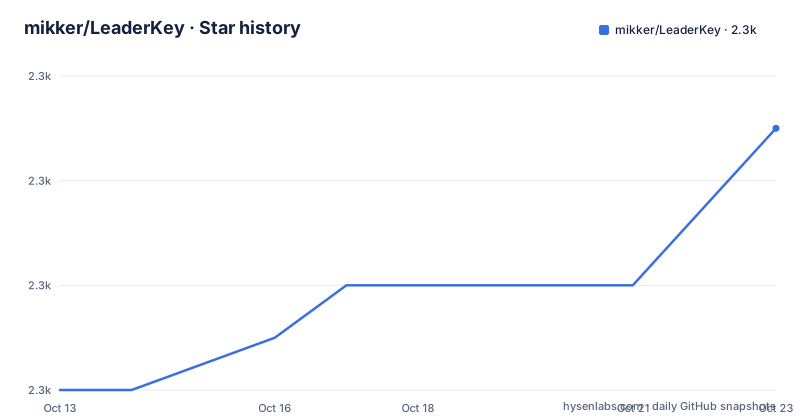
Star history
- mikker/LeaderKey2,299 ★ · +5
| Repository | 2026-10-13 | 2026-10-23 |
|---|---|---|
| mikker/LeaderKey | 2.3k | 2.3k |
5 Stars in the last 10 days, measured from the daily GitHub snapshot. Compare with other projects
Editorial analysis
Nested key sequences instead of search-first launchers
LeaderKey is a macOS app that replaces a search bar with a navigable shortcut tree. Pressing the leader key once brings up a visual overlay; each subsequent keypress descends one level into the tree until an action fires. Conceptually, it borrows from Vim's leader key, where a designated prefix key opens a personal command namespace. Applied to a desktop launcher, this produces shortcuts like pressing leader, then o, then m to open Messages, or pressing leader, then m, then m to mute audio.
Against search-based launchers, the design trade-off is predictability over discoverability. A search launcher returns results even when command names are inconsistent or half-remembered; a leader key tree returns exactly what was configured, with no fuzzy matching. For high-frequency shortcuts that repeat daily, memorizing a fixed sequence is often faster than typing. This directly addresses a constraint the README names: global shortcuts on macOS are limited in useful key combinations, and a nested tree extends that space without requiring more simultaneous keypresses.
Installing on macOS via Homebrew and choosing a valid leader key
Installing takes one Homebrew command:
brew install leader-keyA manual download is also available. One detail: the download link in the README points to github.com/mikker/LeaderKey.app (note the .app suffix) rather than to the source repository at mikker/LeaderKey. These are 2 separate GitHub repositories; the Homebrew formula handles this automatically, but a manual download should target the .app repository.
Post-install, the app lives in the menu bar. 2 configuration steps are required: assigning the `Shortcut` (the keystroke that opens the overlay) and opening the `Config` settings to add shortcuts.
Not every key combination qualifies as a leader key. F12, ⌘+space, ⌘⌥+space, and ⌘⌥⌃⇧+L (hyper key) all work. Pure modifier-only combinations do not, meaning the leader key must include at least one non-modifier key such as a function key, a letter, or space. With Karabiner installed separately, more combinations become available, such as pressing both Command keys simultaneously or mapping caps lock as a leader when held.
Configuring shortcuts in config.json and reloading without a restart
Shortcuts live in config.json. No schema for that file is documented beyond the example entries: pressing leader, o, m launches Messages (via the shell command `open messages`); pressing leader, m, m mutes audio (via `media mute`); pressing leader, w, m maximizes the window (via `window maximize`).
After editing config.json, 2 URL scheme actions handle the file from the command line:
# Reload configuration from disk
open "leaderkey://config-reload"

# Show config.json in Finder
open "leaderkey://config-reveal"
Config-reload applies changes without restarting the app or using the menu bar. A shell alias or a file-watching script can call this automatically after each save.
URL scheme actions for window control and external automation
Beyond configuration, LeaderKey exposes URL actions for window control and key sequence navigation:
# Show Leader Key window
open "leaderkey://activate"

# Hide Leader Key window
open "leaderkey://hide"

# Clear navigation state (return to root)
open "leaderkey://reset"

# Navigate through keys and execute actions
open "leaderkey://navigate?keys=a,b,c"

# Navigate without executing (preview mode)
open "leaderkey://navigate?keys=a,b,c&execute=false"
The README names Alfred, Raycast, Keyboard Maestro, and shell scripts as integration targets. Adding execute=false to the sequence call shows which action a key path resolves to without triggering it, which is useful when setting up a new automation workflow. A shell script can also call leaderkey://config-reload immediately after editing config.json to apply changes without switching to the menu bar.
PATH failures in non-interactive shells and the disabled menubar icon
Command actions fail with "Command not found" when PATH is missing from the non-interactive shell environment that LeaderKey runs commands in. Interactive terminal sessions source ~/.zshrc or ~/.bashrc, where PATH is commonly set; LeaderKey's shell does not load those files.
For zsh, the fix is to export PATH in ~/.zshenv rather than ~/.zshrc; for bash it is ~/.bash_profile, and no other file is mentioned in the README for this purpose.
One separate failure path: the menubar icon can be disabled accidentally. If LeaderKey becomes inaccessible after hiding that icon, activating the app and pressing cmd + , reopens settings without needing the menu bar icon to be present.
The README opens with a supersession notice pointing to Tuna
Opening the README shows a notice at the top: Leader Key has been surpassed by Tuna, which is described as a complete launcher with Leader Key built in. Its author adds that Leader Key will stay free and open source, with a pointer to a GitHub discussion thread for that commitment, but states focus is shifting to Tuna going forward.
Its last push was 2026-03-02, and the most recent tagged release is v1.17.3 from 2025-09-23.
Tuna is available at tunaformac.com. Neither pricing nor a source code repository for Tuna is documented in the README.
Raycast versus LeaderKey: search-first versus sequence-first design
Raycast is named in the README as one of the inspirations for LeaderKey. At the design level, Raycast uses a search-first model: typing a name returns ranked results, which handles inconsistent names and a large catalog of commands. LeaderKey uses a sequence-first model: every action requires a pre-built path through the shortcut tree.
Raycast offers a graphical interface for defining shortcuts and a marketplace for extensions. LeaderKey stores everything in a text config file and provides no extension mechanism. For a small set of high-frequency, pre-determined shortcuts, LeaderKey's model is faster per invocation once the config is built. For ad hoc lookups or access to many categories of tools, Raycast covers more ground. LeaderKey's model offers no built-in discovery mechanism: a shortcut only exists if it was explicitly added to config.json, so the config file becomes a hard dependency on every machine where the app is used.
LeaderKey carries an MIT license.
Editorial conclusion
LeaderKey is for macOS users who want a minimal, config-file-driven launcher with predictable multi-key shortcuts and no visual interface for configuration. Skip it if you need active development, a graphical shortcut editor, or cross-platform support. Read the opening notice in the README before setup: the author has moved focus to Tuna, a more capable newer launcher with Leader Key's design included. Verifying the PATH export in ~/.zshenv for zsh, or in ~/.bash_profile for bash, before building out a large config avoids the most common command failure.
Frequently asked questions
How do I install LeaderKey on macOS?
Run brew install leader-key from a terminal, or download the binary manually from github.com/mikker/LeaderKey.app. After installation, open the app from the menu bar icon, set a leader key shortcut, and add shortcuts in Config.
What key should I set as the LeaderKey leader?
Any combination that includes at least one non-modifier key works: F12, ⌘+space, ⌘⌥+space, or ⌘⌥⌃⇧+L (hyper key). Pure modifier-only combinations will not work. With Karabiner installed separately, caps lock can be mapped as a leader when held.
Why does LeaderKey report 'Command not found' when running shell commands?
LeaderKey runs commands in a non-interactive shell that does not source ~/.zshrc or ~/.bashrc. Export PATH in ~/.zshenv for zsh, or in ~/.bash_profile for bash, to make it available to commands run from LeaderKey.
What happens if I accidentally hide the LeaderKey menu bar icon?
Activate Leader Key, then press cmd + , to open settings. This works even without the menu bar icon visible.
Can LeaderKey shortcuts be triggered from scripts or other tools?
Yes. LeaderKey's URL scheme includes a sequence execution action that fires the matching shortcut at the end of a key path when called from a shell script, Alfred workflow, or Keyboard Maestro macro. Adding execute=false to the URL checks which action a path resolves to without triggering it.
Official sources
Add this badge to your README
If you maintain this project, the badge below links readers to this analysis and shows its maintenance status from the daily GitHub snapshot. Paste the markdown into your README; add ?metric=license or ?metric=stars to the image URL for a different field.

[](https://hysenlabs.com/projects/mikker-leaderkey)Star history chart for your README
[](https://hysenlabs.com/projects/mikker-leaderkey)Was this useful?