Mirth Connect is an integration engine where channels, not code, are the unit of work
The swiss army knife of healthcare integration.
At a glance
- What is it?
- A Java integration platform for healthcare that filters, transforms, extracts and routes healthcare messages, with its channels configured through a graphical Administrator rather than written in code. It ships as installers, archives, a CLI and a server manager, and the deployment story is older-school than most.
- Who is it for?
- Adopt Mirth Connect if you are integrating clinical systems that speak HL7 or related standards and your integrators are more comfortable configuring a pipeline in a GUI than writing a service. Do not adopt it if your integration is a small number of custom endpoints, because the platform's weight, its Java runtime and its per-connection server model are a real cost for simple work.
- Can I use it commercially?
- Check first. The repository uses a licence we do not classify automatically, so read its LICENSE file before any commercial use.
- Is it still maintained?
- Yes. The repository last received commits 51 days ago.
- What is it written in?
- Mainly Java, according to GitHub's language statistics.
Answers come from the project's GitHub data, last synced on November 7, 2026, and from our analysis. They are not legal advice.
Star history
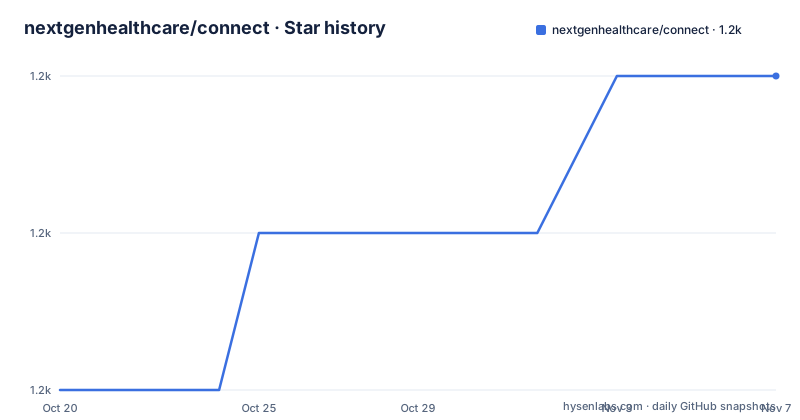
- nextgenhealthcare/connect1,218 ★ · +2
| Repository | 2026-10-20 | 2026-11-07 |
|---|---|---|
| nextgenhealthcare/connect | 1.2k | 1.2k |
2 Stars in the last 18 days, measured from the daily GitHub snapshot. Compare with other projects
Editorial analysis
The four verbs describe what an integration engine actually does
Mirth Connect is described with a metaphor that is actually a specification. Like an interpreter who translates foreign languages into the one you understand, Mirth Connect translates message standards into the one your system understands. Whenever a foreign system sends you a message, its integration capabilities expedite four things.
Filtering means it reads message parameters and passes the message to, or stops it on its way to, the transformation stage. Transformation means it converts the incoming message standard to another standard, with HL7 to XML given as the example. Extraction means it can pull data from and push data to a database. Routing means it makes sure messages arrive at their assigned destinations.
That list is the architecture. A message arrives on a transport, a channel is configured to decide whether the message belongs to it, the message is translated into the target standard, data is pulled out or written to a database, and the result is delivered to its destination. Every healthcare integration requirement reduces to a configuration of those four steps, which is the reason the project describes itself as the swiss army knife of healthcare integration.
The unit of work is the channel, described as a message pathway, and channels are managed and developed in the interface known as the Administrator. That is the defining choice. An integration built as code lives in a repository, is reviewed as code and is versioned as code. A Mirth Connect integration lives in a server, configured through a graphical interface, and the people who build it are usually people who do not write Java. Whether that is the right trade depends on who has to maintain the integration after you leave.
The project is part of NextGen Healthcare's family of applications, and the stated goal is to give the healthcare community a secure, efficient and cost-effective means of sharing health information, flexible enough to manage patient information from small practices to large health information exchanges.
The installation layout is the deployment model
Mirth Connect installers are available for individual operating systems, with an.exe for Windows,.rpm and.sh for Linux and a.dmg for Mac OS X. Pre-packaged distributions are also available, as a ZIP for Windows and tar.gz for both Linux and Mac OS X. The installer allows automatic upgrade of previous installations, starting with version 1.5.
Four optional components sit on top of the base install, and each one is a separate operational decision.
There is an option to install and start a service that runs in the background. There is the Mirth Connect Server Manager, which lets you start and stop the service on some operating systems, change Mirth Connect properties and backend database settings, and view the server logs. And there is an optional Command Line Interface, which allows you to connect to a running Mirth Connect Server from a command line, and the documentation says this is useful for performing or scripting server tasks without opening the Administrator.
The fourth component is the Administrator Launcher, which lets you manage connections to multiple Mirth Connect servers and configure options such as the Java runtime, the max heap size and security protocols.
The directory layout after installation is worth reading, because several of the directories carry operational meaning.
/appdata/mirthdb: The embedded database (Do NOT delete if you specify Derby as your database).
/conf: Configuration files
/custom-lib: Place your custom user libraries here to be used by the default library resource.
/extensions: Libraries and meta data for Plug-ins and Connectors
/logs: Default location for logs generated by Mirth Connect and its sub-components
/server-launcher-lib: Libraries in this directory will be loaded into the main Mirth Connect Server thread context classloader upon startup.
Two of those carry warnings. The `appdata/mirthdb` directory holds the embedded Derby database and must not be deleted if you specify Derby, and the path for appdata is defined by the `dir.appdata` property in `mirth.properties`. The `server-launcher-lib` directory is loaded into the main server thread context classloader at startup, and the documentation notes this is required if you use any custom log4j appender libraries. Both are the kind of detail that costs an afternoon to rediscover on your own.
The `/docs/javadocs` directory holds generated javadocs for the installed version, and those documents are also served by the running server at `http://[server address]:8080/javadocs/`.
The Administrator runs in your browser but the server holds the state
There are several ways to launch the Mirth Connect Administrator once Mirth Connect is installed, and the default route is worth understanding because it explains the deployment topology.
On a Windows installation there is a Mirth Connect Administrator item in the Start Menu which launches the application directly. If that option is not available, you connect to the Administrator launch page, which by default should be available at `http://[server address]:8080`.
The documentation recommends using the Administrator Launcher to start the Administrator, downloadable from a Download Administrator Launcher button on that page. Clicking the Launch Mirth Connect Administrator button downloads the Java Web Start file for your server, and opening that file with the Launcher connects you to the server, which will be listening on `https://[server address]:8443`.
So there are two ports and two protocols, and the split is not arbitrary. Port 8080 serves the launch page and the static assets, and port 8443 is the secure administrator channel. The web start file plus the launcher is a legacy remote application delivery mechanism, and it is worth knowing that the alternative exists: the documentation notes that when you launch the administrator for the first time, the libraries for the Mirth Connect Administrator will be loaded, which allows you to run the Administrator from any remote Mirth Connect server without having to download and install a separate client.
The credentials are the part to get right. On a new installation, the default username and password for the login screen is admin and admin, and the documentation says this should be changed immediately for security purposes. On a system handling clinical data, a default credential that is documented in the install guide is a finding waiting to happen, and it is one of the first things an assessor will look for.
The security warning you may see on first launch is the expected consequence of connecting to a server whose certificate is not trusted by your machine, and the Launcher exists partly so you can set the security protocols and the Java runtime to match what the server expects.
A multi-module Java project with a plugin model
The repository is a Maven-style multi-module Java project, and the module names describe the layering.
There is `core-models/`, `core-util/`, `core-client/`, `core-client-base/`, `core-client-api/`, `core-client-plugins/`, `core-server-plugins/`, `core-ui/`, plus `client/`, `command/`, `webadmin/`, `manager/`, `server/`, `generator/`, `simplesender/`, `donkey/` and `core-client-plugins/`.
The separation that matters for an integrator is between the client side and the server side, and the naming makes the split explicit. The `core-server-plugins/` module is where the server side extension points live, and the `/extensions` directory in the installation holds the libraries and metadata for plug-ins and connectors. That is the mechanism by which a healthcare integration adds a transport or a message format that the base product does not handle.
Two module names are unusual enough to be worth a note. `donkey/` is a long-standing internal name in this codebase and appears in the tree without explanation, and `simplesender/` is a tool for sending test messages, which is the sort of thing that tells you the project expects you to test channels before pointing them at live traffic.
The `core-client-api/` module is the interface the CLI and the Administrator Launcher talk to, and `core-client-plugins/` holds the client side plugin implementations.
The `dependency-check.xml` file at the root is an OWASP dependency check configuration, which pairs with the `SECURITY.md` file and the GitHub workflows in `.github/`. For a platform that sits in front of clinical data, having the dependency audit configuration in the repository rather than in a separate build pipeline is the right place for it.
Licensing and the Java runtime question
The licence is the first thing to settle for this project, and the repository metadata reports it as a custom licence that GitHub could not classify, pointing at the LICENSE file.
That is not a detail to skip. Mirth Connect is a commercial product that is distributed in an open source repository, and the presence of a separate commercial offering alongside the open source version is exactly the arrangement where the terms matter, particularly for a healthcare deployment where a compliance reviewer will ask what you are licensed to do and what you are not. The README points at the licence and the vendor documentation site, and the `/docs` directory in the installation contains a copy of the Mirth Connect license alongside the documentation.
The Java question is related but separate, and the README has a section for it, covering running Mirth Connect in Java 9 or greater and then Java licensing. This is the recurring problem with Java deployments: the runtime is a large, separately licensed component that has to be tracked, updated and paid for when it moves to a commercial licensing model.
The Java runtime is also configurable in the Administrator Launcher, where you can set the Java runtime and the max heap size along with the security protocols. For a server that parses and transforms clinical messages continuously, the heap setting is not a cosmetic option, and having it in the launcher rather than in a hand edited configuration file makes it easier to manage across environments.
The support channels around the project are the same ones you would expect for a commercial product with an open source repository: the downloads page on the releases tab, the user guide at docs.nextgen.com, a GitHub wiki carrying the FAQ and the release notes, forums at mirthproject.io, and a Slack channel with a registration link.
Editorial conclusion
Adopt Mirth Connect if you are integrating clinical systems that speak HL7 or related standards and your integrators are more comfortable configuring a pipeline in a GUI than writing a service. Do not adopt it if your integration is a small number of custom endpoints, because the platform's weight, its Java runtime and its per-connection server model are a real cost for simple work. Verify first that the message standards and transport connectors you need exist in the release you are evaluating, that you can meet the default credentials requirement by changing admin and admin immediately, and that your database choice is deliberate, since the embedded Derby database and the appdata path are the foundation of the installation layout.
Frequently asked questions
What does Mirth Connect do in a healthcare integration?
It filters incoming messages, transforms them from one standard to another such as HL7 to XML, extracts data to and from a database, and routes the results to their destinations. Channels, described as message pathways, are configured through the graphical Administrator.
How do I install Mirth Connect?
Installers are available per operating system, .exe for Windows, .rpm and .sh for Linux and .dmg for Mac OS X, with pre-packaged ZIP and tar.gz distributions as well. The installer can upgrade previous installations from version 1.5 onwards, and can optionally install a background service, the Server Manager, the Command Line Interface and the Administrator Launcher.
What are the default credentials and how do I connect to the Administrator?
On a new installation the default username and password are admin and admin, and the documentation says to change them immediately. The launch page is at http://[server address]:8080 and the server itself listens for the Administrator on https://[server address]:8443.
Which database does Mirth Connect use?
The installation includes an embedded database at /appdata/mirthdb, and the documentation says not to delete that directory if you specify Derby as your database. The path for appdata is defined by the dir.appdata property in mirth.properties, and the backend database settings can be changed through the Server Manager.
Where do Mirth Connect plug-ins and connectors go?
The /extensions directory in the installation holds the libraries and metadata for plug-ins and connectors, and the server side extension points live in the core-server-plugins module of the repository.
Official sources
Add this badge to your README
If you maintain this project, the badge below links readers to this analysis and shows its maintenance status from the daily GitHub snapshot. Paste the markdown into your README; add ?metric=license or ?metric=stars to the image URL for a different field.

[](https://hysenlabs.com/projects/nextgenhealthcare-connect)Star history chart for your README
[](https://hysenlabs.com/projects/nextgenhealthcare-connect)Was this useful?