Hyprland only, a canvas that grows in three modes, and lint that skips silently
Native Wayland screenshot and annotation editor for Omarchy and Hyprland
At a glance
- What is it?
- Omasnap is a native Wayland screenshot and annotation editor built for Hyprland and Omarchy, written in C++ with Qt, CMake and a Makefile wrapper. It captures the focused monitor before mapping its own surface so the editor never photographs itself, it can grow the canvas past the screenshot in three different modes, and its three lint passes all skip silently when the tool they need is missing.
- Who is it for?
- Omasnap suits someone on Hyprland who screenshots constantly and wants an editor that stays out of the way, with a keyboard driven workflow, redaction that does not leak the position of what it hides, and pins that survive across workspaces. Two things to check before you rely on it.
- Can I use it commercially?
- Yes. MIT is a permissive licence: you can use, modify and sell software built on it, as long as you keep its copyright and licence notices.
- Is it still maintained?
- Yes. The repository last received commits 3 days ago.
- What is it written in?
- Mainly C++, according to GitHub's language statistics.
Answers come from the project's GitHub data, last synced on November 15, 2026, and from our analysis. They are not legal advice.
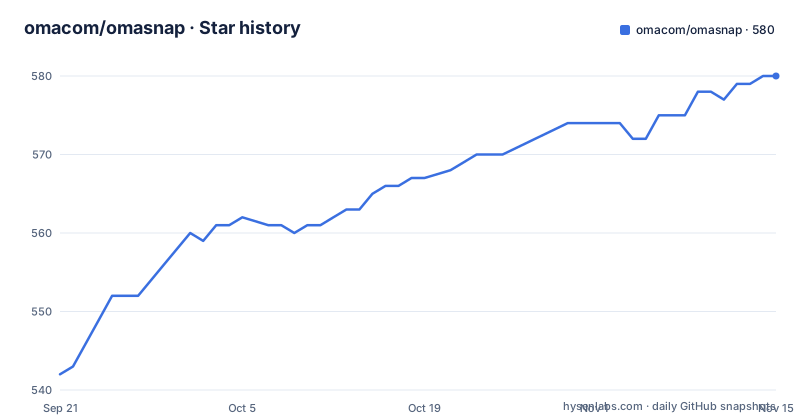
Star history
- omacom/omasnap580 ★ · +38
| Repository | 2026-09-21 | 2026-11-15 |
|---|---|---|
| omacom/omasnap | 542 | 580 |
38 Stars in the last 55 days, measured from the daily GitHub snapshot. Compare with other projects
Editorial analysis
Hyprland is the platform, and the sentence about 1.0 has been outrun
The supported target is stated as Wayland plus Hyprland, with Omarchy as the primary integration. Monitor and window discovery currently calls `hyprctl`, and the renderer, layer surface, clipboard and monitor capture all use Wayland protocols. Another compositor could support the application after supplying equivalent monitor and window discovery, and generic Wayland support is not claimed by 1.0.
That last sentence is the interesting one, because the current release is v1.21.0. A statement scoped to version 1.0 sitting in the readme at 1.21 does not tell you whether generic Wayland support is on the roadmap, was tried and abandoned, or simply was never reworded. Either way, a reader arriving now has to guess what the project intends.
The mechanism that makes it fast is worth understanding. The focused output is captured in process through `ext-image-copy-capture` before the layer surface maps, so the editor never appears in its own screenshot. Then the two modes diverge: selection draws the captured frame, while the annotation editor puts a translucent scrim over the live desktop and draws only the selected capture. So what you select is a frozen frame and what you annotate is a view of the real desktop with one image on it, and the difference is deliberate.
Runtime dependencies are listed as commands rather than libraries: `hyprctl`, `wl-copy` and `wl-paste`, `tesseract` for OCR, and `omarchy-notification-send` when it is available. A missing notification command does not invalidate output.
Window capture is a crop, so an overlapping window stays in the shot
The readme is direct about this. Window capture is a crop of the focused monitor frame. Overlapping windows stay visible, and there is no second clean window recapture.
That is a design consequence rather than an oversight. Recapturing a single window cleanly would need a capture path that excludes whatever is drawn on top of it, and on a compositor that composites in process there is no way to ask for one surface in isolation at capture time. Cropping is what falls out of a single frame grab, and the project chose one capture call for speed and reliability over a second call for isolation.
The practical effect is on the workflow. If you want a shot of a window with something overlapping it, you clear the overlap first, or you take the window shot with whatever is in front of it, or you crop afterwards. There is no third option here and the readme does not pretend otherwise.
The rest of the capture surface is broad. Smart selection is the default and takes three gestures: drag a freeform region, click a window to crop it, or click open monitor space for the whole monitor. Explicit region, window, fullscreen and scrolling region modes are still there for people who want them. A pointer side readout turns any drag into a ruler, showing pointer position when the crosshair is idle and the frame size in native export pixels while a region, a hovered window or a crop handle is being sized, with guides appearing without requiring an initial mouse movement.
Export correctness on scaled displays is called out separately: native pixel export is preserved on fractional or integer scaled monitors, and the editor retains annotations as movable, resizable vector layers rather than baking them into pixels.
The canvas grows in three modes and one key cycles them
The most unusual thing in the editor is that the screenshot does not have to be the boundary of the canvas. You can start arrows, shapes, strokes, markers, spotlights or text in the unused fullscreen workspace around the image, and you can resize a layer past its edge, to grow the canvas. Source based tools, meaning redact, cut, OCR and the eyedropper, stay on the screenshot instead.
Growth has three modes, cycled with `G`, and the distinction between them is precise. Framed growth is the default and keeps 15 pixels of mat beyond any layer that outgrows the normal frame. Overflow is the tight version, adding only the sides the annotations actually need with no frame at all. Image is the original canvas size, which clips every annotation that sits outside it. `Shift+G` cycles backward without changing layer geometry, so you can inspect the framing without disturbing what you have drawn.
Backdrops are a separate axis on `B`, cycling through the colourful backdrops, shadowed window gray, flat window gray, and Off so a background can always be removed. `Shift+B` toggles the current shadow directly, and undo or delete can contract grown strips. Overflow with no backdrop leaves the added pixels transparent, which is the one case where growing the canvas does not change the background.
There is fine detail here that suggests the feature was iterated against real use. New framed strips start in window gray carrying the original screenshot's card shadow, and follow a layer live while it is drawn or carried past an edge, then go back inside it. A label being typed out there counts from the moment its caret is placed. The editor also previews the same background padding, rounding and shadow as the saved image, including when zoomed or fitted to a smaller window, so what you see while editing is what you export.
Working documents live in tmpfs, which is why undo survives a crash and not a reboot
Crash resistance is handled by keeping the editable document as a source image plus a sidecar JSON operation log, in a runtime directory: `/run/user/<UID>/omasnap/`, falling back to a private `/tmp/omasnap-<UID>/`. Undo still works after a crash or after reopening with `--file`.
The location is the tradeoff. `/run/user` is normally a tmpfs, which means the document is fast and survives a process crash, which is the case the feature targets, and disappears on reboot, which is not a case it targets. The `/tmp` fallback has the same property. So the durability guarantee is scoped to crashes rather than to restarts, and a user who expects an unsaved annotation from yesterday to still be there will not find it.
Saved output is ordinary. Saving and copying write a flattened PNG, to the clipboard through `wl-copy` or to `~/Pictures/Screenshots` with timestamped filenames. Clipboard round trips are verified through both `wl-copy` and `wl-paste`, and an image already on the clipboard can be opened straight into the annotation editor. Notifications, when the notifier is present, include a thumbnail that reopens in the app when clicked.
The recents shelf is what makes editing older captures practical. The last five captures are stacked as small cards along the right edge of the select overlay, hover fans them out, and clicking one reopens it in the editor with its layers still editable rather than taking a new screenshot. Five is a small window, but the behaviour is the important part: captures are documents, not one-shot images.
Three lint passes, each of which skips silently, and one that edits the compile database
The build is CMake driven with a Makefile wrapper, Ninja as the default generator, and a default install prefix of `$(HOME)/.local`. The interesting part is `make check`, which is `smoke lint qt-lint` in sequence, where the smoke target runs a headless binary under `QT_QPA_PLATFORM=offscreen`.
All three passes degrade to a message and a success. The clang-tidy pass copies the compile database to a temporary directory and strips a flag from it before running:
cp "$(BUILD_DIR)/compile_commands.json" \
  "$$commands_dir/compile_commands.json"; \
sed -i 's/ -mno-direct-extern-access//g' \
  "$$commands_dir/compile_commands.json"; \
So the analysis runs against a modified description of the build rather than the build itself, which is a reasonable workaround for a flag the tool cannot parse and a reason to read a clean result with that in mind. The clazy pass loops over the same source list, and qmllint runs only if a `qml` directory exists, which in this tree it does not.
Two small defects make the skipping worse than it needs to be. The skip messages all say `make check: something unavailable; skipping`, including inside the `lint` and `qt-lint` targets, so running `make lint` directly reports a problem with `make check`. And the source list is built from `$(wildcard src/*.cpp tests/*.cpp)`, one directory level only, so any C++ file in a subdirectory of `src/` is never passed to either linter.
The net effect is that a successful `make check` on a machine without those tools installed is indistinguishable from a successful one that ran everything.
Pins are compositor windows on every workspace, and they straighten when you hover
A finished capture can be pinned as a bottom right floating compositor window, launched from the same executable and visible on every workspace. That makes it a different thing from a screenshot saved to a file: it is a live surface in the compositor that follows you between workspaces.
The detail work here is what makes it usable rather than decorative. Pins form a compact deck with the recents shelf's alternating tilt while idle, and hovering straightens them and fans them out, so a stack of references is readable when you reach for it and compact when you are not. Dropping a pin partly off screen or underneath a bar brings it fully back inside the monitor where the drag started, with the same 14 pixel gap from any screen edge or reserved bar area. A pinned window that could be dragged into a corner you cannot see is a pinned window you lose.
The editor itself is keyboard-first in a way worth calling out, because it is unusual for an image editor. Growth modes cycle on `G` and `Shift+G`, backdrops on `B` and `Shift+B`, the pin action on `Ctrl+P` or `T` while the preview is hovered, and dragging the preview also pins it. When you drag an arrow head, tail or bend, or a line endpoint, the cursor and the drag handles hide so you can place precisely, and they return on release or cancellation.
Theming follows Omarchy, including live theme changes, and the boundary is deliberate: pins, editor controls, tooltips and selection outlines follow the current theme, while screenshot pixels, annotation colours and exported backdrops keep the colours you chose. So a theme change cannot alter an image you have already made, which is the right call for an editor whose output leaves the machine.
Editorial conclusion
Omasnap suits someone on Hyprland who screenshots constantly and wants an editor that stays out of the way, with a keyboard driven workflow, redaction that does not leak the position of what it hides, and pins that survive across workspaces. Two things to check before you rely on it. Accept the compositor scope, because monitor and window discovery calls hyprctl and the readme says generic Wayland support is not claimed, so another compositor needs its own discovery layer before this works. And build with tooling installed, since the clang-tidy, clazy and qmllint passes each print a skip message and continue, which means a green make check tells you nothing about whether any static analysis ran at all. If you need the last five captures back with their layers intact, the recents shelf does that; if you need a clean window shot without the overlapping window, this tool will not give you one.
Frequently asked questions
Does omasnap work on any Wayland compositor?
The supported target is Wayland plus Hyprland with Omarchy as the primary integration, and monitor and window discovery currently calls `hyprctl`. The readme says another compositor could work after supplying equivalent discovery and that generic Wayland support is not claimed.
Can omasnap capture a window without the window on top of it?
No. Window capture is a crop of the focused monitor frame, overlapping windows stay visible, and there is no second clean window recapture. Freeform, window, fullscreen and scrolling region modes are all available for other cases.
What external commands does omasnap need at runtime?
`hyprctl` for monitor and window discovery, `wl-copy` and `wl-paste` for the clipboard, `tesseract` for OCR, and `omarchy-notification-send` when available. A notification failure does not invalidate the captured output.
Does omasnap keep unsaved annotations after a crash?
Yes, undo still works after a crash or after reopening with `--file`, because the working document is a source image plus a sidecar JSON operation log under `/run/user/<UID>/omasnap/`, falling back to `/tmp/omasnap-<UID>/`. Saving writes a flattened PNG to the clipboard or `~/Pictures/Screenshots`.
What does make check do in omasnap, and what happens if the linters are missing?
It runs a headless smoke test plus a clang-tidy pass, a clazy pass for Qt checks, and qmllint if a QML directory exists. Each pass prints a skip message and continues when its tool is unavailable, and the source list covers only `src/*.cpp` and `tests/*.cpp`.
Official sources
Add this badge to your README
If you maintain this project, the badge below links readers to this analysis and shows its maintenance status from the daily GitHub snapshot. Paste the markdown into your README; add ?metric=license or ?metric=stars to the image URL for a different field.

[](https://hysenlabs.com/projects/omacom-omasnap)Star history chart for your README
[](https://hysenlabs.com/projects/omacom-omasnap)Was this useful?