Plant Talk is a webcam, a microphone, and an OpenAI API key wired into a houseplant
Give your houseplants a voice with ChatGPT.
At a glance
- What is it?
- Plant Talk is an OpenAI example project where a plant gets a voice: a browser dashboard captures a camera frame, the Realtime API holds a spoken conversation, and optional Arduino sensors add soil moisture and light over USB serial. The unusual part is that the build is delegated to Codex Desktop, and the accuracy difference with and without the sensors is stated plainly rather than glossed over.
- Who is it for?
- Plant Talk fits someone who wants a working OpenAI Realtime example that touches hardware, or who wants to see what a voice agent looks like when it has a memory of past observations and a sensor feed to draw on. It does not fit anyone expecting the plant to be diagnosed from the camera alone, because the project says that mode is much less accurate.
- Can I use it commercially?
- Yes. Apache-2.0 is a permissive licence: you can use, modify and sell software built on it, as long as you keep its copyright and licence notices.
- Is it still maintained?
- Yes. The repository last received commits 137 days ago.
- What is it written in?
- Mainly TypeScript, according to GitHub's language statistics.
Answers come from the project's GitHub data, last synced on November 13, 2026, and from our analysis. They are not legal advice.
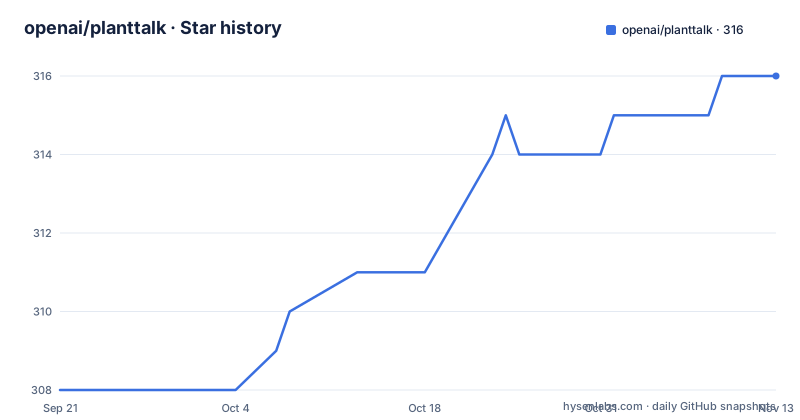
Star history
- openai/planttalk316 ★ · +8
| Repository | 2026-09-21 | 2026-11-13 |
|---|---|---|
| openai/planttalk | 308 | 316 |
8 Stars in the last 53 days, measured from the daily GitHub snapshot. Compare with other projects
Editorial analysis
The build starts by handing it to Codex Desktop
The build instructions do not start with solder. They start with opening the Codex Desktop app and typing one sentence:
Help me make Plant Talk https://github.com/openai/planttalkThe rest of the build is then completed inside Codex, which reads the repository, takes you to the first setup step, and walks you through from there. The framing is that you do not have to wire anything before you begin; the agent handles sequencing.
That design is reinforced in the repository itself. An HTML comment at the very top of the README is an instruction for any coding agent that opens the project: if the user asks to build the project from the GitHub URL, clone or open the repository first, read `AGENTS.md`, and follow its guide before anything else. `AGENTS.md` sits at the top level for exactly that reason.
The same automation covers credentials. `scripts/setup.mjs` is the setup script, and the environment template says that Codex setup copies it to `.env` and helps add API access locally, with one instruction in capitals: do not paste your API key into chat.
Camera-only works, and the project says it is much less accurate
The minimum build is a laptop, a webcam, a microphone, speakers, a browser, and a plant. With that, Plant Talk works: the camera frame is sent for a structured plant check and the conversation runs through the Realtime voice API.
The optional layer is the Arduino part, and the parts list is specific. An Arduino-compatible microcontroller with a USB cable, a capacitive soil moisture sensor, an LM393 light sensor module, jumper wires, and a small prototyping breadboard. Those sensors are what turn a description of leaves into a reading of the soil.
The honest caveat is stated twice. The system works without the Arduino, in which case it uses just the camera to understand plant health and is much less accurate, and the FAQ makes the same point from the other side: without the sensors the readings are based only on what the webcam sees.
Data reaches the microcontroller over USB serial rather than over the network, which is why the Connect Arduino control exists as a separate step from the camera. Nothing about the sensor path depends on Wi-Fi.
Chrome or Edge is a requirement rather than a preference
The FAQ gives one reason for the browser requirement: Plant Talk uses some technology not supported by all internet browsers, and Chrome and Edge support it most reliably.
That is a short answer with a long tail. The dashboard depends on a camera capture path, the Realtime voice conversation, and audio playback at the same time, and those are exactly the areas where browser support is uneven. A project that says all internet browsers rather than naming the failing API is not much help when you are on Firefox and the conversation will not start.
The stack explains why. The web side is Vite with React 19, `ogl` for WebGL rendering used by the ambient visuals, and `@picocss/pico` for styling rather than a component framework. The server is Express 5, the OpenAI SDK is version 6, and validation is done with `zod`. State lives in `zustand` and small pieces of persisted state go through `idb-keyval`, which is IndexedDB key value storage in the browser.
So the browser is doing real work here: capture, a realtime stream, WebGL, and local storage, all in one page.
Five dashboard controls, five different capabilities
Once it is running, the dashboard is described as a small control room for the plant, and the controls map one to one onto what the system can do.
Start camera selects which webcam Plant Talk uses for observations, which matters on a machine with both a built-in and an external camera. Observe now sends the current camera frame for a structured plant check, so an observation is an explicit action rather than something happening continuously in the background. Connect Arduino reads live soil moisture and light over USB serial. Talk to plant starts the Realtime voice conversation. Open ambient mode switches to a full-screen conversation view.
The separation between Observe now and Talk to plant is the design point. The model sees the plant when you ask it to look, and hears you when you ask to talk, which means an observation is a discrete, timestamped event you can review later rather than an ambient stream that mixes conversation and perception.
The system is also expected to remember. It can take live sensor readings, summarise recent observations, and talk about what the plant needs, so asking how it is doing refers to a history rather than to the current frame alone.
Ambient mode is full-screen, and most users are told to leave it there
For most users the recommendation is to leave the system in Ambient Mode when in use. That is the full-screen conversation view, reached from the dashboard, and it is the state the project considers normal rather than a novelty mode.
The distinction between the dashboard and ambient mode is a division of labour. The dashboard is where you select a camera, trigger an observation, attach the Arduino, and read what the plant needs. Ambient mode is the room-facing view where the only thing left to do is talk.
The remix section makes that framing explicit, since once the basics work you are told to make it useful, make it strange, and make it fit your home, classroom, lab, or art project. Suggested changes include a watering reminder, support for a different sensor, changed ambient mode visuals, a new plant persona, long-term plant health logging, and adapting it for a classroom demo.
Long-term logging is the one that changes the architecture rather than the surface, since it needs observations stored and compared across days instead of summarised within a session. That is where `idb-keyval` for browser persistence would earn its place.
Setup is one npm script, then web and server run together
The package is `plant-talk`, version 0.1.0, marked private in its manifest and licensed Apache 2.0, and it requires Node 20.12 or newer.
One-time setup is a single script:
npm run setupDevelopment is two processes started together. The `dev` script runs the Vite web app and the API server concurrently under the names web and api, with the server watched by `tsx`, so a change to server code restarts it. The production build is `vite build`, and `start` runs the TypeScript server directly rather than compiling it.
npm run devThe repository layout is split the same way: `src/` and `public/` for the frontend, `server/` for the Express API, `arduino/` for the hardware side, `scripts/` for setup, `readme_assets/` for images, and an `index.html` at the root. `vite.config.ts`, `tsconfig.json`, and `eslint.config.mjs` sit alongside them.
Because the server runs through `tsx` rather than being built, there is no separate backend compile step, which suits a project whose point is that you can modify it immediately.
Four customisation points decide the plant's whole character
The project names four built-in customisation points, and they cover the identity of the assistant rather than its plumbing.
Name changes the name the voice assistant uses. Personality tunes how the plant speaks and what it cares about. Voice swaps the spoken voice used in the conversation. Observation changes what the camera analysis pays attention to.
That last one is the most consequential, because it decides what the model is looking for in the frame. A plant assistant looking for yellowing leaves and one looking for pests are the same hardware and the same model call with a different focus, and the project exposes that as a single named setting rather than burying it in a prompt.
The other three make the thing pleasant to keep in a room. A name and a voice are what make a floating plant recognisable as a particular plant rather than as a generic assistant, and the personality setting is what decides whether it sounds like a botanist, a housemate, or a slightly worried gardener.
Apache 2.0 licensing with both a `LICENSE` and a `NOTICE` file in the repository root means the remix suggestions are ones you can actually ship.
Editorial conclusion
Plant Talk fits someone who wants a working OpenAI Realtime example that touches hardware, or who wants to see what a voice agent looks like when it has a memory of past observations and a sensor feed to draw on. It does not fit anyone expecting the plant to be diagnosed from the camera alone, because the project says that mode is much less accurate. Before building, decide whether the sensors are in scope, check that Chrome or Edge is what you use rather than assuming any browser will do, and remember that the repository is version 0.1.0, marked private in its package manifest, with no published release.
Frequently asked questions
Do I need an Arduino to build Plant Talk?
No. You can run it with a computer, webcam, microphone, and OpenAI API access, but then it uses only the camera to understand plant health and is much less accurate. With the hardware you add a capacitive soil moisture sensor and an LM393 light sensor module, read live over USB serial.
Why does Plant Talk require Chrome or Edge?
It uses some technology not supported by all internet browsers, and Chrome and Edge support it most reliably. The dashboard combines camera capture, a Realtime voice conversation, WebGL for the ambient view, and browser storage.
What do I need before starting the Plant Talk build?
A laptop or desktop with a webcam, microphone and speakers, Google Chrome or Edge, a reliable Wi-Fi connection, an OpenAI account, the Codex Desktop app, and a houseplant. For sensing you also need an Arduino-compatible microcontroller with a USB cable, a capacitive soil moisture sensor, an LM393 light module, jumper wires, and a breadboard.
How do I run Plant Talk after setup?
Use npm run setup once, then npm run dev, which runs the Vite web app and the tsx-watched API server together. Node 20.12 or newer is required, the build is vite build, and start runs the TypeScript server directly.
What can I change about how the Plant Talk assistant behaves?
Four built-in points: the name the voice assistant uses, its personality and what it cares about, the spoken voice, and what the camera analysis pays attention to. The project also suggests remixes such as a watering reminder, a different sensor, new ambient visuals, a new persona, and long-term health logging.
Official sources
Add this badge to your README
If you maintain this project, the badge below links readers to this analysis and shows its maintenance status from the daily GitHub snapshot. Paste the markdown into your README; add ?metric=license or ?metric=stars to the image URL for a different field.

[](https://hysenlabs.com/projects/openai-planttalk)Star history chart for your README
[](https://hysenlabs.com/projects/openai-planttalk)Was this useful?