InteractiveHtmlBom: one HTML file that pairs a bill of materials with the board
Interactive HTML BOM generation plugin for KiCad, EasyEDA, Eagle, Fusion360 and Allegro PCB designer
At a glance
- What is it?
- A KiCad plugin that reads a board through the Pcbnew API and writes a single self contained HTML page, where the parts table and a clickable board drawing point at each other. The install steps live in the wiki rather than the README, and the packaging metadata pulls in wxpython whether or not you want a window.
- Who is it for?
- Use InteractiveHtmlBom when you solder boards by hand, when your manufacturing package should carry a parts list that a person can read against the board itself, and when you need that file to open without a network connection on a bench. Do not expect it to be a purchasing tool, since the group and column structure comes from the schematic and the page is a snapshot rather than a live feed.
- Can I use it commercially?
- Yes. MIT is a permissive licence: you can use, modify and sell software built on it, as long as you keep its copyright and licence notices.
- Is it still maintained?
- Yes. The repository last received commits 12 days ago.
- What is it written in?
- Mainly Python, according to GitHub's language statistics.
Answers come from the project's GitHub data, last synced on November 24, 2026, and from our analysis. They are not legal advice.
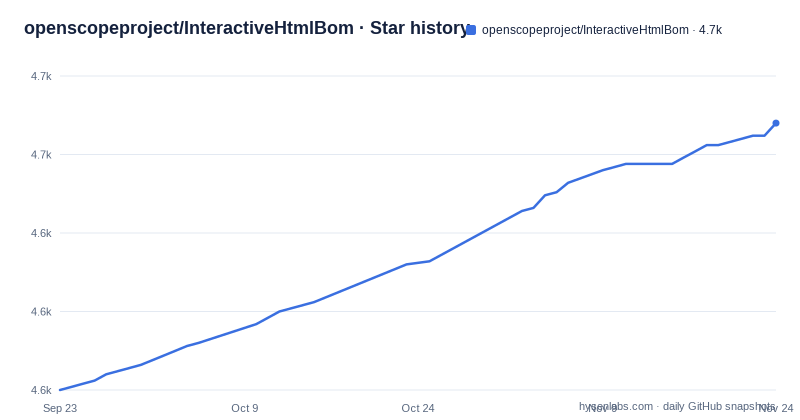
Star history
- openscopeproject/InteractiveHtmlBom4,660 ★ · +85
| Repository | 2026-09-23 | 2026-11-24 |
|---|---|---|
| openscopeproject/InteractiveHtmlBom | 4.6k | 4.7k |
85 Stars in the last 62 days, measured from the daily GitHub snapshot. Compare with other projects
Editorial analysis
The deliverable is one file that works offline
The generated page is fully self contained, needs no internet connection to work, and can be packaged with your project documentation or hosted anywhere on the web. That property is the reason the tool is worth the setup, because a manufacturing package and a bench are exactly the places where a BOM that wants a network connection falls apart.
Self contained here is literal. The HTML page uses Split.js, PEP.js and a stripped down lz-string.js, and those libraries get embedded into the generated BOM page rather than linked from a CDN. The lz-string.js copy is explicitly reduced, so the payload is smaller than the upstream library.
The credit list in the README is worth reading for what it implies about the code: `units.py` is borrowed from the KiBom plugin, and `svgpath.py` is heavily based on the svgpathtools module, both under the MIT licence, alongside the plugin code itself. The root directory also holds `DATAFORMAT.md`, which is where the shape of the embedded data is described, since the page has to read its own payload with no server.
Clicking a footprint looks the group back up
The stated use case is soldering. When you are hand-soldering a prototype, the value is being able to find quickly where a group of components sits on the board, and the tool does that by making the parts table and the board drawing two views of the same data.
One direction is search: the listing lets you visually correlate components and their placements, so you can look up a value or a part number and see where it lives. The other direction is the reverse lookup, which is the part that distinguishes this from a spreadsheet export: it is possible to click a footprint on the board drawing and find the component group it belongs to. In practice that is the direction that saves time, because during assembly you know where the part is and not what it is called.
The rendering comes from the board rather than from the schematic alone. The plugin uses the Pcbnew python API to read PCB data and render silkscreen, the fab layer, footprint pads, text and drawings. There is also an option to include tracks and zones data along with netlist information, which allows dynamic highlight of nets on the board, so the page can show connectivity as well as placement.
The limitation follows from that design. The drawing is a rendering of the board file at generation time, so if the layout moves after you generate, the page is describing a board that no longer exists. Regenerating is cheap; forgetting to is the risk.
Extra columns are added upstream, then imported one of three ways
BOM table fields and grouping are fully configurable. What that sentence does not say is where the configuration happens: additional columns, a manufacturer ID for instance, are added in the Schematic editor, not in the plugin. The plugin then imports them.
There are three documented routes, and the choice between them is a practical decision. The first is the netlist file. The second is the XML file generated by Eeschema's internal BOM tool. The third is the board file itself.
That is also the honest answer to how far the multi-tool support goes. The title names EasyEDA, Eagle, Fusion360 and Allegro alongside KiCad, and the package keywords are `ibom`, `KiCad`, `Eagle` and `EasyEDA`, but the README only describes the KiCad Pcbnew path and refers to the wiki for the full description of functionality.
If you maintain a house format for your exports, `DATAFORMAT.md` at the repository root is the file to read, and the manifest's dependency on `jsonschema` at 4.1 or newer is a hint that inputs are validated against a declared schema rather than trusted.
Installation is a wiki link, and the manifest wants a GUI toolkit
The README's installation and usage section is one sentence: see the project wiki for instructions. There is no command in this repository's readme, and if you are the kind of person who wants to see the invocation before installing, the packaging metadata is where the surface is:
[project.scripts]
generate_interactive_bom = "InteractiveHtmlBom.generate_interactive_bom:main"
The declared runtime requirements are `requires-python = ">=3.8"` with two dependencies, `wxpython>=4.0` and `jsonschema>=4.1`. wxpython is the one to think about, because it is a desktop GUI toolkit and it is a hard dependency rather than an extra. On a headless machine or a container with no display libraries, the install itself is the obstacle. `settings_dialog.fbp` at the root is a wxFormBuilder form file, which is a good clue about how much of the plugin is a dialog box rather than a script.
The console script entry point is the other useful detail. A named command suggests the generator can be run outside the KiCad GUI, which is what you want in a CI job that produces documentation after every board revision. The README does not walk through that path, so treat it as something to verify against the wiki rather than assume.
The version is parsed out of a LAST_TAG constant
The build is Hatchling, and the project version is declared dynamic, with the number read out of a source file by a regular expression:
[tool.hatch.version]
path = "InteractiveHtmlBom/version.py"
pattern = "LAST_TAG = 'v(?P<version>[^']+)'"
So a single constant inside `InteractiveHtmlBom/version.py` decides what the package reports, and the release tag is expected to match it. That is a small thing with a real consequence: a release cut and a version bump are two actions that have to agree, and the mismatch shows up as a package version nobody intended.
The release names are worth noting for the same reason. The three most recent are v2.11.1 on 2026-03-31, v2.11.2 on 2026-05-24 and v2.12.0 on 2026-09-10, and their release titles are jokey rather than descriptive. `make_release.py` at the repository root is the automation behind them, and the repository is not archived, with the last push on 2026-10-17.
If you pin this tool, pin the tag and not the title, because the title is not a changelog.
Tests want five Python versions and a system wxpython
The test setup is in the same manifest, and it is more informative than the classifier. The default Hatch environment sets `system-packages = true` and lists `coverage[toml]>=6.5`, `pytest` and `pytest-sugar` as its dependencies, with a test script that runs pytest against the tests directory. That flag means the environment expects some packages to come from the system interpreter rather than being installed into it, which in practice means wxpython has to be present on the machine before the tests can import the package.
The version matrix is explicit:
[[tool.hatch.envs.all.matrix]]
python = ["3.8", "3.9", "3.10", "3.11", "3.12"]
Five interpreters, from the 3.8 floor in `requires-python` up to 3.12. Anything newer is unclaimed, so if you run 3.13 you are outside what the project tests, whatever the metadata allows. There is a separate types environment with `mypy>=1.0.0` whose check script installs missing stubs non-interactively and then checks the `InteractiveHtmlBom` package, and coverage is configured with `source_pkgs` pointing at the package and the tests.
The top of the file also lists the trove classifiers, including `Development Status :: 5 - Production/Stable` and `Operating System :: OS Independent`. Read the second one carefully: the operating system is independent, the display is not, since wxpython is a GUI toolkit.
Editorial conclusion
Use InteractiveHtmlBom when you solder boards by hand, when your manufacturing package should carry a parts list that a person can read against the board itself, and when you need that file to open without a network connection on a bench. Do not expect it to be a purchasing tool, since the group and column structure comes from the schematic and the page is a snapshot rather than a live feed. Check four things before you wire it into a release process: that the page you ship was generated from the final board revision, since the drawing is a rendered snapshot, that your import route is covered by one of the three the README names, and that shipping third party scripts inside your documentation package is acceptable, which it is here because Split.js and PEP.js get embedded into the output, and that Python 3.8 is the floor you actually support, because that is what the metadata declares.
Frequently asked questions
What does InteractiveHtmlBom generate?
A Bill of Materials listing you can search and visually correlate with component placements on the PCB, next to a board drawing where clicking a footprint looks the component group back up. The page is fully self contained, needs no internet connection, and can be packaged with project documentation or hosted anywhere.
How do I install InteractiveHtmlBom?
The readme's installation section points at the project wiki and gives no command. The packaging metadata requires Python 3.8 or newer, depends on `wxpython>=4.0` and `jsonschema>=4.1`, and declares a console script named `generate_interactive_bom` pointing at `InteractiveHtmlBom.generate_interactive_bom:main`.
How does InteractiveHtmlBom read the board?
Through the Pcbnew python API, reading PCB data and rendering silkscreen, the fab layer, footprint pads, text and drawings. There is also an option to include tracks and zones data along with netlist information, which allows dynamic highlight of nets on the board.
How do I add a manufacturer part number column to the BOM?
Add the column in the Schematic editor, then import it through the netlist file, the XML file generated by Eeschema's internal BOM tool, or from the board file itself. Table fields and grouping are fully configurable, and `DATAFORMAT.md` at the repository root describes the data format.
Does InteractiveHtmlBom work with boards from tools other than KiCad?
The title names EasyEDA, Eagle, Fusion360 and Allegro alongside KiCad, and the package keywords are `ibom`, `KiCad`, `Eagle` and `EasyEDA`. The README does not explain how boards from those tools are read and refers to the wiki for the full description of functionality.
Official sources
Add this badge to your README
If you maintain this project, the badge below links readers to this analysis and shows its maintenance status from the daily GitHub snapshot. Paste the markdown into your README; add ?metric=license or ?metric=stars to the image URL for a different field.

[](https://hysenlabs.com/projects/openscopeproject-interactivehtmlbom)Star history chart for your README
[](https://hysenlabs.com/projects/openscopeproject-interactivehtmlbom)Was this useful?