sharing, a terminal command that hands files to a phone over your own Wi-Fi
Sharing is a command-line tool to share directories and files from the CLI to iOS and Android devices without the need of an extra client app
At a glance
- What is it?
- sharing is a Node command line tool that serves a directory or a file to any phone with a browser, and prints a QR code so the phone can connect without installing anything. The same tool receives files in the other direction, and adds optional password protection, HTTPS with an auto-generated certificate, and time limits so the share stops by itself.
- Who is it for?
- Adopt sharing if you move files between a laptop and a phone regularly and want to avoid an app, an account and a cloud upload, and skip it if you need to transfer across networks, because the tool's default is a local web server and getting a share beyond your LAN is an extra step rather than the default.
- Can I use it commercially?
- Yes. MIT is a permissive licence: you can use, modify and sell software built on it, as long as you keep its copyright and licence notices.
- Is it still maintained?
- Yes. The repository last received commits 128 days ago.
- What is it written in?
- Mainly JavaScript, according to GitHub's language statistics.
Answers come from the project's GitHub data, last synced on October 23, 2026, and from our analysis. They are not legal advice.
Star history
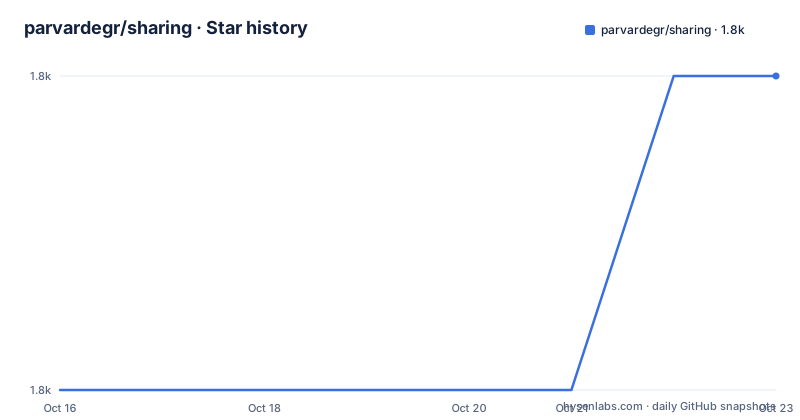
- parvardegr/sharing1,844 ★ · +1
| Repository | 2026-10-16 | 2026-10-23 |
|---|---|---|
| parvardegr/sharing | 1.8k | 1.8k |
1 Stars in the last 7 days, measured from the daily GitHub snapshot. Compare with other projects
Editorial analysis
The whole idea, in one command
The pitch is that no app, no account and no cloud are needed, and you just run a command and scan the QR code. The example given is sharing a folder with npx, and then the explanation of what happens: your phone opens a normal web page over your own Wi-Fi, nothing to install on the other device, and nothing leaves your network. The reasoning is laid out in the section titled why sharing. If you have ever tried to get a file from your laptop to your phone, the options are all a little painful: cloud uploads are slow and nosy, AirDrop is Apple-only, and real tools want an app installed on both ends. The tool takes the simplest path that always works, a tiny web server and a QR code, so any phone with a browser can use it. The requirement is Node.js v14.17 or later, and the package is published under the name easy-sharing, with the binary installed as both sharing and easy-sharing, the second name existing because macOS already ships a built-in /usr/sbin/sharing command that would otherwise be shadowed.
npx easy-sharing /path/to/file-or-directoryThe comparison table, and what it actually claims
The README carries a comparison table against the tools you would otherwise reach for, and it is worth reading because it defines the scope precisely. The columns are sharing, python -m http.server, npx serve, qrcp, and AirDrop or LocalSend. On the rows: no app on the phone, which everything but the AirDrop column provides; a QR code to connect, which only sharing and qrcp have; receiving files from the phone, which sharing, qrcp and the AirDrop column have; receiving multiple files with drag and drop; downloading a whole folder as a zip; sharing clipboard text and receiving text back; built-in auth and HTTPS; a one-flag private share with the --secure option; and picking the right network address automatically. The claim at the end is that sharing is the one that does all of it from a single command, in a browser, with nothing to install on the device in your hand. The honest reading is that the tool is a superset of the simplest local server plus a few convenience features, not a different approach.
No app on the phone
QR code to connect
Sharing, receiving, and the clipboard round trip
The tool does both directions, and the second direction is the part that is less common. On the way out, it serves files and directories with a clean browsable listing, offers the whole folder as a single .zip so the phone saves one file instead of many, and shares clipboard text with the -c flag, which opens on the phone with a one-tap copy button. On the way in, the --receive flag turns your machine into a drop target, and the phone page accepts multiple files at once with drag and drop and a live progress bar, plus a text box that sends a note or a link back to your terminal and your clipboard. That last detail is the one that turns the tool from a file mover into a way of working: a URL read on your phone can come back to your shell without you touching it. The usage examples show all four shapes in a few lines.
# Share a file or directory
sharing /path/to/file-or-directory

# Share clipboard content
sharing -c

# Receive files from another device
sharing /destination/directory --receive

# Share privately
sharing /path/to/file-or-directory --secure
The private mode, and the option to make it automatic
Security is layered and there is a convenience flag over the top. The --secure option is described as the easy button, giving you a secret unguessable link, an auto-generated password and HTTPS, all at once. You can also mix and match: -U and -P for a password, --token for a secret link, and -S for HTTPS. The -S option now generates a certificate for you, so there is no more fiddling with OpenSSL, and you can bring your own certificate and key with -C and -K. The ephemeral options are the other half of the design. The --once flag stops sharing automatically after the first transfer, and --timeout with a value like 10m auto-stops after a set time, with 30s, 10m and 1h given as the shapes. For a tool whose server listens on a port your phone can reach, ending the share on a schedule is a sensible default that the project makes easy.
# A private, self-destructing share
sharing report.pdf --secure --once

# Share over HTTPS with your own certificate
sharing ~/x -S -C cert.pem -K key.pem
The network address problem, which is the real bug report
The project singles out the failure mode that makes other tools frustrating, and it is worth understanding because it will be the first thing that goes wrong for you. Smart network detection: the tool advertises your real Wi-Fi address and skips Docker, VPN and WSL adapters, and the documentation calls that the number one reason the QR scans but the page will not load. On a machine with a virtual machine adapter, a VPN tunnel and a physical Wi-Fi interface, a naive server picks the wrong address, prints a QR code that resolves, and the phone shows a connection error. The fix is to pin the interface explicitly with the --interface option, for example en0, or the --ip option to set the address outright. There is also a --open flag that shows the QR code as an image in a browser window for terminals that cannot draw it, which the documentation suggests for Windows terminals and paths with unusual characters.
# Pick a specific network interface (multi-homed / VPN machines)
sharing ~/x --interface en0
The dependency list, and what it says about the design
The package metadata is a map of the implementation and it is short enough to read at a glance. Express is the server, serve-handler handles the static file serving, express-fileupload handles uploads, express-basic-auth provides the username and password option, archiver produces the zip of a folder, clipboardy reads the clipboard on the host, portfinder picks the port when you do not set one, selfsigned generates the certificate for -S, qrcode and qrcode-terminal render the code, and yargs parses the command line. That is a small set of well-known packages, with no database, no native module and no daemon. The entry point is a single file, bin/index.js, and the package only ships the bin/ directory. The scripts are equally plain: the test script runs a single test file with node, and the start script runs the same entry point. The licence is MIT, the author is listed as amin rostami, and the release history is tight, with v1.4.0, v1.3.2 and v1.3.1 all on 2026-06-17.
"bin": {
    "sharing": "./bin/index.js",
    "easy-sharing": "./bin/index.js"
  },
  "dependencies": {
    "archiver": "^7.0.1",
    "express": "^4.21.2",
    "qrcode-terminal": "^0.12.0",
    "selfsigned": "^2.4.1"
  }
The option list, and the flags you will actually use
The help output is a yargs listing, and it is organized around what you share rather than around the internals. The share side has --port to set the server port with a default of auto-assigned, --ip to specify the public address, --interface for the adapter name such as en0 or eth0, and --clipboard for sharing clipboard content. The receive side has --receive, --receive-port for the port used for receiving files, and the --on-windows-native-terminal flag that enables QR code rendering in the Windows native terminal, which is a small sign of how much the author cared about that specific environment. The security side has --username with a default of user, --password, --ssl for HTTPS with an auto self-signed cert when -C and -K are not given, and --cert and --key for a path to your own certificate and key. The rest are --version, --debug, and --open.
  -p, --port                        Set the server port (default: auto-assigned) [number]
      --ip                          Specify your machine's public IP address [string]
  -i, --interface                   Network interface/adapter name to advertise
                                    (e.g. en0, eth0)                    [string]
  -c, --clipboard                   Share clipboard content            [boolean]
  -r, --receive                     Receive files from another device  [boolean]
  -U, --username                    Set username for basic authentication
                                                      [string] [default: "user"]
Getting a share off your network, and what to watch
The --tunnel flag walks you through exposing a share beyond your LAN, which is the one case the local design does not cover by itself. Everything else in the tool assumes the phone is on the same Wi-Fi, and the documentation says so directly: both devices just need to be on the same Wi-Fi. That assumption is the tool's strength and its boundary. The upside is that the transfer never leaves your network and no third party sees your files, which is exactly what the cloud alternatives do not give you. The downside is that it solves the problem of the same room, not the problem of the other side of a city, and the tunnel option is the answer to that with the usual caveats about exposing a machine to the internet. The licence is MIT, the repository is not archived, and the last push was on 2026-06-17.
Editorial conclusion
Adopt sharing if you move files between a laptop and a phone regularly and want to avoid an app, an account and a cloud upload, and skip it if you need to transfer across networks, because the tool's default is a local web server and getting a share beyond your LAN is an extra step rather than the default. Verify three things before you use it for anything sensitive: that the share is on a network you trust, since the server binds a port that a phone on the same Wi-Fi can reach; that you turn on authentication or the secure flag, because a plain share has no credential by default; and that you set a timeout, because the server keeps running until you stop it unless you ask it to stop.
Frequently asked questions
What does the sharing command line tool do?
It shares files, directories and clipboard text from your terminal to any device with a browser, by running a small web server on your machine and printing a QR code the phone scans. Nothing needs to be installed on the phone, no account is needed, and nothing leaves your network.
How do I share a folder and send files back from my phone?
Run `sharing /path/to/file-or-directory` to share it, then scan the QR code. For the other direction, run `sharing /destination/directory --receive`, which turns your machine into a drop target accepting multiple files with drag and drop, and lets the phone send a note or link back to your terminal and clipboard.
What does the --secure flag do in sharing?
It combines a secret unguessable link, an auto-generated password and HTTPS in one flag. You can also mix and match the pieces with -U and -P for basic authentication, --token for a secret link and -S for HTTPS, where -S generates a certificate for you unless you supply your own with -C and -K.
Why does the QR code scan but the page will not load?
The project names this as the number one failure reason, caused by the tool advertising a Docker, VPN or WSL adapter instead of your real Wi-Fi address. The tool tries to detect the right one automatically, and you can pin it with `--interface en0` or set the address with `--ip`. For terminals that cannot draw the QR code, `--open` shows it in a browser window instead.
Official sources
Add this badge to your README
If you maintain this project, the badge below links readers to this analysis and shows its maintenance status from the daily GitHub snapshot. Paste the markdown into your README; add ?metric=license or ?metric=stars to the image URL for a different field.

[](https://hysenlabs.com/projects/parvardegr-sharing)Star history chart for your README
[](https://hysenlabs.com/projects/parvardegr-sharing)Was this useful?