herdr-annotate, a terminal annotation plugin that refuses to paste into a pane it cannot confirm
Annotate terminal text, review documents and agent replies in Herdr, and send the feedback straight back to the agent.
At a glance
- What is it?
- Three install variants of a Rust plugin for the Herdr terminal, built around one idea: notes on selected text become a numbered Markdown message for the agent. Here is how the handoff is guarded.
- Who is it for?
- herdr-annotate fits a workflow where you read an agent's output in a terminal, decide it is wrong in a specific way, and want that judgement back in the conversation without retyping it. The readiness check on the paste and send actions is the feature that separates it from a clipboard macro, and the archive model means you can copy and still keep the notes.
- Can I use it commercially?
- Yes. MIT is a permissive licence: you can use, modify and sell software built on it, as long as you keep its copyright and licence notices.
- Is it still maintained?
- Yes. The repository last received commits 1 day ago.
- What is it written in?
- Mainly Rust, according to GitHub's language statistics.
Answers come from the project's GitHub data, last synced on November 15, 2026, and from our analysis. They are not legal advice.
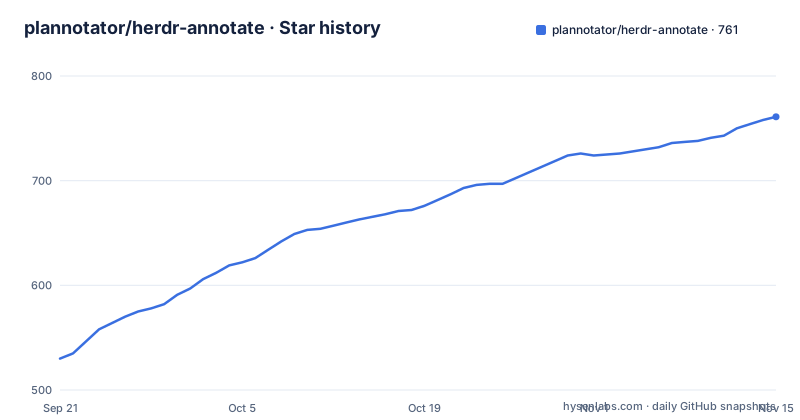
Star history
- plannotator/herdr-annotate761 ★ · +231
| Repository | 2026-09-21 | 2026-11-15 |
|---|---|---|
| plannotator/herdr-annotate | 530 | 761 |
231 Stars in the last 55 days, measured from the daily GitHub snapshot. Compare with other projects
Editorial analysis
Three installs share one plugin id, so a variant swap replaces in place
There is one choice per platform rather than per preference. The Full variant wraps the Plannotator TUI and gives you terminal annotations plus document and agent-reply review:
herdr plugin install plannotator/herdr-annotateThe Lite variant is the simple one: select text, press the prefix combination with `a`, and comment in a popover.
herdr plugin install plannotator/herdr-annotate/liteA third, Windows Full, is opt-in and needs Herdr 0.9.0 or later on Windows:
herdr plugin install plannotator/herdr-annotate/windows-fullAll three use the same plugin id, so installing one later simply swaps the other in. One behaviour to know before you rely on it: an install stays pinned to the commit it came from, and you move to the current release by running the same command again.
Only the Rust Lite build has tagged releases
The two published tags are named `rust-lite-v0.1.0` and `rust-lite-v0.2.0`, dated 2026-09-10 and 2026-09-29, and the naming tells you the scope: those are releases of the Lite build, not of the plugin as a whole. The tree reflects that split, with `rust/` holding the main source and `lite/` and `windows-full/` sitting beside it as separate directories rather than as build targets of one crate. Two version files at the top level, `herdr-annotate.version` and `plannotator-tui.version`, pin the two components the Full install depends on, alongside a `herdr-plugin.toml` manifest. So the Full variant's currency depends on two pins moving, while the Lite variant has a tag you can point at.
A keybinding is required, so the install does nothing until you bind
The documentation marks this step as required rather than optional: the keys have to be bound in Herdr's config, because the plugin exposes actions rather than keys. The bindings are TOML blocks of the same shape, each entry carrying a key, a type of `plugin_action`, a command name, and a description. The first three actions are identical across the Full and Lite installs:
[[keys.command]]
key = "prefix+a"
type = "plugin_action"
command = "annotate.capture"
description = "annotate text"

[[keys.command]]
key = "prefix+shift+a"
type = "plugin_action"
command = "annotate.copy-context"
description = "copy annotations as context"

[[keys.command]]
key = "prefix+ctrl+a"
type = "plugin_action"
command = "annotate.copy-archive"
description = "copy annotations as context and archive them"
Both variants add a paste action that archives. After editing, two commands validate and apply the change: `herdr config check` and `herdr server reload-config`.
The paste and send actions refuse rather than typing into an unready pane
This is the part that makes the plugin worth having. `Ctrl+B Ctrl+V` pastes your annotations into the focused agent's prompt without sending, and `Ctrl+B Ctrl+S` sends them as the next message. Neither goes through the clipboard, and both first ask Herdr whether the agent is actually ready to receive text. Three conditions make them refuse: the focused pane has no running agent that Herdr recognises, the agent is still launching, or it is sitting at an approval or a question prompt. On refusal they type nothing and leave your annotations active, which means the notes are still there to retry rather than consumed into a void. The failure mode being designed around is specific and worth naming: feedback delivered into a pane that is mid-prompt lands in the wrong conversation or gets read as part of an approval request.
OSC 52 covers the manager pane, but not the two copy keys
Clipboard behaviour is deliberately uneven, and the reason is architectural. Copies made inside the manager pane also emit OSC 52, so on Herdr 0.9.0 they reach the clipboard of the machine you are viewing from even when the plugin itself is running on a remote server with no clipboard tool installed. The two plain copy keys, `Ctrl+B Shift+A` and `Ctrl+B Ctrl+A`, do not emit OSC 52, because those actions run outside a pane and have no terminal to write the escape sequence to. That is a real limitation on a remote setup: copy-all-annotations will land wherever the server's clipboard is, not on your laptop, while copying a single note from the manager pane will arrive where you expect.
Annotations hand off oldest first, in a fixed Markdown shape
Order is part of the design rather than an accident of a list. Annotations are listed and handed off oldest first, in the order you wrote them, so the agent reads your feedback in the same sequence you went through the text. The output uses a documented format: one numbered `## Annotation N` heading per note, headed with the workspace and tab it came from, then a `Comment on:` line carrying the selected text with your comment as a block quote. The archive model is the other half of it. Copy all, copy and archive, paste and archive, and send and archive are separate actions, and the manager pane lets you restore or delete an archive, so the same note can be pasted once without being lost.
Review opens a file tree, the reply history, or the newest reply
The Full install adds a review surface with three entry points. `Ctrl+B O` opens the current folder with a file tree, `Ctrl+B Shift+O` opens the agent's recent replies, and `Ctrl+B Ctrl+O` goes straight to the newest reply with no picker. A ctrl-click on a `file://` link to a Markdown file opens that file. Send, or `E`, turns the review into the agent's next message, `q` closes, and on an agent reply `S` sends and closes together. The listed targets are Claude Code, Codex, pi, Copilot CLI, Droid, Oh My Pi, Hermes CLI, and OpenCode in both its first and second version. There is also `annotate.terminal`, which opens the focused pane's last 200 lines of output for review, but it ships with no default key, so you bind one yourself.
Windows is a preview, and Linux needs a clipboard package you install
The platform notes are honest about where the edges are. There is no runtime to install: both installs download a small prebuilt `herdr-annotate` binary and verify its SHA-256 checksum, and Herdr 0.8.0 or later is the floor. On Linux you install `wl-clipboard`, `xclip`, or `xsel` yourself for clipboard access. On Windows, native Herdr plugin support is preview and best-effort: the pane and path handling were verified on Windows 11 x86_64, native ARM64 is untested, and Full installs need Herdr 0.9.0 while Lite works from 0.8.0. Clipboard access there goes through PowerShell, so no extra clipboard package is needed. Results are being collected on a specific tracking issue.
Editorial conclusion
herdr-annotate fits a workflow where you read an agent's output in a terminal, decide it is wrong in a specific way, and want that judgement back in the conversation without retyping it. The readiness check on the paste and send actions is the feature that separates it from a clipboard macro, and the archive model means you can copy and still keep the notes. It is a weaker fit if you are on Windows ARM64, where native support is untested, or on Linux without one of the clipboard packages it names. Before you rely on the send path, bind the keys, run the config check, and try the paste action rather than the send action first.
Frequently asked questions
What does herdr-annotate need before it works?
Herdr 0.8.0 or later on macOS, Linux, or Windows, and a keybinding in Herdr's config, which the documentation marks as required. There is no runtime to install: the plugin downloads a small prebuilt binary and verifies its SHA-256 checksum. On Linux you also need wl-clipboard, xclip, or xsel for clipboard access.
What is the difference between the herdr-annotate Full and Lite installs?
Full wraps the Plannotator TUI and gives you terminal annotations plus document and agent-reply review. Lite is the simple version: select text, press the prefix key with a, and comment in a popover. Both share one plugin id, so installing one later swaps the other in, and an install stays on the commit it came from until you run the same command again.
Which coding agents does herdr-annotate send feedback to?
The review surface is listed as working with Claude Code, Codex, pi, Copilot CLI, Droid, Oh My Pi, Hermes CLI, and OpenCode in versions 1 and 2. The paste and send actions first ask Herdr whether the focused pane has an agent that is running, recognised, and not waiting at an approval or question prompt.
What format does herdr-annotate hand to the agent?
Plannotator's feedback format in Markdown: one numbered Annotation heading per note, headed with the workspace and tab it came from, then a Comment on line with the selected text and your comment as a block quote. Annotations are handed off oldest first, in the order you wrote them.
Official sources
Add this badge to your README
If you maintain this project, the badge below links readers to this analysis and shows its maintenance status from the daily GitHub snapshot. Paste the markdown into your README; add ?metric=license or ?metric=stars to the image URL for a different field.

[](https://hysenlabs.com/projects/plannotator-herdr-annotate)Star history chart for your README
[](https://hysenlabs.com/projects/plannotator-herdr-annotate)Was this useful?