BIOSUtilities: one command for every vendor firmware container
Collection of various BIOS/UEFI-related utilities which aid in research and/or modding purposes.
At a glance
- What is it?
- BIOSUtilities is a Python collection that unpacks the compressed and nested containers found inside vendor BIOS and UEFI images, covering AMI, Insyde, Phoenix, Award, Dell, Apple and others behind a single command. It extracts and parses only, and it leans on external binaries such as TianoCompress and UEFIExtract that you have to supply yourself.
- Who is it for?
- Adopt BIOSUtilities if you need to read inside a vendor firmware image and do not want to reverse engineer each container format one at a time. Do not adopt it to flash, patch or write firmware, since the utilities extract and parse rather than modify, and do not adopt it on a machine where you cannot put external binaries on PATH, because TianoCompress, UEFIExtract and 7-Zip are required.
- Can I use it commercially?
- Check first. The repository uses a licence we do not classify automatically, so read its LICENSE file before any commercial use.
- Is it still maintained?
- Yes. The repository last received commits 20 days ago.
- What is it written in?
- Mainly Python, according to GitHub's language statistics.
Answers come from the project's GitHub data, last synced on November 7, 2026, and from our analysis. They are not legal advice.
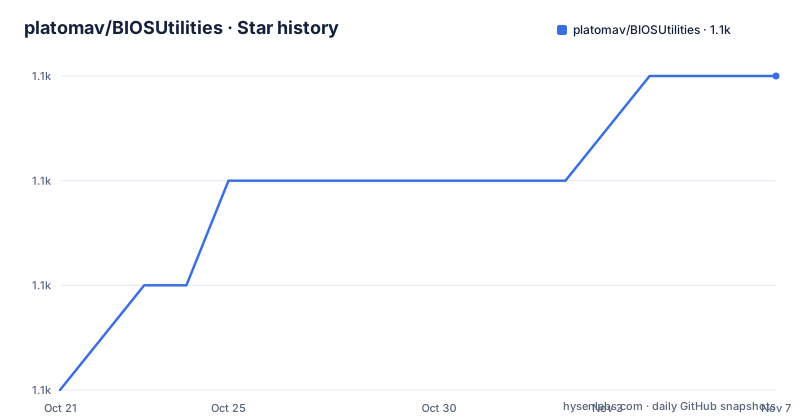
Star history
- platomav/BIOSUtilities1,101 ★ · +3
| Repository | 2026-10-21 | 2026-11-07 |
|---|---|---|
| platomav/BIOSUtilities | 1.1k | 1.1k |
3 Stars in the last 17 days, measured from the daily GitHub snapshot. Compare with other projects
Editorial analysis
Firmware images hide their contents in a dozen different containers
A BIOS or UEFI image is not a flat file. Vendors wrap their real payloads in their own container formats, sometimes several layers deep, and the compression and indexing scheme differs per vendor. A tool that understands one of them tells you nothing about the next. This collection exists to put a single front end in front of that variety.
The scope is broad. The project description calls it a collection of various BIOS/UEFI-related utilities which aid in research and/or modding purposes, and the packaging metadata lists the vendors and formats covered: ami, insyde, phoenix, award, apple, dell, fujitsu, panasonic, toshiba, dynabook, vaio, portwell, plus container types such as pfat, ucp, im4p, pbzx, efi, pfs, sfx, upc, iflash, ifdpacker, ifd and com. The topic classifiers include Topic :: Security, which tells you where the intended use sits: firmware analysis of hardware you own.
The intended users are firmware researchers, modders and anyone who has to answer a question about a specific machine, for example what is inside a capsule update or which BIOS Guard scripts a vendor shipped. The project is not a flashing tool and does not claim to be one.
One structural decision makes the collection usable at scale. Every utility is derived from a base BIOSUtility template, and all of them together form the biosutilities Python package. That shared base is what lets one command try every utility against a file, and it is also what makes the tools importable as a library.
The Main flow tries every utility against your file in turn
Two usage paths exist, and the documentation is clear that they are for different people. The Main flow is for end users: download or clone the repository, install the requirements, and drag and drop one or more files onto the main.py script. The Main script checks and parses each of the provided files against all utilities in succession, and the documentation calls it ideal for quick drag and drop operations.
The command line version of the same script takes paths and options:
usage: main.py [-h] [-e] [-o OUTPUT_DIR] [-u UTILITY] [paths ...]

positional arguments:
  paths

options:
  -h, --help                   show this help message and exit
  -e, --auto-exit              do not pause on exit
  -o, --output-dir OUTPUT_DIR  extraction directory
  -u, --utility UTILITY        utility class name
The -u option is the one that matters once you know what you are dealing with, because it restricts the run to a single utility class instead of trying all of them. Here is a run that names one utility explicitly:
python ./main.py "/path/to/input/file.bin" -e -o "/path/to/output/folder" -u AmiUcpExtractRun with no arguments and the script asks for the paths interactively, which is the mode a double-clicking user ends up in:
Enter input file or directory path: "C:\P5405CSA.303"

Enter output directory path: "C:\P5405CSA.303_output"
The output location defaults sensibly. If no output path is given, the utility uses the parent directory of the first input file, and falls back to the runtime execution directory if there is no parent to use.
The Package flow gives you a CLI and an importable class
The Package flow is for people who are comfortable with Python or who want to use the project programmatically. The documentation recommends installing the Python package from PyPI, and calls that the recommended way to call one or more utilities either via the CLI or programmatically through Python imports and utility arguments.
The install pulls in the optional dependencies as extras:
python -m pip install --upgrade biosutilities[pefile,lznt1]The two extras map to the Python packages the project depends on, pefile for working with Portable Executable files and dissect.util for the LZNT1 compression scheme, and both are pinned to exact versions in the packaging metadata.
Once installed, the package exposes a console entry point named biosutilities:
biosutilities --helpand a per-utility invocation in the same shape as the main script:
biosutilities "/path/to/input/file.bin" -o "/path/to/output/folder/" -u PhoenixTdkExtract -eThe library route is the most precise of the three, because you control the object and can ask it two separate questions. The AMI PFAF extractor is the documented example:
from biosutilities.ami_pfat_extract import AmiPfatExtract

ami_pfat_extractor = AmiPfatExtract(input_object='/path/to/input/file.bin', extract_path='/path/to/output/folder/')

is_supported = ami_pfat_extractor.check_format()
is_extracted = ami_pfat_extractor.parse_format()
The check_format and parse_format split is the design point worth noticing. It separates the question is this my format from the question extract it, so a caller can test a batch of images for a specific vendor container without writing anything to disk, and can report which images matched before deciding to extract.
The external binaries are the part that will cost you an afternoon
The Python side is the easy half. The utilities themselves call out to external executables that the project expects to find on your PATH, and the documentation names the ones you are likely to hit: 7-Zip, UEFIFind, UEFIExtract, TianoCompress and ToshibaComExtractor, with the Intel BIOS Guard Script Tool as an optional extra for decompiling BIOS Guard scripts.
On Linux the documentation gives a concrete way to place one of them on PATH:
sudo install "/path/to/downloaded/executable" /usr/local/binThere is a second option that avoids touching the system PATH at all. You can create a folder named external at the root of the biosutilities project, next to the common directory, and place all external dependencies there.
The platform differences are the sharp edge. Prebuilt binaries exist for Windows, but on Linux there is no pre-built comextract and it has to be compiled from source, and the same is true of TianoCompress on both Linux and macOS. On macOS the 7-Zip executable is named 7zz rather than 7z.exe. There is also a Windows-specific detail about the PATHEX system variable needing .PY appended so the BIOS Guard Script Tool can be found.
The Python packages themselves are simpler, with two options documented:
python -m pip install --upgrade -r requirements.txtor the explicit pinned form:
python -m pip install pefile==2023.2.7 dissect.util==3.20Supported Python versions are 3.10.x through 3.13.x, and the documentation warns Windows users away from the Microsoft Store version of Python in favour of the official installer.
What BIOSUtilities will not do for you
The limitation to be clear about is scope. These are extraction and parsing utilities. Nothing in the documentation describes writing a modified image back out, flashing, or producing a patched firmware file, and the project positions itself for research and modding analysis rather than for firmware modification workflows.
The second limitation is the dependency weight. A utility that shells out to TianoCompress, UEFIExtract, 7-Zip and the BIOS Guard Script Tool is only as usable as your ability to supply those binaries on the current platform. On Linux and macOS, where two of them have to be compiled from source, the first run of a given utility is a build task, not a one-liner.
The third limitation is output interpretation. The Main flow tries all utilities in succession, which is convenient when you do not know what you have, but a run that produces several directories tells you only that several containers were recognised. The value is in the extracted content, and reading a UEFI capsule still needs domain knowledge that no utility supplies.
The fourth is that the documentation covers Windows, Linux and macOS as supported, and the Windows install instructions are the most detailed, with explicit guidance about optional features, file association and the per-user Path variable. Teams working on a locked-down Linux build will find the macOS and Linux guidance shorter.
BIOSUtilities next to the individual UEFI tools
The direct alternative is the tool set this project already depends on. UEFITool, which provides UEFIFind and UEFIExtract, is a mature, well-known way to browse and extract UEFI firmware volumes, and 7-Zip is the generic archive tool that handles some of the simpler compressed payloads on its own.
The difference in approach is about coverage and interface rather than about capability. UEFITool is a purpose-built graphical and command line tool for UEFI firmware images specifically, and it is a single program with one model of the file format. BIOSUtilities is a Python library that spans many vendor container formats, including the AMI, Insyde, Phoenix and Award families that a UEFI volume parser does not necessarily understand, and it exposes each of them through a common base class so that the same check_format and parse_format calls work across formats.
That breadth comes with a cost. Each vendor format is a separate utility that has to be right about that vendor's layout, and the collection is much harder to read as a single artefact than one tool with one parser. If your work is entirely within UEFI volumes on one vendor's platform, UEFITool is the smaller and more direct choice. If you routinely hit a capsule that is a compressed AMI or Insyde container rather than a UEFI volume, the collection's coverage is the reason to use it.
The library route is the other genuine difference. A single extraction here is a call to check_format followed by parse_format, which means you can build a triage script that classifies a folder of firmware images by container type without writing any output.
Licence, packaging and the shape of maintenance
The packaging metadata declares the project as BSD-2-Clause-Patent and points the licence-files entry at the LICENSE file in the repository root, and the LICENSE file is the authoritative text rather than this summary. The BSD-2-Clause-Patent grant is permissive and carries an explicit patent termination clause, which matters for a tool whose purpose is analysing firmware. This is a description of the terms and not legal advice.
The project publishes to PyPI as biosutilities, with a console script and pinned optional extras, and it keeps its version in the package itself rather than in the packaging file, with the version attribute read dynamically. The requirement is Python 3.10 or newer, and the classifiers cover Windows, Linux and macOS.
There are no GitHub releases, so there is no tag to pin and no changelog on the releases page. The repository does contain a CHANGELOG file and a requirements-dev.txt, and the presence of .mypy.ini and .pylintrc suggests the code is type checked and linted, which is a reasonable expectation for a codebase where one template class is the basis of every utility.
The repository is not archived and the last push was on 2026-10-18, so work is landing on the default branch. For a tool that drives external binaries whose interfaces can shift, the practical upgrade habit is to check the CHANGELOG file before pulling, and to re-run one known image through the utilities after the update.
Editorial conclusion
Adopt BIOSUtilities if you need to read inside a vendor firmware image and do not want to reverse engineer each container format one at a time. Do not adopt it to flash, patch or write firmware, since the utilities extract and parse rather than modify, and do not adopt it on a machine where you cannot put external binaries on PATH, because TianoCompress, UEFIExtract and 7-Zip are required. First run the Main flow against one image you already understand and compare the output directory with what you expect to find inside, since the utilities process a file against every candidate in succession and the useful signal is in the extracted contents, not in the exit code.
Frequently asked questions
How do I install BIOSUtilities and its external dependencies?
Install the Python packages with python -m pip install --upgrade -r requirements.txt, then place the external executables such as 7-Zip, UEFIFind, UEFIExtract, TianoCompress and ToshibaComExtractor on your PATH, or drop them into an external folder at the root of the project. On Linux and macOS, comextract and TianoCompress have to be compiled from source.
What is the difference between the Main flow and the Package flow?
The Main flow is the main.py script, which tries every available utility against the files you give it and suits quick drag and drop use. The Package flow installs the biosutilities package from PyPI, which gives you a console command and importable classes for programmatic use.
Which Python versions does BIOSUtilities support?
The project requires a compatible Python version, described as 3.10.x through 3.13.x, and the packaging metadata sets requires-python to 3.10 or newer. The documentation advises Windows users to install Python from the official website rather than the Microsoft Store version.
Official sources
Add this badge to your README
If you maintain this project, the badge below links readers to this analysis and shows its maintenance status from the daily GitHub snapshot. Paste the markdown into your README; add ?metric=license or ?metric=stars to the image URL for a different field.

[](https://hysenlabs.com/projects/platomav-biosutilities)Star history chart for your README
[](https://hysenlabs.com/projects/platomav-biosutilities)Was this useful?