mac-ocr turns Apple's Vision framework into a pipe-friendly CLI
macOS CLI for OCR and searchable PDFs using Apple's Vision framework
At a glance
- What is it?
- A Swift command line tool that recognises text in images and PDFs and writes searchable PDFs, running entirely on the machine with nothing uploaded. It ships as a universal binary inside an npm package, streams pages as JSONL, and partitions large pages when the Vision framework misses small labels.
- Who is it for?
- mac-ocr is the right tool when you want OCR without a network round trip, and the streaming JSONL output plus the bundled agent skill are what make it useful inside an automated pipeline rather than only at a terminal. It suits you less if you are not on macOS, since the package declares Darwin only and there is no fallback path, or if you want structured extraction from older systems, since the structured document command needs macOS 26.
- Can I use it commercially?
- Yes. MIT is a permissive licence: you can use, modify and sell software built on it, as long as you keep its copyright and licence notices.
- Is it still maintained?
- Yes. The repository last received commits 29 days ago.
- What is it written in?
- Mainly Swift, according to GitHub's language statistics.
Answers come from the project's GitHub data, last synced on November 15, 2026, and from our analysis. They are not legal advice.
Star history
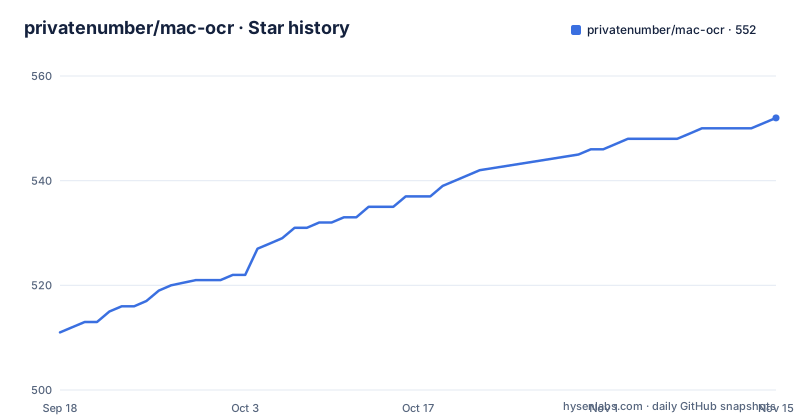
- privatenumber/mac-ocr552 ★ · +41
| Repository | 2026-09-18 | 2026-11-15 |
|---|---|---|
| privatenumber/mac-ocr | 511 | 552 |
41 Stars in the last 58 days, measured from the daily GitHub snapshot. Compare with other projects
Editorial analysis
A Swift binary published through npm, built for both architectures
Distribution is unusual enough to explain first. The tool is written in Swift and built against Apple's Vision framework, but what you install is an npm package shipping a prebuilt universal binary, so neither Xcode nor a Swift toolchain is needed to use it:
npm install -g mac-ocrA second route exists for trying it without installing anything, invoking the package directly on a file.
The runtime requirement is macOS 10.15 or newer, and the package restricts itself to Darwin, so there is no path on other systems rather than a degraded one.
The build script shows what goes into that binary. It compiles release builds for both arm64 and x86_64 in one pass, optimises for size rather than speed, links with dead code stripping, copies the result into the bin directory, and then strips symbols and debug information again before packaging. The result is one fat binary that runs natively on both Apple silicon and Intel.
Around the Swift code sits a small TypeScript side, with its own entry point, type checking and linting, a Node-based test path in addition to the Swift test suite, and packaging hooks that run on prepare and prepack. Versions are managed by semantic release rather than written into the manifest, which is why the published version field is a placeholder rather than a number.
OCR is the default verb and standard input is a real input
Recognition is not behind a subcommand. You point the tool at a file and get text back, which keeps the common case down to one noun and one verb with no ceremony:
mac-ocr receipt.jpg                 # text → stdout
mac-ocr page1.png page2.png         # multiple images
mac-ocr scan.pdf                    # multi-page PDF
cat screenshot.png | mac-ocr        # stdin
mac-ocr https://example.com/a.png   # URL (simple GET)
Four input routes are supported, and the stdin route is the one that matters for pipelines. Because a screenshot can be piped in, the tool composes with anything that produces image bytes, without needing a temporary file on disk.
URLs are fetched with a simple GET rather than a full browser fetch, so anything requiring a session, a script or a content negotiation will not work.
Output is plain text by default, streamed to stdout, which means the default mode pipes into anything: a grep, another model, a file. Structured output is opt-in rather than a separate command.
The design is consistently stdout-first. Nothing prints a banner, and diagnostics do not contaminate the text, so redirecting the result somewhere is always safe.
JSON and JSONL exist for machines reading the output
The distinction between plain text and structured output is drawn around what the caller needs, not around verbosity.
Plain text is enough when you want to read a document or search it. Structured output becomes necessary when you need bounding boxes, confidence values or page metadata, and those are exactly what the machine formats provide:
mac-ocr receipt.jpg --format json
mac-ocr document.pdf --format jsonl   # one JSON object per page, streamed
The line-delimited form is the important one for automation. Each page is emitted as its own JSON object and written as soon as that page is recognised, rather than accumulating an array and printing it at the end. On a long document that means the first page's text is available immediately, which is what lets a consumer start work before a hundred-page scan finishes.
Recognition quality is tunable from the same flag set. A fast mode trades accuracy for speed, language is a repeatable BCP-47 code so several can be given at once, and a confidence threshold drops weak observations. Custom vocabulary can be supplied inline or as a file of one word per line, which is the lever for names and jargon that a general model mangles, and language correction can be switched off when the source already has correct spelling and you would rather not have it silently altered.
A minimum text height fraction ignores anything smaller, which is a cheap way to drop speckle without dropping a line.
The structured document command refuses two flags on purpose
A separate document command uses the structured document recognizer introduced in macOS 26 and requires that version. Where plain recognition returns text, this returns a transcript plus paragraphs, tables, lists, line geometry and table-cell ranges.
The interesting part is what it declines to accept. The fast flag and the confidence flag are both deliberately unavailable on this command, and the reasoning given is specific rather than cautious.
The underlying recognizer has no fast and accurate switch, so the flag would be a lie. And filtering individual lines below a confidence threshold would leave the aggregate text and the structural containers disagreeing with each other, since a paragraph or a table row is assembled from the very lines you would have dropped. A confidence filter is only coherent when the output is a flat list of independent observations.
That is a good example of a tool declining to expose a flag that another command supports, and the reason is that the underlying API genuinely differs.
Language selection works here too, and the language identifier reported is whatever the local macOS runtime provides, which means the accepted values depend on what the machine has configured rather than on a hardcoded list in the tool.
Output templates collide with the zsh glob, so they need quotes
Writing results to disk takes a single output flag with three different meanings, chosen by what you pass it.
A path ending in a separator means a directory and produces one file per input. A literal path is used as given. A template with bracketed placeholders derives a name per input, which is what makes batch work convenient.
The gotcha is real and documented. Square brackets are a glob pattern in zsh, so an unquoted template is expanded by the shell before the tool ever sees it, usually to nothing at all. Templates must be quoted.
The extension you choose does not change the content: whatever you name the file, what lands inside is the plain recognised text. Naming it markdown is a way of making a downstream tool treat it as markdown, not a request to convert anything.
The pairing with normal shell tools is the point. A screenshot directory becomes searchable by writing text files next to the images and then grepping the directory, which is a workflow the tool enables rather than reimplements.
Searchable PDFs take the same flag with the same three meanings, plus a fourth option of a dash to write to standard output, which lets you pipe a generated PDF straight into another command.
Partitioned OCR exists because Vision misses small print on a whole page
The most interesting piece of engineering is a recognition strategy that most tools would not bother with.
The problem is that the Vision framework can miss small labels when it analyses an entire high-resolution page in one pass, even though the same text is perfectly legible when the image is cropped tighter. On a dense form, the total might be read correctly while a field label three millimetres tall is silently dropped.
The default strategy handles this in two stages. It runs full-page OCR first, then applies a partitioned pass, but only for pages that are both large and contain small or missing text. Partitioning splits a region along its longer axis and recurses until the text is large enough or the region falls below a calibrated size floor. So cheap pages stay cheap and only the pages that need it pay the cost.
There is a measured note from using it on a high-resolution five-page scan: the partitioned pass recovered small form labels that the full-page pass had missed, and the resulting PDF stayed around 7 MB.
The cost is time, and the reason is stated plainly: Vision processes the regions serially, so a large partitioned run takes longer.
You can opt out with the standard strategy, force partitioning for eligible pages, and the two interact with region-of-interest cropping. Auto mode skips partitioning entirely when a region is set, and forced partitioning cannot be combined with one.
Already-searchable pages are skipped unless you insist otherwise
When rewriting a PDF, the tool decides per page whether work is needed at all. In normal, non-merge mode, pages that already contain selectable text are left alone and only genuinely scanned pages are recognised. A PDF that needs no recognition passes through unchanged.
That default is the right one for the common case, because running OCR over a born-digital page usually makes it worse by baking a bad recognition layer on top of text that was already perfect. A flag forces every page to be processed regardless, for the case where the existing layer is wrong and you want it replaced.
Two further behaviours are worth knowing. Image inputs are sized from embedded resolution metadata when it is present, and fall back to 72 DPI when it is not usable, which is the resolution at which one pixel equals one point.
Merging takes multiple files or URLs into one output, and the page order is exactly the order of the arguments. Inputs are never sorted or reordered, so a shell glob expanded alphabetically gives you alphabetical pages rather than a sensible sequence.
Output handling is also constrained in a way that follows from that. Writing to a fixed path or to standard output only accepts a single input in non-merge mode; producing several per-input outputs requires either a directory or a template, since there would otherwise be nowhere to put them.
Progress reporting follows the same care about scripts. An interactive terminal gets a live counter showing pages processed against the total, while a piped or redirected run stays silent when it succeeds, so a successful run in a pipeline produces no noise.
Editorial conclusion
mac-ocr is the right tool when you want OCR without a network round trip, and the streaming JSONL output plus the bundled agent skill are what make it useful inside an automated pipeline rather than only at a terminal. It suits you less if you are not on macOS, since the package declares Darwin only and there is no fallback path, or if you want structured extraction from older systems, since the structured document command needs macOS 26. Before relying on small print inside scanned forms, leave the automatic strategy enabled, and remember that merging preserves your argument order rather than sorting, so a shuffled glob will produce a shuffled document.
Frequently asked questions
How can I extract text from an image on my Mac?
Point mac-ocr at the file and read stdout, no subcommand needed. It accepts a single image, several images, a multi-page PDF, piped standard input, or a URL fetched with a simple GET, and plain text is the default output.
Does Apple have built-in OCR?
macOS ships the Vision framework, and mac-ocr builds on it to recognise text entirely on your machine with nothing uploaded. The tool requires macOS 10.15 or newer and ships as a prebuilt universal binary, so no Swift toolchain is needed.
Why does mac-ocr stream one JSON object per page?
The line-delimited format is meant for machines. Each page is written as soon as it is recognised rather than collected into a single array, so a consumer can start work on a long document before the last page is processed.
Why does the mac-ocr document command not accept a fast flag or a confidence threshold?
The structured document recognizer has no fast and accurate switch, and filtering individual lines by confidence would leave the aggregate text and its structural containers inconsistent. The flags exist on plain recognition but not here.
What is partitioned OCR for in mac-ocr?
The Vision framework can miss small labels when it analyses a whole high-resolution page at once. The default strategy runs full-page recognition first, then splits and re-reads only large pages with small or missing text, recursing along the longer axis until the text is large enough.
Why do filename templates need quoting when using the output flag?
Square brackets are a glob pattern in zsh, so an unquoted template is expanded by the shell before the tool sees it. Templates must be quoted, and the output flag otherwise accepts a file, a directory, or a template.
Official sources
Add this badge to your README
If you maintain this project, the badge below links readers to this analysis and shows its maintenance status from the daily GitHub snapshot. Paste the markdown into your README; add ?metric=license or ?metric=stars to the image URL for a different field.

[](https://hysenlabs.com/projects/privatenumber-mac-ocr)Star history chart for your README
[](https://hysenlabs.com/projects/privatenumber-mac-ocr)Was this useful?